Soluții

How to check if your computer is using all CPU cores?

To determine if your computer is effectively utilizing all CPU cores, you can use several methods depending on your operating system:

Windows:

1> Task Manager:

  • Right-click on the taskbar and select “Task Manager” or press Ctrl * Shift * Esc
  • * Go to the “Performance” tab
  • * Under “CPU,” you should see a graph showing usage for each core. If all cores are active, you’ll see activity across multiple graphs (one per core)
  • 2> Resource Monitor:
  • * Open “Resource Monitor” by searching for it in the Start menu
  • * Navigate to the “CPU” tab
  • * Look at the “CPU Usage” section to see how much of each core is being utilized.
  • macOS:
  • 1> Activity Monitor:
  • * Open “Activity Monitor” (usually found in Applications > Utilities)
  • * Click on the “CPU” tab
  • * You’ll see a graph displaying CPU usage. Each core is represented separately. If all cores are in use, you’ll see activity across multiple cores.
  • Linux (using command-line tools):
  • 1> htop:
  • * Install htop if it’s not already installed (sudo apt install htop on Debian-based systems).
  • * Launch htop from the terminal.
  • * You’ll see a detailed view of CPU usage, including individual core usage.
  • 2> top:
  • * Run top in the terminal.
  • * Press 1 (the number one) to display individual CPU core usage.
  • Checking in all cases:
  • * Activity Indicators: Most monitoring tools will show real-time activity for each core. If you see spikes or sustained usage across multiple cores, it indicates that your system is utilizing all available CPU cores.
  • * CPU Load: A high overall CPU load (close to 100% across all cores) during intensive tasks like rendering, compiling, or running multiple applications simultaneously suggests that all cores are actively used.

By using these methods, you can effectively determine if your computer is utilizing all CPU cores and monitor how they are being utilized. This information is particularly useful for ensuring that your system is performing optimally under heavy computational loads.

[mai mult...]
How to add an Email Account to Microsoft Outlook?

Add an Email Account to Outlook (New Outlook)

  1. Select View settings from the View tab
  2. Select Email accounts under Accounts
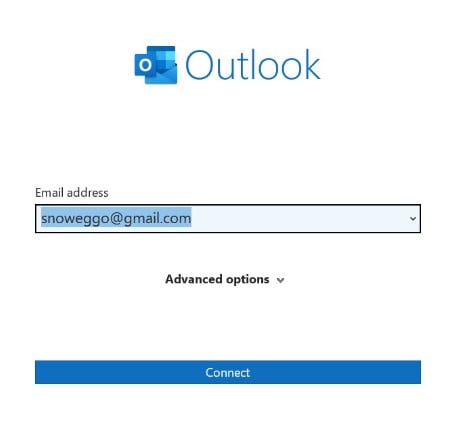
  3. Select Add Account and then type in your email address and click Connect.

Add an email account to outlook

4. If requested, enter your account password and click Done.

Add an Email Account to Classic Outlook

1. Go to File > Add Account

add an email account to classic outlook

2. Click Connect after entering your email address.

click connect after entering your email address

3. If asked, reenter your password and choose OK > Finish to access your Outlook email account.

Link Email Account in Windows

Microsoft enables you to link your iCloud, Google, Yahoo,Outlook, and Office 365 accounts in Windows.

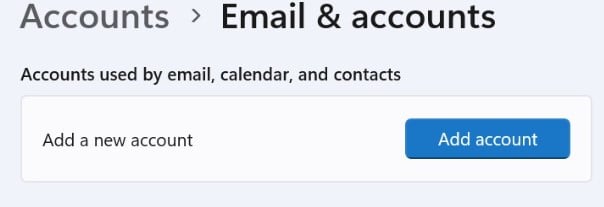
1. Navigate to Settings > Accounts > Email & accounts. Then, choose Add account.

link email account in windows

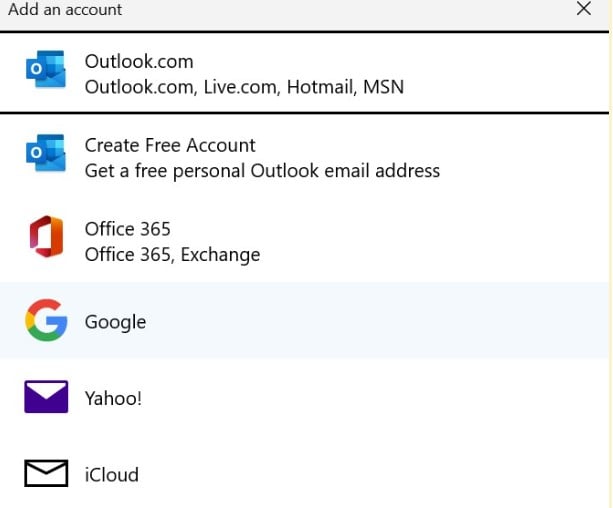
2. Microsoft enables you to connect your Office 365, Google, Yahoo, and iCloud accounts. Select the service you wish to add, then enter your username and password to sign into the account.

add an email account to your outlook

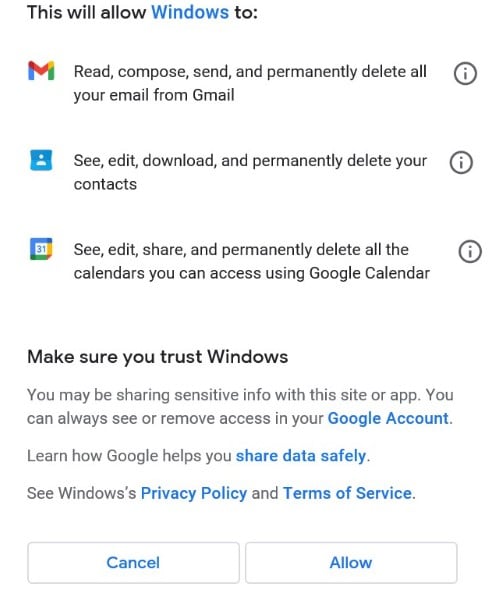
3. Windows will display the data that the Mail, Contacts, and Calendar Windows programs require access to. To allow the required permissions, click the Agree button.

add an email address to outlook

[mai mult...]

Create custom resolution in Nvidia

To create custom resolutions for your display

  1. From the NVIDIA Control Panel navigation tree pane, under Display, click Change resolution

  2. Click the image that represents the display you want to affect

  3. Click Customize, then from the Customize dialog box, click Create Custom Resolution

  4. (Quadro and NVS products only) In the Select displays section of the Create Custom Resolution dialog box, select any additional connected displays to which you want to apply the change

  5. Complete the information in the Custom Resolutions dialog box. For more information on custom resolutions, see Create Custom resolution dialog box

  6. Click Test, then if the test passes and you want to save the new mode, click Save.

Note: You can also create a custom resolution for your HDTV by using the Desktop Resize control.
[mai mult...]

How to add gifs on Discord

Discord taps into Google’s own GIF search engine, Tenor, to offer up an endless collection of GIFs. These can be easily accessed and shared to any text conversation or Channel.

1. Open up a Direct Message thread or Text Channel. You’ll find all your Direct Message threads on the left side of the app’s home screen. Text Channels are visible on the left sidebar within a Server, preceded by the “#” symbol.

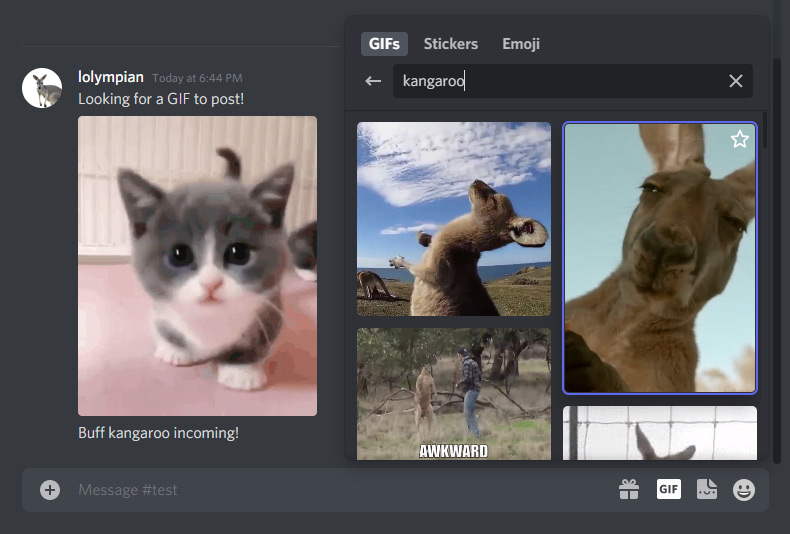
2. Click the GIF button in the message box at the bottom. In the Discord mobile (iOS, Android) app, you can tap the emoji icon and switch to the GIF tab.

Discord GIF picker

3. Select one of the many pre-made categories from the resulting pop-up or simply enter what you’re looking for into the built-in search bar.

4. Click on any of the listed GIFs to instantly share them to the thread. You can also click the star icon in the top-right corner to add individual GIFs to your Favorites, displayed at the top of the GIF box.

You could, of course, share GIFs from anywhere else on the web as well. If you ever feel the need to do so, simply right-click the image, copy the image address, paste it into the message box, and hit enter.

If you have GIFs downloaded to your computer, you can upload these to a thread by double-clicking the plus (+) button inside the message box or clicking the button once and selecting Upload a File.

You don’t have to make do with the GIFs baked into Discord. A custom GIF is likely to get more traction within conversations. Imagine sharing a looping clip of your very own gameplay, for example, or a screen recording guiding your friends through the solution to a problem they’re facing.

Now, there are more than a few ways you can record your screen and export the clip as a GIF. If you’re looking to go from recording to sharing in the fewest steps.

Here’s how to record your screen to a GIF with Jumpshare.

1. Download the Jumpshare desktop app, install it, and sign up for an account if you don’t already have one.

2. Launch Jumpshare and click the GIF button along the top of the interface or hit the Record GIF shortcut (Alt + Shift + 3 on Windows and Command + Shift + 8 on Mac by default) at any time with Jumpshare running in the background.

[mai mult...]