
Situatie
Solutie
Before I show you how to create column groups in Excel, let me explain the many benefits of using this method over hiding and unhiding columns.
First, when you hide columns in Excel (by right-clicking the relevant column or columns, and clicking “Hide”), it’s easy for you or others to forget that the spreadsheet contains hidden data. Although the column headings give you a subtle reminder that certain columns are hidden, this isn’t a reliable way to keep track of your spreadsheet’s layout, since it’s possible to remove column headings altogether from a spreadsheet.
Second, expanding and collapsing grouped columns is much quicker and more straightforward than hiding and unhiding columns using the right-click menu. So, not only does grouping columns help speed up your Excel workflow and improve your spreadsheet’s organization, but using this method also makes the spreadsheet more user-friendly if others have access to it.
A third bonus of grouping columns in Excel is that you can also create subgroups, which you can’t do when hiding columns. As a result, grouping columns adds flexibility to your spreadsheet, allowing you to show or hide different levels of data with a single click.
How to Group Columns in Excel
Grouping columns in Excel involves a straightforward process with only a few steps. In this example, you have monthly sales totals for ten shops, and a yearly total at the end.
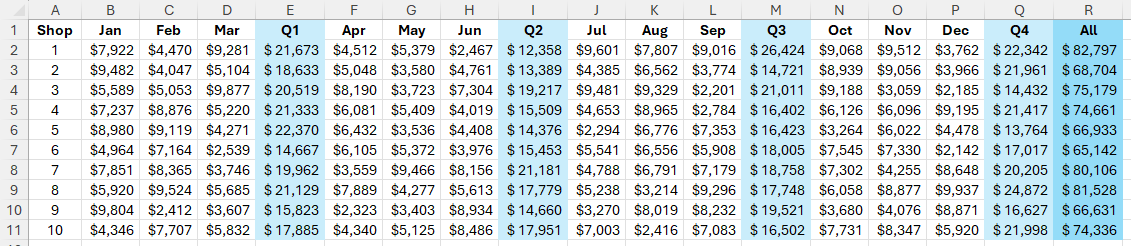
To analyze the yearly data and make the spreadsheet easier to read, your aim is to collapse columns B to Q, leaving just the shop number in column A and the yearly total in column R on display. To do this, select columns B to Q by clicking the column B heading and dragging the selection across to column Q.
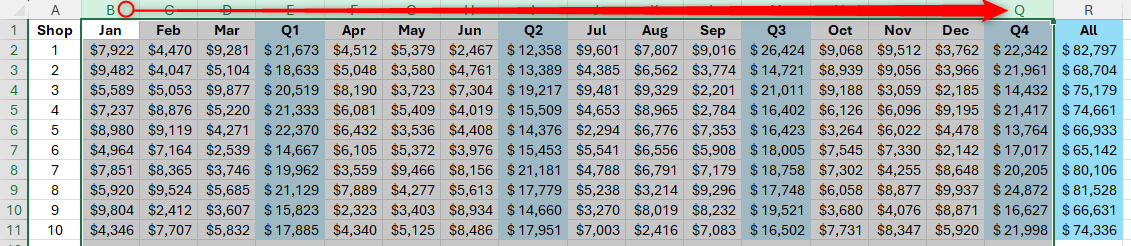
You can only group columns that are next to each other in Excel. You can’t group nonadjacent columns. Now, in the Data tab on the ribbon, select “Outline,” then click the top half of the “Group” button. If you’re working on a wider screen, the Group button will be clickable without you having to click “Outline” first.
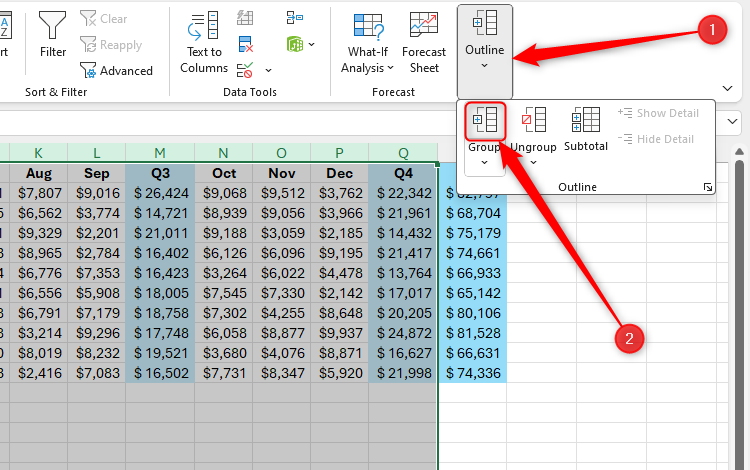
If you prefer using Excel keyboard shortcuts, after selecting the relevant columns, press Alt+Shift+Right Arrow. Notice that a line and a minus sign (-) appear above those columns to indicate that they’re grouped.
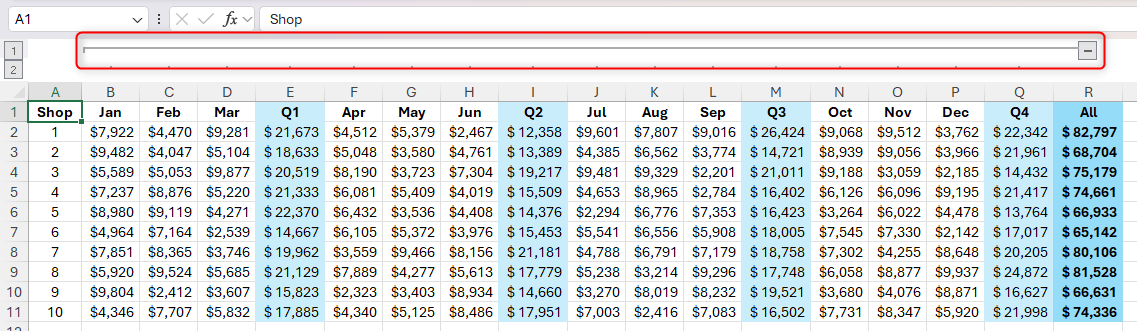
When you click the minus sign, those columns will be temporarily hidden, and the minus sign turns into a plus sign (+), which you can click to re-expand those columns.
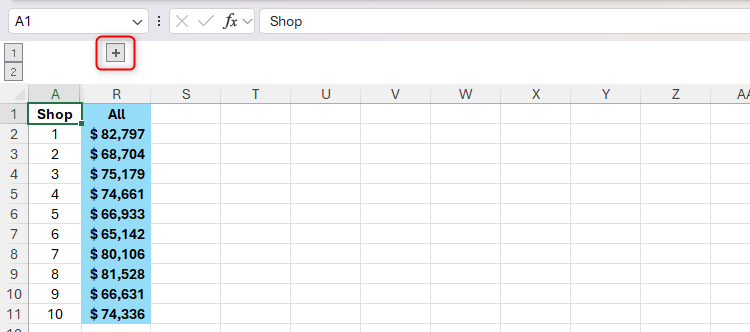
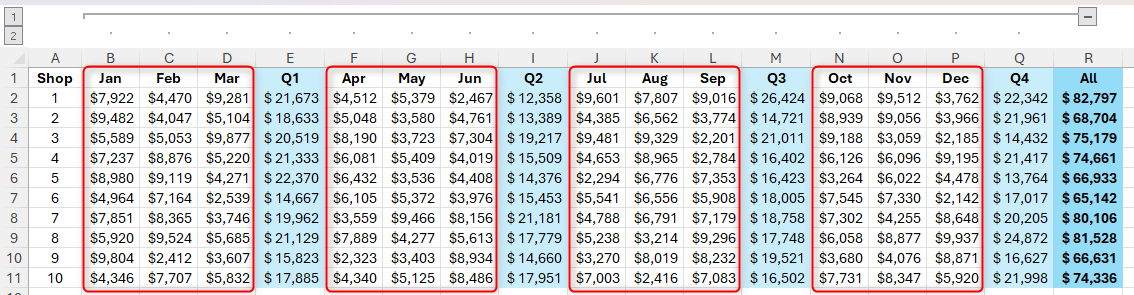
Now that you’ve created a group for the whole year, your next aim is to create subgroups for each quarter. The key to achieving this is to make sure each subgroup is separated by either a blank column or a total column. Indeed, if you try to create groups or subgroups directly next to each other, Excel will treat them as one continuous group.
In this example, the total columns E, I, M, and Q will act as the barrier between each subgroup, meaning we can create subgroups for columns B to D, F to H, J to L, and N to P.
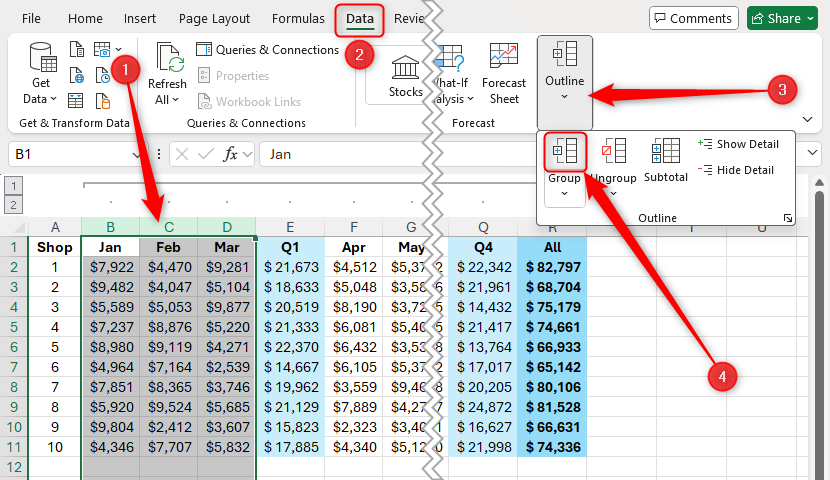
To create the first subgroup for Q1, select columns B to D, and click Outline > Group in the Data tab on the ribbon.
Now, Excel has added an extra grouping indicator line and minus symbol above this subgroup.
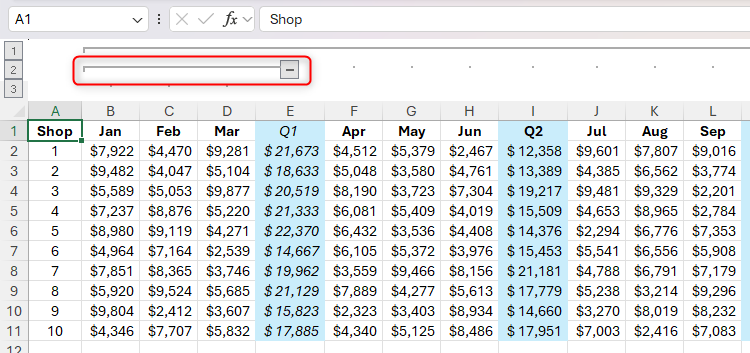
Repeat this process for the remaining quarters until all the subgroups have their own indicator line and minus sign.
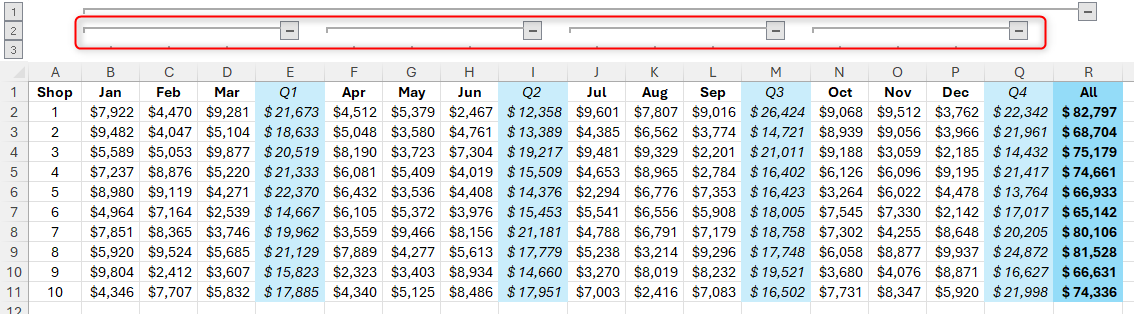
Click the four minus signs to collapse each quarterly subgroup, leaving just the total columns visible. Then, click the plus signs to expand them again.
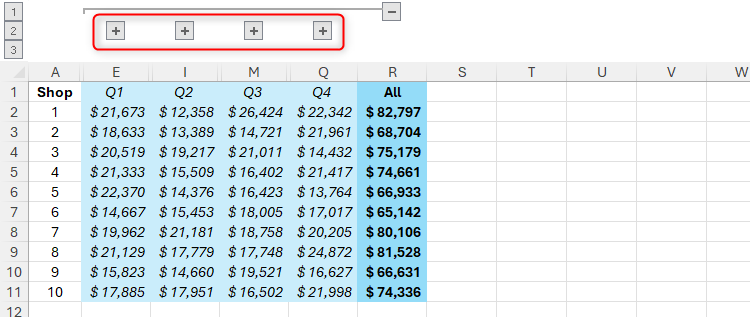
The numerical buttons to the left of the indicator lines represent the number of grouping levels you have applied to your data, and you can click these to quickly jump between different grouping views.
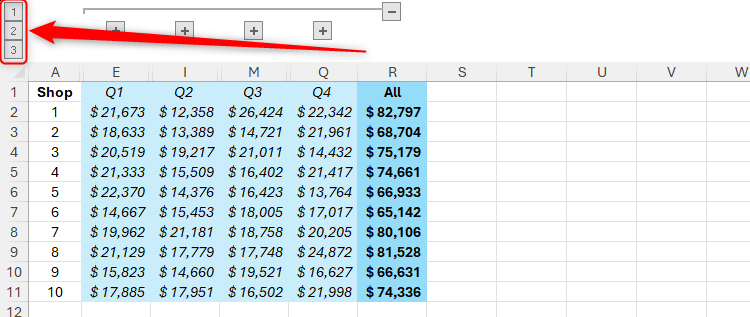
Clicking the highest level number reveals all the data that has been grouped, while clicking the lowest level number reduces the data to the most condensed group you have created.
In other words, when you click level number “3,” you’ll see the grand total (level 1), the quarterly totals (level 2), and all the data that contribute to these totals (level 3).
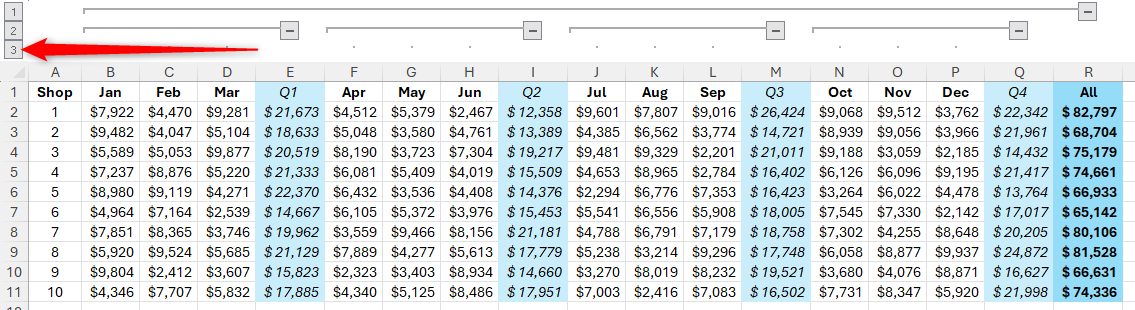
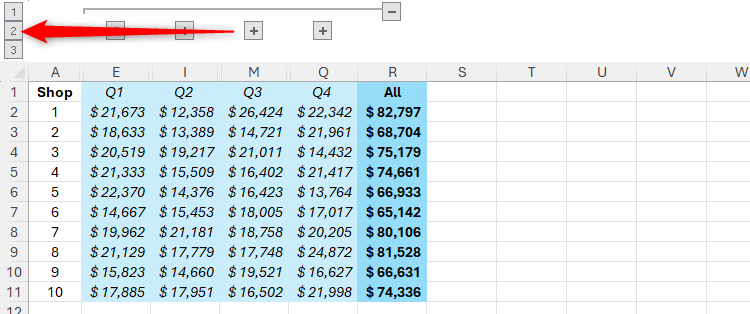
Click level number “2” to collapse all the subgroups together, leaving only the grand totals (level 1) and the quarterly totals (level 2) visible.
Finally, clicking level number “1” leaves just the grand totals visible.
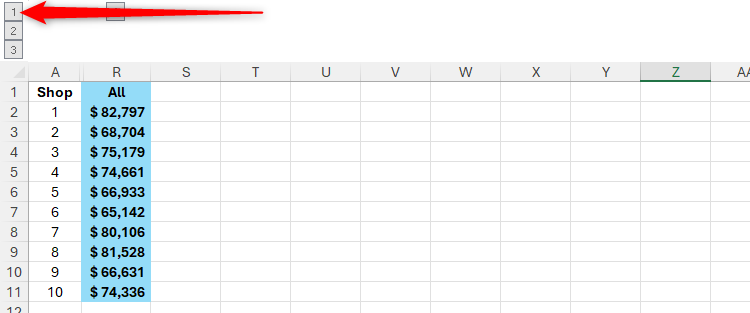
So, as well as clicking the plus and minus signs to expand and collapse individual groups, you can click the level numbers to expand and collapse all groups that fall within each level at the same time.
How to Ungroup Columns in Excel
To return your columns to their original states, or to leave certain data visible when you collapse other groups, you can use Excel’s Ungroup button.
First, select the grouped columns you want to ungroup (at any level). Then, click “Ungroup” in the Outline drop-down menu of the Data tab on the ribbon.
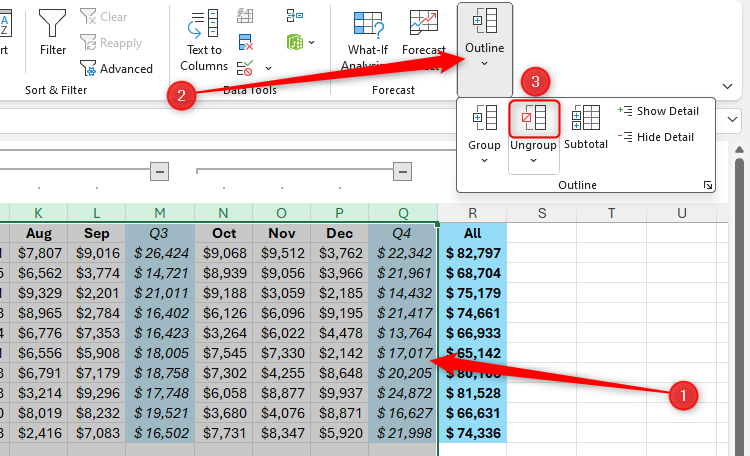
In the screenshot below, I’ve ungrouped the data for Q4, as these figures show the most recent statistics in the spreadsheet. As a result, even though collapsing the grouping to level 2 hides the data for the first three quarters, the figures for Q4 remain visible.
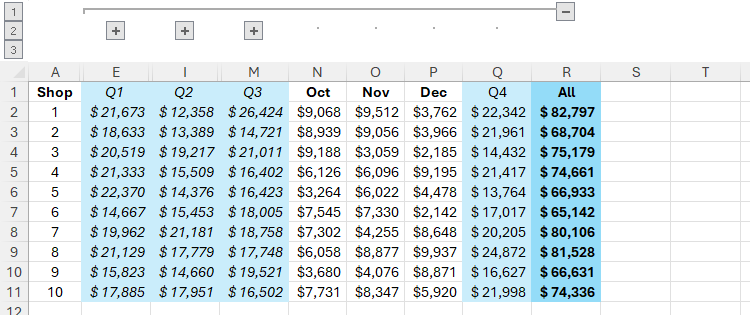
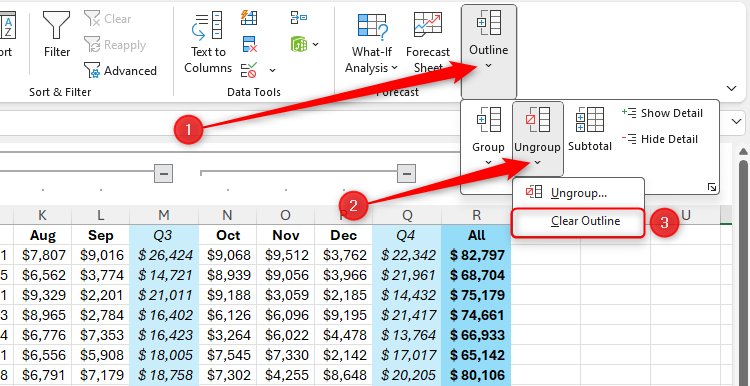
To remove all column (and row) groupings in your spreadsheet, in the Data tab, click Outline > Ungroup > Clear Outline.
Leave A Comment?