
Situatie
Solutie
Installing software on Windows the traditional way is a hassle. You have to browse the web and hunt down installer packages, download them, and then manually run through a setup wizard to install them on your machine. It’s a needlessly convoluted process. Plus, you might end up installing an infected .exe or .msi package or other software might get installed alongside your target app (remember those browser toolbars everybody had back in the day?) Uninstalling or upgrading apps takes just as much work.
Linux handles software installation and updates so much better. On Linux, you just have to punch in a command and sit back while the operating system installs and authenticates the software for you. It’s fully automated and when the command stops running, your software is ready for use. The tools that allow you to install and update software in this manner are called package managers.
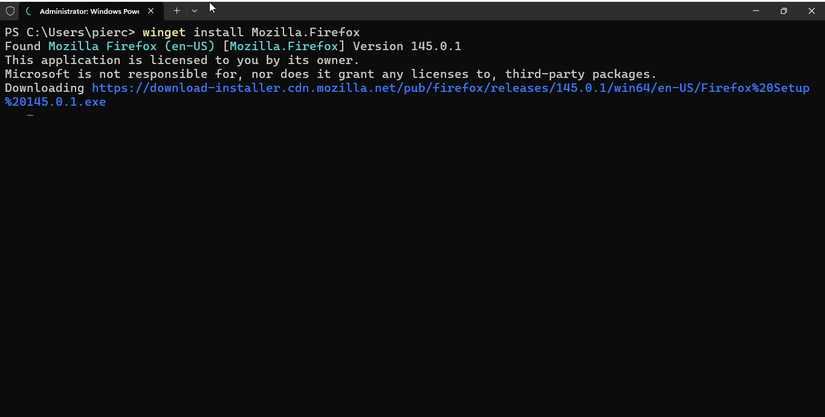
Microsoft recently took a page out of this playbook and introduced its own command-line package manager. It’s called ‘winget.’ Using winget, you can install, uninstall, and update apps with a single command. Instead of going online, downloading the Firefox installer and running it manually, I can just paste this command into the terminal, hit Enter, and watch Windows automatically download and install Firefox for me.
winget install Mozilla Firefox
Removing software is just as easy.
winget uninstall Mozilla Firefox
To update, simply run:
winget upgrade Mozilla Firefox
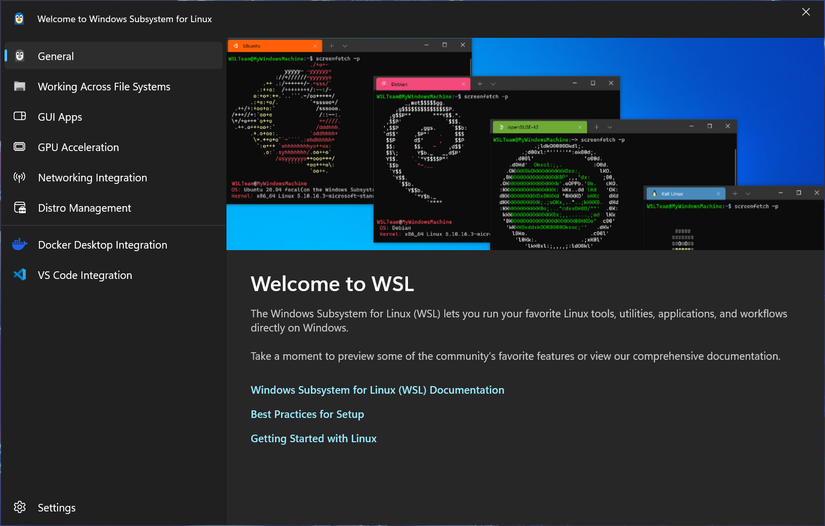
In modern versions of Windows, you don’t need to spin up virtual machines just to install and run Linux software. The Windows Subsystem for Linux, or WSL, allows you to run Linux boxes in the Windows Terminal. You can choose from a number of Linux distributions and run them inside the Windows Terminal with near-native performance. It even supports GUI apps now, so you can seamlessly install and run any Linux app within a Windows environment. It’s so much faster and easier than running entire virtual machines inside Windows.
Command palette
I’m a huge fan of keyboard shortcuts and the Terminal app on Windows has excellent keyboard support. You can drive it entirely with a keyboard thanks to the command palette. You can press Ctrl+Shift+P or click the menu button next to the tab icon to pull up the command palette. It’ll show a long list of actions you can quickly perform just by selecting a command palette item. You can type to search through the commands.
Terminal commands that replace web apps
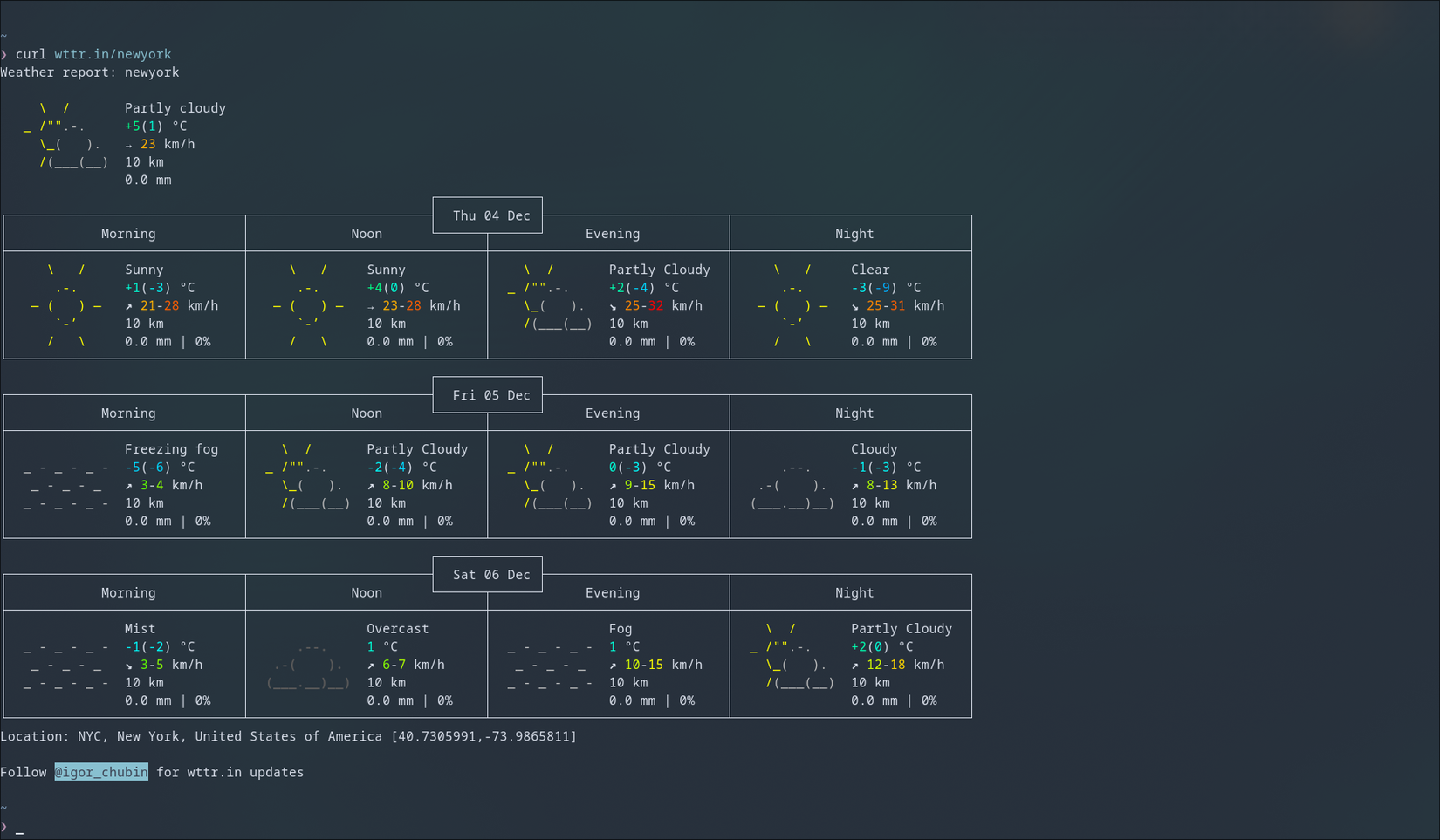
Ever since I started relying on terminal commands instead of websites for simple things like checking the weather, creating secure passwords, converting files, etc., I find myself using the Windows Terminal often. For example, checking the weather is as simple as running this command.
curl wttr.in
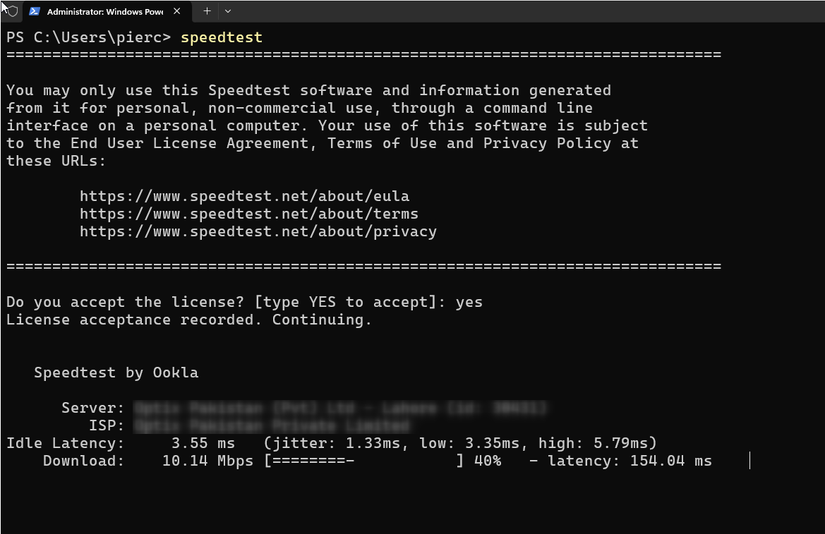
I can run an internet speed test in the terminal faster than I can in the browser. With the Speedtest-cli installed, I just enter this command, and it prints my internet speed almost instantly.
speedtest
Faster file copying and moving
When you’re moving a few small files around, you might not realize it, but File Explorer really struggles with big files and folders. It’s doubly true when you’re moving those files between drives. If you’ve ever tried moving a folder with a thousand items, you have no doubt experienced this. I recently found out that the Terminal is perfect for this job. The ‘mv’ command, which moves files between directories, is supposedly twice as fast as File Explorer, especially when a huge number of files is involved.
Leave A Comment?