Instalare AdGuard Home DNS Proxy in Proxmox

AdGuard Home DNS Proxy este un server DNS local care funcționează ca un intermediar între dispozitivele tale și serverele DNS upstream (cum ar fi Cloudflare, Google DNS, etc.).

Ce face DNS Proxy-ul:

Funcția principală:

  • Primește cererile DNS de la dispozitivele din rețeaua ta
  • Le redirecționează către serverele DNS upstream configurate
  • Returnează răspunsurile înapoi către dispozitive

Avantajele folosirii unui DNS Proxy local:

Filtrare și securitate:

  • Blochează reclame, trackere și domenii malware
  • Aplică liste de filtrare personalizate
  • Protecție împotriva phishing-ului

Control și monitorizare:

  • Vezi toate cererile DNS din rețea
  • Statistici detaliate despre traficul DNS
  • Posibilitatea de a permite/bloca domenii specifice

Performance:

  • Cache DNS local (răspunsuri mai rapide pentru domenii accesate frecvent)
  • Reduce latența comparativ cu serverele DNS remote
  • Load balancing între multiple servere upstream

Configurare flexibilă:

  • Poți folosi DNS-over-HTTPS, DNS-over-TLS pentru securitate
  • Setări diferite pentru dispozitive diferite
  • Reguli personalizate de rewrite DNS

În esență, AdGuard Home DNS Proxy transformă rețeaua ta într-un mediu mai sigur și mai rapid prin filtrarea traficului DNS direct la nivelul rețelei, înainte ca cererile să ajungă la serverele DNS publice.

Acum ca stim ce este si cum ne-ar imbunatati securitatea retelei de acasa sa trecem la implementare.

Voi aborda cea mai simpla metoda, printr-un helper script care practic face totul de unul singur. Tot ce ramane de facut e configurarea de dupa.

Vei avea nevoie: de un hipervizor tip 1 online (proxmox, vmware esxi etc.) care sa fie online 24/7. Un mini-PC SH de cateva sute de lei ar trebui sa tina acest LXC (container) fara probleme. Pe langa asta, poti adauga mai multe servicii lightweight sa iti extinzi laboratorul.

Cerinte hardware:

  • 512 MB RAM sunt mai mult decat suficient pentru reteaua ta de acasa.
  • 1 CPU-core.
  • 2 GB Storage.

Link-ul oficial GitHub de unde vom copia script-ul: https://community-scripts.github.io/ProxmoxVE/scripts?id=adguard

Nu rulati script-uri de pe surse neconfirmate si fara un research in prealabil!

Vom lua ca exemplu un nod Proxmox, Debian (setup-ul meu actual). Script-ul din link-ul de mai sus este strict pentru Proxmox Virtual Environment, dar daca folositi altceva sunt alternative de script-uri (Windows, Vmware etc.):

  1. Logati-va prin SSH pe nodul pe care vreti sa instalati/gazduiti containerul AdGuard.
  2. Ca o buna practica rulati comanda:

    sudo apt update && sudo apt upgrade -y 

  3. Rulati script-ul de pe GitHub:

    bash -c “$(curl -fsSL https://raw.githubusercontent.com/community-scripts/ProxmoxVE/main/ct/adguard.sh)”

  4. Locatia config-ului (in caz de vreti sa configurati din CLI si nu din dashboard-ul AdGuard):                                         /opt/AdGuardHome/AdGuardHome.yaml
  5. Acest script iti efectiv iti va instala automat containerul, cu configuratia basic.
  6. Dupa ce a terminat, ai 2 optiuni: Default settings, configurarea initiala este automatizata; Advanced Settings (pe care o recomand) unde ai posibilitatea de a-i pune IP-ul fix pe care il doresti, numele si alte configuratii de inceput.
  7. La final vei primi un link care va arata asa: http://YOUR-IP:3000.
  8. In browser-ul tau te vei conecta pe acel link si de acolo poti incepe sa configurezi blocklist-urile, Upstream DNS Servers (recomand cloudflare si Google cu DNSSEC activat pentru rapiditate si securitate).
  9. Ca totul sa functioneze va trebui sa te conectezi pe routerul tau si sa ii schimb serverele de DNS. Primary server va fi IP-ul setat de tine pentru containerul AdGuard, secondary server 1.1.1.1 (Cloudflare)/8.8.8.8 (Google) – in caz de se intampla ceva cu nodul/containerul tau sa ai in continuare acces la internet.
  10. Pentru configurarea initiala (DNS Settings), recomand fie sa urmaresti un tutorial step by step, fie sa iei fiecare sectiune in parte si sa o cauti pe internet ca sa configurezi dupa preferintele si nevoile tale si sa intelegi principiile din spate.

Dupa ce ai configurat totul ar trebui sa incep sa vezi in Dashboard query-ul DNS generate in reteaua ta.

La sectiunea “Filters” vei avea by default lista AdGuard care blocheaza reclamele, analizele de date Google/Netflix s.a.m.d. Recomand sa o lasi bifata. Pe langa acea lista poti adauga tu ceea ce vrei sa blochezi in reteaua ta la “Custom filtering rules”.

[mai mult...]

How to create a free and secure Cloudflare DDNS on Linux

DDNS is a service that automatically updates your DNS records whenever your public IP address changes. It ensures that your chosen domain name always points to your current public IP address, even if it’s dynamic.

You need it if you want to acces your home LAN from outside, most ISPs provide you with a dynamic IP (and IP that changes periodically). That means that everytime your home’s IP it’s changed, you need to find your new IP, manually change every DNS entry. You can get a permanent static IP from your provider, but that comes with an extra-cost.
We don’t want that.
Cloudflare provide us with their awesome free plan.
All we need is a domain, they don’t accept some very specific “free” TLDs that are historically associated with high abuse rates (e.g., .tk, .ml, .ga, .cf, .gq). A bought domain could be a few dollars a year, way less expensive that a static IP and more useful (DDNS is just one of the free benefits provided by Cloudflare).

1. Generate token in My profile → API Tokens → Create Token with Zone.DNS permission for selected DNS zone.*

Note that it is not possible to select only one subdomain and token will have permission to change all DNS entries.

2. Use the following script to update DNS entry automatically on your server and save it as /usr/local/bin/ddns:

#!/bin/bash

# Check for current external IP
IP=`dig +short txt ch whoami.cloudflare @1.0.0.1| tr -d '"'`

# Set Cloudflare API
URL="https://api.cloudflare.com/client/v4/zones/DNS_ZONE_ID/dns_records/DNS_ENTRY_ID"
TOKEN="YOUR_TOKEN_HERE"
NAME="DNS_ENTRY_NAME"

# Connect to Cloudflare
cf() {
curl -X ${1} "${URL}" \
     -H "Content-Type: application/json" \
     -H "Authorization: Bearer ${TOKEN}" \
      ${2} ${3}
}

# Get current DNS data
RESULT=$(cf GET)
IP_CF=$(jq -r '.result.content' <<< ${RESULT})

# Compare IPs
if [ "$IP" = "$IP_CF" ]; then
    echo "No change."
else
    RESULT=$(cf PUT --data "{\"type\":\"A\",\"name\":\"${NAME}\",\"content\":\"${IP}\"}")
    echo "DNS updated."
fi

3. Add script to crontab, so it will be executed every minute:

# crontab -e
* * * * * /usr/local/bin/ddns > /dev/null 2>&1
[mai mult...]

How to create a Proxmox cluster

Once you have all the nodes ready, access them in a web browser, and log in to the Proxmox VE web GUI. I connected to my first Proxmox server (pmox-host1). Click the Datacenter option at the top, choose Cluster, and then click the Create Cluster button.

Create Cluster option in Proxmox VE web interface

Give a unique name to your Proxmox cluster, and select a link for the cluster network. I will keep the default link (0) selected. It is a good idea to choose a network link that isn’t used for other high-traffic needs, such as network storage.

Create a cluster in Proxmox VE

You can click the Add button to add a failover link if multiple network links are available on your node. Click the Create button, and you will see a task viewer window showing the status of cluster creation.

Viewing cluster creation progress in Proxmox VE

Your Proxmox cluster has now been created.

Add nodes to the cluster

When adding nodes to your Proxmox cluster, make sure no VM or container is running on the node. When you add a node to the cluster, it will inherit the cluster configuration, which will overwrite all current local configurations. If you have an important VM or container running, you can create a backup, remove it, and import it later after joining the cluster.

To join a node to the cluster, you need to copy some information from the first node where you created the cluster. To do that, navigate to Datacenter > Cluster and then click the Join Information button, as shown in the screenshot.

Viewing the join information for a cluster in Proxmox VE

Click the Copy Information button to copy the cluster join information to your clipboard.

Copying the join information for a cluster in Proxmox VE

Now, connect the other Proxmox node that you want to join to the cluster. Navigate to Datacenter > Cluster, and click the Join Cluster button, as shown below:

Join Cluster option in Proxmox VE

In the Information box, paste the join information, type the root password of the first node, and click the Join button.

Add a node to the Proxmox cluster

The second node will now be added to the Proxmox cluster. As soon as the node is added to the cluster, the server certificate is changed, so you need to reload the page and log in again to the Proxmox VE web interface. The screenshot below shows that our proxmox-lab cluster now has two nodes: pmox-host1 and pmox-host2.

Viewing the cluster information in Proxmox VE

The information about cluster nodes is listed under the Cluster option. In addition, any shared storage that is attached to the first node is automatically attached to the new node.

Once you have a Proxmox cluster up and running, you can start migrating your VMs or containers when needed, as shown in the screenshot below:

Performing live VM migration in a Proxmox cluster

The migration is pretty fast, particularly when you’re using shared storage (e.g., NAS or Ceph), so your VM will experience little to no downtime at all. The cool feature you get with a Proxmox cluster is that you can still migrate your VM (or container), even if you’re using local storage. Of course, it takes longer to migrate, but it works.

Problem with a 2-node cluster

It is entirely possible to set up a Proxmox cluster with just two nodes, as we did above. However, as mentioned earlier, the Proxmox cluster depends on quorum votes. For a quorum to exist in a cluster, the majority of nodes need to be online. With just two nodes in a cluster, both get an equal number of votes, so when either node goes down, the quorum will be lost, and the Proxmox cluster switches to read-only mode. As a result, the cluster will stop functioning as expected. This makes server maintenance hard in a two-node cluster setup.

To deal with such a situation, there are two options:

  1. Manually set the expected votes to 1 by running the pvecm expected 1 command. This command changes the expected votes temporarily, which revert after restart. But it will help maintain the quorum so that your Proxmox cluster can continue to work with just a single node while you perform maintenance on the other node.
  2. Alternatively, you could set up a corosync-qdevice in Raspberry Pi or Docker and use it as a tiebreaker for quorum votes when one of two Proxmox nodes is down. The purpose of qdevice is to vote for the active node to maintain a quorum when there are just two nodes (or an even number) in the Proxmox cluster. The use of qdevice is not recommended when there are an odd number of nodes, as it could hurt cluster stability.

Considering the above situation, it is clear that it is a good idea to have at least three nodes in a Proxmox cluster, particularly in a production environment. Furthermore, you will be able to use the additional features, such as high availability, when there are three or more nodes in the cluster.

[mai mult...]

Creating a cloudflare tunnel (for safely accessing your SOHO from outside your LAN)

This is useful if you want to access your internal network applications from outside by creating a secure tunnel linked to your domain

1. Create a tunnel

  • Log in to Zero Trust ↗ and go to Networks > Tunnels
  • Select Create a tunnel
  • Choose Cloudflared for the connector type and select Next
  • Enter a name for your tunnel. We suggest choosing a name that reflects the type of resources you want to connect through this tunnel (for example, enterprise-VPC-01)
  • Select Save tunnel
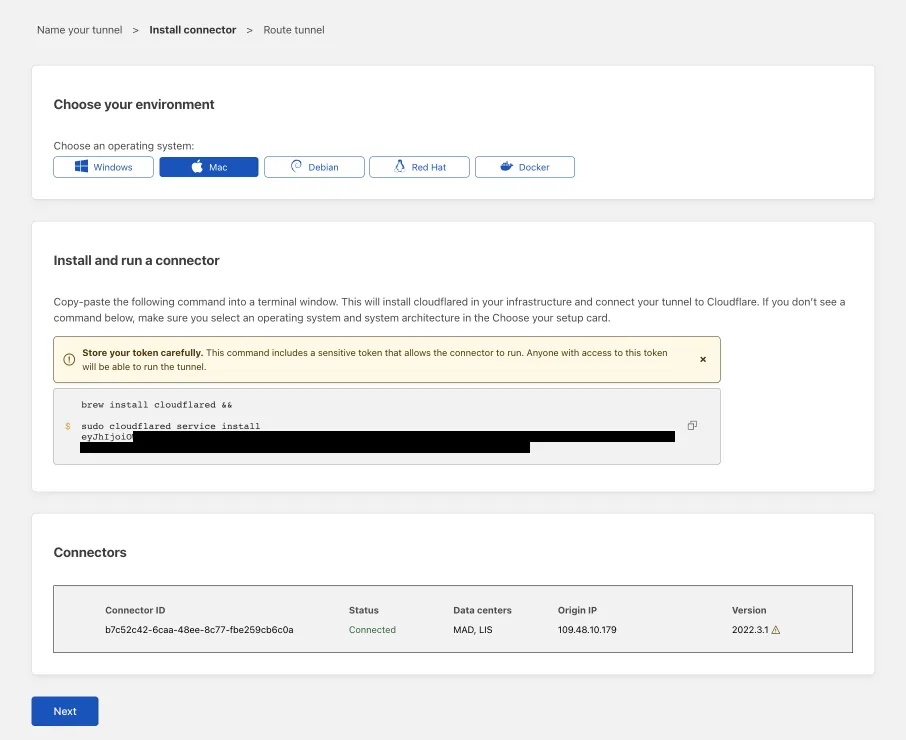
  • Next, you will need to install cloudflared and run it. To do so, check that the environment under Choose an environment reflects the operating system on your machine, then copy the command in the box below and paste it into a terminal window. Run the command.
  • Once the command has finished running, your connector will appear in Zero Trust.Connector appearing in the UI after cloudflared has run
  1. Select Next.

The next steps depend on whether you want to connect an application or connect a network.

2a. Connect an application

Before you connect an application through your tunnel, you must:

Follow these steps to connect an application through your tunnel. If you are looking to connect a network, skip to the Connect a network section.

  1. In the Public Hostnames tab, select Add a public hostname.
  2. Enter a subdomain and select a Domain from the dropdown menu. Specify any subdomain or path information.
  3. Specify a service, for example https://localhost:8000
  4. Under Additional application settings, specify any parameters you would like to add to your tunnel configuration
  5. Select Save hostname.

The application is now publicly available on the Internet. To allow or block specific users, create an Access application.

2b. Connect a network

Follow these steps to connect a private network through your tunnel.

  1. In the Private Networks tab, add an IP or CIDR
  2. Select Save tunnel.

To configure Zero Trust policies and connect as a user, refer to Connect private networks.

3. View your tunnel

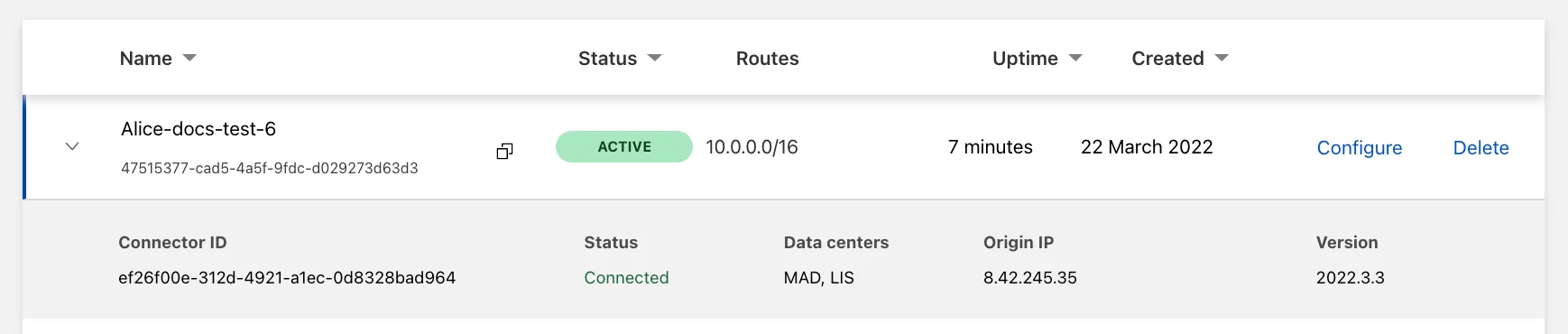
After saving the tunnel, you will be redirected to the Tunnels page. Look for your new tunnel to be listed along with its active connector.

Tunnel appearing in the Tunnels table

[mai mult...]

Creating a ZFS pool in Proxmox-VE

We can use ZFS as a local or external storage option for the VMs and containers with Proxmox VE. In order to do so, we must run the following steps:

Steps to add ZFS storage to Proxmox

1. Set Proxmox VE on the servers we intend to use for managing VMs and containers.

2. Create a ZFS pool on the disks we need to assign to VMs and containers using local storage on the VE server. Make that the pool is already established and reachable from the Proxmox VE host if we install external ZFS storage from a different server.

3. Proxmox VE employs LVM as its storage backend by default. In order to use ZFS as a storage option, enable ZFS on the Proxmox VE host. It includes installing the ZFS package and turning on the ZFS service.

4. With ZFS enabled, a ZFS dataset will be created and used by VE as a pool. Typically, this dataset is connected to a particular ZFS pool path.

5. We’ll add this dataset as storage using the VE web interface (GUI). Choose “ZFS” as the storage type by going to “Datacenter” >> “Storage” >> “Add”. After that, give the pertinent information, such as the dataset path and storage choices.

6. In order to give VE the access rights necessary to read and write data to the storage, we need to modify the permissions of the ZFS dataset.

7. After installing the ZFS storage, it’s crucial to make that Proxmox VE can access and use the ZFS dataset as needed.

8. Finally, create Virtual Machines and Containers that Use ZFS Storage. Now that the ZFS storage has been configured, we may produce virtual machines and containerized software that utilizes the ZFS storage. We can pick the ZFS storage pool we previously installed while creating a virtual machine (VM) or container by selecting the storage location option.

[mai mult...]

How to scan for open ports (security reasons) on Windows 11

Step 1: Open CMD or Command Prompt

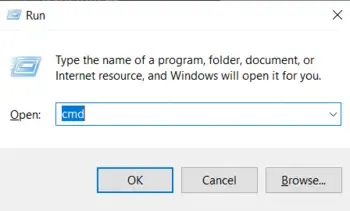
  • Press Win + R from your keyboard > Type cmd > Click on the Enter button
cmd_1
Open CMD

Step 2: Implement the “netstat” Command

An effective tool for keeping an eye on open ports within the system and configured network connections is the netstat command to simplify. It offers comprehensive details on all open connections and system servers, such as the protocol in use, and local and international addresses to control or verify all the connection’s status.

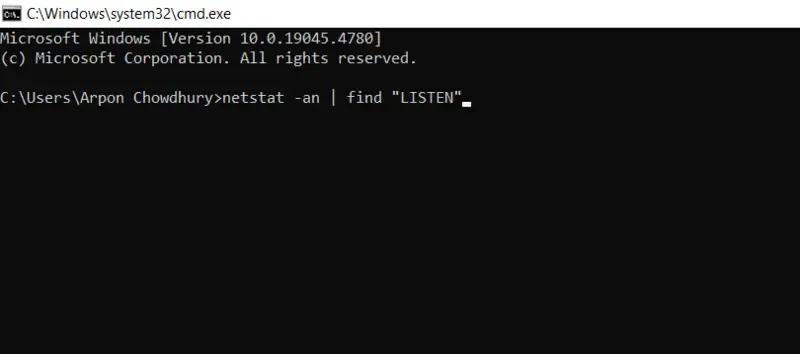
  • Type the below command in the cmd to check the open port functions > Press Enter
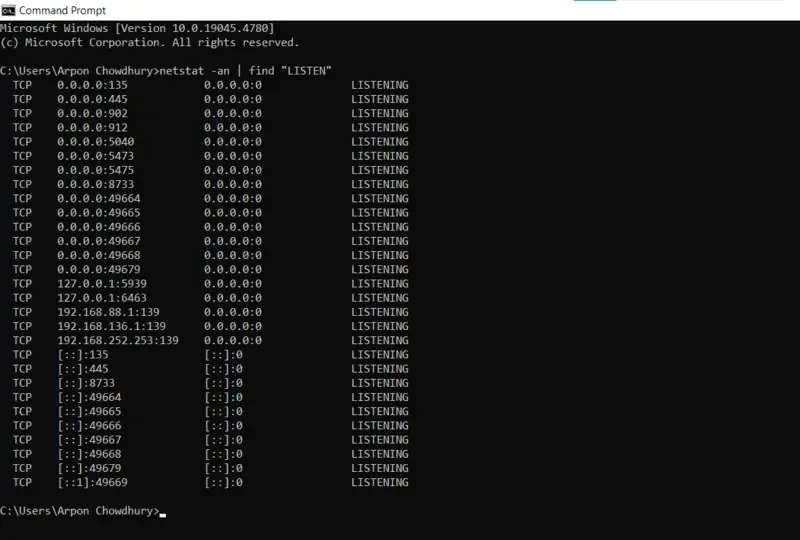
netstat -an | find "LISTEN"
cmd_2
netstat
  • See the output below
TCP    0.0.0.0:135        0.0.0.0:0        LISTENING
TCP    0.0.0.0:445       0.0.0.0:0        LISTENING
TCP    0.0.0.0:902       0.0.0.0:0        LISTENING
cmd_3
netstat list

In this case, 0.0.0.0 designates that all pre-processed network interfaces are listening on the port, which is open for the internal system server. The port number is the number that comes after the colon of the system commands (e.g., 135, 445, 3389).

Step 3: Observe the functional Process using the Port

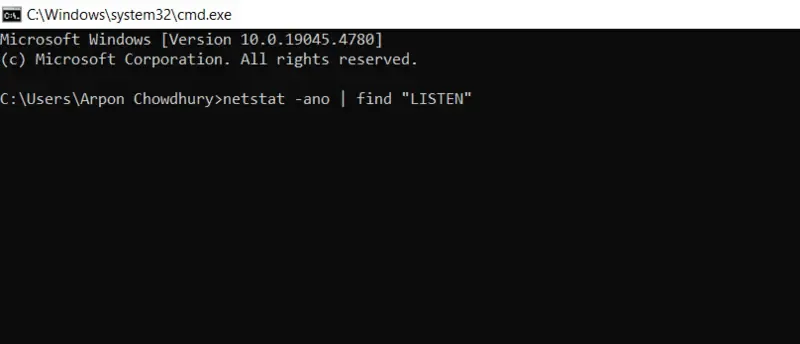
  • Write the following command to identify which application or process is using a specific port within the system.
netstat -ano | find "LISTEN"
cmd_4
LISTEN

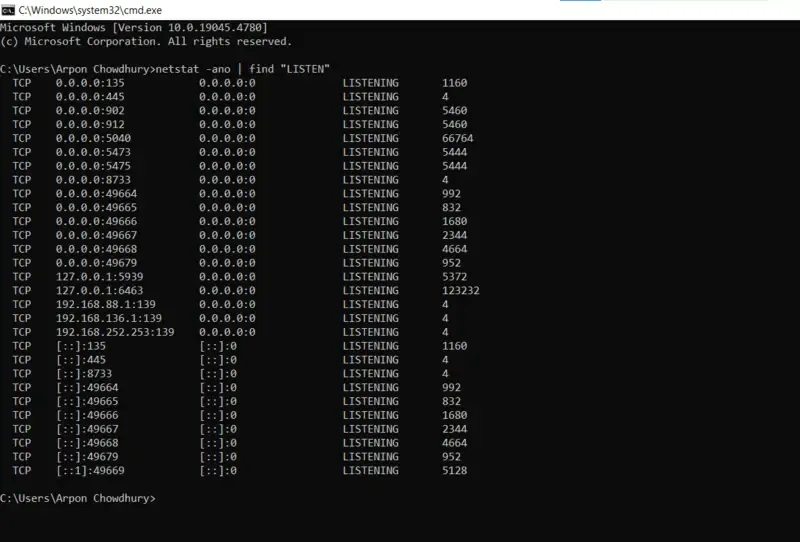
An extra -o flag is included with this command while processed, which shows the Process ID (PID) connected to each port manually.

  • See the output within a PID column
TCP    0.0.0.0:135        0.0.0.0:0        LISTENING      1160
TCP    0.0.0.0:445       0.0.0.0:0        LISTENING      4
  • Search and Open Task Manager > Go to Details option > See the PID column
cmd_5
LISTEN LIst

Step 4: Check Specific Port in cmd

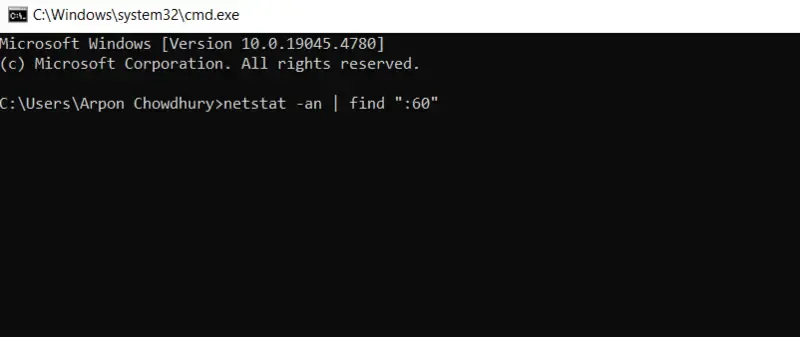
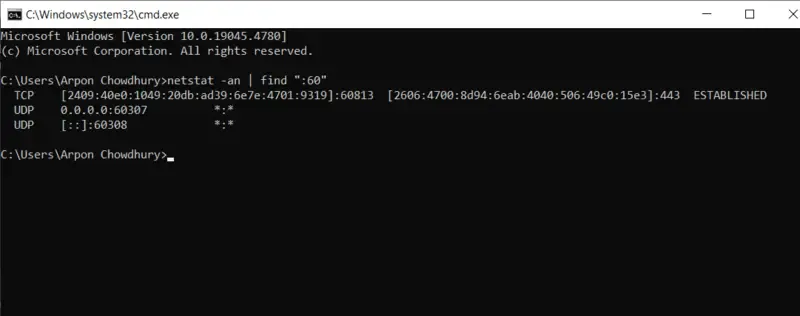
  • You can change the implemented command to focus on a particular port if you want to see if it’s open or not within the system configuration. For instance, use this to see if port 60 is open to identify the process:
netstat -an | find ":60"
  • See the final entry below –
cmd_6
find entry
TCP    0.0.0.0:40         0.0.0.0:0        LISTENING
cmd_7
find ports
[mai mult...]

How to make your own loopback adapter for testing your switch ports

First things first you’ll need to gather the following equipment:

  • A small length of ethernet cable. Less than one foot is preferred.
  • One RJ45 connector. We recommend using one with load bars. These load bars will make the terminating process extremely easy.
  • A crimp tool, a stripping tool, and a pair of precision cutters.
  • A switch for testing.

Step one: Strip the cable

To build this loopback adapter we’re going to need to use the conductors that are inside ethernet cabling. Accessing the conductors is a simple process. Simply strip away part of the jacket. This can be an inch or two at the end of the cable or right in the middle. Once the incision is made pull away the jacket and then pull out all the conductors.

You’ll be left with 4 pairs of wires. These are the conductors that make up all patch cables. Set aside three of the pairs. Keep one pair ready for termination. We’ll be using the white & orange pair.

Step Two: Line up the conductors

A standard ethernet connection uses 4 pins to complete the connection. Pins 1 & 2 are used for sending while pins 3 & 6 are used for receiving. To set up this loopback adapter we’ll have to connect pins 1 & 3 and then 2 & 6. Trim the wires down to around 6 inches. Untwist both ends of the pairs a little bit to allow the wires to be lined up. Set the first white conductor and the first orange conductor next to each other. Then add the second white conductor next. Lastly comes the second orange conductor. You’ll have to leave enough space between this conductor and the second white conductor.

Step Three: Termination time

Now it’s time to insert these conductors into the load bar and terminate the connector. Keeping the wires lined up, slowly insert them into the load bar. Making sure the wires stay in the correct order may be slightly difficult. Once they are in the correct position push the load bar down onto the wires as far as it can go. Trim any excess wire. Insert the load bar into the connector. Use your crimp tool to crimp the RJ45 connector.

Step Four: Testing

Let’s test this thing out. Grab your switch and plug in your new loopback adapter into one of the ports. The connectivity light on the corresponding port should light up indicating a proper connection. If it does not light up check your pinout and make sure the wires are in the correct position.

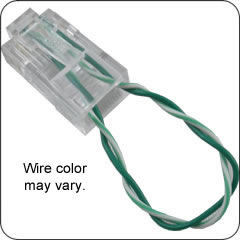
It should look like this after you did every steps presented above:

Building your own loopback adapters can end up being more expensive than just buying one outright if you don’t have the equipment on hand already.

[mai mult...]

How to create a VM (Virtual Machine) in VMWare Workstation

A virtual machine (VM) is a technology that allows you to run many operating systems simultaneously on a single piece of hardware. VMs will enable you to create a virtual environment on your computer. This environment allows you to install new software and programs without affecting the existing system.

Virtual machine software creates virtual platforms—a combination of hardware and software resources. It enables the user to run multiple operating systems on the same physical machine by partitioning the computer memory into multiple segments. This allows each virtual platform to operate independently and helps meet various application requirements.

A virtual machine does require hardware to run. However, it’s not additional hardware per se. Instead, it allocates resources from your existing hardware. For instance, the virtual machine will use part of your computer’s hard drive as storage and dedicate a portion of its RAM.

Follow the below steps to create a virtual machine using VMware Workstation:
  1. Launch VMware Workstation.
  2. Click New Virtual Machine.
  3. Select the type of virtual machine you want to create and click Next:
    • Custom: This gives you an option to create a virtual machine and choose its hardware compatibility. You can choose from Workstation 16.x, Workstation 15.x, Workstation 14.x .
    • Typical: This creates a virtual machine which has the same hardware version as the version of Workstation you are using. If you are using Workstation 16.x, it creates a virtual machine with hardware version 16. If you are using Workstation 15.x a virtual machine with hardware version 15 is created.
  4. Click Next.
  5. Select your guest operating system (OS), then click Next. You can install the OS using:
    • An installer disc (CD/DVD)
    • An installer disc image file (ISO)
  6. Click Next
  7. Enter your Product Key
  8. Create a user name and password
  9. Click Next
  10. Enter a virtual machine name and specify a location for virtual machine files to be saved, click Next
  11. Establish the virtual machine’s disk size, select whether to store the virtual disk as a single file or split the virtual disk into 2GB files, click Next.
  12. Verify the other configuration settings for your virtual machine:
    • Memory – change the amount of memory allocated to the virtual machine
    • Processors – change the number of processors, number of cores per processor, and the virtualization engine
    • CD / DVD – with advanced settings where you can choose between SCSI, IDE
    • Network adapter – configure it to bridge, NAT, or Host-only mode, or customize where you can choose between 0 to 9 adapters
    • USB Controller
    • Sound card
    • Display – enable 3D graphics.
  13. Click Finish
  14. When the virtual machine is powered on, the VMware Tools installation starts. You are prompted to restart your virtual machine once the Tools installation completes.
[mai mult...]

How to create a Multiboot USB

A multi -boot USB flash unit is a versatile tool that allows you to boot multiple ISO files from a device. It can store multiple operating systems, diagnostic tools and public service programs in one place, making it incredibly useful for IT professionals and technology enthusiasts. This configuration simplifies the management and repair of different systems, allowing quick access to various tools without the need for separate units. With a multi -boot USB flash unit, you can easily alternate between operating systems, perform diagnostics and access recovery tools, providing a convenient and efficient way to keep your systems running smoothly.

ISO files, also known as ISO images, are files that contain all the installation files needed for a specific program. These files are essentially digital copies of installation CDs or DVDs. Large software, such as Windows or Linux, are available as ISO files and are crucial to creating a multi-fold USB Flash unit. When using ISO files, you can install or repair operating systems without physical discs. This is especially useful in situations where you need to access multiple operating or utility systems quickly and efficiently. The ability to store and use multiple ISO files on a single USB unit enhances its flexibility and preparation in problem solving and system management.

How to create a USB or Flash MultiBoot unit

The first consideration and the most important factor is the storage capacity of your USB flash unit. Make sure your Flash unit has enough space to accommodate all ISO files you want to load. Usually, a USB unit with at least 8 GB of storage is recommended, although larger units (16 GB or more) offer more flexibility to include multiple operational systems and tools. In addition, opting for a high quality USB unit with good reading/recording speeds will increase performance and reliability. Secondly, to prepare your USB flash unit for use, you will need to form it.

Formatting cleans all existing data in the unit and defines it as bootable. Be sure to back up important or sentimental files before formatting, as this process will erase everything in the unit. Choose the appropriate file system format (eg FAT32 or NTFS) based on the software you plan to use and ISO file size.

How to create and use a Multi-Boot USB Flash Drive

A multi-boot USB flash drive is an incredibly useful tool for managing and repairing different systems. It allows you to load and boot multiple ISO files from a single device, making it easier to handle various tasks like installing operating systems, running diagnostics, and accessing recovery tools. Here’s how you can create a multi-boot USB flash drive using different tools from the most popular options:

YUMI (Your Universal Multiboot Installer) is a free tool that simplifies the creation of bootable USB drives. It is primarily designed for Linux distributions but can also be used for other programs.

  1. Download YUMI
    Start by downloading the YUMI application from its official website. The installation process is straightforward.
  2. Insert the USB Drive and Launch YUMI
    Connect the USB drive you plan to use. Open YUMI to start the process.
  3. Select Your Flash Drive
    In YUMI, under Step 1, choose your USB drive from the dropdown menu to specify where the bootable files will be installed.
  4. Choose the ISO File
    Under Step 2, select the ISO file you want to add to your flash drive. Click ‘Browse,’ locate the ISO file, and click ‘Open.’
  5. Create the Bootable USB
    Review your selections and click ‘Create’ to initiate the process. YUMI will format the USB drive and copy the necessary files.
  6. Add More ISO Files
    After the initial creation, you can add more ISO files if needed. Click ‘Yes’ and repeat the process for additional files.

Using SARDU

SARDU (Shardana Antivirus Rescue Disk Utility) supports both Linux and Windows environments for creating multiboot USB drives and DVDs. Note that the Linux version of SARDU does not support Windows ISOs.

  1. Download SARDU
    Obtain SARDU from its official site and install it. Navigate to your downloads folder to find and start the program.
  2. Agree to the License Agreement
    Accept the license agreement to proceed with the setup.
  3. Register and Choose ISO Sources
    Register for a SARDU account if necessary. Decide whether to use ISO files from the SARDU database or upload your own.
  4. Select ISO Files
    Tick the boxes for the ISO files you wish to load onto your USB drive, including operating systems and other tools.
  5. Prepare the USB Drive
    Insert your USB stick into your computer. Choose your USB drive from the drop-down menu at the top right, then click the large USB icon to start creating the bootable drive.

Using WinSetupFromUSB

WinSetupFromUSB is a versatile tool that supports creating a multiboot USB drive compatible with various operating systems.

  1. Download and Install the Program
    Download WinSetupFromUSB from its official website and install it on your computer.
  2. Insert Your USB Drive
    Plug your USB drive into your computer. It should be automatically detected by the program.
  3. Select ISO Files
    Choose the ISO files you want to add to your USB drive. You can select multiple files based on your USB drive’s capacity.
  4. Create the Multiboot USB
    After selecting the ISO files, click ‘Go.’ WinSetupFromUSB will format the USB drive and copy the files to create a multiboot setup.

To boot your system using the multiboot USB flash drive, follow these steps:

Choose the Operating System or Tool
Once the USB drive loads, you’ll see a menu of available ISO files. Select the operating system or tool you want to use and proceed with booting.

Insert the USB Drive
Connect your multi-boot USB flash drive to a USB port on your computer before powering it on.

Access the Boot Menu
When your computer starts, immediately access the boot menu. This is usually done by pressing a key such as F12, F2, ESC, or DEL, depending on your computer’s manufacturer.

Select the USB Drive
From the boot menu, choose your USB drive as the boot device and initiate the boot process.

[mai mult...]

Cum configurezi HP Color LaserJet M283fdw in retea, prin cablu

Initializare imprimanta:

  1. Trebuie sa conectezi un cablu de alimentare la o priza functional, apoi ai nevoie de un cablu de date cu acces la internet.
  2. Acum va trebui sa pui cateva foi si sa apesi pe butonul de Power On/Off
  3. Dupa initializare, vei selecta limba si locatia
  4. La final, la “Default Settings” vei selecta “Self Managed“, dupa care “Yes“.
  5. Verifici ca ai curent si link pe portul ethernet din spatele imprimantei, respectiv switch/router.

Instalare drivere/software HP:

1.Intri pe oricare motor de cautare folosesti si scrii “HP M283fdw drivers”

2. Sunt doua modalitati: fie instalezi doar pachetul de drivere (“HP Color LaserJet Pro MFP M283cdw/M283fdw Printer Full Software Solution”, fie instalezi software-ul HP (“HP Easy Start Printer Setup Software (Internet connection required for driver installation)“). Recomand software-ul, e mult mai simplu si mai rapid (indiferent daca prin retea/Wi-Fi/USB).

3. Rulezi cu drepturi de Administrator fie software-ul, fie pachetul de drivere selectat.

Configurare imprimanta pentru retea (cablu/Wifi):

  1. Acum va trebui sa ii dai un IP static, Subnet Mask si un Default Gateway
  2. Intri in meniul touchscreen al imprimantei, te duci jos la “Network Setup” > “IPv4 config method”
  3. Selectezi “Manual” si acum trebuie sa ii dai un IP (verifici mai intai ca este liber pentru a nu face conflict cu un alt IP folosit de alt device), Subnet Mask si Default Gateway (IP-ul privat al router-ului/switch-ului cu care iesi la internet).
  4. Acum ca ai toate acestea configurate corect, poti adauga imprimanta foarte usor prin IP-ul privat pe care l-ai pus la pasul urmatorul din “Printers & scanners“.

Configurare Scan-to-Email:

  1. Poti configura functii precum “Scan-to-Email” din interfata web a imprimantei
  2. Intri in orice browser si in bara de search pur si simplu scrii IP-ul privat pe care l-ai pus imprimantei (de ex: 192.168.1.100) si vei fi redirectionat catre interfata web.
  3. In meniul de sus vei selecta “Scan“:

4. Din meniul din stanga selectezi “Scan-to-Email setup” > “Outgoing E-mail Profiles“.

5. Selectezi “New” si acum esti in pagina de configurare.

[mai mult...]