Social

How to Turn Off Siri Reading Texts From Your Apple Watch

What to Know

Announce Messages on iPhone or Apple Watch will allow Siri to read your incoming text messages aloud to you. The Announce Messages feature only works when you’re wearing compatible headphones and when your device is locked. To turn off Announce Messages permanently, go to Settings > Control Center and tap the – (Minus) next to Announce Messages with Siri.

[mai mult...]
Cele mai cumpărate gadgeturi și accesorii pentru munca de acasă

În anul 2020 cat si in 2021 cu toții am petrecut mai mult timp acasă, iar în toată această perioadă prioritățile și activitățile ni s-au schimbat aproape în totalitate. Munca s-a desfășurat mai mult la biroul de acasă, iar activitățile extra locuință nu s-au mai desfășurat cu aceeași ușurință. Și pentru că am petrecut timp mai mult în confortul locuinței, mulți dintre noi am investiti și în gadgeturi și accesorii pentru a ne ușura traiul.

[mai mult...]

How to Hide or Remove New Downloads Flyout Menu in Microsoft Edge

How to Hide or Remove New Downloads Flyout Menu in Microsoft Edge

We told you earlier that the new versions of Microsoft Edge web browser come with a new redesigned Download Manager which shows all downloads in form of a flyout menu or popup in Edge toolbar. When you start downloading a file in Microsoft Edge, a new Downloads button appears in Edge toolbar which opens a flyout menu showing download status and file information.

Following screenshot shows new Downloads toolbar button and flyout menu in Microsoft Edge:

There are some people who like the new Download Manager functionality but they don’t like the new flyout menu which automatically appears as soon as they start downloading any file. Many people find the new flyout menu annoying and they want to permanently disable it.

Fortunately, it’s possible to keep the new Download Manager feature and disable the flyout menu in Edge toolbar. I have received many emails from readers who want to get rid of the new Downloads flyout menu but don’t want to restore classic download panel in Edge.

Following steps will help you in disabling or hiding new Downloads flyout menu in Microsoft Edge toolbar:

1. Open Microsoft Edge browser and click on the 3-dots menu button present at the right-side of the toolbar. Now select Settings option from the main menu.

Alternatively, you can press ALT+F keys together to show Edge Menu and then press S key to open Settings page. You can also directly open Edge Settings page using edge://settings/ URL in address bar.

2. Now click on Downloads tab in left sidebar.

PS: You can skip 1 and 2 steps and directly open Downloads tab in Edge Settings page by clicking on 3-dots menu present in Downloads flyout menu and selecting Downloads settings option.

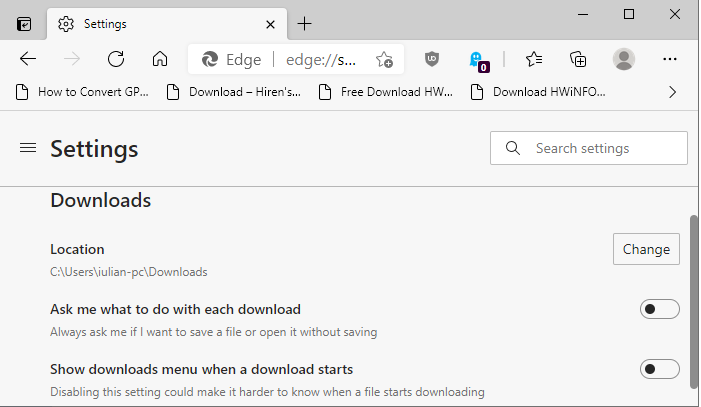
3. In right-side pane, you’ll see Show downloads menu when a download starts option.

The option is enabled by default which means Edge will always show new flyout menu in toolbar whenever you download a file. To disable new flyout menu, turn off the option i.e. set the option to OFF.

[mai mult...]

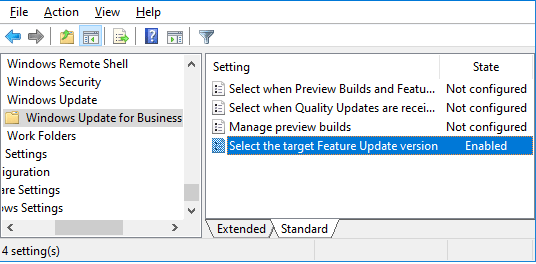
How to Reset or Remove All Active Group Policies Applied in Windows?

How to Reset or Remove All Active Group Policies Applied in Windows?

Actually many people apply group policies in Windows to enable/disable features and functionality. In future, they might want to remove those policies but resetting those policies will require lots of time as the user will need to find all active policies using Group Policy Editor and then reset them to “Not Configured” one by one. It’ll waste lots of time.

When a group policy is applied in Windows 10, users also get “Some settings are managed by your organization” warning message or banner showing at the top of pages in Settings app.

If you reset or remove all applied group policies using this tutorial, it’ll also help you in getting rid of that message.

Let’s start the tutorial.

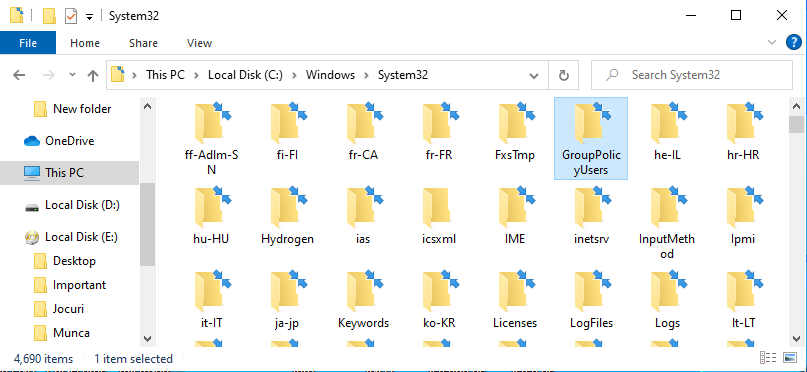
When you apply group policies using Group Policy Editor (gpedit.msc), all policies are stored in following folders:

  • C:\Windows\System32\GroupPolicy
  • C:\Windows\System32\GroupPolicyUsers

If you try to open these folders, you’ll get following files and folders:

  • Machine
  • User
  • gpt.ini
  • comment.cmtx
  • Registry.pol

To reset or remove all applied group policies, you just need to delete these 2 folders: GroupPolicy and GroupPolicyUsers.

PS: In some computers, you’ll get only GroupPolicy folder. That’s completely ok. If only one folder exists, then you need to delete only one folder.

1. To delete the folders, open This PC (or My Computer, File Explorer) and go to C:\Windows\System32 folder.

Now look for GroupPolicy and GroupPolicyUsers folders present under System32 folder.

Once you find the folders, select them and press Delete key. Windows will ask for confirmation, click on Yes and Continue buttons.

That’s it. After deleting folders, you’ll need to forcefully apply group policy changes to Windows.

2. Open Command Prompt as Administrator.

Now run following command:

gpupdate /force

It’ll take a few seconds in processing and you’ll get “Computer Policy / User Policy update has completed successfully” message. That’s it. You have successfully removed all currently active group policies in your Windows device. You can also restart your computer system if required.

Now if you try to open Group Policy Editor (gpedit.msc), you’ll find that all group policies are set to Not Configured which means all applied policies have been removed successfully.

[mai mult...]