

Social
Fix Xbox One S errors E101 and E102
Usually, these errors occur upon startup or during OS updates. Basically, these two error messages indicate there is an issue with your Xbox One S system update process. To fix the E101 and E102 errors, you need to update your console offline.
[mai mult...]How To Fix Samsung TV Network Error Code 012
[mai mult...]Cum să formatați unități USB mai mari de 32 GB cu FAT32 pe Windows

Din orice motiv, opțiunea de formatare a unităților USB mai mari de 32 GB cu sistemul de fișiere FAT32 nu este prezentă în instrumentul de format Windows obișnuit. Iată cum să ocoliți asta.
FAT32 este un sistem de fișiere solid pentru unități externe, atât timp cât nu intenționați să utilizați fișiere cu dimensiunea de peste 4 GB. Dacă aveți nevoie de aceste dimensiuni mai mari de fișiere, va trebui să respectați ceva de genul NTFS sau exFAT. Avantajul utilizării FAT32 este portabilitatea. Fiecare sistem de operare important și majoritatea dispozitivelor îl acceptă, ceea ce îl face excelent pentru unitățile de care aveți nevoie pentru a accesa din diferite sisteme. Specificațiile prezentate de producători pe sistemele de fișiere, întrucât se referă la dimensiunea unității, au creat mitul că FAT32 poate fi utilizat doar pentru formatarea unităților între 2 GB și 32 GB, și de aceea probabil că instrumentele native de pe Windows – și alte sisteme – au această limită. . Adevărul este că FAT32 are o limită teoretică a volumului de 16 TB, cu o limită practică actuală de aproximativ 8 TB – o mulțime pentru majoritatea unităților USB.
Vă vom arăta două moduri de a formata unități USB mai mari cu FAT32. O metodă folosește PowerShell (sau promptul de comandă), iar cealaltă un instrument gratuit pentru terți.
[mai mult...]Anydesk, o solutie pentru munca de la distanta
Utilizarea soluțiilor de acces la distanță continuă să devină din ce în ce mai comună între companiile de toate tipurile.
[mai mult...]
How to Set Up Microsoft Teams
How to Set Up Microsoft Teams

Microsoft Teams directly competes with Slack and will replace Skype for Business, as a premier collaborative communications platform for large and small businesses. Set up an organization in Teams and invite your colleagues to start chatting, sharing, and integrating.
How to Create an Organization in Microsoft Teams
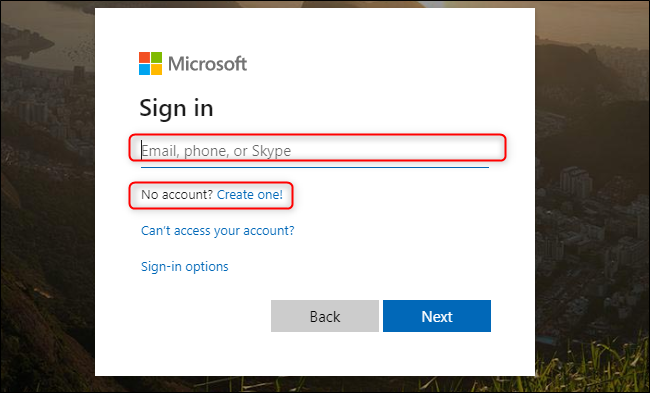
Direct any browser to “teams.microsoft.com” and sign in to your Microsoft account. You can create an account for free if you don’t already have one.
Once you’re signed in to your Microsoft account, select “Get The Windows App” to download and install the app on your Windows, macOS, iOS, Android, or Linux device.
The browser-based web app version doesn’t support real-time calls or meetings, but it is sometimes faster to access Teams through a browser. If you want to access Teams through your browser without downloading the app, click “Use The Web App Instead.”

When the Teams app is first installed on your device, you may need to sign in again. After, click “Sign Up For Teams” to begin setting up your organization.
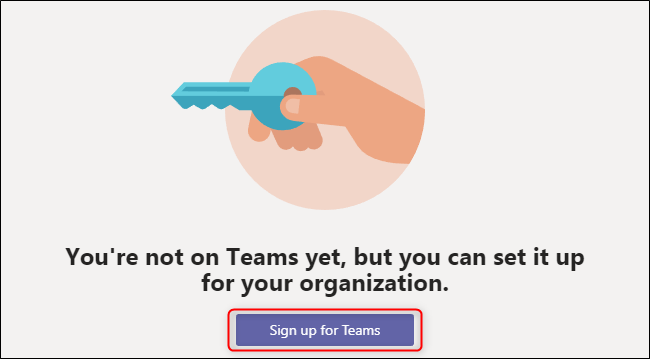
A new web page will open where you can read through a full list of features and compare pricing plans. Teams is free if you’re using it with no other Microsoft Office 365 apps.
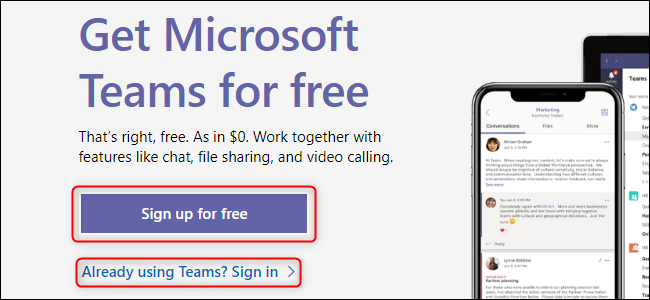
If you’re joining an existing organization, choose “Already Using Teams? Sign In.” Once you sign in, you’ll be ready to explore your organization’s existing Teams infrastructure and start chatting with your colleagues.
If you’re starting a new organization, click “Sign Up For Free.”
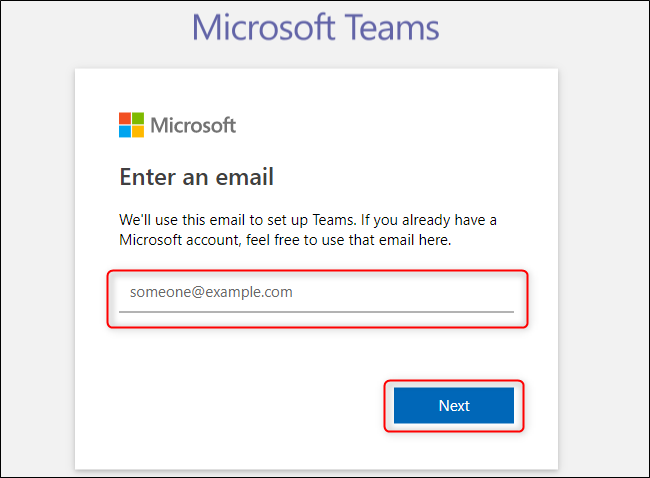
Enter your email and then select “Next“.
Enter your first and last name as well as the name of your company or organization. When you’re done, click “Set Up Teams.”
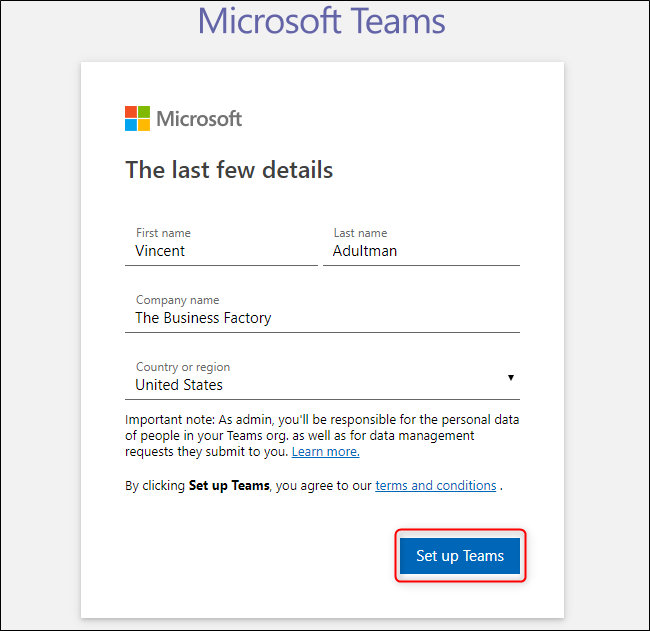
Assuming the name of your organization isn’t already taken, Teams will start creating your organization and then bring up the web app. Once you’re logged in to Teams for the first time, it will ask for your name and picture (both optional), then guide you through its interface and features.
How to Invite People to Your Organization in Microsoft Teams
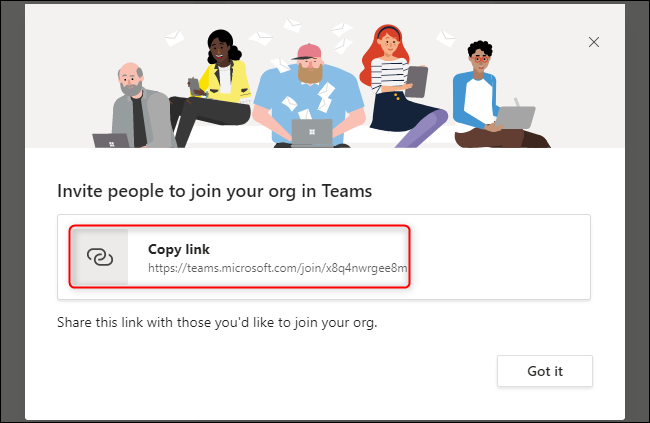
You’ll receive an email with a link you can send to colleagues to invite them to join your new Teams organization. Teams will also greet you with this link when you first sign in.
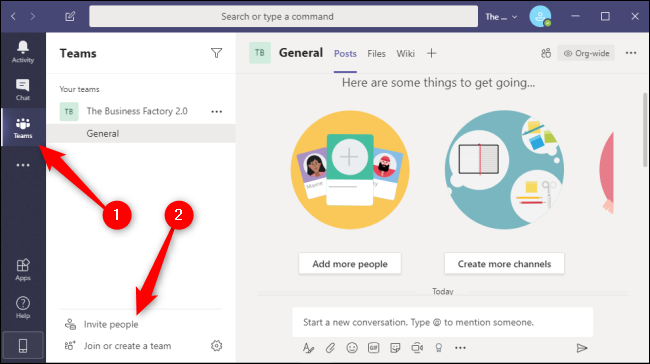
You can always invite new people to your organization within the Teams application. Select the “Teams” tab on the left and then click “Invite People.”
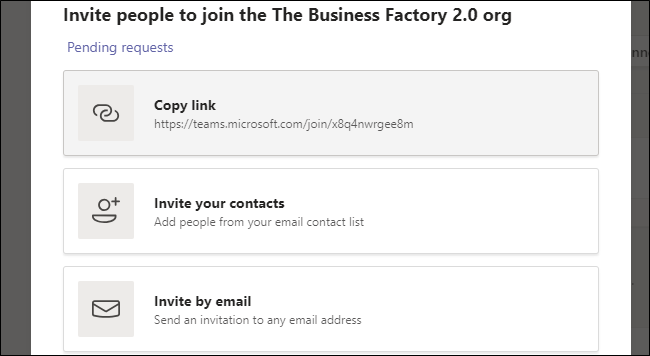
In this menu, you can copy an invite link to your clipboard, invite contacts directly from your email contact list, or invite people with different email addresses. These email addresses do not have to be Microsoft email addresses, but your invitees will be prompted to use their email addresses to create a Microsoft account.
Your invitees will receive an email like the one below. To join the organization, your colleagues need to click “Join Teams” in this email. They can also click the “iOS” and “Android” buttons to install the mobile app for their respective device.

You and your colleagues can now collaborate remotely through this organization in Microsoft Teams. You can build a better communications platform by creating new teams within your organization, integrating Teams with Office 365, and sharing your screen, your files, or your favorite cat pictures.
[mai mult...]