Soluții

How to Fix ‘No Battery Is Detected’ on Your Laptop

The battery is one of the most-vital parts of the computer, as it allows us to take our tech on the road and work anywhere we like. If you get a “no battery is detected” error, don’t panic. There are a number of potential solutions to this laptop issue and getting one of these error notifications doesn’t necessarily mean you’ll need to buy a replacement battery or buy a new laptop.

[mai mult...]

What Is the sppextcomobjpatcher.exe Process and What Does It Do?

Sppextcomobjpatcher.exe is a Windows 10 process that is involved with the registration key you used to activate your copy of Windows. It’s not a nefarious piece of software, so if you see it running in Task Manager, you don’t necessarily need to panic that your system has been infected. But if it appears in an anti-malware scan from a tool like Malwarebytes Antimalware, then it may warrant taking a closer look at.

[mai mult...]

Writing to an excel sheet using Python

Using xlwt module, one can perform multiple operations on spreadsheet. For example, writing or modifying the data can be done in Python. Also, the user might have to go through various sheets and retrieve data based on some criteria or modify some rows and columns and do a lot of work.

[mai mult...]

How to Limit Screen Time on Windows 10

Both kids and adults need the occasional break from staring at a screen. Fortunately, Microsoft Family Groups on Windows 10 allows you to set a healthier schedule for everyone in the family. Microsoft Family Groups allows you to put everyone in your family who has a free Microsoft account under one digital umbrella. On the Microsoft Family Groups website, you can access a number of easy-to-use settings and limit screen time for yourself or your children.

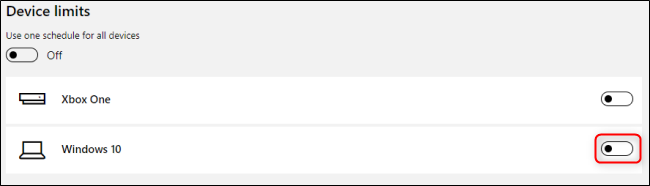
To get started, you can make a family group either directly on Windows 10 or the website. After you invite everyone to your family group, find the member whose screen time you want to limit on the main page of your Microsoft Family account. Click “Screen Time” under that person’s name to open the screen time management page. All screen time restrictions are disabled for new accounts, so toggle-On the “Windows 10” option to open the screen time schedule.

In the weekly calendar, click any day’s schedule to edit it.

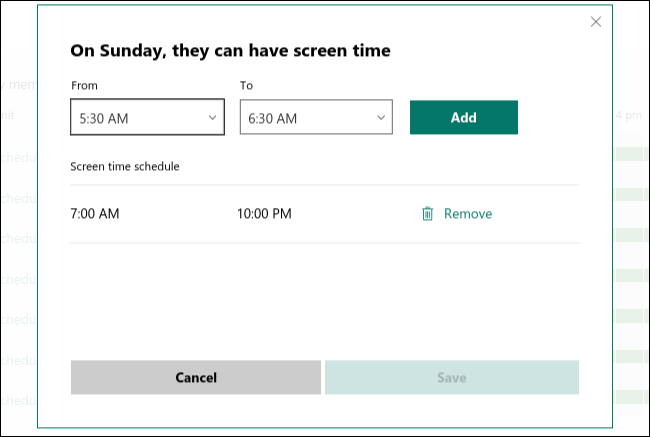
In the daily schedule menu, you can create one or more time periods during which screen time is permitted using the “From” and “To” drop-down menus. When you’re done, click “Save,” and then repeat the process for each day of the week you want to edit.

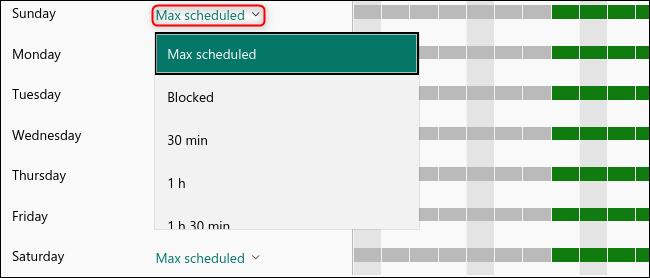
You can also use the drop-down menu under “Time Limit” to restrict the total amount of time an account can spend on Windows 10. For example, you can allow one hour of computer use at any time between 10 a.m. and 2 p.m.

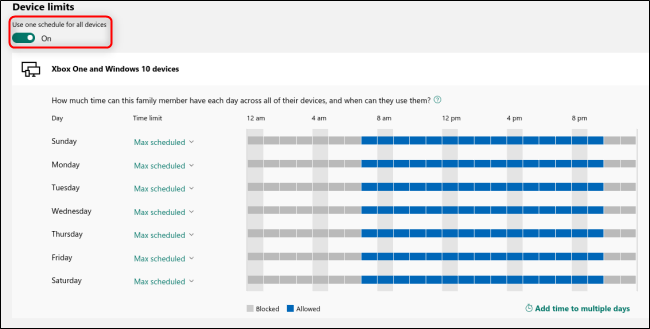
You can also select “Blocked” to change this schedule to when screen time is blocked. You can also apply these settings to any other Windows 10 devices, as well as Xbox One, as it’s a Microsoft product. To do so, toggle-On the “Use One Schedule for All Devices” option at the top.

[mai mult...]