Accesarea aplicatiei Magnifier folosind Run in Windows 10
Aplicatia Magnifier mareste anumite parti sau chiar tot ecranul astfel incat vedem mai bine cuvintele si imaginile de pe ecran.
[mai mult...]Soluții pentru problemele tale IT

Aplicatia Magnifier mareste anumite parti sau chiar tot ecranul astfel incat vedem mai bine cuvintele si imaginile de pe ecran.
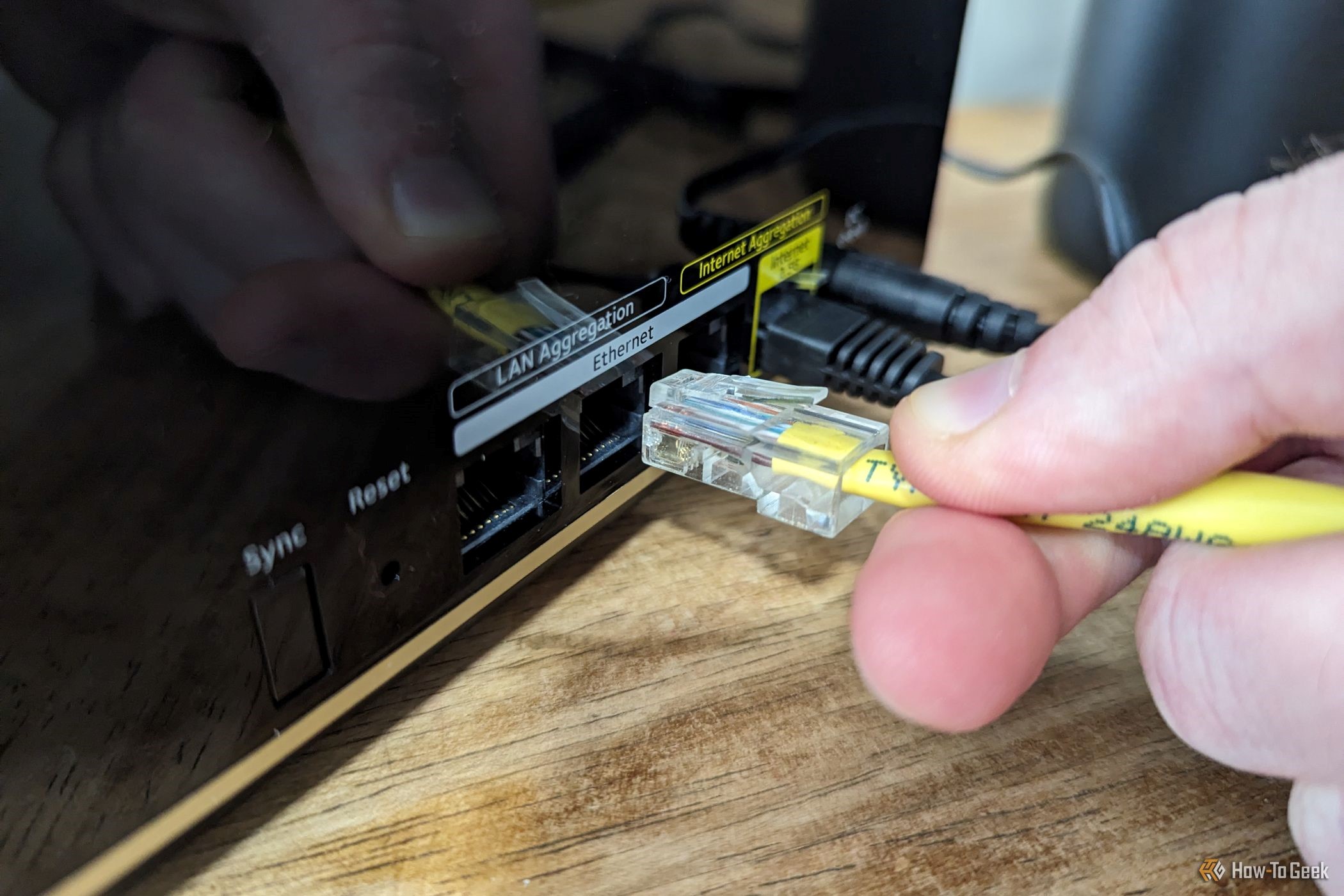
[mai mult...]O conexiune Ethernet este mai rapidă și mai stabilă decât Wi-Fi. Cu toate acestea, există cazuri în care limitările hardware sau limitarea software-ului pot duce la scăderea vitezei Ethernet. Dacă întâmpinați această problemă, iată câțiva pași practici pentru a depana și a accelera conexiunea.
[mai mult...]
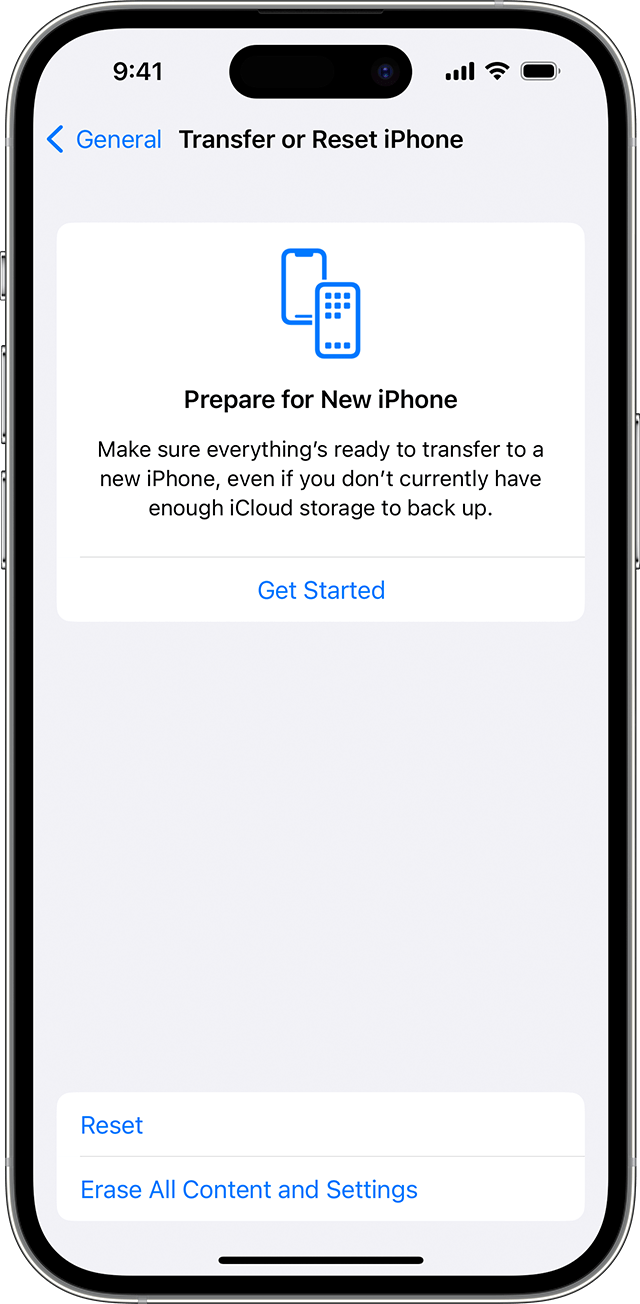
If asked, enter your passcode or Apple Account password. Forgot your passcode or Apple Account password?
Confirm that you want to erase your device
If you have an eSIM, you can choose to erase your eSIM or keep it. If you erase your eSIM, you need to contact your carrier to reactivate your cellular plan.
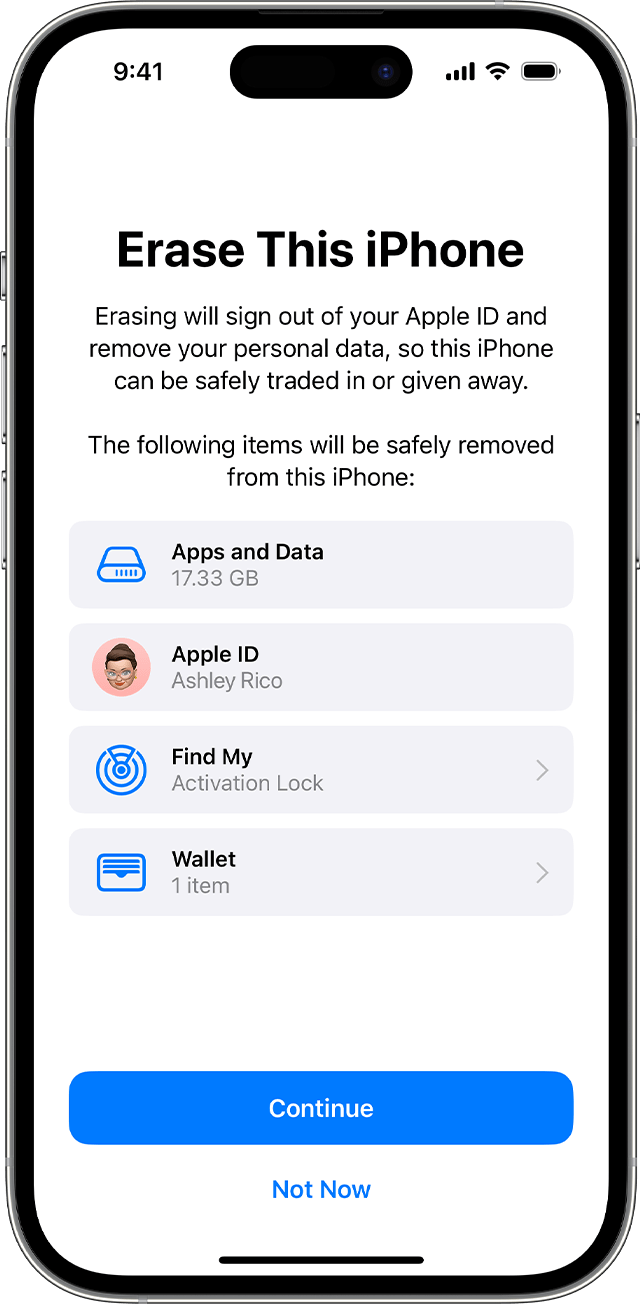
Wait for your device to erase
It might take a few minutes to completely erase your data.
If you can’t erase your iPhone, iPad, or iPod touch
Learn what to do if you don’t remember your passcode for your iPhone, iPad, or iPod touch, or your device is disabled.
If you forget your Screen Time passcode, you can reset it. Restoring your device using a backup won’t remove the Screen Time passcode.
The most obvious sign will be a Windows Security alert notifying you that the firewall is blocking some features of the app and giving you the option to allow it access.
If this doesn’t pop up, look for the following signs that the firewall is interfering with the app:
The easiest way to see if an app is being blocked by the firewall is to check its list of allowed apps. It shows the apps it lets through or blocks on networks that are public (e.g., coffee shop or library Wi-Fi) or private (e.g., home or office Wi-Fi).
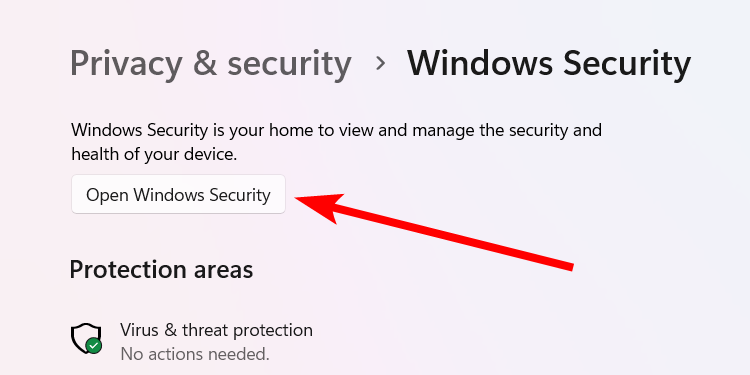
To do that, press Win + i to open the Settings app, go to Privacy & Security > Windows Security, and click the “Open Windows Security” button.

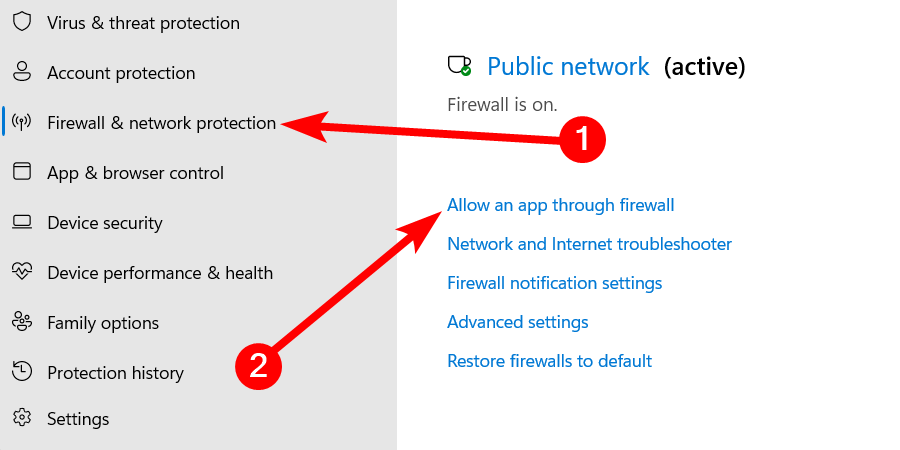
In Windows Security, select “Firewall & Network Protection” in the left sidebar and click the “Allow an App Through Firewall” link in the right panel.

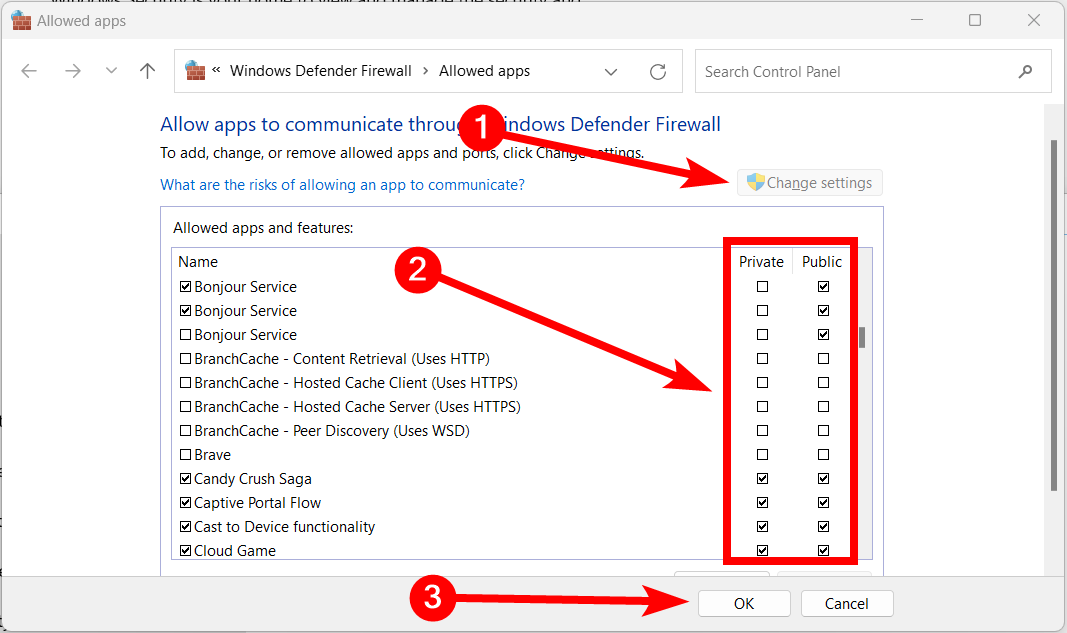
Find the app you think the firewall is blocking and check the checkboxes in the Private and Public columns next to it. If one of them is unchecked, it means that the app is being blocked on that network.
To let the app through the firewall, click the “Change Settings” button (you might need to ask for administrative privileges if you don’t have them). Then, tick its checkbox on the network you’re connected to (Public or Private) and click the “OK” button to apply the changes.

You can also try opening a port on Windows Firewall to prevent it from interfering with certain apps.Once an app is unblocked, the firewall won’t interrupt it when it uses its network features, especially those that require internet access. However, this poses a potential security risk since malicious entities can now access the app.
Always make sure any app you allow through the firewall is trusted and secure to prevent malicious entities from using it to exploit your system. If you’re unsure about an app, don’t let it through or install it. Furthermore, enable Smart App Control and tweak Windows Security features to make your computer more secure.