
Situatie
Solutie
Delivery optimization
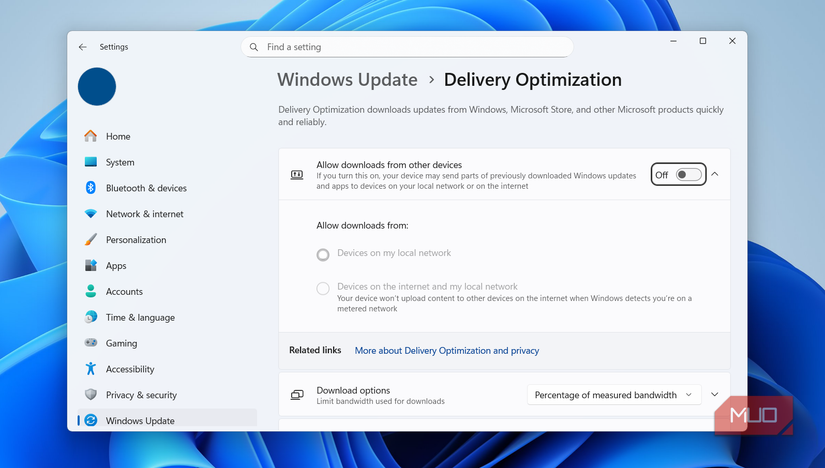
The Delivery Optimization feature changes how your PC downloads updates and apps from the Microsoft Store. Instead of relying solely on Microsoft’s servers, this feature allows your PC to download updates from other computers on your local network or even strangers on the internet. This is done to speed things up, but there’s a catch.
In return, your PC also uploads updates to other devices. That means Windows can use your internet to upload data in the background without you realizing. This can affect your browsing, online gaming, or even video calls.
Some Reddit users have also reported the Delivery Optimization feature unexpectedly spiking RAM usage and slowing down their systems. For all these reasons, it’s best to turn it off by heading to Settings > Windows Update > Delivery Optimization.
Playing it safe can cost performance
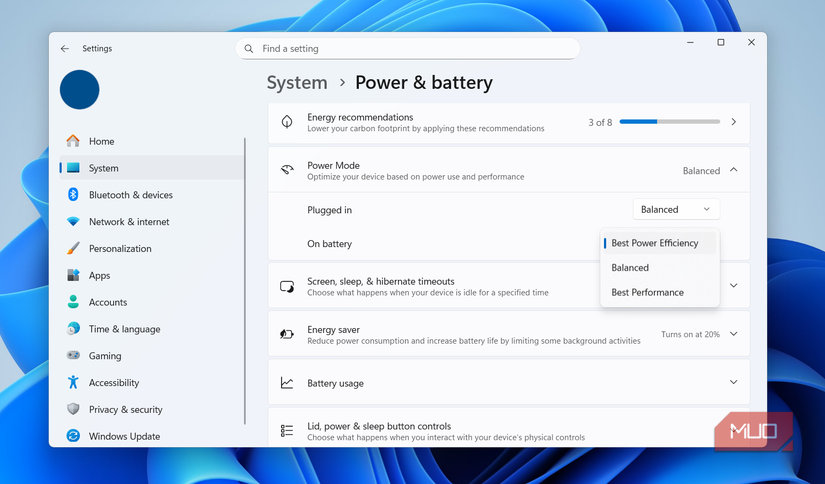
The default power mode on a Windows PC is set to Balanced, which tries to find a middle ground between battery life and performance. This isn’t necessarily a bad thing, but if you’re using your PC for gaming, creative work, or heavy multitasking, this can hold your system back.
If you are doing something that requires making the most of your PC’s resources, it’s best to switch to the High performance mode. To change it, head to Settings > System > Power & battery > Power mode. The nice thing is you can set Windows to different power modes, depending on whether it’s plugged in or on battery.
Screen refresh rate
The easiest upgrade you are not using
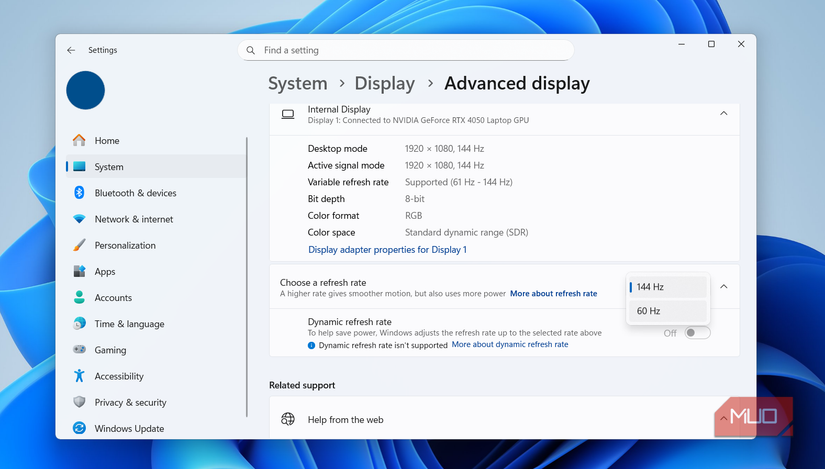
This one is easy to miss, but most high-end Windows laptops and monitors support 90Hz, 120Hz, or even 144Hz refresh rates. By default, though, Windows often sets the screen to the standard 60Hz. That means your display is literally refreshing fewer times per second than it is capable of.
At 60Hz, scrolling feels less smooth, animations look choppier, and games look less responsive. If you’ve ever wondered why your expensive laptop display does not feel as fluid as you expected, this one setting could be the reason.
Unnecessary animations and transparency effects
Prioritize speed over looks
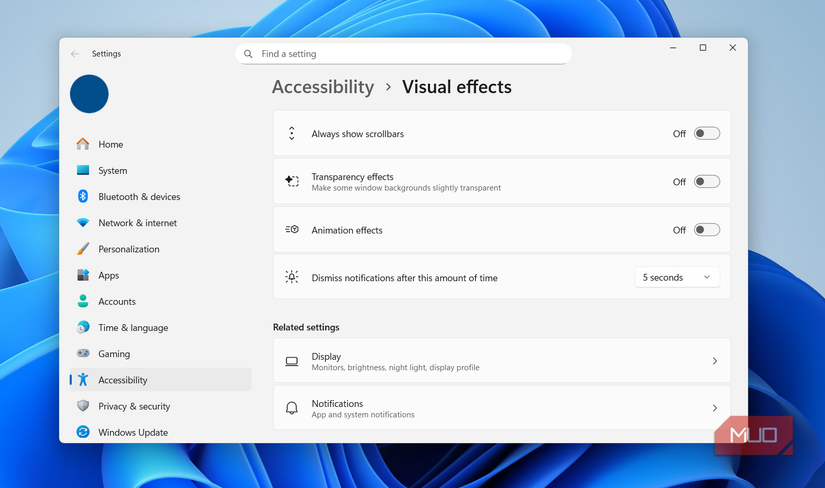
Windows loves its visual flair. Smooth animations, fading menus, and transparent backgrounds all make the interface look modern, but those visual effects come at a cost and aren’t ideal for mid-range PCs.
By default, Windows enables animations for opening and closing apps, switching desktops, and navigating menus. It also uses transparency effects in places like the Start menu, taskbar, and system panels. All of these effects constantly tap into your GPU and system resources in the background.
If you care more about speed and responsiveness than fancy visuals, it’s best to turn these effects off. Head to Settings > Accessibility > Visual effects and turn off both Transparency effects and Animation effects.
Background and startup apps
The apps you didn’t open may still be running
To avoid this, you can change the background permissions for these apps. Head to Settings > Apps > Installed apps, click the three-dot icon next to an app, and select Advanced options. From there, use the Background app permissions drop-down menu and select Never. You’ll need to repeat this for each app you want to stop it from running in the background.
Another thing you can do is review startup apps on your PC. From here, you can stop apps from running every time your PC boots. This will not only make your PC boot faster, but also free up resources from the moment Windows loads.
Windows isn’t slow by default, it’s just cautious. And with the above changes, you’re simply telling Windows how you actually want to use your PC. Of course, these are all simple tweaks, but if you want to dive deep, debloating your PC can squeeze out even more performance.
Leave A Comment?