
Situatie
When a file is no longer serving a purpose, it’s time to delete it, and you probably know at least one way of doing so. But there may be more ways than you realize, and each has its own advantages, quirks, and things to teach us.
From GUI to command line and even lower-level than that, discover more about getting rid of files.
Solutie
1. Using a GUI file browser
If you’re already using a file manager like GNOME’s Files (Nautilus), you can easily delete a file, typically by right-clicking it and selecting Move to Trash.
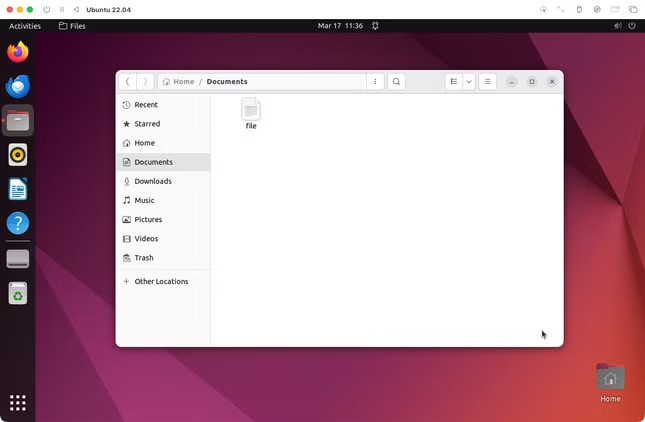
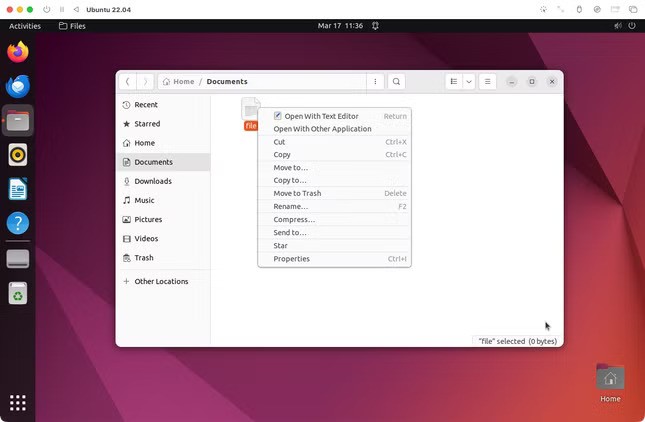
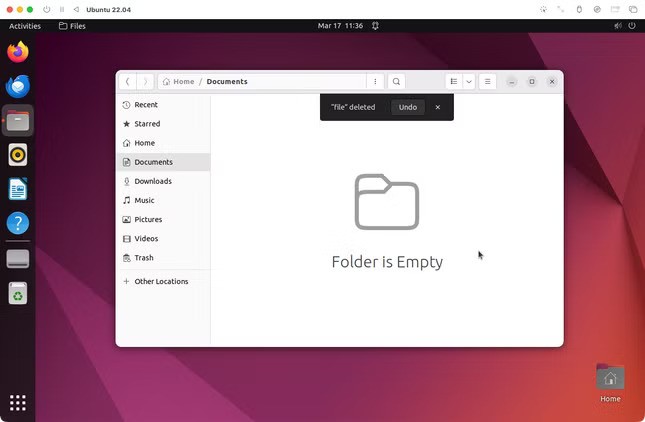
You can also drag a file to the Trash folder to delete it:
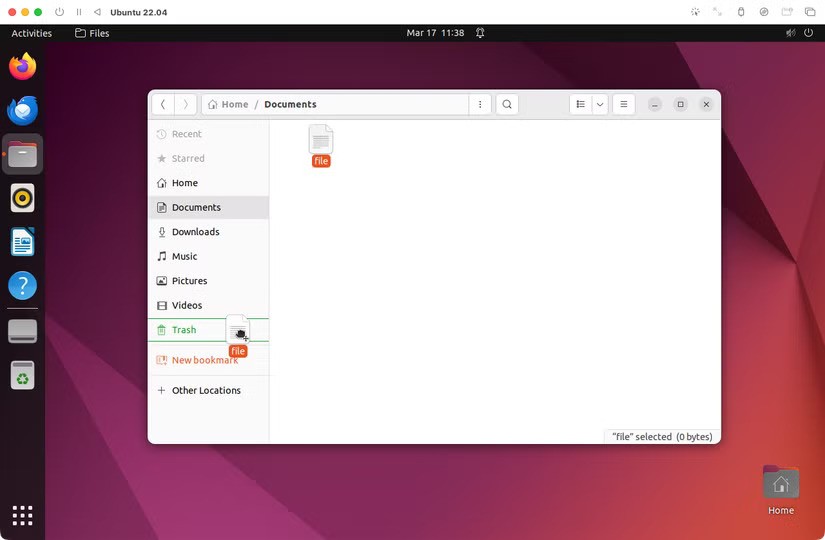
Alternatively, you can use a keyboard shortcut to delete the selected file(s). In Nautilus, it’s Delete to send to trash and Shift + Delete to permanently delete the file instead.
2) On the command line, with rm
Short for “remove,” rm is one of the essential Linux commands you’ll use nearly every day. With its most useful, portable options, usage looks like this: rm [-f | -i] [-drv] file …
To delete a file, run the command rm filename. To delete several files, you can list them all as arguments:
rm fileone filetwo filethree
3) Using the trash command
Installed by default on macOS and available on Linux via your package manager, the trash tool is a command-line alternative to sending a file to trash using your file manager.
At its simplest, trash is a drop-in replacement for rm, so you can use it like this:
trash -v a b c
The difference is what trash does behind the scenes. Instead of deleting the file, trash moves it to your trash folder. Note that, like most of these tools, trash supports a -v (–verbose) option. It also supports a -s (–stopOnError) option to exit with an error if any file move fails.
Leave A Comment?