
Situatie
Solutie
Fix 1 – Set the Correct Startup Project if Visual Studio can’t start debugging
If your current program has multiple projects, Visual Studio needs one explicitly marked as the startup project to start debugging it. The startup project runs first, which can allow it to properly load necessary libraries or data you need for the others.
Step 1. Go to the Solution Explorer tab and right-click on the main project
Step 2. Select “Set as Startup Project” from the list
Step 3. Right-click on the same project again and open “Properties”
Step 4. In the “Debug” tab (or the “Web” tab for web projects),confirm that “Enable Debugging” is checked. For C++ projects, check under “Debugging” then “Launch.” For Python or Node.js, look for their debugging options.
Fix 2 – Retry IIS Express (ASP.NET or PHP Projects)
Some ASP.NET and PHP projects rely on IIS Express (which is a Windows utility rather than Visual Studio’s) during debugging. If it’s missing or outdated, the project might not get built properly.
Step 1. Go to the Windows search bar, type in “Programs,” then open the first option. This should be “Programs and Features” (but you might also get the Control Panel, in which case you can find it there).
Step 2. Find “IIS Express” in the list and select it.
Step 3. Use the “Change” or “Repair” option and let the process finish, then restart the PC and check the debugger.
Step 4. If you still can’t debug the project, go to “Tools” then “Options” in Visual Studio. In the “Web Projects” section, check the option “Use the 64-bit version of IIS Express.”
Fix 3 – Force Remake the Launch Settings File
The variables needed for Visual Studio to run are stored in a file called “launchSettings.json.” If an entry in it is wrong or corrupted, the debugger fails to start.
Step 1. Close Visual Studio completely
Step 2. Open File Explorer and go to your project folder
Step 3. Search the Properties folder for “launchSettings.json” (Some projects may put the file under “.vs” instead)
Step 4. Delete the file
Step 5. Reopen Visual Studio and load your project
Step 6. Go to “Build” and select “Rebuild Solution,” then hit “F5”
Fix 4 – Change Antivirus Settings
Antivirus software, including the stock Windows Defender, can interfere with Visual Studio by blocking internet access to temporary files the debugger creates.
Step 1. Go to “Windows Security,” then to “Virus & threat protection”
Step 2. Open “Manage settings”
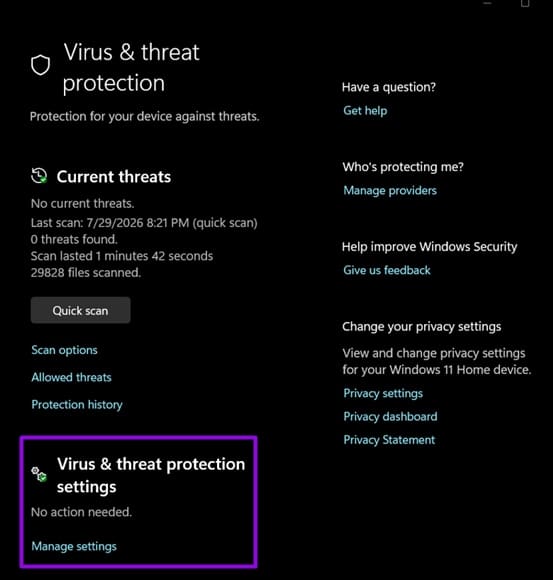
Step 3. Switch off “Real-time protection.” You’ll need to confirm the User Account Control Prompt
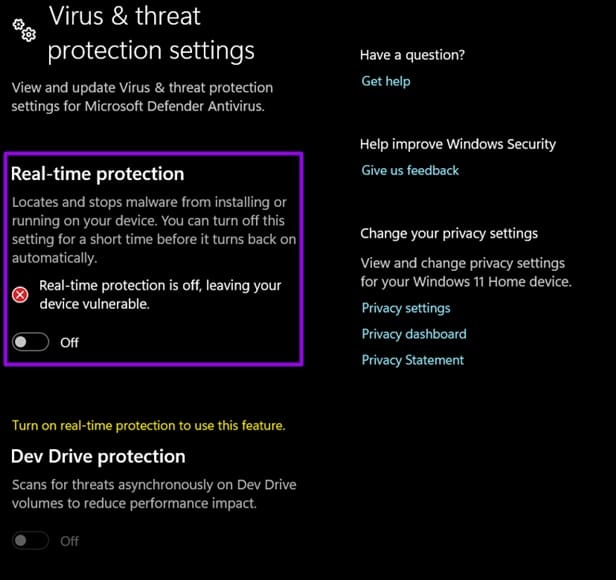
Step 4. Go back to Visual Studio and try debugging again.
If you’re using third-party software, go to its control panel and disable real-time filtering and online access. Make sure to not use your browser in that time. If this works, turn real-time protection back on and instead add exclusions for the Visual Studio installation folder and your project directories.
Leave A Comment?