Soluții

How to Change Default Applications in Ubuntu

As a beginner, you may need to know how to change any default application in Ubuntu and this is what I am going to show you in this tutorial.

There are basically two ways you can change the default applications in Ubuntu:

  • via system settings (valid for changing the default web browser, email client, calendar, music application, video player and image viewer)
  • via right-click menu (valid for applications other than the above mentioned ones)

1. Change default applications in Ubuntu from System Settings

Simply head to the System Settings:

System Settings Pop Os

In the System Settings, click on the Details option:

System Details Pop Os

Now, click on the “Default Applications” option as highlighted in the screenshot below:Default Applications Pop Os

As you can see, there are only a few kinds of default applications that can be changed here. You can change the default applications for web browsers, email clients, calendar apps, music, videos and photo here. What about other kinds of applications?

2. Change default applications in Ubuntu from right-click menu

Let’s say you have a markdown file (.md) which opens in Gedit text editor by default. But you want to use some other applications to open markdown files. Here’s what you need to do.

Right click on the file and then select Open with Other Application:

Changing Default Application Ubuntu via right click menu

If you don’t see your choice of application, click on the View All Applications:

Changing Default Application Ubuntu

Locate the desire application and select it:

Changing Default Application Ubuntu
  • This will open the file in your chosen application.
  • The thing here is that the file manager automatically recognizes your choice and the next time you double click on the file to open it, it will open it with the application you last chose.
Default Application Changed in Ubuntu

Keep in mind that this behavior is not applicable to web browser, music player, video player, email client, calendar and photo viewer. For that you need to use the first method.

[mai mult...]

Cum să inversați culorile într-un fișier PDF în Adobe Acrobat Reader pentru o citire mai ușoară pe timp de noapte


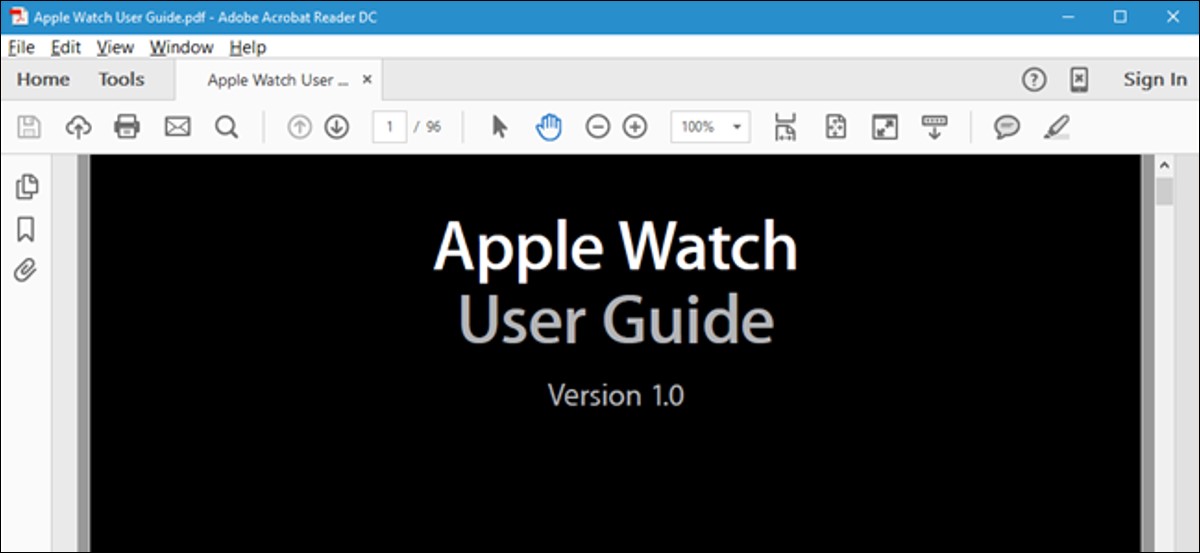
Formatul PDF este menit să asigure că formatarea unui document este păstrată atunci când este vizualizat pe diferite sisteme de operare și dispozitive. Dacă vizualizați un document pe un computer într-o cameră întunecată, este posibil să doriți să schimbați schema de culori, astfel încât ecranul să nu fie atât de luminos.

[mai mult...]

How to recover deleted files in Linux using TestDisk

Have you ever gotten that horrible feeling? The one you get when you realize that you accidentally deleted files and it’s not even in the trash? Often it is immediately preceded by denial: I know I have another copy of it somewhere.

You need to install the TestDisk tool first. Most Linux distributions already have this tool in their official repository. In Ubuntu and other Ubuntu-based Linux distributions such as Linux Mint, elementary OS etc, you can use the command below to install TestDisk:

sudo apt install testdisk

Arch Linux users can install it from AUR. You can download it for other Linux distributions from the link below:

https://www.cgsecurity.org/wiki/TestDisk_Download

Run TestDisk in the terminal using the command below:

testdisk

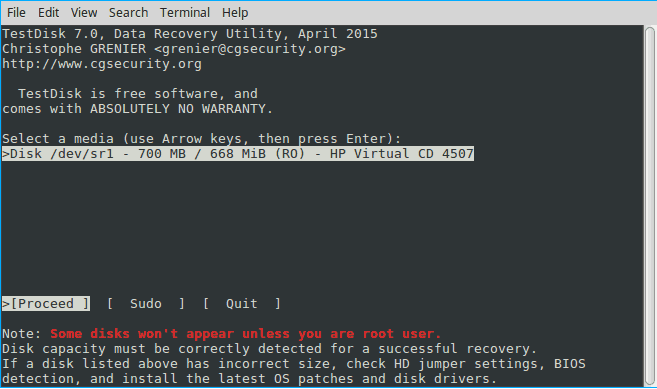
When you open it, you’ll see something that looks like this. Be patient! The interface is actually straightforward but you do have to carefully read the text. Use the arrow keys to navigate and “enter” to select.

Now, at this point, if you’re lucky, you should see your drive. And you can proceed to the last steps. But let’s assume you’re not, that you have, say, a multi-boot machine. In this case, ownerships can get blurry, and Testdisk needs your permission to open them.

  • Select “sudo” and enter your password. Hit “enter” and “enter” again on the next screen to create another log file.
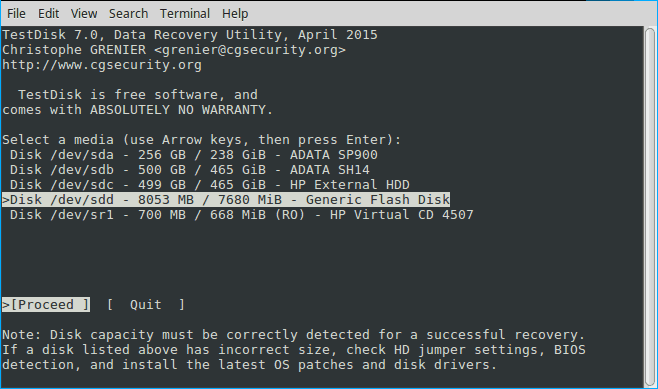
  • This time Testdisk displays all your drives. Arrow key to the drive in question and hit enter.

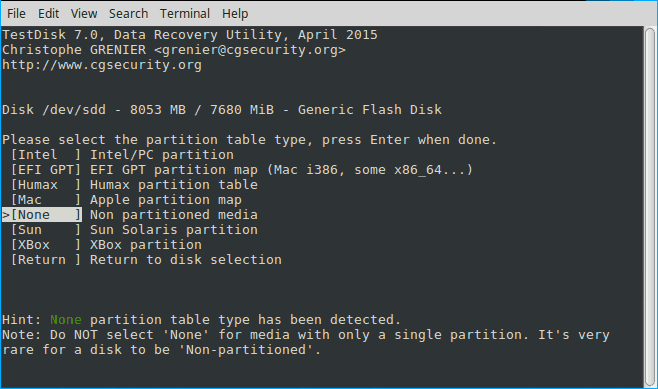
Testdisk has again selected the correct setting. This makes sense since a simple storage device is seldom partitioned. Again hit enter.

And finally, we have to do a little thinking to do. If you read the first screen, this program isn’t just for recovering deleted files. It’s a powerful disk utility. But if we remember what we’re trying to do the choice is fairly obvious: we’re not trying to fix a disk, we’re trying to recover a file. Select “Advanced” and hit “enter”.

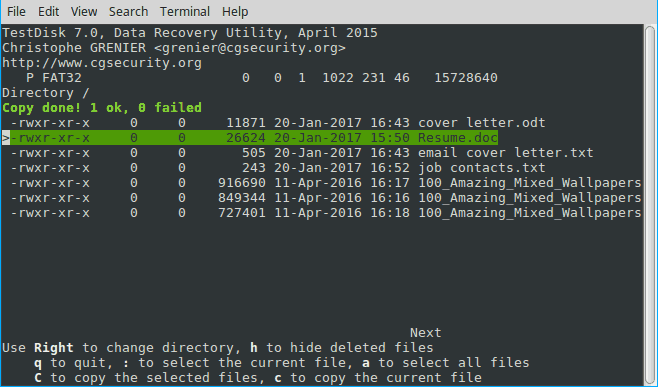
Testdisk will scan for files and produce a list of deleted files highlighted in red. Arrow down to it and carefully read the choices at the bottom

.

Hit c to copy and thus recover the deleted file.

[mai mult...]

How to install Numpy in Python

NumPy is a Python library used for working with arrays. It also has functions for working in domain of linear algebra, fourier transform, and matrices. NumPy was created in 2005 by Travis Oliphant. It is an open source project and you can use it freely.

[mai mult...]