
Soluții

How to View and Change Active Directory Object Properties with ADSI edit

The ADSI Edit tool (Active Directory Service Interface Editor) is a special mmc snap-in that allows you to connect to various Active Directory database partitions (NTDS.dit) or to the LDAP server. The ADSI Edit tool allows you to create, modify, and delete objects in Active Directory, perform searches, and so on.

In Windows Server 2003, the ADSIEdit.msc snap-in was a part of the Windows Server 2003 Support Tools, which must be downloaded and installed manually. To register snap-ins, the command “regsvr32 adsiedit.dll” was used. In modern Windows versions, ADSIEdit.msc is included into RSAT and installed as a part of AD DS Snap-ins and Command Line Tools feature (Remote Server Administration Tools > Role Administration Tools > AD DS and AD LDS Tools).
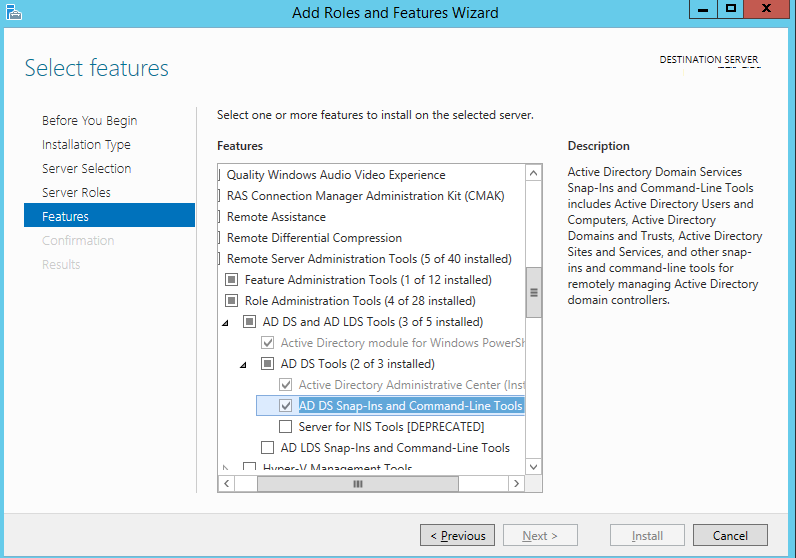
After installing the component, to start ADSI Edit press Win+R and type adsiedit.msc (or you can run ADSI Edit from Control Panel\System and Security\Administrative Tools).

[mai mult...]
Use Proxy Server with Active Directory and Domain Users

There are many kinds of proxy server software in the market, but most of companies need proxy server which can work with active directory, because they have been using domain controller and accounts for a long time, if the proxy server can support active directory, it will help reduce the management cost and difficulty greatly.

CCProxy is proxy server which works with active directory and domain users, enabling its domain user authentication function, all the domain users will be scanned out. The domain group authentication is the newly added function of CCProxy, which is convenient and useful for administrator to add or remove domain users/group. At present, CCProxy is used by companies worldwide, not hard to say that it’s enterprise level proxy.

Now, let’s talk about the details of proxy server CCProxy active directory function, especially domain group function and how it work easily.

1) Install CCProxy on domain controller or domain client which with administrator authority;

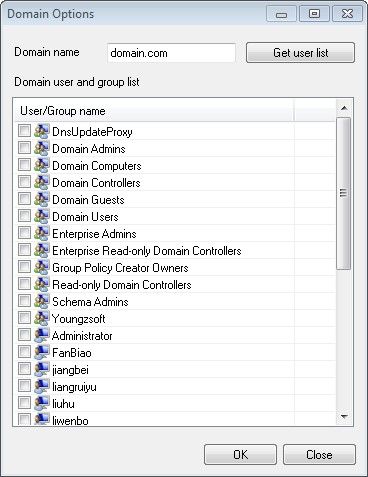
2) Run CCProxy->click “Account”->check “Domain User Auth” button->click the “Domain” button->edit the “Domain name” button ->click the “Get user list” button ->press the “OK” button, then all the “domain accounts” can be scanned out in the “Domain user and group list”.

[mai mult...]

AdminSDHolder and SD Propagator

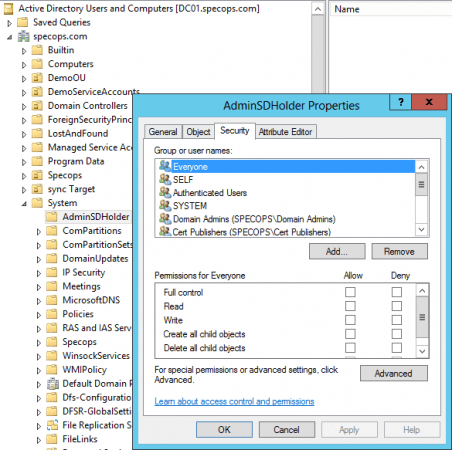
AdminSDHolder is a container in AD that holds the Security Descriptor applied to members of protected groups. The ACL can be viewed on the AdminSDHolder object itself. Open Active Directory Users and Computers and ensure Advanced Features is selected in the View menu. Navigate to the ‘system’ container under the domain and right-click on the sub-container called AdminSDHolder and select properties. The Security tab displays the ACL that will be applied to all members of protected groups.

[mai mult...]

How to Escape Spaces in File Paths on the Windows Command Line

Command Prompt window on Windows 10

Command-line environments like the Windows Command Prompt and PowerShell use spaces to separate commands and arguments—but file and folder names can also contain spaces. To specify a file path with a space inside it, you’ll need to “escape” it.

Command Line 101: Why You Have to Escape Spaces

“Escaping” a character changes its meaning. For example, escaping a space will cause the shell to treat it like a standard space character rather than a special character that separates command-line arguments. For example, let’s say you have a text file that you want to see the contents of. You can do that with the type command. Assuming the text file is at C:\Test\File.txt, the following command in Command Prompt will show its contents:

type C:\Test\File.txt

Great. Now, what if you have the same file at C:\Test Folder\Test File.txt? If you try running the below command, it won’t work—those spaces in the file path are getting in the way.

type C:\Test Folder\Test File.txt

The command line thinks you’re trying to look for a file called C:\Test and says it “cannot find the path specified.”

Command Prompt error when not escaping spaces

Three Ways to Escape Spaces on Windows

There are three different ways you can escape file paths on Windows:

  • By enclosing the path (or parts of it) in double quotation marks ( ” ).
  • By adding a caret character ( ^ ) before each space. (This only works in Command Prompt/CMD, and it doesn’t seem to work with every command.)
  • By adding a grave accent character ( ` ) before each space. (This only works in PowerShell, but it always works.)

We’ll show you how to use each method.

Enclose the Path in Quotation Marks ( ” )

The standard way to ensure Windows treats a file path properly is to enclose it in double quotation mark ( ” ) characters. For example, with our sample command above, we’d just run the following instead:

type "C:\Test Folder\Test File.txt"

You can actually enclose parts of the path in quotation marks if you prefer. For example, let’s say you had a file named File.txt in that folder. You could run the following:

type C:\"Test Folder"\File.txt

However, that isn’t necessary—in most cases, you can just use quotation marks around the whole path.

This solution works both in the traditional Command Prompt (CMD) environment and in Windows PowerShell.


Sometimes: Use the Caret Character to Escape Spaces ( ^ )

In the Command Prompt, the caret character ( ^ ) will let you escape spaces—in theory. Just add it before each space in the file name. (You’ll find this character in the number row on your keyboard. To type the caret character, press Shift+6.)

Here’s the problem: While this should work, and it does sometimes, it doesn’t work all the time. The Command Prompt’s handling of this character is strange.

For example, with our sample command, you’d run the following, and it wouldn’t work:

type C:\Test^ Folder\Test^ File.txt

Caret space escaping error in Command Prompt

On the other hand, if we try opening our file directly by typing its path into the Command Prompt, we can see that the caret character escapes the spaces properly:

C:\Test^ Folder\Test^ File.txt

Caret space escaping working in the Command Prompt

So when does it work? Well, based on our research, it seems to work with some applications and not others. Your mileage may vary depending on the command you’re using. The Command Prompt’s handling of this character is strange. Give it a try with whatever command you’re using, if you’re interested—it may or may not work.

For consistency, we recommend you stick with double quotes in the Command Prompt—or switch to PowerShell and use the grave accent method below.

PowerShell: Use the Grave Accent Character ( ` )

PowerShell uses the grave accent ( ` ) character as its escape character. Just add it before each space in the file name. (You’ll find this character above the Tab key and below the Esc key on your keyboard.)

type C:\Test` Folder\Test` File.txt

Each grave accent character tells PowerShell to escape the following character.

Note that this only works in the PowerShell environment. You’ll have to use the caret character in Command Prompt.

Escaping spaces with the grave accent in PowerShell


If you’re familiar with UNIX-like operating systems like Linux and macOS, you might be used to using the forward slash ( \ ) character before a space to escape it. Windows uses this for normal file paths, so it doesn’t work—-the caret ( ^ ) and grave accent ( ` ) characters are the Windows version of forward slash, depending on which command-line shell you’re using.

[mai mult...]