
Soluții

Cum sa rezolvi codul de eroare 0x801c001d

Daca sunteti conectat la domeniu si primiti eroarea The domain is unavailable in momentul in care doriti sa accesati resurse interne sau sa folositi utilitare din Administrative Tools, este posibil ca dispozitivul de pe care incercati sa va conectati nu comunica cu serverul AD.
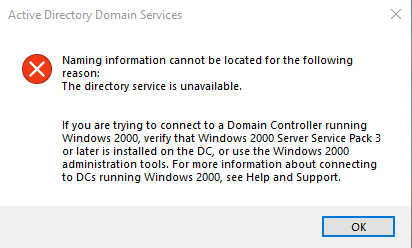
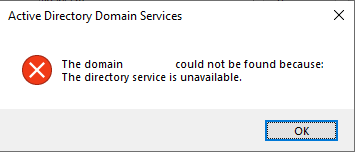
Pentru a rezolva aceasta problema, deschideti Regedit si mergeti la HKEY_LOCAL_MACHINE\SOFTWARE\Policies\Microsoft\Windows\WorkplaceJoin si creati o noua intrare DWORD 32Bit cu numele autoWorkplaceJoin si valoarea 0. Dupa ce ati efectuat aceasta modificare, restartati dispozitivul si totul ar trebui sa revina la normal.

[mai mult...]

How HTTP/3 and QUIC Will Speed Up Your Web Browsing

A global map featuring network-style connections focused on North America.
HTTP/3 is becoming more widespread. Cloudflare is now supporting HTTP/3, which is already part of Chrome Canary and will be added to Firefox Nightly soon. This new standard will make your web browsing faster and more secure.

Here’s the short explanation: Web browsers, web servers, and other critical pieces of web infrastructure are getting support for a new standard named HTTP/3, which uses QUIC. This is a more modern version of HTTP, which web browsers use to communicate with web servers and send data back and forth.

HTTP/3 has been rewritten to send data more quickly with better resistance to errors. It has built-in encryption, too. That means more speed and security. It’s not just data transfer speed, either: HTTP/3 should reduce latency as well, meaning websites will start loading more quickly after you click or tap a link.

The average person never needs to know about HTTP/3 and QUIC. People who run websites and develop web software have some work to do, but it’s all going to be transparent to the average person. One day, your web browser and the websites you use will start communicating over HTTP/3 instead, and the web will get better and better as more sites opt to use HTTP/3.

From HTTP/1 to HTTP/2

HTTP shown in Google Chrome's address bar.

The original version of HTTP uses the Transmission Control Protocol (TCP.) First described in 1974, TCP was never designed with the speed and responsiveness of today’s web in mind.  Google tried to fix many of TCP’s problems with a new protocol named SPDY, which informed HTTP/2.

HTTP/2 arrived in most major browsers by the end of 2015, adding features like data compression and pipelining of multiple requests over a single TCP connection to speed things up.

As of September 2019, W3Techs estimates that HTTP/2 is now being used by 41% of websites.

What Are HTTP/3 and QUIC?

HTTP/3 is more of a rewrite of the HTTP protocol. Instead of using TCP, HTTP/3 uses Google’s QUIC protocol. HTTP/3 was initially known as HTTP-over-QUIC. HTTP/3 also includes TLS 1.3 encryption, so there’s no need for a separate HTTPS that bolts security onto the protocol, as there is today.

QUIC originally stood for “Quick UDP Internet Connections.” This protocol is designed to be faster with lower latency than TCP. QUIC offers less overhead when establishing a connection and quicker data transfers over the connection. Unlike TCP, an error like a piece of data that gets lost along the way won’t cause the connection to stop and wait for the problem to be fixed. QUIC will keep transferring other data while the issue is being resolved.

In fact, QUIC was added to Google Chrome back in 2013. Chrome uses it when communicating with Google services and some other websites like Facebook, and it’s available to Android applications. But QUIC isn’t a standard integrated into other web browsers. With HTTP/3 the technology is coming in a standard way to other browsers, too.

In summary: HTTP/3 is a newer, better, faster protocol. It’s a more modern solution that should deliver improved security and speed to the web.

They’re Coming to a Web Browser Near You

HTTP/3 was added to the bleeding-edge Canary version of Google Chrome in September 2019, hidden behind a command-line flag. Launching Chrome Canary with the --enable-quic --quic-version=h3-23  command-line arguments will enable HTTP/3.

Mozilla announced it’s working on adding HTTP/3 to an experimental version of Firefox Nightly this fall. The new Chromium-based version of Microsoft Edge will inherit Google’s HTTP/3 work for Chrome, as will other Chromium-based browsers like Opera. We would expect Apple to jump on board with HTTP/3 in Safari at some point, too.

Cloudflare has even announced that it’s making HTTP/3 adoption easier for sites that use its content delivery network. Cloudflare customers will soon be able just to flip a switch and enable “HTTP/3 (with QUIC)” for their sites. That should hopefully help boost HTTP/3 adoption by making it easier for websites to enable once browsers get HTTP/3 stable and enabled for everyone.

HTTP/3 is coming to other software, too—for example, the Nginx web server is working on HTTP/3 support for Nginx version 1.17.

We’re in the early stages of implementation. Cloudflare says it will “continue working alongside other organizations, including Google and Mozilla, to finalize the QUIC and HTTP/3 standards and encourage broad adoption.” In other words, not only is the software not final yet—the standard itself may see some changes. There’s a lot of work to be done before this is enabled by default in modern browsers and automatically used.

More Technical Details

Want to know more? Check out Cloudflare’s in-depth look at HTTP/3 or dig through the draft HTTP/3 standard for the real tech specs.

[mai mult...]

How DNS Over HTTPS (DoH) Will Boost Privacy Online

Electric blue lock icon in a circle.
Anci Valiart/Shutterstock.com

Companies like Microsoft, Google, and Mozilla are pushing forward with DNS over HTTPS (DoH). This technology will encrypt DNS lookups, improving online privacy and security. But it’s controversial: Comcast is lobbying against it. Here’s what you need to know.

What Is DNS Over HTTPS?

The web has been pushing towards encrypting everything by default. At this point, most of the websites you access are likely using HTTPS encryption. Modern web browsers like Chrome now mark any sites using standard HTTP as “not secure.” HTTP/3, the new version of the HTTP protocol, has encryption baked in.

This encryption ensures that no one can tamper with a web page while you’re viewing it or snoop on what you’re doing online. For example, if you connect to Wikipedia.org, the network operator—whether that’s a business’s public Wi-Fi hotspot or your ISP—can only see that you’re connected to wikipedia.org. They can’t see which article you’re reading, and they can’t modify a Wikipedia article in transit.

But, in the push towards encryption, DNS has been left behind. The domain name system makes it possible to connect to websites through their domain names rather than by using numerical IP addresses. You type a domain name like google.com, and your system will contact its configured DNS server to get the IP address associated with google.com. It will then connect to that IP address.

Performing a DNS lookup with the nslookup command on Windows 10.

Until now, these DNS lookups haven’t been encrypted. When you connect to a website, your system fires off a request saying you’re looking for the IP address associated with that domain. Anyone in between—possibly your ISP, but perhaps also just a public Wi-Fi hotspot logging traffic—could log which domains you’re connecting to.

DNS over HTTPS closes this oversight. When DNS over HTTPS, your system will make a secure, encrypted connection to your DNS server and transfer the request and response over that connection. Anyone in between won’t be able to see which domain names you’re looking up or tamper with the response.

Today, most people use the DNS servers provided by their internet service provider. However, there are many third-party DNS servers like Cloudflare’s 1.1.1.1Google Public DNS, and OpenDNS. These third-party providers are among the first to enable server-side support for DNS over HTTPS. To use DNS over HTTPS, you’ll need both a DNS server and a client (like a web browser or operating system) that supports it.

Google and Mozilla are already testing DNS over HTTPS in Google Chrome and Mozilla Firefox. On November 17, 2019, Microsoft announced it would be adopting DNS over HTTPS in the Windows networking stack. This will ensure every application on Windows will get the benefits of DNS over HTTPS without being explicitly coded to support it.

Google says it will enable DoH by default for 1% of users starting in Chrome 79, expected for release on December 10, 2019. When that version is released, you’ll also be able to go to chrome://flags/#dns-over-https  to enable it.

Enabling secure DNS lookups via a Google Chrome flag.

Mozilla says it will enable DNS over HTTPS for everyone in 2019. In the current stable version of Firefox today, you can head to menu > Options > General, scroll down, and click “Settings” under Network Settings to find this option. Activate “Enable DNS over HTTPS.”

Enabling DNS over HTTPS in Mozilla Firefox's network settings.

Apple hasn’t yet commented on plans for DNS over HTTPS, but we expected the company to follow and implement support in iOS and macOS along with the rest of the industry.y

It’s not enabled by default for everyone yet, but DNS over HTTPS should make using the internet more private and secure once it’s finished.

Why Is Comcast Lobbying Against It?

This doesn’t sound very controversial so far, but it is. Comcast has apparently been lobbying congress to stop Google from rolling out DNS over HTTPS.

In a presentation presented to lawmakers and obtained by Motherboard, Comcast argues that Google is pursuing “unilateral plans” (“along with Mozilla”) to activate DoH and “[centralize] a majority of worldwide DNS data with Google,” which would “mark a fundamental shift in the decentralized nature of the Internet’s architecture.”

Much of this is, quite frankly, false. Mozilla’s Marshell Erwin told Motherboard that “the slides overall are extremely misleading and inaccurate.” In a blog post, Chrome product manager Kenji Beaheux points out that Google Chrome will not be forcing anyone to change their DNS provider. Chrome will obey the system’s current DNS provider—if it doesn’t support DNS over HTTPS, Chrome won’t use DNS over HTTPS.

And, in the time since, Microsoft has announced plans to support DoH at the Windows operating system level. With Microsoft, Google, and Mozilla embracing it, this is hardly a “unilateral” scheme from Google.

Some have theorized that Comcast doesn’t like DoH because it can no longer collect DNS lookup data. However, Comcast has promised it isn’t spying on your DNS lookups. The company insists it supports encrypted DNS but wants a “collaborative, industry-wide solution” rather than “unilateral action.” Comcast’s messaging is messy—its arguments against DNS over HTTPS were clearly meant for lawmakers’ eyes, not the public’s.

How Will DNS Over HTTPS Work?

With Comcast’s strange objections aside, let’s take a look at how DNS over HTTPS will actually work. When DoH support goes live in Chrome, Chrome will use DNS over HTTPS only if the system’s current DNS server supports it.

In other words, if you have Comcast as an internet service provider and Comcast refuses to support DoH, Chrome will work as it does today without encrypting your DNS lookups. If you have another DNS server configured—perhaps you’ve chosen Cloudflare DNS, Google Public DNS, or OpenDNS, or maybe your ISP’s DNS servers do support DoH—Chrome will use encryption to talk to your current DNS server, automatically “upgrading” the connection. Users might choose to switch away from DNS providers that don’t offer DoH—like Comcast’s—but Chrome won’t automatically do this.

This also means that any content-filtering solutions that use DNS won’t be interrupted. If you use OpenDNS and configure certain websites to be blocked, Chrome will leave OpenDNS as your default DNS server, and nothing will change.

Firefox works a bit differently. Mozilla has chosen to go with Cloudflare as Firefox’s encrypted DNS provider in the US. Even if you have a different DNS server configured, Firefox will send your DNS requests to Cloudflare’s 1.1.1.1 DNS server. Firefox will let you disable this or use a custom encrypted DNS provider, but Cloudflare will be the default.

Firefox encrypted DNS lookups by Cloudflare alert.
Mozilla

Microsoft says DNS over HTTPS in Windows 10 will work similarly to Chrome. Windows 10 will obey your default DNS server and only enable DoH if your DNS server of choice supports it. However, Microsoft says it will guide “privacy-minded Windows users and administrators” to DNS server settings.

Windows 10 might encourage you to switch DNS servers to one that’s secured with DoH, but Microsoft says Windows won’t make the switch for you.

[mai mult...]

How to Use OneDrive’s “Personal Vault” to Secure Your Files

Microsoft’s OneDrive cloud storage service now includes a “Personal Vault” for your sensitive files. These files are encrypted and protected with additional two-factor verification, even when they’re synced to your Windows 10 PC.

OneDrive’s Personal Vault became available worldwide on September 30, 2019. It works on Windows 10, Android, iPhone, iPad, and the web.

What Is the “Personal Vault” in OneDrive?

The Personal Vault is an extra-secure storage area for your files in OneDrive. For example, if you’re going to store sensitive financial documents or copies of your passport in OneDrive, you’ll probably want to put them in your Personal Vault to extra security.

Your Personal Vault requires extra authentication before you can access any files inside it. Every time you access them, you’ll have to provide a two-factor authentication code, a PIN, fingerprint authentication, or facial authentication. On Windows 10, you can use Windows Hello to authenticate. They’ll automatically lock after twenty minutes of inactivity, forcing you to authenticate again before accessing them. If you access them via the OneDrive website, they won’t be cached by your browser.

The Personal Vault encrypts the files inside it. On Windows 10, the Personal Vault stores these files on a BitLocker-encrypted area of your hard drive. This works even if you have Windows 10 Home and aren’t using BitLocker for anything else. Microsoft says your files are also encrypted at rest on Microsoft’s servers.

Files stored in the Personal Vault can’t be shared with anyone. Even if you share a file and then move it into the Personal Vault, sharing will be disabled for that file. This gives you peace of mind: You can’t accidentally share a sensitive file as long as it’s stored in here.

With the OneDrive app on your phone, you can scan documents and take photos directly from the Personal Vault, storing them in the secure location without placing them elsewhere on your phone first.

Other big cloud storage services—Dropbox, Google Drive, and Apple iCloud Drive—don’t yet offer a similar feature.

Works Best With Office 365

Before you get started, it’s worth noting that the free version of OneDrive and the 100GB plan restrict you to a maximum of three files in your Personal Vault. You could add multiple files to an archive (like a ZIP file) and store the archive as a single file in your vault, but you are limited to three files.

With a paid Office 365 Personal or Office 365 Home plan, you get the ability to store as many files as you want in your Personal Vault—up to your OneDrive storage limit, which will likely be 1TB or more.

At $10 per month for Office 365 Home, a plan six people can share, Microsoft’s Office 365 plans are a great deal if you want Microsoft Office—or just some inexpensive cloud storage. $10 per month gives up to six people each 1TB of storage and access to Office 365 apps.

What Platforms Does It Support?

The Personal Vault works in OneDrive on Windows 10, Android, iPhone, iPad, and on the web at onedrive.live.com.

It isn’t available in OneDrive for macOS, Windows 7, Windows 8.1, Windows Phone, Xbox, HoloLens, Surface Hub, or Windows 10 S. Consult Microsoft’s OneDrive feature comparison for more details.

The Personal Vault is also only available in OneDrive Personal. It’s not available in OneDrive Business.

How to Use the Personal Vault

To use the Personal Vault, just open your OneDrive folder and click or tap the “Personal Vault” folder. You can do this on a Windows 10 PC via the website or by using a smartphone app—whatever you prefer.

For example, on Windows 10, you can just open File Explorer, click “OneDrive” in the sidebar, and double-click “Personal Vault.”

The first time you open it, OneDrive will require User Account Control authorization to enable the Personal Vault—likely because of the BitLocker features it uses. Click through the short setup wizard to set things up.

Place whatever files you want to secure into your Personal Vault.

Your vault will stay unlocked until you’re inactive for twenty minutes. You can also lock it immediately by right-clicking inside the Personal Vault folder and selecting “Lock Personal Vault.”

When you try to access the Personal Vault while it’s locked, you’ll be prompted for additional authentication.

For example, if you’ve set up two-factor authentication for your Microsoft account, you’ll be prompted for an authentication code. It works just as it would if you were signing into your Microsoft account from a new device for the first time.

You’ll find the Personal Vault in the main folder of your OneDrive account on every supported platform, from Windows 10 to the website to smartphone apps. Just open it to unlock it and access the files inside.

Should You Use OneDrive’s Personal Vault?

The Personal Vault is a welcome feature that’s available on most modern platforms—Mac excluded. If it supports the devices you use, it’s a more secure way to store sensitive files than just dumping them in your regular OneDrive folder.

It’s also nice that the Personal Vault encrypts files on your Windows 10 system, too. We think Microsoft should offer full-disk BitLocker encryption to everyone on Windows 10, but this is better than nothing.

If you’re already squeamish about storing sensitive files in OneDrive, you may want to pause before dumping them all in the Personal Vault. Another solution—like storing confidential documents alongside your website login details in your password manager’s vault—may be more secure. They’ll be encrypted with your password manager’s master password.

For example, Microsoft’s documentation notes that “Personal Vault on Windows 10 doesn’t protect the names and hashes of the files in your Personal Vault when the Vault is locked.” If you want maximum privacy for your files, you’re probably better off using another solution. Microsoft does promise it’s “committed to extending protection to these attributes in a future update,” but this is the kind of problem you won’t have with more mature file-encryption solutions.

Overall, however, the Personal vault is a great feature. More cloud storage services should offer additional protection for sensitive files like this. It’s just a shame people who aren’t paying for Office 365 are limited to three files.

[mai mult...]

Cum se schimba setarile implicite pentru formatul Google Docs

Google Docs folosește în mod implicit un anumit spațiu de caractere și linii. Acest ghid vă arată cum puteți modifica setările formatului implicit în Google Docs, astfel încât să nu schimbați manual elementele pentru ceva mai bun cu fiecare document nou.

De exemplu, atunci când creăm un document nou în Google Docs, fontul este setat pe Arial, dimensiunea este setată la 11, iar distanța de linie este setată la 1.15. Ceea ce ne dorim este însă să folosim un font Calibri din 10 puncte cu spațiu dublu de fiecare dată când creăm un document.

Pentru a face modificarea, trebuie să creăm câteva propoziții sau să le modificăm pe cele curente pentru a se potrivi cu setările dorite. După aceea, putem salva acel stil specific ca implicit.

[mai mult...]