

Soluții
5 Open source Operating Systems that aren’t Linux
[mai mult...]4 Excel Power query commands you need to know
Have you heard of Power Query in Microsoft Excel but always thought that it’s only intended for Excel experts? Let me stop you there because, actually, Power Query is designed to be user-friendly and, most importantly, save you a lot of hassle when organizing your data.
[mai mult...]4 Ways to split data into multiple columns in Microsoft Excel
Splitting the contents of a cell into more than one column manually in Microsoft Excel would take too much time and likely result in errors.
[mai mult...]How to manage Quick Actions on a Mac
Over time, as you keep creating new custom Quick Actions, your Mac’s Quick Actions can become cluttered due to too many Quick Actions. You can prevent this by disabling the Quick Actions you don’t use regularly.
To manage Quick Actions on your Mac, launch the “System Settings” app. Go to “General,” scroll down, and select “Login Items & Extensions”.
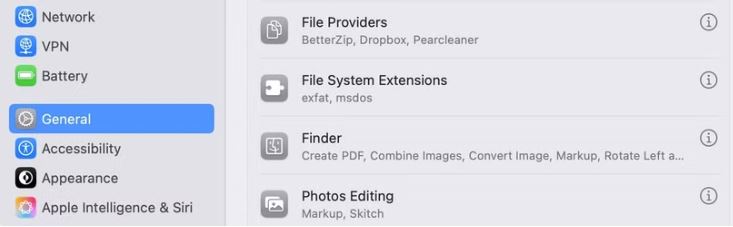
Scroll down to the “Extensions” section and click the “i” button next to “Finder.” You should see a list of all the built-in and custom Quick Actions you currently have on your Mac. Flip the toggle next to a Quick Action off to disable it and hit “Done”.
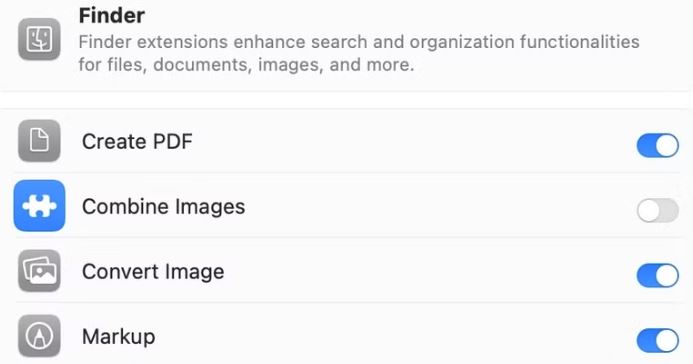
In the future, if you need to use this Quick Action again, you can enable it. Head back to the same page and toggle on the switch next to it.
[mai mult...]How to use Quick actions on a Mac
As soon as you create a Quick Action—using either method—it’s automatically added to the Quick Actions menu on your Mac, ready to use.

Alternatively, you can click on the Quick Action you want to use in the Preview pane. You need to enable the Preview pane for this to work. Open Finder and go to View > Show Preview, or press the Command+Shift+P shortcut.
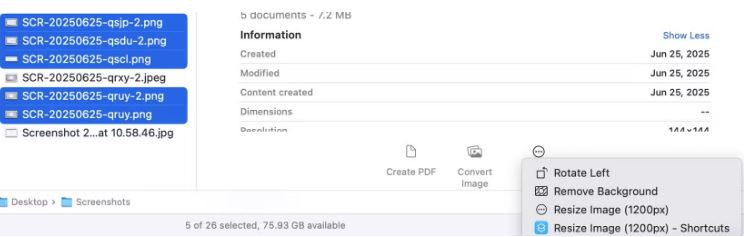
Similarly, if your Mac has a Touch Bar, you can execute Quick Actions from it as well. However, you’ll need to configure it first from the Touch Bar settings.
Depending on what Quick Action you just used, it may work in the background, apply changes to the selected files, and save them automatically. Or it may ask for your input. The Convert Image Quick Action is a great example of this. When you run it, you’ll see prompts on your screen asking you to select the desired output format, among other things. Make the appropriate selections, and the Quick Action will complete the operation and save the file.
Unless you’ve opted to preserve the original file while creating a workflow (in Automator or Shortcuts), the Quick Action will overwrite the original file and save it in the same location.
[mai mult...]