

Soluții
Webcam Black Screen In Windows 11
The “black screen” issue with a webcam in Windows 11 occurs when no image is displayed in applications, even though the camera is connected and recognized by the system. Causes may include incorrect privacy settings, conflicts between applications, or operating system errors. Resolving it involves checking these elements and applying a series of diagnostic and configuration steps.
We need to check the settings first → Privacy & Security and verify whether camera access is enabled and properly turned on.

Then if is not working, we need to open PowerShell with administrator rights and typing the following command: Get-AppxPackage -allusers Microsoft.WindowsCamera | Foreach {Add-AppxPackage -DisableDevelopmentMode -Register “$($_.InstallLocation)\AppXManifest.xml”}
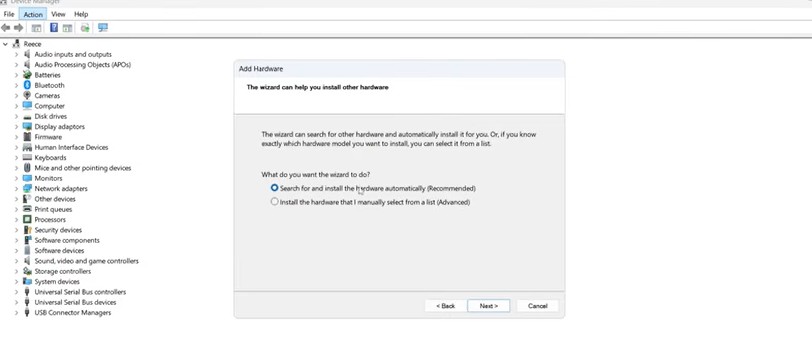
If it doesn’t work either, you need to reinstall driver from Device Manager → Action → Add legacy hardware and check the first bullet for automatically installation.
Microsoft Teams Installation failed
During the installation of the Microsoft Teams application, various issues may occur, including the ‘Installation Has Failed’ error. This is usually caused by corrupted temporary files, missing administrator rights, or leftover files from previous installations.
- Run the installer as an administrator
- Copy the installation file to the folder c:\users\username and run as an administrator
- Delete Teams cache files %appdata%\microsoft- skip the steps if you don’t have Teams folder

4. Uninstall remains of teams and try installing it again

5. Use 7zip to extract and install Teams.
[mai mult...]Placa de retea docking station usb type-C nedetectata
In unele situatii, fara a exista o problema cu laptopul ori device-ul testat, in urma conectarii acestuia la un docking station s-ar putea ca uneori sa nu fie detectata placa de retea, desi procesul de incarcare a demarat, iar porturile video si usb ale docking stationului sunt functionale.
[mai mult...]Prelungirea duratei de viata a bateriei prin reducerea temperaturilor
Deoarece dispozitivele electronice, respectiv bateriile au o performanta scazuta in urma incalzirii (avand o rezistenta crescuta din cauza cuprului si a altor materiale), putem reduce imbatranirea bateriei printr-o serie de modalitati cu impact direct asupra temperaturii in timpul utilizarii.
[mai mult...]PowerShell pentru onboarding automat de useri – de la 45 min/user la 2 min
Context real pe care probabil mulți îl recunoașteți: companie de ~400 de angajați, HR-ul trimite pe mail „a venit Ionescu luni, îi faci cont?”. Procesul de onboarding arăta cam așa pe partea de IT:
- Deschizi ADUC, creezi userul în OU-ul corect
- Îl bagi în grupurile de securitate în funcție de departament (uneori 8-10 grupuri)
- Deschizi portalul M365, îi asignezi licența potrivită
- Creezi mailbox-ul, configurezi signature-ul cu template-ul companiei
- Creezi folderul personal pe file server, setezi permisiuni NTFS
- Adaugi userul în Teams în canalele departamentului
- Trimiți credențialele temporare pe telefonul managerului (că userul nu are încă mail)
- Updatezi un Excel cu cine a fost adăugat când și cu ce licență
Fiecare pas – click-uri, așteptări, verificări. Timpul mediu: 40-50 minute per user, și asta când totul mergea bine.Clar trebuia automatizat. Varianta complet comercială (ex: soluții de IAM/IGA) era peste budget. Am mers pe combinație de PowerShell + un CSV generat din HR + Task Scheduler.
[mai mult...]