
Situatie
Has your Gmail inbox become cluttered and overrun? Maybe you’re looking for a quick way to mass delete newsletters or emails from a specific domain name.
Solutie
Delete emails in Gmail using “Select All”
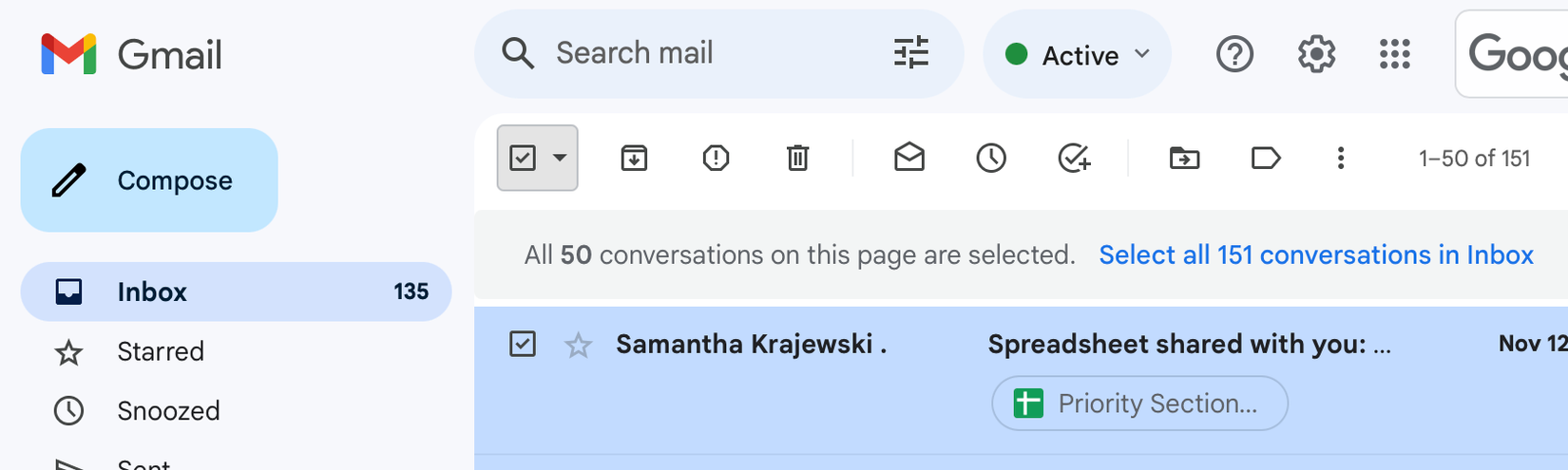
You can delete everything in your inbox quickly using the “Select All” box at the very top of your inbox when using Gmail on a desktop browser. Click it once, and the first 50 emails (everything on the first page of your inbox) will be selected, with a notice.
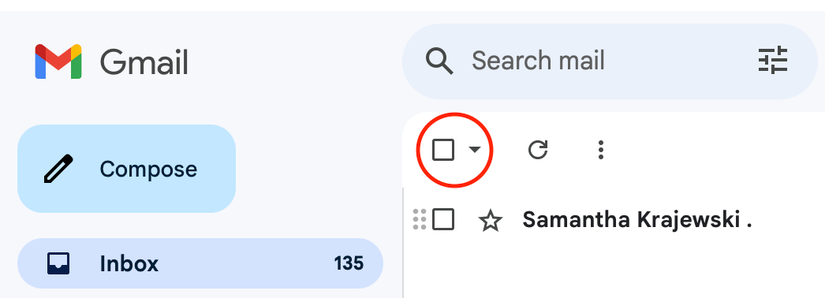
If you want to select everything in your inbox, go ahead and click the link next to the notice that reads “Select all conversations in inbox” (where is how many conversations you have in your inbox).
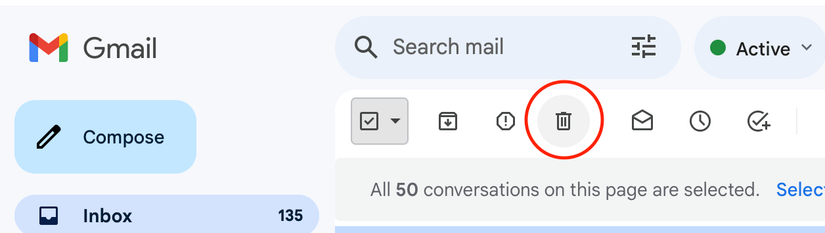
From here, you can use the “Delete” trash can icon to move everything to the Bin, where it will be permanently deleted in 30 days. You can expedite the process by clicking “Empty Bin now” to permanently delete everything in the bin at once.
You can also use the “Archive” button to move selected messages to your archive so that they’re out of your inbox but still accessible should you need them.
Use search, labels, and more to mass delete
Gmail’s search bar accepts operators that let you slice your mailbox into precise subsets. This is faster than scrolling through All Mail and guessing. The in:archive operator finds all messages you’ve archived, and you can combine it with others like older_than:1y, larger:10M, or category:promotions to target specific clutter. For example, in:archive older_than:1y has:attachment larger:10M finds archived, year-old messages with large attachments.
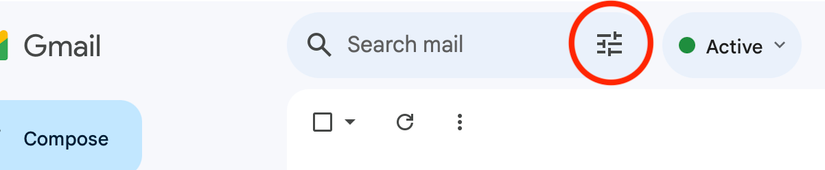
Once your search returns results, click the checkbox at the top to select the first 50, then click the link that says “Select all conversations that match this search” to grab everything. Hit the trash can icon to move them all to Trash. You can also use the archive icon to pull them out of your inbox without deleting, which is useful if you’re not sure yet.
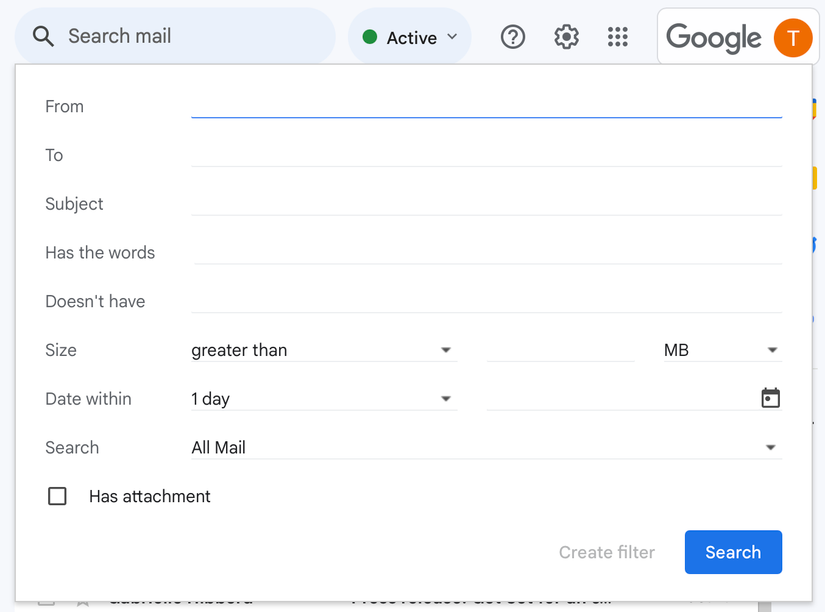
From here it’s a simple case of using the “Select All” button to select everything (remember to click on the “Select all conversations that match this search” button to include all results) and then use the “Delete” or “Archive” button as required. You can do the same with any labels you have created.
How to delete archived emails in Gmail
A common misconception: archiving frees up storage. It doesn’t. Archiving only strips the Inbox label; the message still lives in your account and counts against your quota. If you’ve been archiving for years, you may have thousands of messages quietly consuming space. The fastest way to find and delete them is the in:archive operator—type it in the search bar, select all, and delete.
Before you do, consider keeping anything with legal or financial significance: tax documents, warranties, or records your employer may require. If you’re unsure what to keep, our guide to freeing up Gmail storage walks through a similar decision process.
To mass delete your archived emails, first retrieve your archived emails by clicking the “All Mail” folder (you might need to reveal it first by clicking the “More” arrow.
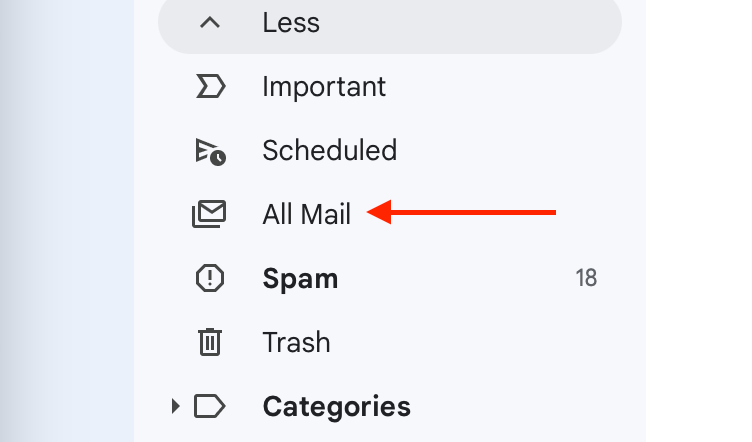
Select the messages you want to remove and hit the trash can icon. For a more targeted pass, combine in:archive with other operators: in:archive category:promotions older_than:2y pulls up old promotional emails you almost certainly don’t need.

When you find archived emails, check their boxes and hit the “Delete” button (a trash can icon).
Leave A Comment?