
Soluții

Cum importați un document Word în Google Docs

Cineva îți trimite un document Word, dar tu nu ai Word? Renunțați la Word și faceți schimbarea în Google Docs? Nici o problemă; Google Docs vă permite să importați cu ușurință documente Word. Și, deși s-ar putea să nu accepte unele dintre caracteristicile și formatarea mai avansate ale unor documente Word, funcționează destul de bine.

[mai mult...]
Installing Komplete content to an external drive on P.C.

Native Instruments Komplete content, particularly sound libraries, can take up a lot of space, so we recommend installing that content to a dedicated external hard drive. Once you’ve downloaded and activated your Native Instruments product, you can select where the software is downloaded, standalone software location (if applicable), content location, and if you’re a Windows user, the VST plug-in location.

[mai mult...]

How to fix the DirectDraw error On Windows 11/10?

Some users have complained that the DirectDraw error occurs when they attempt to launch old games from the past on Windows 11/10 PCs. Games for Windows won’t launch when that error notice appears. As a result of the DirectDraw problem, gamers cannot play classic games like Might and Magic 7, Diablo, and Age of Empires. Software for art and design can also have the same issue.

[mai mult...]

How to fix Windows 11 Taskbar not working issue

Method 1: Restart Taskbar Services

In this case, you can restart the Windows Explorer in Task Manager and this will restart the overall services including the Taskbar.

Step 1: Press the Windows key + R to open Run command.

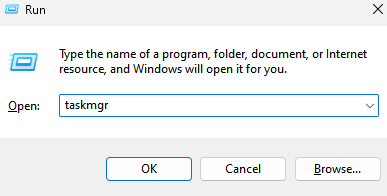
Step 2: Type in taskmgr in the search box and press OK to open the Task Manager window.

Taskmgr Min

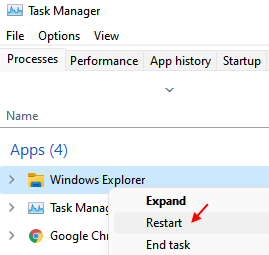
Step 3: Under the Processes tab, go to Windows processes and look for Windows Explorer.

Step 4: Select Windows Explorer and click on the Restart button below.

Restart Windows Explorer 1 Min

Close the Task Manager window and check if the taskbar shows up again.

Method 2: Repair system files

Step 1: Press the Windows + R keys together on your keyboard to open Run command.

Step 2: In the search box, type cmd and at the same time, press the Ctrl + Shift + Enter keys together to open the Command Prompt window with admin rights.

Step 3: Type the below commands in the Command Prompt in sequence and hit Enter after each one:

Dism /Online /Cleanup-Image /ScanHealth

Dism /Online /Cleanup-Image /RestoreHealth

sfc /scannow

After the commands are executed, close Command prompt and reboot your PC. The Windows Taskbar not working issue should be resolved now.

[mai mult...]