
Situatie
Reinstalling Windows is sometimes unavoidable. I’ve done it plenty of times when a system was truly beyond saving. But it is also one of the most disruptive fixes you can choose. You lose time reinstalling apps, reconfiguring settings, and chasing down little tweaks you forgot you ever made. In many cases, Windows is not actually broken beyond repair. It is just confused, partially corrupted, or stuck after a failed update.
Before you wipe everything and start over, it is worth running a handful of built-in repair commands from the Command Prompt. These tools can fix damaged system files, repair the Windows image, clean up update components, and resolve common disk issues. When run in the right order, they can bring a sluggish or unstable system back to life and save you from doing a full reinstall that you never needed in the first place.
Solutie
Get your system ready for repair
Before you run any of these commands, you have to take a minute to set things up properly. First, open Command Prompt as an administrator, since most of these tools can’t make repairs without elevated permissions. If I’m on a laptop, I make sure it is plugged in and not running on battery, as some of these checks can take a while and could trigger a reboot.

The order of the steps that follow matters more than you might realize. Disk errors can interfere with file repairs, and corrupted system components can cause other tools to fail or report misleading results. Running these commands out of sequence often leads people to think nothing worked, when in reality the foundation was never fixed first. The sections below walk through each repair in a safe and I hope, logical order, starting with the least disruptive checks and moving toward deeper system repairs. If you are going through these, please follow them as written, and you’ll give Windows the best chance to fix itself before you consider reinstalling anything.
How a quick disk scan fits into the repair process
This first step checks your drive for basic file system errors without making any changes. It scans the structure of the disk, looking for issues like corrupted file entries, invalid indexes, or inconsistencies that can build up after improper shutdowns, crashes, or power losses. Because it does not attempt repairs, it is fast, safe to run at any time, and unlikely to disrupt anything that is currently working.Even though this scan will not fix problems on its own, it plays an important role in the process.
If Windows is trying to repair system files or update components on top of a damaged file system, those tools can fail or produce unreliable results. Running this quick check first helps confirm that the drive itself is in the right state before moving on to deeper repairs. If it reports errors, that is your signal to proceed to the next step and allow Windows to repair the disk properly. This scan is safe to run while Windows is active.
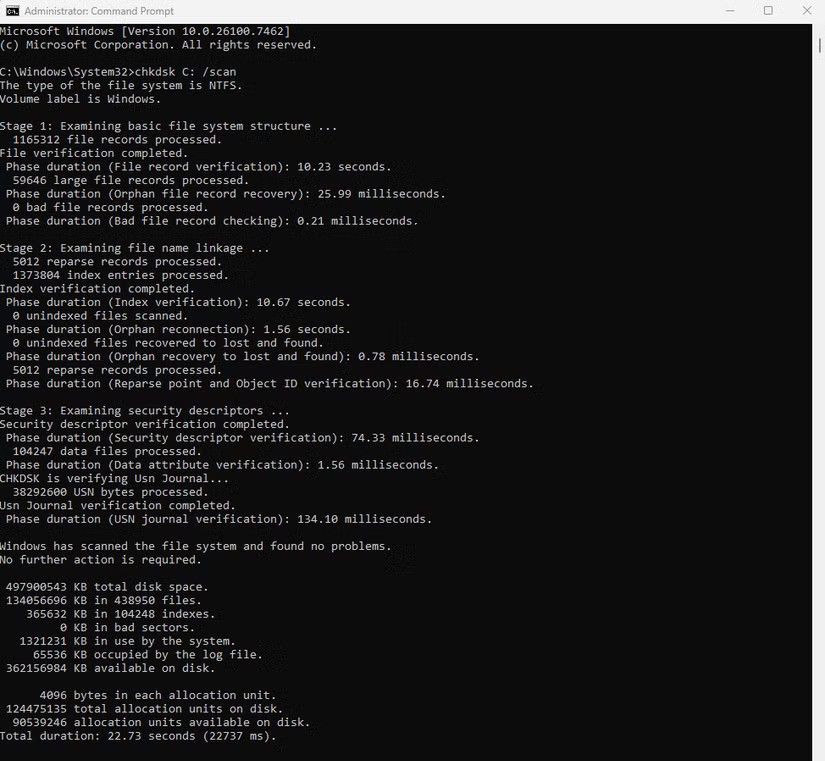
Open Command Prompt as an administrator, confirm your Windows drive letter (usually C:). Now run the following command : chkdsk C: /scan
If you see a message stating that no problems were found, you can move on to the next step.
Fix corrupted system files before doing deeper repairs
Once you know the drive itself is not the problem, it is time to check Windows’ core system files. This is where the System File Checker comes in. SFC scans the protected files that Windows depends on to function properly and compares them against known-good versions stored on the system. If it finds files that are missing, damaged, or corrupted, it replaces them automatically.This can resolve a surprising number of issues, including broken Windows features, unexplained crashes, settings that refuse to stick, and system behavior that slowly degrades after a bad update or an unclean shutdown.This step comes next for a reason. SFC is good at fixing individual files, but it depends on the underlying Windows image being intact. Running it now gives you a clear signal about the state of the system.
Open Command Prompt as an administrator and run: sfc /scannow
The scan can take several minutes and may appear to stall at certain percentages, which is normal. When it finishes, read the summary carefully. If it reports that corrupted files were found and repaired, you can skip the next step. In my case, SFC came back clean, so I was able to move on.
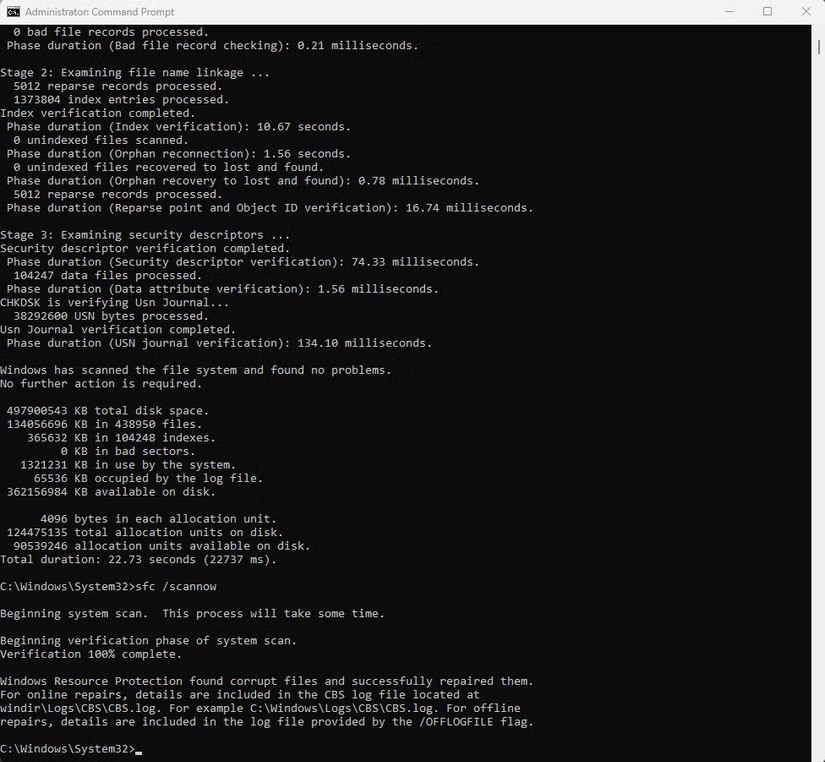
If it says it could not fix some files, or there are lingering issues like updates keep failing or errors return, that is not a dead end. It simply means the Windows image itself needs repair, which is exactly what the next step addresses.
Check and repair the Windows system image
DISM, short for Deployment Image Servicing and Management, works at a deeper level than SFC. While SFC focuses on individual protected system files, DISM checks and repairs the underlying Windows image that those files are pulled from. If that image is damaged, SFC can report errors it cannot fix or give inconsistent results. DISM is especially useful when Windows Update keeps failing, features refuse to install, or system repairs never seem to stick.If you do need to run it, open Command Prompt as an administrator and start with a health check using this command:
DISM /Online /Cleanup-Image /CheckHealth.

If issues are detected, follow up with DISM /Online /Cleanup-Image /RestoreHealth.
DISM /Online /Cleanup-Image /RestoreHealth
This process can take a while and may appear to pause, which is normal. Once it completes, reboot your system and then rerun SFC to confirm everything is now in a good state before moving on.
Reset Windows Update when installs keep failing
When Windows updates start failing repeatedly, it is often not the update itself. Over time, cached downloads, stuck services, or interrupted installs can leave Windows Update in a half-working state where it keeps retrying the same update and failing in the same way. Resetting the Windows Update components clears out that backlog and forces Windows to start fresh, without touching your files or installed applications.This process stops the core update services, renames the update cache folders, and then restarts everything cleanly. To do it, open Command Prompt as an administrator and stop the update services using this command.
net stop wuauserv
Then, run this command.
net stop bits
Next, rename the SoftwareDistribution and Catroot2 folders, which are where Windows stores downloaded updates and update metadata. In the same elevated Command Prompt window, run the following commands to rename them rather than deleting them.
ren C:\Windows\SoftwareDistribution SoftwareDistribution.old
ren C:\Windows\System32\catroot2 catroot2.old
Renaming the folders is intentional. It forces Windows to rebuild them from scratch while keeping the originals available if you need to roll back. Now restart the services using the following commands.
net start wuauserv
net start bits
Once that is done, reboot the system and try running Windows Update again. If updates suddenly install without errors, that is a good sign the issue was never the update itself, just the state it was stuck in.
If your system feels stable again, you can stop here. These steps fix the problems that usually lead people to reinstall Windows, and when they work, they save hours of setup and preserve the system you already have dialed in. Reinstalling should be a last resort, not a reflex, so if things are working now, take the win and move on.
Leave A Comment?