
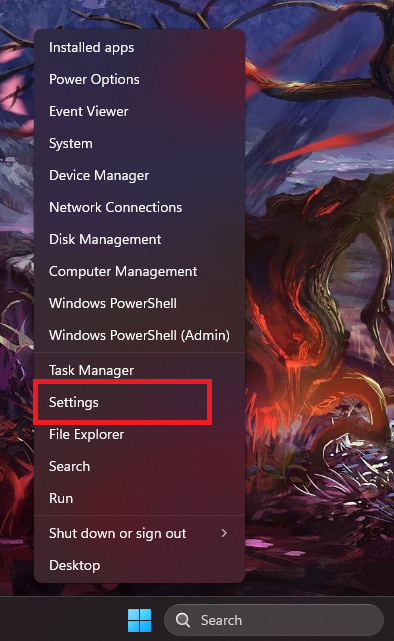
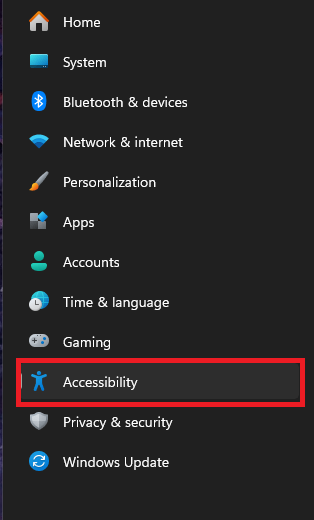
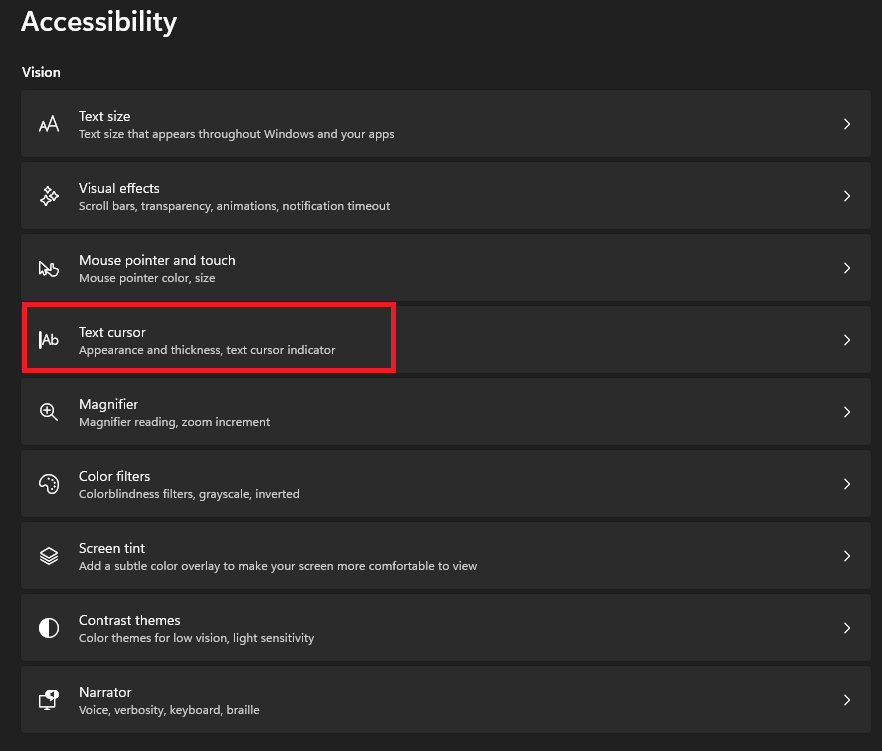
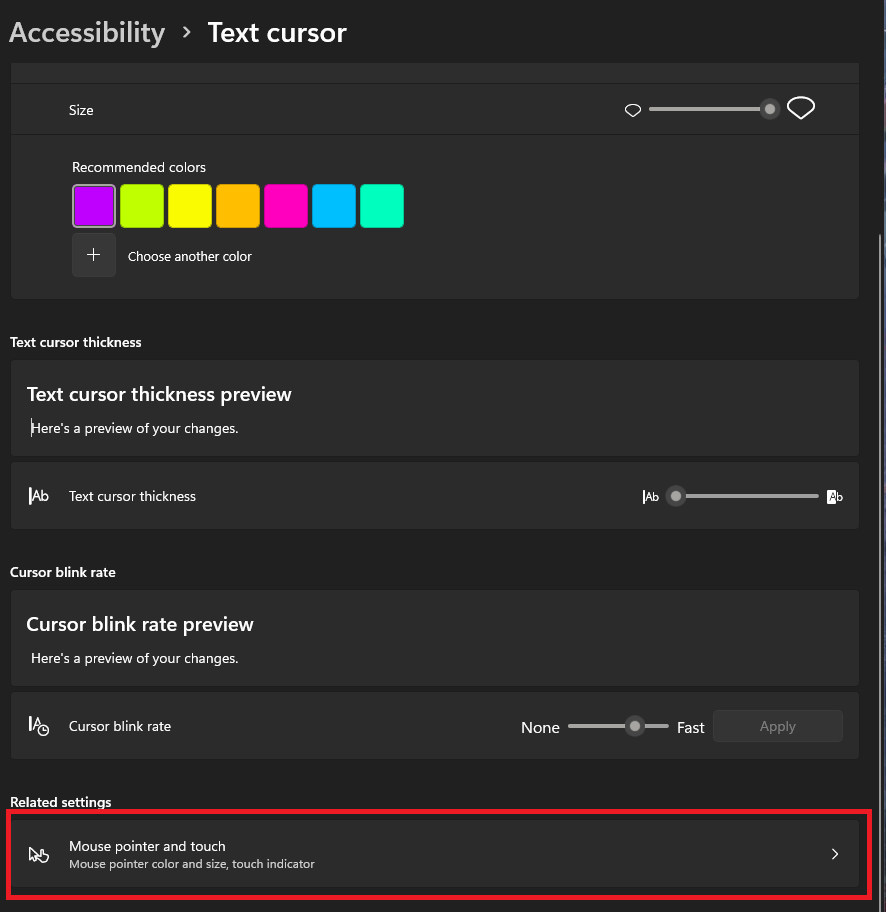
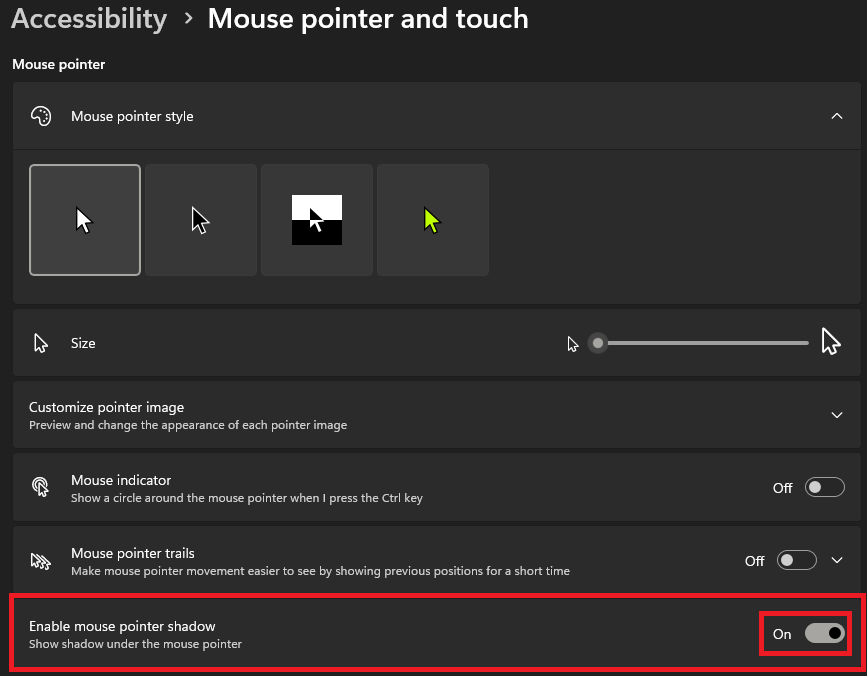
Cum dezactivati umbra cursorului pe Windwos 11 Pro Data 29/07/2026 Autor preda silviu Categorie Soluții 1 34 Configurare noua (How To) Situatie Solutie Pasi de urmat Prima data faceti click stanga pe butonul de “Start” si selectati “Settings” In meniul din partea stanga selectati “Accesibility” In partea dreapta selectati “Text cursor” Mai departe derulati in jos pana la sectiunea “Related settings” si click pe “Mouse pointer and touch” Iar aici veti avea optiunea de a dezactiva umbra cursorului. Tip solutiePermanent Voteaza Up Down (4 din 8 persoane apreciaza acest articol) ShareTweetShare Despre Autor preda silviu Solutii Asemanatoare How to disable every AI feature on Microsoft Edge for Windows 11 4 Cum folositi functia de “Optimize drives” pe Windows 11 Pro 2 iOS 27: Finally unlinks alarm volume from your iPhone ringer 3 Cum obții un certificat SSL gratuit pentru o adresă IP publică cu Let’s Encrypt 3 Software Supply Chain Attacks – detectare, prevenire și remediere 5 Cum ascunzi programele instalate din lista de dezinstalare in Windows 3 Leave A Comment? × Cancel Reply Save my name, email, and website in this browser for the next time I comment. 9 − six =
Leave A Comment?