
Situatie
Step 1: Remove the DNS Server Role from the DC
This must be performed first. Otherwise, the DC demotion task (Step 2) fails.
#Open PowerShell as administrator

Uninstall-WindowsFeature -Name DNS
Restart the server to complete the removal of the DNS role.
Step 2: Remove the Global Catalog Role from the DC
If the server is badly broken, you must remove the Global Catalog role from the DC. Otherwise, the DC demotion will also fail.
- Open Active Directory Sites and Services via Server Manager (link opens in a new browser tab).
- Then, navigate to the DC’s site and expand it, then expand Servers and click the server name. On the details blade, right-click NTDS Settings, and select Properties.
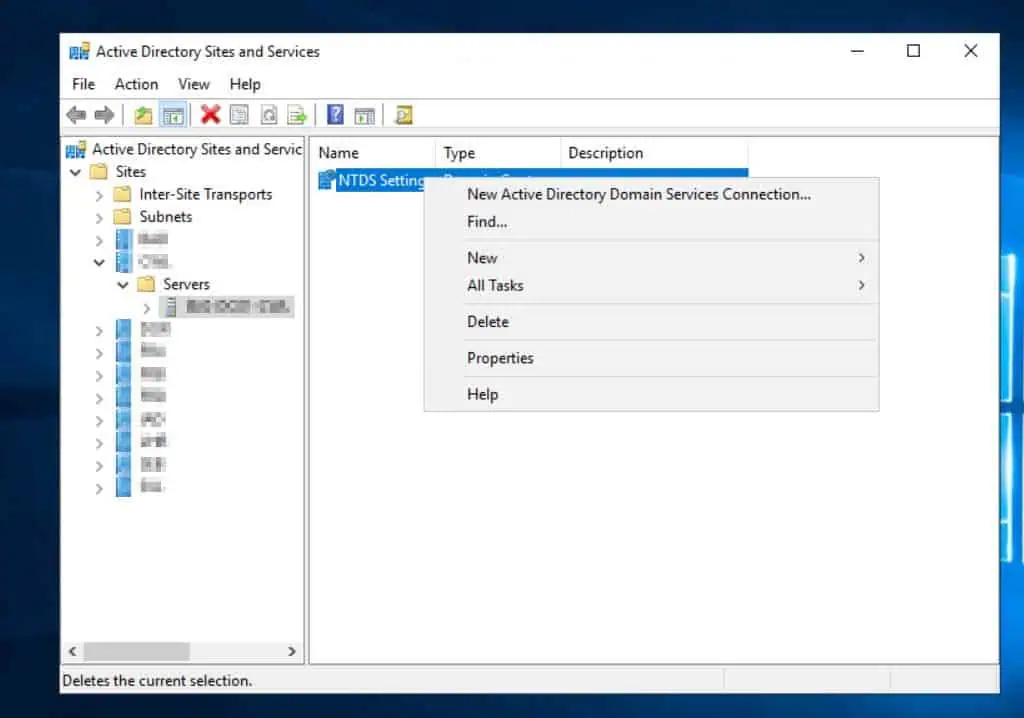
- After that, clear the Global Catalog check box, select Yes to the warning message, and finally, select OK.

Step 3: Demote the Server as a Domain Controller
#1. Save the password to use as local Administrator password. At the cred prompt, enter Administrator as the username and then, the password you want to use as the server's local Administrator password post its demotion as a DC

$password = Get-Credential

#2. Demote the Server as a DC

Uninstall-ADDSDomainController -LocalAdministratorPassword $password.password -Confirm:$false -NoRebootOnCompletion -ForceRemoval -SkipPreChecks
See the results of the commands below:


Restart the server to complete the demotion.
Step 4: Perform Metadata Cleanup from the FSMO Role Holder
After demoting the DC, before re-proting it, you must perform a metadata cleanup of the DC using ntdsutil.
Follow the steps below to complete this task.
- Determine the FSMO role holder by running the command below from any Domain Controller.
netdom query fsmo
- Sign into the DC that holds the FSMO roles and open the command prompt as administrator. Then, run the following ntdsutil commands in the order provided.
#1. Type ntdsutil and press enter. Then, on the ntdsutil prompt, type metadata cleanup and press enter

ntdsutil: metadata cleanup

#2. On the metadata cleanup: prompt, execute the followin commands

metadata cleanup: connections
metadata cleanup: connect to server <domain_fsmo-role-holder>
metadata cleanup: q

#3. Then, on the metadata cleanup: prompt, type select operation target, then press enter key.

metadata cleanup: select operation target

#4. On the select operation target: prompt, run the following commands in order:

select operation target: list domains
select operation target: select domain <enter number for the domain where the failed DC resides>
select operation target: list sites
select operation target: select site <enter the site number of the failed DC>
select operation target: list servers in site
select operation target: select server <enter number of the server>
select operation target: q

#5. On the metadata cleanup: prompt, execute remove selected server
metadata cleanup: remove selected server
Then, on the Server Remove Confirmation Dialog, confirm that the DC you want to remove is displayed, then select Yes.
#6. Quit metadata cleanup and ntdsutil by executing the q command in both prompts

- Log on to the FSMO role DC and force replication by running the command below from a command prompt opened as administrator.
repadmin /syncall <domain_fsmo-role-holder> /Aped
Quit the repadmin command by pressing any key.
- Then, monitor the progress of the replication by running the command below. Replace the text in bold with the Distinguished Name of the server you’re cleaning its metadata.
repadmin /showobjmeta * "<enter the Distinguished Name of the server here>"

For the avoidance of doubt, the above command must only return parts of the result that says “Directory object not found.” If it rertuns a table, you must wait until the command no longer returns a table.
Step 5: Reinstall the DNS Server Role on the Server
In Step 1, we removed the DNS Server role. Before promoting it to a DC, you must reinstall this role with the following steps:
- Sign in to the server as local administrator – enter .\administrator in the username field – and use the password you specified in Step 3 when you demoted the server as a DC.
- Execute the command below to reinstall the DNS Server role, including all sub-features and management tools, and restart the server if required.
#Open PowerShell as administrator

Install-WindowsFeature -Name DNS -IncludeAllSubFeature -IncludeManagementTools -Restart
#see the screenshots below for the progress and result of the command


Leave A Comment?