
Situatie
Solutie
Think of a package manager as your Linux system’s librarian. The package manager’s job is to keep track of everything installed in your software library. It helps you find, install, update, and remove software—all while keeping track of dependencies and making sure your system stays organized.
Different Linux distributions (often called “distros”) use different package managers:
- APT (Advanced Package Tool): Used in Debian-based distros which include Ubuntu, Linux Mint, and Pop!_OS.
- YUM/DNF: Found in Red Hat-based distros like Fedora, CentOS, and RHEL. DNF is the modern replacement for YUM.
- Pacman: The go-to for Arch-based systems like Arch Linux and Manjaro.
Package managers also act as the link between your system and your distro’s software repositories (often called “repos”). Repositories are collections of software packages, usually grouped into some common category. You may also have repos specific to a certain application. Google, for example, maintains their own repository for the Chrome browser.
When you install or update an application or package, the manager searches through the repositories to find the app you want along with any extra software it requires to run (the dependencies). When it has located everything you need, it will download it, unpack it, and put everything where it needs to be.
Installing Software via the Terminal
So, now let’s get into the fun part: installing your favorite software using the terminal. Here’s the basics of how you do it with the three most popular package managers.
APT (Ubuntu, Debian, Mint)
Before installing, it’s a good idea to update your local list of available packages. You can have apt check its known repos for the most current information with the following command:
sudo apt update
Then, to install something—for example, htop:
sudo apt install htop
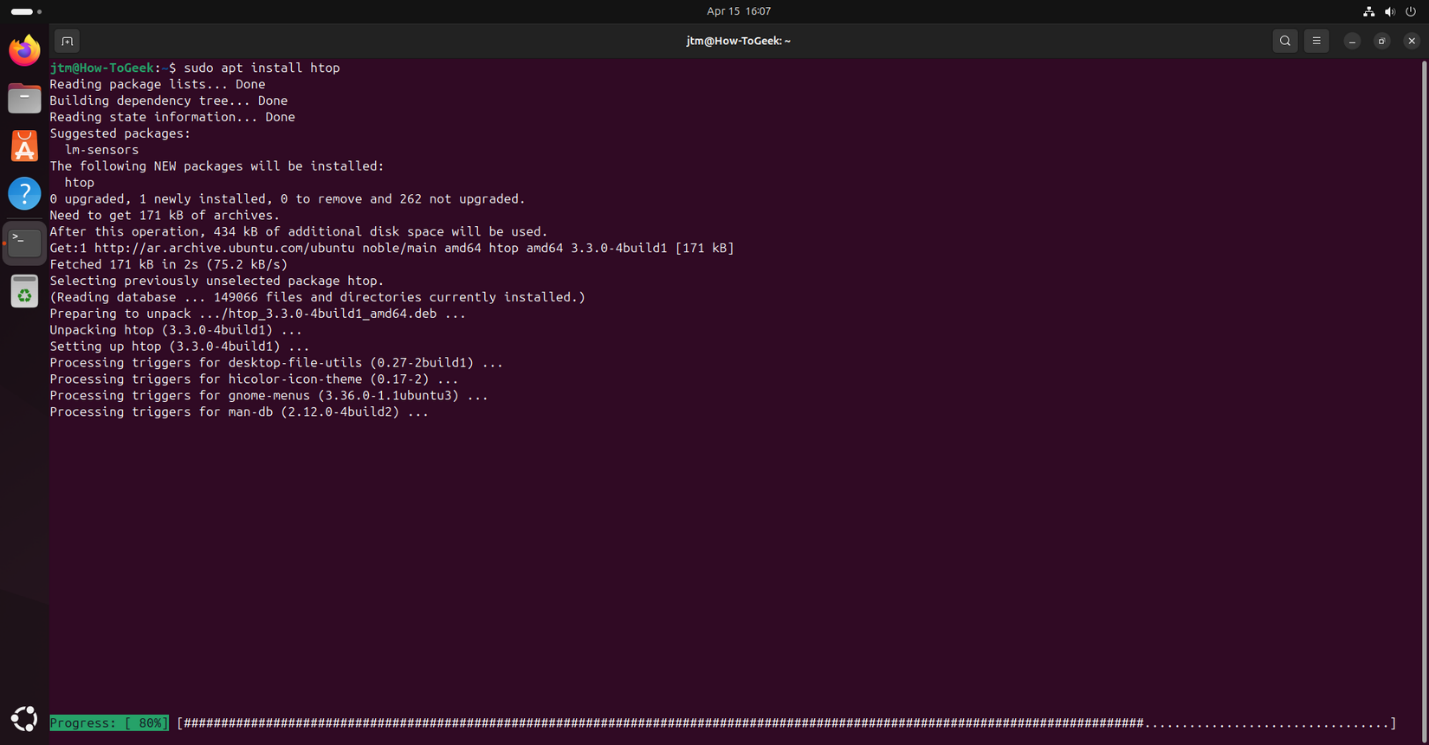
APT will check for dependencies, download them, and install the app. Easy, right?
DNF (Fedora, CentOS, RHEL)
To check for updates from your repositories:
sudo dnf check-update
To install a package (like fastfetch):
sudo dnf install fastfetch
DNF also handles dependencies well and will prompt you before proceeding.
Pacman (Arch, Manjaro)
First, synchronize the package database with the repositories:
sudo pacman -Sy
Then, install a package (like curl):
sudo pacman -S curl
Pacman is known for its speed and simplicity, once you get used to its unique syntax.
Common Software to Try
Here are a few great tools you can experiment with as you learn:
- fastfetch – Get a summary of your system with ascii art in the terminal
- htop – A simple but powerful command line system monitor
- curl – Command-line tool for fetching anything from a URL
Go ahead and try installing one. Remember, Linux is case sensitive! In virtually every situation, you should not capitalize the names of software.
Removing Software via the Terminal
Sometimes you install something, realize you don’t need it, and want to clean up. Here’s how to remove software cleanly with each package manager.
APT
To remove a package but keep its config files:
sudo apt remove package-name
To remove a package and its configuration files:
sudo apt purge package-name
To remove all unneeded packages:
sudo apt autoremove
DNF
Removing software is straightforward:
sudo dnf remove package-name
DNF handles dependencies automatically, so you don’t have to worry about leftovers too much. But, you can have it double check and remove anything that is no longer needed:
sudo dnf autoremove
Pacman
To remove a package:
sudo pacman -R package-name
To remove the package and any dependencies that were installed with it (and are no longer needed):
sudo pacman -Rs package-name
To check and remove all unused packages:
pacman -Rns
Updating and Upgrading Software
Keeping your system updated isn’t just about getting the latest features—it’s also critical for security.
What’s the Difference Between Update and Upgrade?
- Update: Refreshes the list of available software versions from repositories.
- Upgrade: Actually downloads and installs the latest versions of packages.
Here’s how to check for updates and run upgrades in each package manager.
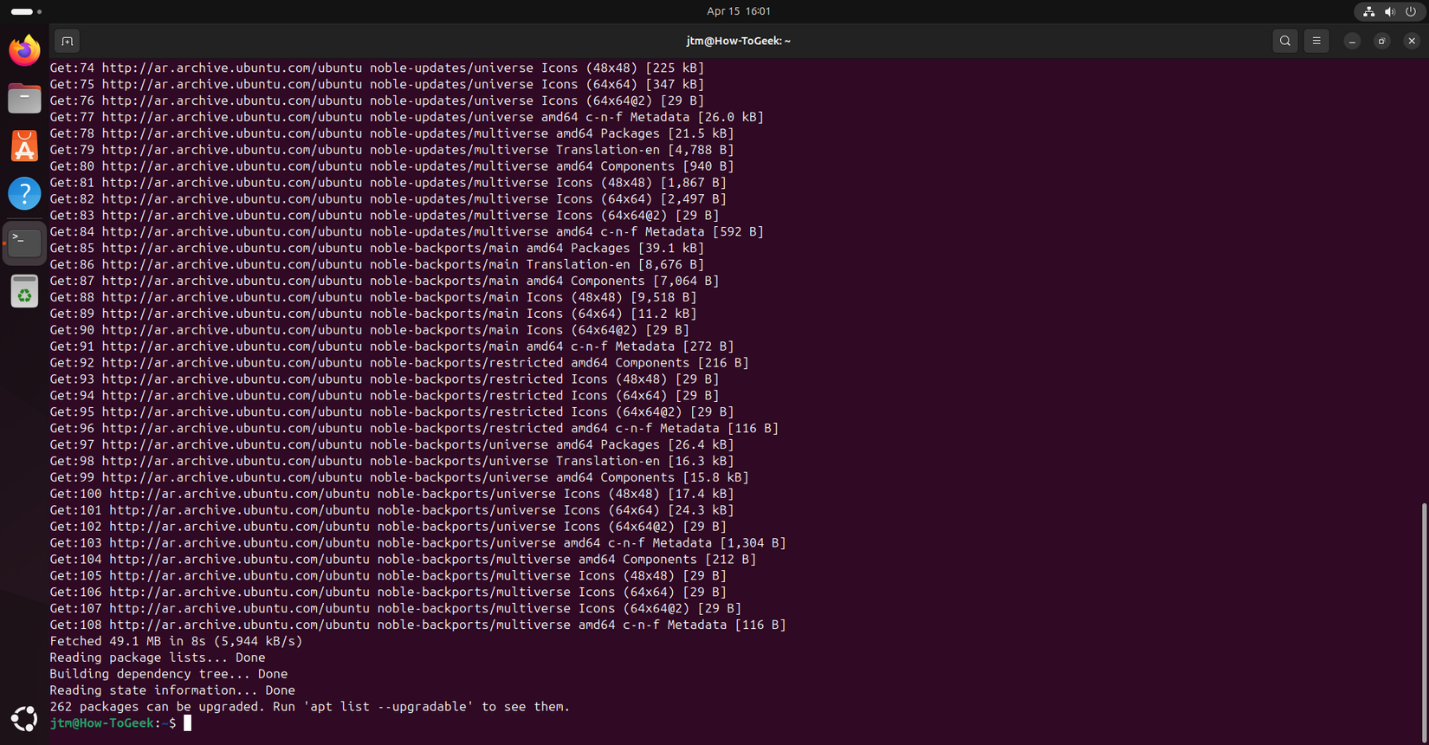
APT:
sudo apt update
sudo apt upgrade
For a more comprehensive upgrade that handles changing dependencies:
sudo apt dist-upgrade
DNF:
sudo dnf check-update
sudo dnf upgrade
Pacman:
sudo pacman -Syu
Keep those package upgrades rolling, rolling, rolling.
1
It’s a good habit to update your system once or twice a week—or more often if you’re feeling proactive!
Troubleshooting Common Errors
Sometimes things don’t go smoothly. But don’t worry—most issues have simple fixes. Some of the most common issues include:
- Dependency conflicts: Happens when two packages need different versions of the same library.
- Broken packages: Usually caused by interrupted or failed installations.
- Repository errors: Sometimes a server is temporarily unavailable or misconfigured.
Quick Fixes
On systems that use APT, the most common problem is an incomplete installation and/or broken dependencies. The following command should take care of it:
sudo apt –fix-broken install
The most common problem with DNF is a bad metadata cache. Cleaning and rebuilding the cache usually resolves the problem. Use the following command:
sudo dnf clean all
sudo dnf makecache
Pacman users will find that the most common problem they run into is a database that is out of sync. You can rebuild it with this command:
sudo pacman -Syy
If you’ve tried the solutions above and still have a problem, don’t panic! You can copy the error text from the terminal by highlighting it with your cursor and pressing Ctrl+Alt+C. A quick web search with the exact error message will usually lead you to a solution (and forums like StackOverflow or your distro’s community are goldmines of help).
Using the terminal to install and remove software in Linux isn’t just practical—it’s empowering. The next time you find an app you want to install, try doing it from the terminal command line. Once you’ve done it a few times, you won’t even have to think about it.