
Situatie
Solutie
When a Windows update causes issues on your machine, often the best and least disruptive solution is to roll it back. That said, this step has a ticking timer on it. Windows only keeps the files needed to uninstall updates for a limited window. Once they get cleaned out, your options get pretty slim. It’s also worth mentioning, that some updates can’t be rolled back at all.
Doing this type of rollback doesn’t impact your files or apps. It simply removes the problematic update and restores the previous working version. If your issue started right after the particular update, this fix is usually worth trying.
To roll an update back, open Settings and go to Windows Update > Update history > Uninstall updates. You’ll see a list of recently installed updates that can still be removed. Look for the update you identified earlier, usually a Quality update with a KB number, select it, then choose Uninstall. Follow the prompts and restart when you get prompted.
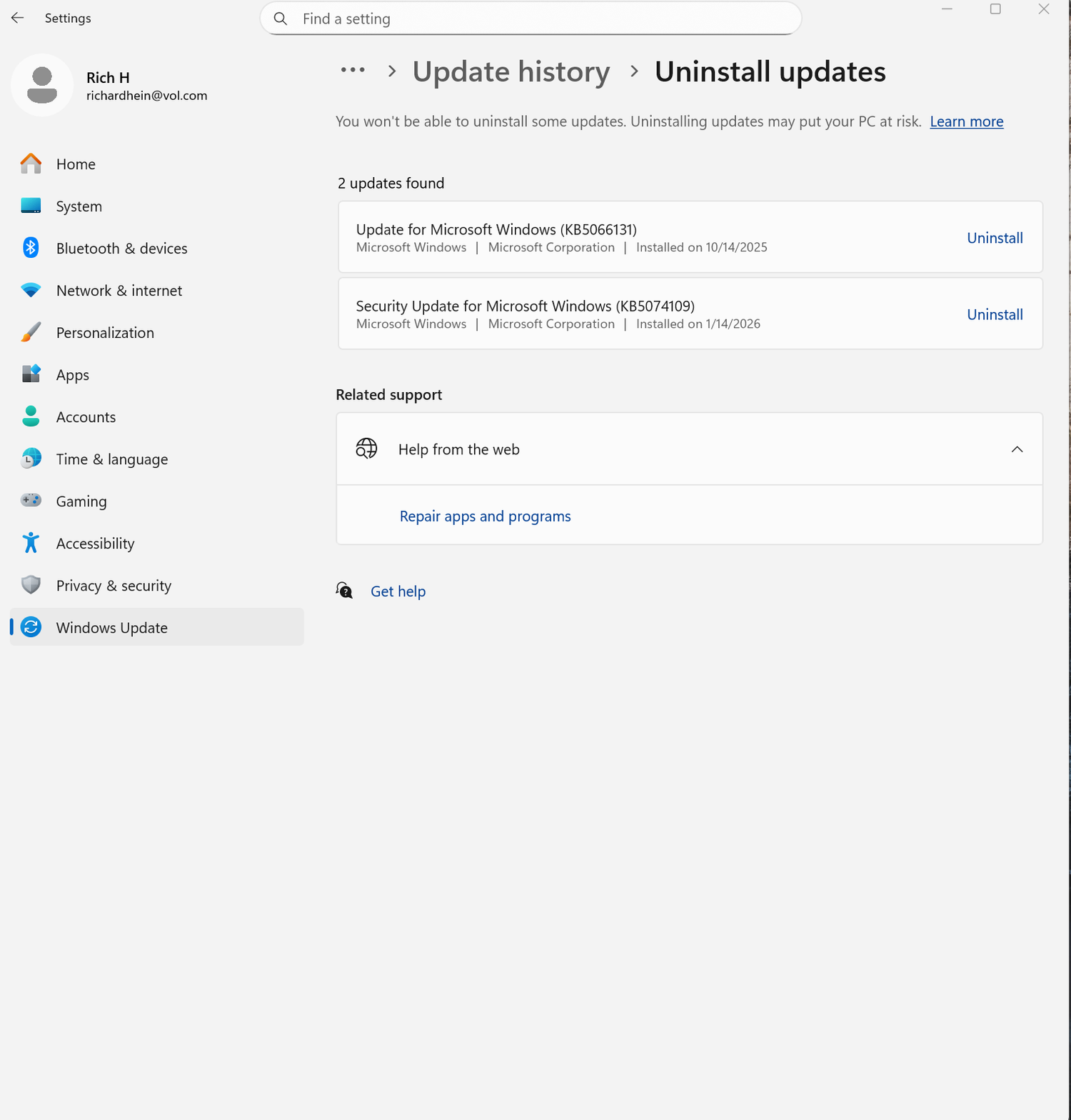
If there is no option to uninstall, it likely means the rollback period has passed or the update is no longer removable. That’s the cue to move on to recovery or Safe Mode.
Leave A Comment?