
Situatie
To use Rufus to create a bootable media of Windows 11 that disables encryption, connect a USB flash drive with 8GB of space, and then use these steps:
Solutie
2. Click the link to download the latest version under the “Download” section
3. Double-click the executable to launch the tool
4. Click the Settings button (third button from the left) at the bottom of the page
5. Use the “Check for updates” drop-down menu and select the Daily option under the “Settings” section
6. Click the Close button
7. Click the Close button again
8. Open Rufus again
9. (Optional) Under the “Device” section, use the drop-down menu and select the USB flash drive to create the installation media
10. Click the down-arrow button (on the right side) and select the Download option.
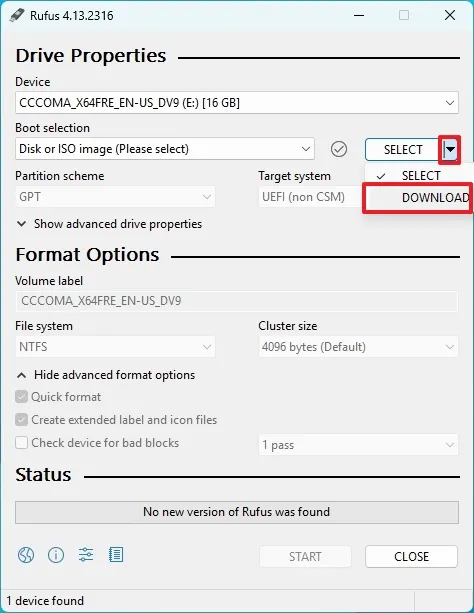
11. Click the Download button
12. Select the Windows 11 option
13. Click the Continue button
14. Select the release of Windows 11 to download.
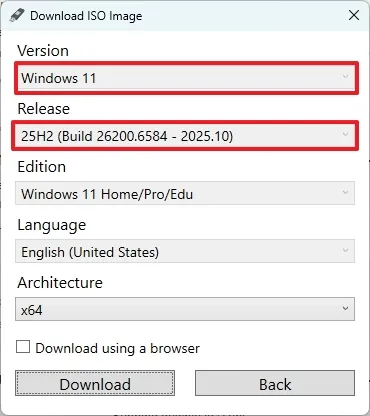
15. Click the Continue button
16. Select the Windows 11 Home/Pro/Edu option
17. Click the Continue button
18. Select the language of Windows 11
19. Click the Continue button
20. Select the x64 architecture option
21. Click the Download button
22. Select the location to save the ISO file automatically
23. Choose the “Standard Windows 11 Installation” option under the “Image option” setting
24. (Optional) Continue with the default settings after the download
25. (Optional) Specify a name for the drive under the “Volume label” setting
26. Click the Start button
27. Clear all the options (as necessary)
28. Check the “Disable BitLocker automatic drive encryption” option.
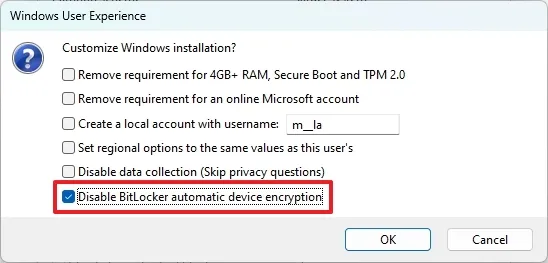
29. Click the OK button.
Once you complete the steps, you can use the bootable media to perform a clean install of Windows 11 without automatic device encryption.
Leave A Comment?