
Situatie
Solutie
When you’re confident an update is causing your problem, but the rollback period has already closed, your next stop should recovery or Safe Mode. At this point, we’re just trying to get Windows back into a usable state. Recovery tools lets you bypass whatever is breaking Windows normal startup, while Safe Mode loads Windows with the minimum drivers and services running. This makes it a bit easier to remove stubborn, offending updates, roll back drivers, or fix startup issues.
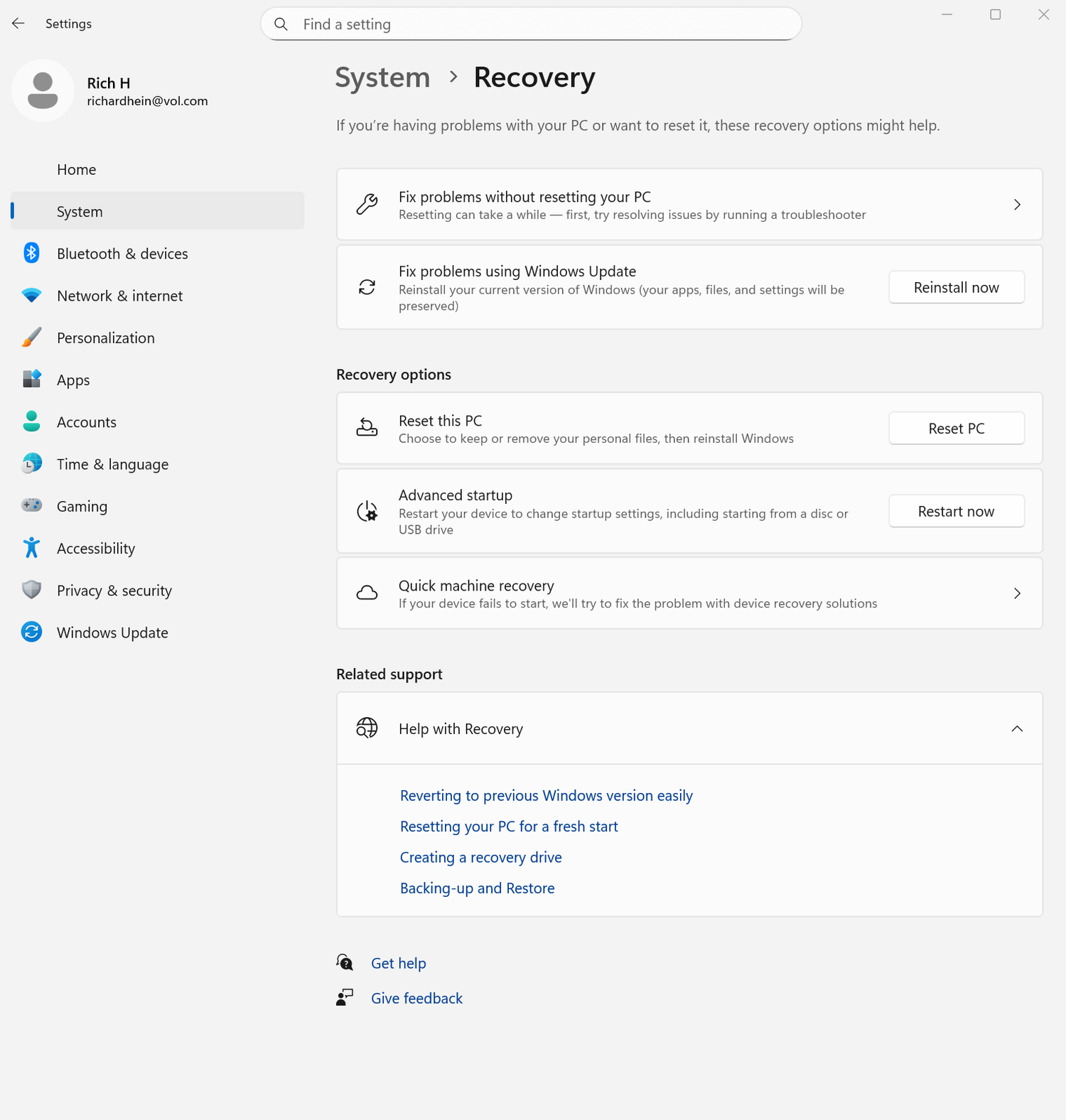
If you can still boot into Windows, go to Settings > Recovery, then choose Restart now under Advanced startup.
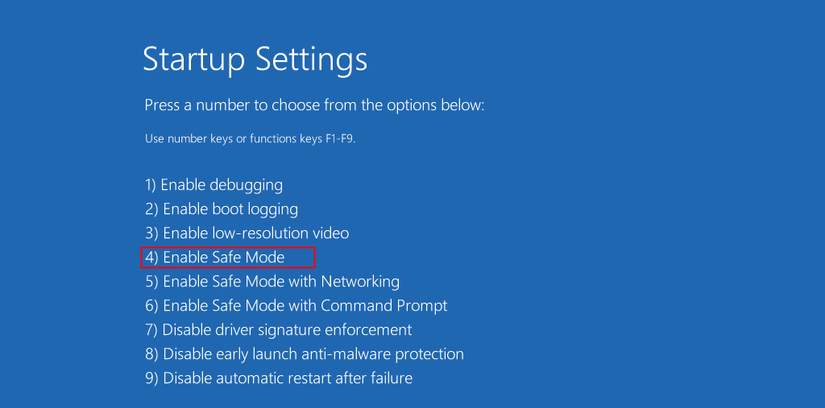
If it doesn’t boot at all, interrupt startup a few times by powering the PC on and off until the recovery screen appears. From there select Troubleshoot > Advanced options. To get into Safe Mode, choose Startup Settings > Restart, then press 4 (or 5 for networking) when prompted.
Once you’re in Safe Mode, head back to Windows Update > Update history > Uninstall updates or Device Manager to remove or update problematic drivers. If Safe Mode doesn’t get the job done, the recovery menu gives you tools like Startup Repair or System Restore, which can sometimes fix boot looping or bad updates without forcing a full reset.
Leave A Comment?