
Situatie
Solutie
Pasi de urmat
Constant User Account Control (UAC) pop-ups
User Account Control (UAC) is genuinely helpful—it prevents unauthorized apps from making system-level changes—but the constant interruptions are what get frustrating. If you keep seeing the dimmed-screen prompt that asks, “Do you want to allow this app to make changes to your device?” every time you install software or adjust settings, you can tone it down.
If you’re confident about the apps you install and the changes you make, you can switch to one of the four UAC levels, each designed to reduce how often you see those prompts. Just type User Account Control into the search bar and open the matching result. Review what each level does, choose the one that fits your comfort level, and hit “OK”.
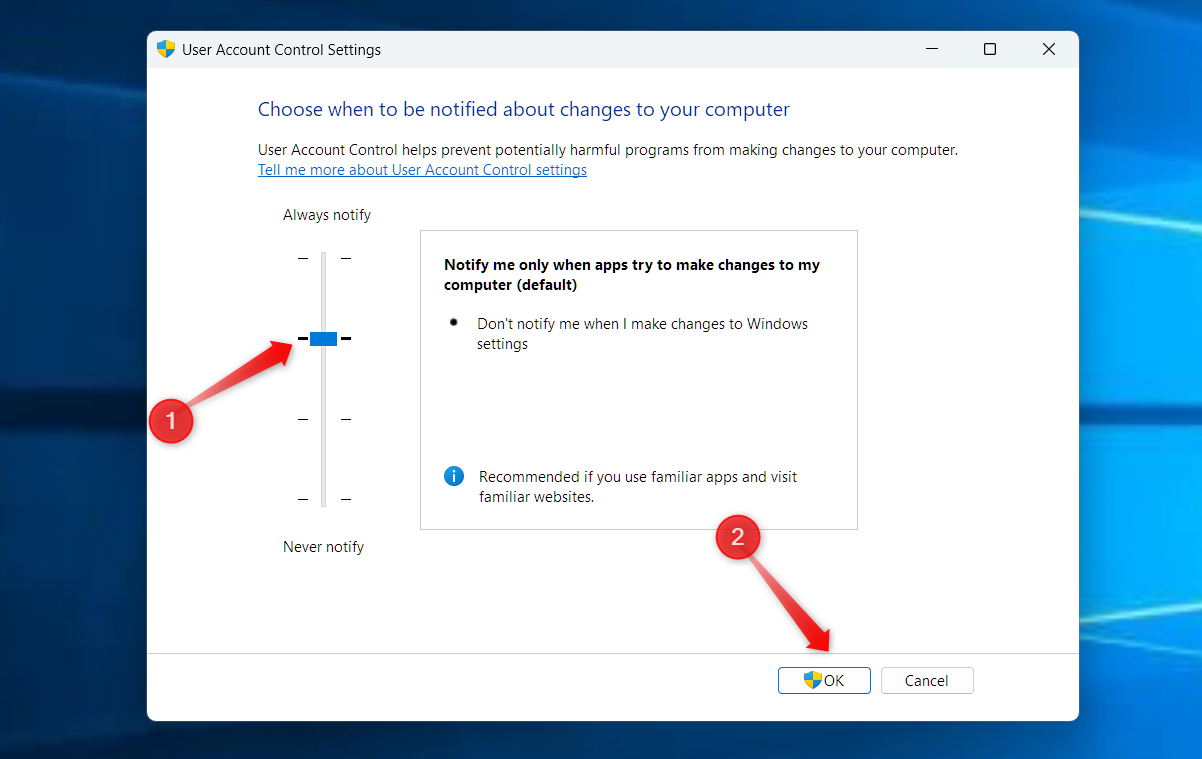
Just avoid the “Never notify me” setting—it gives apps full, unrestricted access to your system, which is a major security risk.
Microsoft Defender SmartScreen
SmartScreen shields you from harmful apps and malicious downloads by comparing them against Microsoft’s constantly updated threat lists. If you’re a typical user, you’ll only see its warnings occasionally. But as someone who frequently tests niche tools, open-source utilities, or apps pulled from GitHub, I see SmartScreen pop up even when the app is safe.
Dismissing the warning is easy—just click “More Info” and select “Run Anyway”—but when you’re testing multiple apps back-to-back, the interruptions get old fast. So, I temporarily turn it off. To do this, go to Settings > Privacy & Security > Windows Security > App & Browser Control, click “Reputation-Based Protection Settings,” and switch off the “Check Apps and Files” toggle.
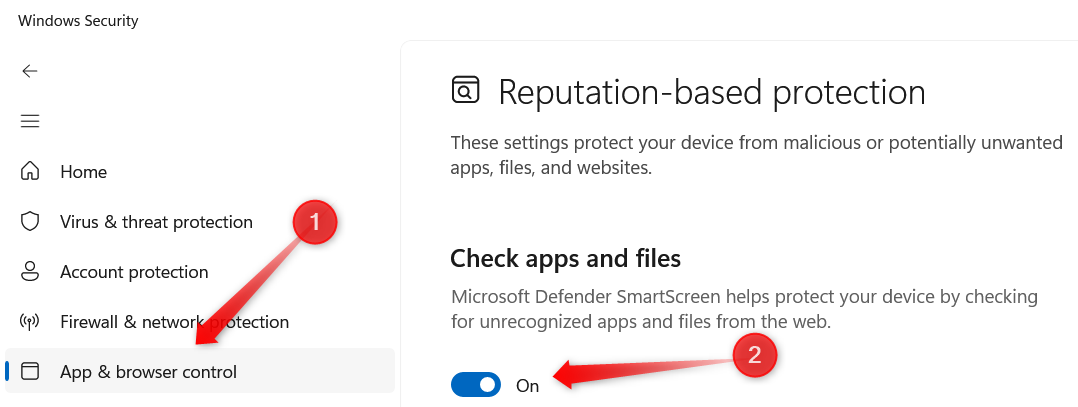
Remember that turning off this feature removes a layer of protection. So, you should leave it enabled—especially if you’re not confident in distinguishing safe apps from harmful ones.
Controlled Folder Access
Controlled Folder Access keeps your important files safe from ransomware and malicious apps by allowing only trusted programs to modify files in protected folders such as Documents, Pictures, and Desktop. The downside is that it can block legitimate apps—image editors, document converters, or backup tools—from making changes.
It doesn’t block the apps themselves; it prevents them from modifying files in protected folders. I can’t turn off this feature because it’s too useful, but constantly adding applications to the allowed list is annoying. To manage this, I add only selected folders to the protected list and allow access exclusively to trusted applications.
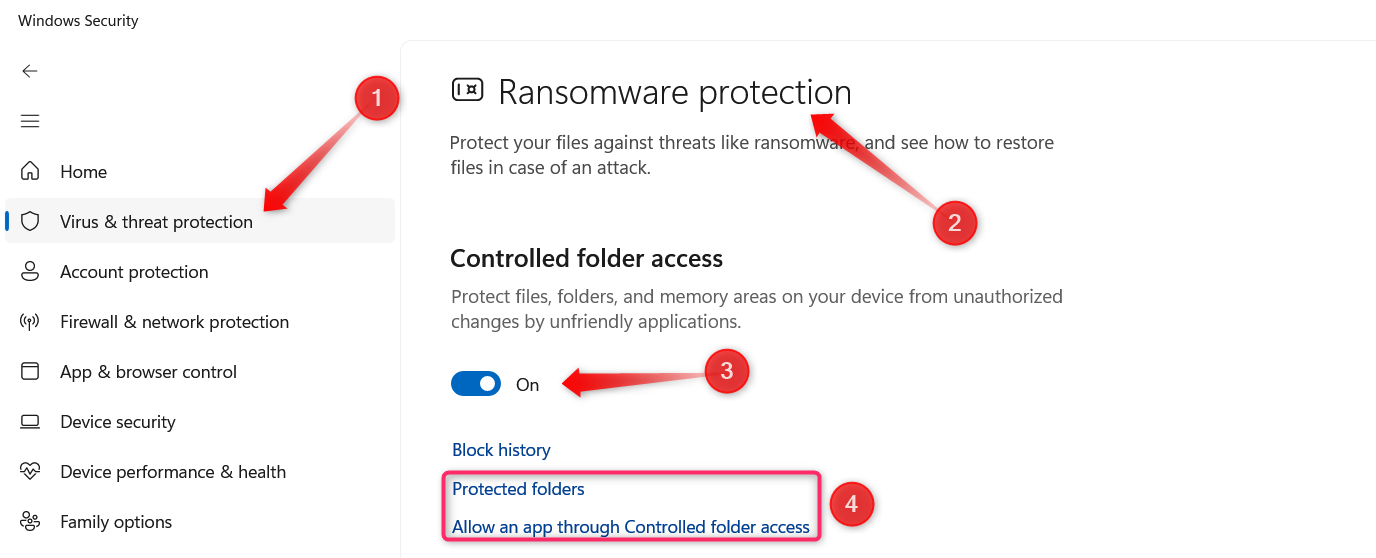
For new apps that default to these folders, I change their default save location, keeping the folders protected without manually whitelisting each app. To manage Controlled Folder Access, open Windows Security, head to “Virus & Threat Protection,” click “Manage Ransomware Protection,” and open the settings to allow trusted apps or add more protected folders.
Windows Security blocks you… even as an admin
Have you ever seen the “This app has been blocked by your system administrator” message when trying to install or run a program? Although this is expected on work or school devices, Windows—being prone to occasional glitches—can sometimes display this message on personal PCs, even when you’re logged in as the administrator.
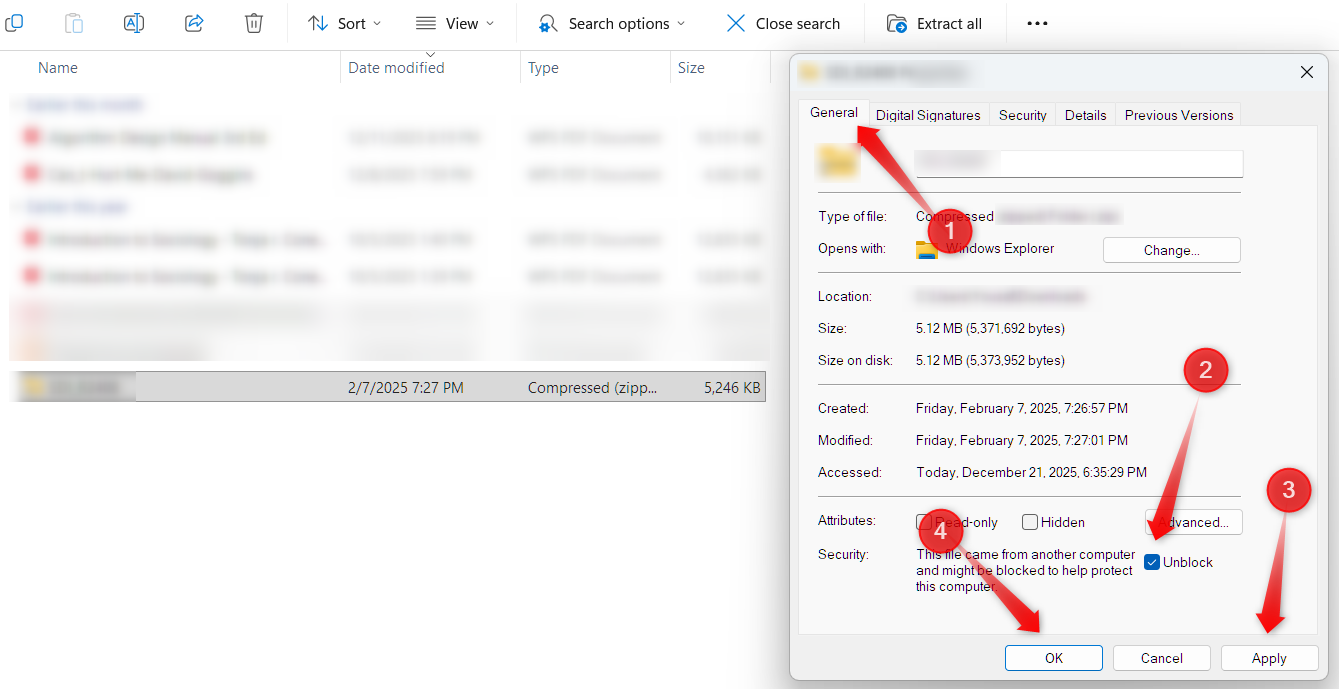
This usually happens due to strict security policies, SmartScreen, or corrupted user permissions, causing Windows to flag an app as risky mistakenly. It’s something I often encounter with portable tools. While there’s no permanent fix, a quick workaround usually works: right-click the app, select “Properties,” check “Unblock,” then click “Apply” and “OK”.
If that doesn’t help, try running the app as administrator. Just right-click on the app’s executable and select “Run as Administrator.” You can also temporarily disable SmartScreen and App & Browser Control, as described earlier. If that doesn’t resolve the issue, check the Group Policy Editor for any rules that might be enforcing these blocks.
BitLocker recovery prompts out of nowhere
BitLocker keeps our data safe from theft or unauthorized access. The problem is when and how it decides to request your recovery key. Sometimes, even a BIOS/firmware tweak, a driver change, or a minor Windows update can trigger BitLocker to enter panic mode and ask for the 48-digit recovery key at boot. If you don’t have it on hand, you’re completely locked out.
Unfortunately, there’s no “run anyway” option to bypass it, and you can’t simply turn it off. Even things you wouldn’t expect—like a TPM reset or boot sequence tweak—can set it off. I wish Microsoft would tone down this over-cautious behavior so it doesn’t become a daily nuisance. After all, nobody wants to be locked out the moment they start their work.
Leave A Comment?