Aplicații

E-mail 1007 Solutii

How to Use the Conversation Clean Up Tool in Outlook

Some people like to keep their Outlook folders perfectly controlled, with emails neatly categorized and stored in a logical, minimal folder structure. Most of us aren’t like that, so Microsoft has provided tools to help. One of these tools is the little-known Conversation Cleanup tool, which deletes or moves redundant emails from a conversation. Here’s how it works.

You can run the Conversation Clean Up tool against a single conversation, a folder, or a folder and all of its sub-folders. It looks for emails that are redundant, which mean those that are included in full in another message in the conversation. It then deletes (by default) or moves these emails to another folder, depending on how you’ve set it up. This helps keep your mailbox from being filled with multiple copies of the same message.

First, you need to set the Conversation Clean Up parameters. Head to File > Options > Mail and then scroll down to the “Conversation Clean Up” section.

By default, Conversation Cleanup deletes items, but if you want to move redundant items to a folder instead, you can click “Browse” and choose the folder to which you want to move them. This is handy if you want to double-check for yourself that the messages the tool finds really are redundant. The Conversation Cleanup tool is reliable in our experience, but sometimes there’s no substitute for checking things yourself.

You can probably leave the other default options as they are because they make a lot of sense, but if your situation or preferences are different, go ahead and switch the parameters on or off as you see fit. Once you’ve got the settings the way you want, click “OK” to go back to Outlook.

Now, you need to open the tool. On the “Home” tab, click the “Clean Up” button. The drop-down menu gives you the option to clean up the conversation that’s currently selected in the folder, the whole folder, or the whole folder and all of the sub-folders.

You can also access this menu by clicking Folder > Clean Up Folder if you don’t need the “Clean Up Conversation” option.

We’ll go with “Clean Up Folder” for now, but the process is the same whether you clean up a conversation, a folder, or a folder and its sub-folders. And for a one-click option, you can always right-click a folder in the Navigation pane and select “Clean Up Folder.”

The first time you run this tool, a warning pops up, giving you the option to change the settings, run the tool, or cancel the operation.

If you want the tool to run without seeing this popup, enable the “Don’t show this message again” option.

Click “Clean Up Folder” to run the tool (if you switched on the “Don’t show this message again” option then from this time onwards the tool will run as soon as you select it). When the tool is running, which can take a little while if you’re running it for the first time on a folder with a lot of messages, a status notice appears in the bar at the bottom of Outlook.

You can keep using Outlook while this is running. Once the status notice disappears, the tool has finished. It won’t tell you that it’s finished—the tool is designed to run in the background to help you, not bombard you with messages—but it will tell you if it can’t find any messages to clean up.

That’s all there is to it. When we ran this tool on an example folder containing 2487 emails, it found 502 mails that could be deleted. Over a fifth of the emails in the folder was redundant, so it’s an eye-opener and a tool worth using if you’re running out of space or tired of wading through conversations.

[mai mult...]

Messages sent from a shared mailbox aren’t saved to the Sent Items folder of the shared mailbox in Outlook

Problem

Assume that you’re using Microsoft Outlook 2010 or a later version, and you’ve been delegated permission to send email messages as another user or on behalf of another user from a shared mailbox. However, when you send a message as another user or on behalf of the user, the sent message isn’t saved to the Sent Items folder of the shared mailbox. Instead, it’s saved to the Sent Items folder of your mailbox

[mai mult...]

How to Mute Mail Threads on iPhone, iPad, and Mac

iOS 13 Mail app Share Sheet with Mute button

There’s no way to leave email conversations if someone accidentally hits the “Reply All” button. What you can do is mute the conversation on your end to disable notifications. Here’s how to mute threads on your iPhone, iPad, or Mac using the Mail app.

How to Mute Mail Threads on iPhone and iPad

To mute a thread on an iPhone or iPad, you need to be running iOS 13 or iPadOS 13 and higher.

There are two ways to do this. The first works without even opening the email. You can also mute a message from the reply menu.

If you’re in the Inbox, swipe left on an email and select the “More” option.

Swipe left and tap on the More button

From the popup, tap on the “Mute” button.

Tap on the Mute button

The email will now have a small “Bell” icon to tell you that the thread has been muted.

Check the Mute symbol on muted threads

If the email is already open, tap on the “Reply” button from the bottom-right corner.

Tap on the Reply button

Then, scroll down a bit until you see the “Mute” option. Tap on the button to mute the thread.

Tap on the Mute button from the Share sheet

If you want to unmute the thread later on, follow the same process, and tap on the “Unmute” option.

Tap on the Unmute button from the Share sheet

How to Mute Mail Threads on Mac

Open the Mail app on your Mac that’s running macOS Catalina. Next, select an email or multiple emails. From the top toolbar, locate the “Bell” icon and click on it.

Click on Mute button to mute the thread

The icon will change to a bell icon with a dash across it. This means that the conversation has been muted.

You can also mute a conversation by right-clicking on an email from the list view and selecting the “Mute” option.

Click on Mute from the menu

To unmute a thread, click on the “mute” button from the toolbar again.

Click on the Unmute button to unmute the thread

This is just one of the new features in iOS 13. Take a look at our best new features list for iOS 13, and once you update, make sure to try the new Dark mode.

[mai mult...]

How to Install a Smart Lock

A Schlage Encode satin style smartlock installed on a green door.

When you’re setting up a new smarthome, one of the easiest gadgets you can add to your arsenal is a smart lock. It’s not much harder than changing a standard lock on your home. Here’s what to do.

The Basics

For this guide, we’re installing a Schlage Encode smart lock. Even if you have a different smart lock from another brand, most (if not all) the steps will be the same. You’ll generally find three main components in a smart lock: an exterior piece that may have a keypad, lock for a key, or both, an interior piece that holds the batteries and circuitry, and the bolt that secures your door. The tricky part is connecting them all.

As a quick tip: You may have seen advice to test your smart lock before installing it by inserting the batteries to turn it on. Then you can be sure the lock powers up before it’s in the door.

That seems like sound advice, but the first time a smart lock turns on, it tests if the door is left facing or right facing and adjusts the bolt mechanism to match. Without an actual door to test against, it may guess wrong, and your install will fail to work correctly. If you want to perform this test, you should check the instructions for a factory reset process. After running the test, factory-reset the lock.

Removing the Old Lock

Before you can install your new smart lock, you need to take the old one out. Standard locks are easy to remove, so long as you have access to the interior of your home anyway. Start with finding the two screws on the interior thumb turn piece. Then unscrew them.

A standard thumbturn on a lock,with two red arrows pointing to two screws.

Open the door (if you haven’t already) and go to the front side of the lock (where you insert your key). The key assembly should be loose, pull that off.

The key assembly of a lock, slightly tilted out of the door.

Now on the side of your door, look for the bolt that slides out when you lock it. Unscrew the two screws and pull the bolt assembly out.

Installing Your Smart Lock

Now find the bolt for your new lock, and look for the top mark:

Slide the bolt into your door frame, and make sure to keep the “top” face up. Look in the door hole to see if the bolt interior centers with your door well. You’ll notice three holes in the assembly—those should be as close to the center as possible. If they aren’t, you can either lengthen or shorten the bolt (depending on the current length) to center it. Usually, you do that by twisting the bolt mechanism, but you may also have to use a screwdriver instead. Then, install the two screws to lock the bolt in place.

A lock cavity with a bolt in it, and lines crossing through the vertical and horizontal center.

Next, find the outdoor assembly piece to the lock. Pay attention to the long thing bar and the electronic wire.

A Schlage Encode assembly with a red box around a wire assembly and bar.

Insert the assembly to your door. As you do so, thread the thing bar through the middle hole of the bolt assembly. It should be the only hole the bar fits through. Carefully side the wiring beneath the bolt hardware. You want to make sure hardware won’t pitch the wiring.

The door lock hole interior, showing the wiring running beneath the bolt assembly.

If your smart lock assembly seems prone to falling out of the door at this point, we’ll be securing it in later steps. This is particularly common with tall keypads. You might consider using double-sided sticky tape to hold it in place until you can fully secure the lock.

Some smart locks include a steel or plastic plate that goes against the interior of the door. Grab that, and run the wire from the front assembly through it. Then find the two long screws and run them through the two other holds the bolt assembly to the front assembly. This will lock everything in place.

With some locks, you’ll attach the interior assembly with the two long screws without the metal plate.

A metal plate with two screws and a power wire sticking through it.

Connect the wire from the outdoor piece to the interior assembly. Usually, the interior piece contains channels to run the wiring through and prevent pinching.

An interior lock piece wired to the rest of the lock.

Once you have the wire connected, place the interior lock on the door, and secure it with screws.

A close up of a Schlage Encode lock, showing stabilizing screws.

Now all that’s left to do is insert your batteries. The first time your lock turns on, it will test which way the door faces. It’s normal for it to lock and unlock several times as part of that process. Once it finishes, you can start pairing your app and setting up PINs if you have a keypad.

[mai mult...]

WinAero Tweaks – utilitar pentru modificarea setarilor si a aspectului Windows 7, 8, 8.1 si 10

WinAero Tweaker este un utilitar gratuit de modificare al diferitelor setari estetice si de sistem, fiind compatibil cu Windows 7, Windows 8, Windows 8.1 si Windows 10.

Ofera o mare varietate de tweak-uri, ce sunt impartite pe categorii, cum ar fi Appearance, Boot and Logon, Desktop and Taskbar, Content Menu, File Explorer, User Accounts, Privacy etc.

De asemenea, programul vine cu detalii despre ce face fiecare tweak in parte.

Ex1: Dezactivare Telemetrie + detalii optiune

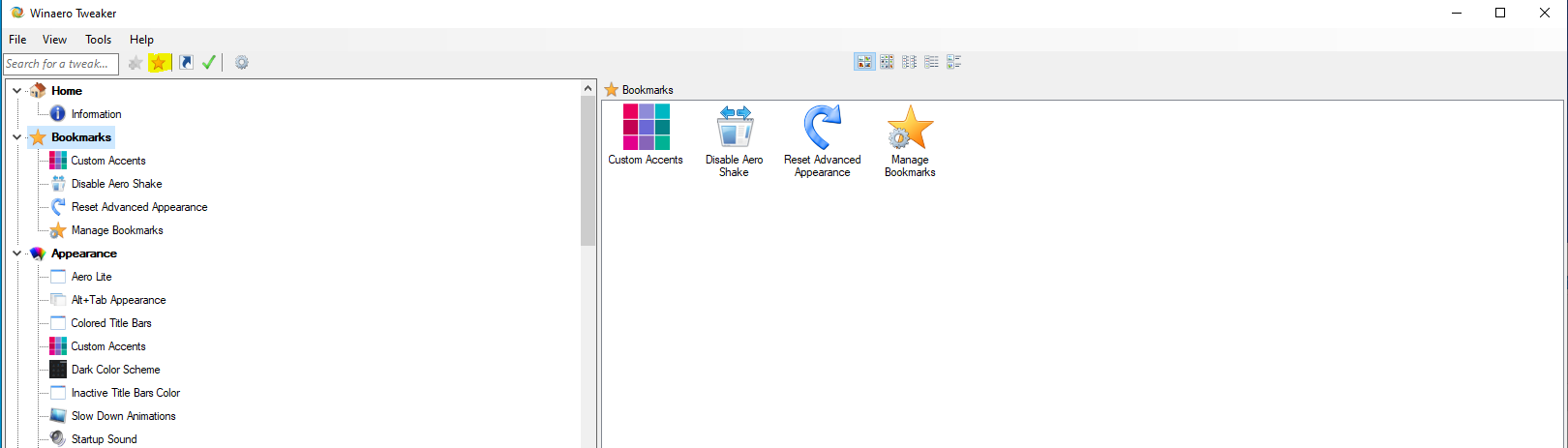
Ex2: Adaugare tweak-uri in categoria Bookmarks

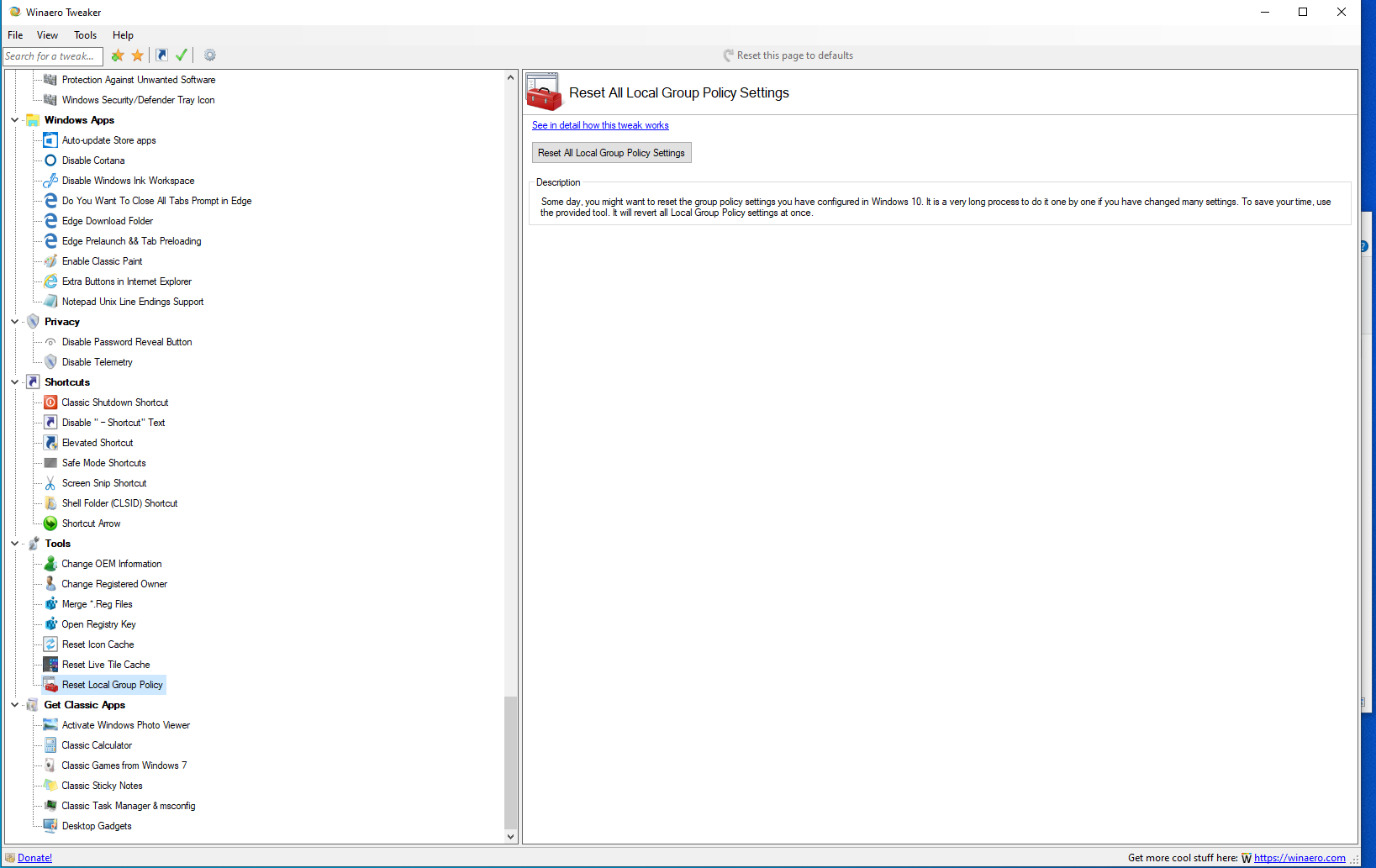
Ex3: Group Policy Tweak

[mai mult...]