Social

How to use Run as to start an application as an administrator in Windows

You can use Run as to start an application as an administrator if you want to perform administrative tasks when you are logged on as a member of another group, such as the Users or Power Users group.

Steps to start an application as an administrator

To use Run as to start an application as an administrator, follow these steps:

  1. Locate the application that you want to start in Windows Explorer, the Microsoft Management Console (MMC), or Control Panel.
  2. Press and hold down the SHIFT key while you right-click the executable file or the icon for the application, and then select Run as.
  3. Select The following user.
  4. In the User name and Password boxes, type the administrator account and password, and then select OK.

In  Windows 8 and Windows 10 start menu, it is possible to run a program or command with elevated privileges by simply right-clicking on the entry in the start menu or in the start menu search results and choosing Run as Administrator:

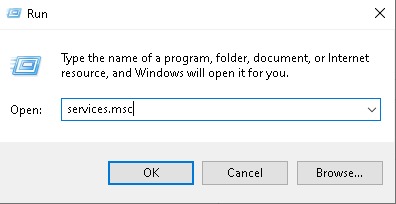
To launch a program with elevated rights via the Windows run dialog, follow the steps below:

1. Use windows key + R to launch the run dialog or Type run in windows search and select it.
2. Type in the name of the process you wish to launch with admin rights (for example, services.msc or cmd.exe, and then press (at the same time) ctrl + shift + Enter.

[mai mult...]

How to Gain Access to the System Volume Information folder

This procedure is to open the System Volume Information folder on the Windows XP computer.

  1. Click Start, and then click My Computer.
  2. On the Tools menu, click Folder Options.
  3. On the View tab, click Show hidden files and folders.
  4. Clear the Hide protected operating system files (Recommended) check box. Click Yes when you are prompted to confirm the change.
  5. Click OK.
  6. Double-click the System Volume Information folder in the root folder to open it.

[mai mult...]

How to set a partition as active

You can use Disk Management if you can boot into Windows and do the necessary changes to your partition:

  1. Click Start
  2. Click Control Panel
  3. Click System and Security
  4. Click Administrative Tools
  5. Double-click Computer Management
  6. Click Disk Management under the Storage tab from the left

    Select Disk Management from Storage

  7. Right-click on the partition you want to set as partition and click Mark Partition as Active
  8. Click Yes

Marking a partition as active on Windows Vista systems follows the same steps as the steps for Windows 7,8,10

  1. Open Command Prompt
  2. Once Command Prompt has loaded, type the following commands and press Enter after each:
    diskpart
    list disk
    select disk 0

    Where 0 is the disk listed by the list disk command.

  3. Type:
    list partition
  4. Press Enter
  5. Type:
    select partition 1

    Where 1 is your partition.

  6. Press Enter
  7. Type:
    active
  8. Press Enter

Example with images: 

After you type activate you need to press enter and it’s done.

[mai mult...]

How to boot into Safe Mode in Windows 10, 8.

In Safe Mode, your computer is running with non-core components disabled which makes it easier to fix potential errors or remove various software that, in normal conditions, can’t be fixed or removed. If you boot into Safe Mode, you can use various diagnostic tools:

  • System Restore
  • Various settings for your Windows version
  • Device Manager, where you can update and remove devices and drivers from your computer
  • Event Viewer
  • System Information, where you can view information about the hardware
  • Command Prompt
  • Registry Editor
For Windows 8 or Windows 10 to boot into Safe Mode, follow these steps if you can boot into Windows:
  1. Restart the computer
  2. Press F8 or Shift + F8 during the boot, but before the Windows logo appears

If F8 or Shift + F8 doesn’t work, go to Windows 8 – F8 key not working or follow the alternative instructions below:

  1. Boot into Windows
  2. Press the Windows and R keys to open Run or search run in windows and Type msconfig.
  3. Type msconfig
  4. Click the Boot Tab
  5. At the Boot options section, check the Safe Boot checkbox and the Minimal checkbox
  6. Click OK

example with images: 

Another method is the combination of Shift and Restart keys at the login window:

  1. Boot into Windows until the login screen appears, but do not login as a user. If you don’t have a login screen showing, boot into the system and click on Settings
  2. Press the Power button
  3. While holding the Shift key, click Restart
  4. At the Choose an option screen, select Troubleshoot
  5. Select Advanced options
  6. Select Startup Settings
  7. Click Restart
  8. Your computer may restart and open the Startup Settings screen automatically
  9. Press the F4 key to boot into Safe Mode.
[mai mult...]

How to use Linux ip addr command

Add an IP address to an Interface

For example:  add the IP address “192.168. 7.22” to the ‘wlp6s0’ interface. To add this Ip address, execute the command as follows: sudo ip addr add 192.168.

As a Linux user, you may have used the ip addr command at some point. But do you know what this command does and how it can be useful?

ip addr command is used to check the IP address of a network interface

The ip addr command is a basic networking utility used to view, add, and delete IP addresses on network interfaces. By default, the ip addr command displays information about all network interfaces on a Linux system. This includes information such as the name of each interface, its IP addresses, the netmask, broadcast address, and the status of the interface (up or down).

With this command, I can easily view information about my system’s current networking configuration and make adjustments as needed. This makes ip addr an invaluable tool for efficiently resolving any network-related issues.

Here’s an example of the ip addr command and its output:

$ ip addr
1: lo: <LOOPBACK,UP,LOWER_UP> mtu 65536 qdisc noqueue state UNKNOWN group default qlen 1000
link/loopback 00:00:00:00:00:00 brd 00:00:00:00:00:00
inet 127.0.0.1/8 scope host lo
valid_lft forever preferred_lft forever
2: eth0: <BROADCAST,MULTICAST,UP,LOWER_UP> mtu 1500 qdisc pfifo_fast state UP group default qlen 1000
link/ether fa:16:3e:18:3a:76 brd ff:ff:ff:ff:ff:ff
inet 10.254.222.37/23 brd 10.254.223.255 scope global dynamic eth0
valid_lft 74268sec preferred_lft 74268sec

This output shows information about two network interfaces on the system: lo (the loopback interface) and eth0 (a network interface card).

For each interface, the output shows:

  • The name of the interface (e.g. lo, eth0)
  • The status of the interface (e.g. UP)
  • The MAC address (e.g. 00:11:22:33:44:55)
  • The IP addresses assigned to the interface (e.g. 127.0.0.1, 192.168.0.100)
  • The netmask (e.g. /8, /24)
  • The broadcast address (e.g. brd 192.168.0.255)

This information can be useful when troubleshooting network connectivity issues, or when configuring network interfaces on a Linux system.

If you want to view information about a specific interface, you can specify the interface name as an argument to the ip addr command. For example, to view information about the eth0 interface, you can use the following command:

ip addr show eth0

This will display information about the eth0 interface, including its IP addresses, netmask, broadcast address, and status. The ip addr add command is used to assign an IP address to a network interface and make it available on the network.

To use this command, you must first specify the IP address that you want to assign, followed by the name of the interface you are working with. For example, to assign the IP address 192.168.1.20, you would type: ip addr add 192.168.1.20/32 dev eth0.

If you need to delete an IP address from a network interface, you can use ip addr del command. This command can be useful for removing old or unused IP addresses and for reorganizing your network configuration.

To use this command, you must first specify the IP address that you want to delete, followed by the name of the interface you are working with. For example, to delete the IP address 192.168.1.20, you would type: ip addr del 192.168.1.20 dev eth0.

ip addr command displays information about all the network interfaces on a Linux system. This includes the IP address, netmask, broadcast address, and more. The ip addr command is useful for troubleshooting networking issues.

[mai mult...]

Check HDD/SSD failures with chkdsk

Check HDD/SSD failures with chkdsk
  1. Boot into your Windows.
  2. Click Start.
  3. Go to Computer.
  4. Right-click on the main drive you want to check.
  5. Click Properties.
  6. At the Tools tab, click Get started at the Error-checking section.
  7. Check the Automatically fix file system errors checkbox.
  8. Click Start.

Example:

[mai mult...]