Social

How to compile and install Linux Kernel 5.16.9 from source code.

How to compile and install Linux Kernel 5.16.9

The procedure to build (compile) and install the latest Linux kernel from source is as follows:

  1. Grab the latest kernel from kernel.org
  2. Verify kernel
  3. Untar the kernel tarball
  4. Copy existing Linux kernel config file
  5. Compile and build Linux kernel 5.16.9
  6. Install Linux kernel and modules (drivers)
  7. Update Grub configuration
  8. Reboot the system

Step 1. Get the latest Linux kernel source code

Visit the official project site and download the latest source code. Click on the big yellow button that read as “Latest Stable Kernel“:
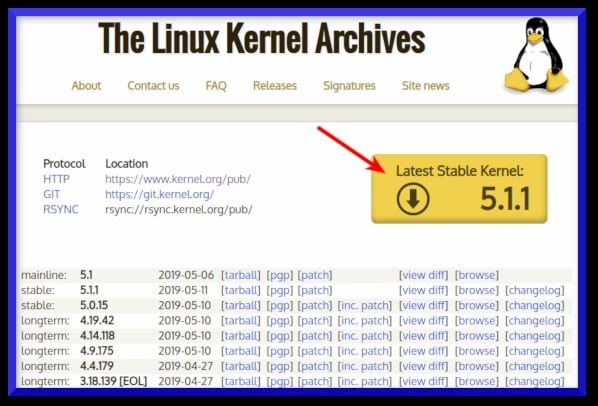
The filename would be linux-x.y.z.tar.xz, where x.y.z is actual Linux kernel version number. For example file linux-5.16.9.tar.xz represents Linux kernel version 5.16.9. Use the wget command to download Linux kernel source code:
$ wget https://cdn.kernel.org/pub/linux/kernel/v5.x/linux-5.16.9.tar.xz

Step 2. Extract tar.xz file

You really don’t have to extract the source code in /usr/src. You can extract the source code in your $HOME directory or any other directory using the following unzx command or xz command:
$ unxz -v linux-5.16.9.tar.xz
OR
$ xz -d -v linux-5.16.9.tar.xz

Verify Linux kernel tartball with pgp

First grab the PGP signature for linux-5.16.9.tar:
$ wget https://cdn.kernel.org/pub/linux/kernel/v5.x/linux-5.16.9.tar.sign
Try to verify it:
$ gpg --verify linux-5.16.9.tar.sign
Sample outputs:

gpg: assuming signed data in 'linux-5.16.9.tar'
gpg: Signature made Sun 12 Aug 2018 04:00:28 PM CDT
gpg:                using RSA key 79BE3E4300411886
gpg: Can't check signature: No public key

Grab the public key from the PGP keyserver in order to verify the signature i.e. RSA key ID 79BE3E4300411886 (from the above outputs):
$ gpg --recv-keys 79BE3E4300411886
Sample outputs:

gpg: key 79BE3E4300411886: 7 duplicate signatures removed
gpg: key 79BE3E4300411886: 172 signatures not checked due to missing keys
gpg: /home/vivek/.gnupg/trustdb.gpg: trustdb created
gpg: key 79BE3E4300411886: public key "Linus Torvalds <torvalds@kernel.org>" imported
gpg: no ultimately trusted keys found
gpg: Total number processed: 1
gpg:               imported: 1

Now verify gpg key again with the gpg command:
$ gpg --verify linux-5.16.9.tar.sign
Sample outputs:

gpg: assuming signed data in 'linux-5.16.9.tar'
gpg: Signature made Sun 12 Aug 2018 04:00:28 PM CDT
gpg:                using RSA key 79BE3E4300411886
gpg: Good signature from "Linus Torvalds <torvalds@kernel.org>" [unknown]
gpg:                 aka "Linus Torvalds <torvalds@linux-foundation.org>" [unknown]
gpg: WARNING: This key is not certified with a trusted signature!
gpg:          There is no indication that the signature belongs to the owner.
Primary key fingerprint: ABAF 11C6 5A29 70B1 30AB  E3C4 79BE 3E43 0041 1886

If you do not get “BAD signature” output from the “gpg –verify” command, untar/extract the Linux kernel tarball using the tar command, enter:
$ tar xvf linux-5.16.9.tar

Step 3. Configure the Linux kernel features and modules

Before start building the kernel, one must configure Linux kernel features. You must also specify which kernel modules (drivers) needed for your system. The task can be overwhelming for a new user. I suggest that you copy existing config file using the cp command:
$ cd linux-5.16.9
$ cp -v /boot/config-$(uname -r) .config

Sample outputs:

'/boot/config-4.15.0-30-generic' -> '.config'
Step 4. Install the required compilers and other tools

You must have development tools such as GCC compilers and related tools installed to compile the Linux kernel.

How to install GCC and development tools on a Debian/Ubuntu Linux

Type the following apt command or apt-get command to install the same:
$ sudo apt-get install build-essential libncurses-dev bison flex libssl-dev libelf-dev

How to install GCC and development tools on a CentOS/RHEL/Oracle/Scientific Linux

Try yum command:
$ sudo yum group install "Development Tools"
OR
$ sudo yum groupinstall "Development Tools"
Additional packages too:
$ sudo yum install ncurses-devel bison flex elfutils-libelf-devel openssl-devel

How to install GCC and development tools on a Fedora Linux

Run the following dnf command:
$ sudo dnf group install "Development Tools"
$ sudo dnf install ncurses-devel bison flex elfutils-libelf-devel openssl-devel

Step 5. Configuring the kernel

Now you can start the kernel configuration by typing any one of the following command in source code directory:

  • $ make menuconfig – Text based color menus, radiolists & dialogs. This option also useful on remote server if you wanna compile kernel remotely.
  • $ make xconfig – X windows (Qt) based configuration tool, works best under KDE desktop
  • $ make gconfig – X windows (Gtk) based configuration tool, works best under Gnome Dekstop.

For example, run make menuconfig command launches following screen:
$ make menuconfig
How to compile and install Linux Kernel 5.16.9

Start compiling and tocreate a compressed kernel image, enter:
$ make
To speed up compile time, pass the -j as follows:
## use 4 core/thread ##
$ make -j 4
## get thread or cpu core count using nproc command ##
$ make -j $(nproc)

Compiling and building the Linux kernel going take a significant amount of time. The build time depends upon your system’s resources such as available CPU core and the current system load. So have some patience.

Install the Linux kernel modules

$ sudo make modules_install

Install the Linux kernel

So far we have compiled the Linux kernel and installed kernel modules. It is time to install the kernel itself:
$ sudo make install

It will install three files into /boot directory as well as modification to your kernel grub configuration file:

  • initramfs-5.16.9.img
  • System.map-5.16.9
  • vmlinuz-5.16.9

Step 6. Update grub config

You need to modify Grub 2 boot loader configurations. Type the following command at a shell prompt as per your Linux distro:

CentOS/RHEL/Oracle/Scientific and Fedora Linux

$ sudo grub2-mkconfig -o /boot/grub2/grub.cfg
$ sudo grubby --set-default /boot/vmlinuz-5.16.9

You can confirm the details with the following commands:
grubby --info=ALL | more
grubby --default-index
grubby --default-kernel

Debian/Ubuntu Linux

The following commands are optional as make install does everything for your but included here for historical reasons only:
$ sudo update-initramfs -c -k 5.16.9
$ sudo update-grub

How to build and install the latest Linux kernel from source code

You have compiled a Linux kernel. The process takes some time, however now you have a custom Linux kernel for your system. Let us reboot the system.

Just issue the reboot command or shutdown command:
# reboot
Verify new Linux kernel version after reboot:
$ uname -mrs
Sample outputs:

Linux 5.16.9 x86_64
[mai mult...]

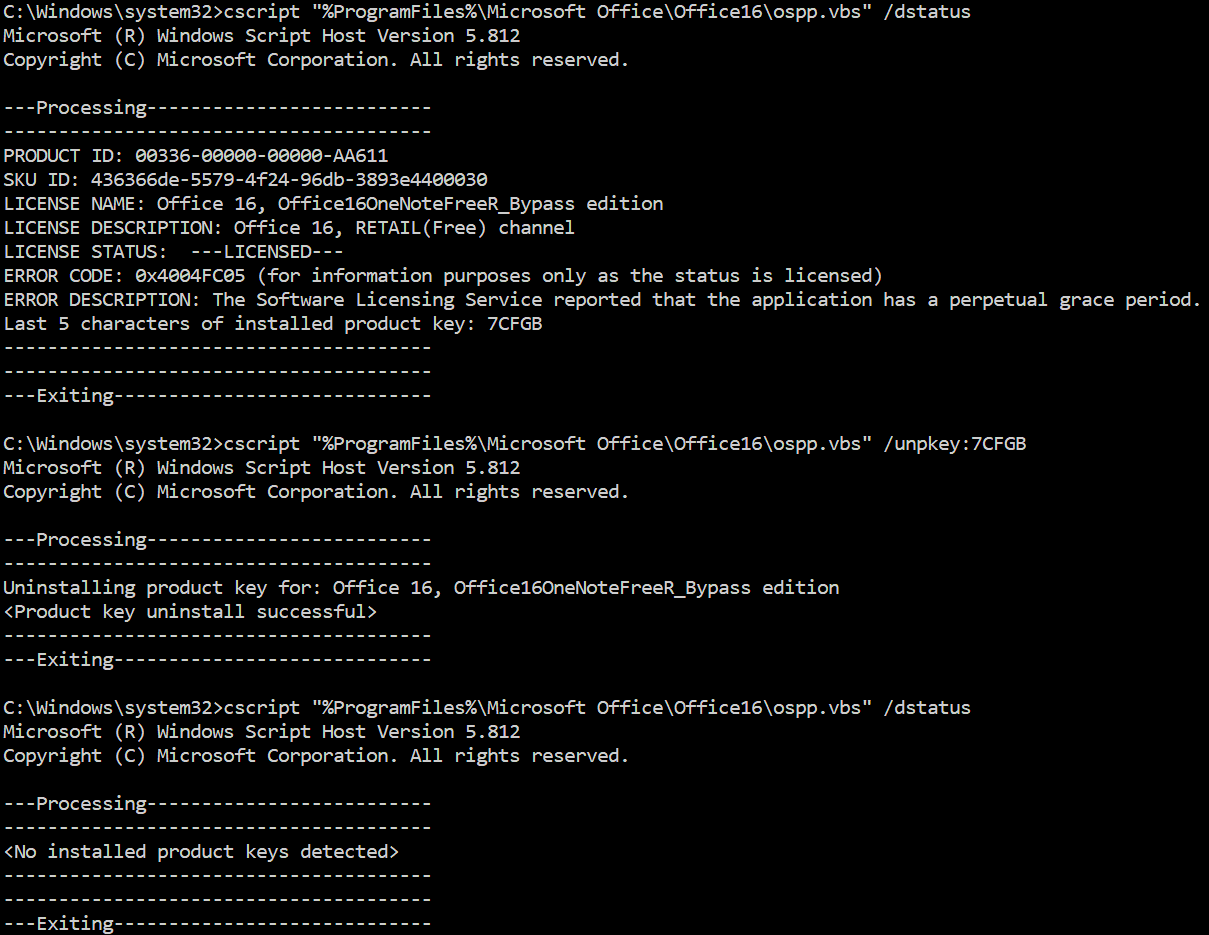
Remove Microsoft Office license from computer.

  • Open command prompt as administrator
  •  Copy/run this command to determine what license key you want to remove

cscript “%ProgramFiles%\Microsoft Office\Office16\ospp.vbs” /dstatus

  • If you see an error, try this command

cscript “%ProgramFiles(x86)%\Microsoft Office\Office16\ospp.vbs” /dstatus

Note: “Office16” is the codename of Office 2016. If you are using Office 2010/2013, replace “Office16” with “Office14” or “Office15”

  • Copy and run these commands to remove the license. Note: replace “7CFGB” with the last 5 characters of your product key

cscript “%ProgramFiles%\Microsoft Office\Office16\ospp.vbs” /unpkey:7CFGB

  • If you see an error, try this command

cscript “%ProgramFiles(x86)%\Microsoft Office\Office16\ospp.vbs” /unpkey:7CFGB

[mai mult...]

Ce beneficii aduce autentificarea cu mai multi factori in prevenirea furtului si a compromiterii identitatii?

Autentificarea cu mai multi factori este un mecanism de autentificare prin care se verifica de mai multe ori identitatea unei persoane.Intentia este de a oferi o protectie mai puternica impotriva accesului neautorizat la conturile de utilizator. Scopul sau este de a ingreuna atacurile cibernetice si de a reduce riscurile de frauda.

Prin combinarea a mai multi factori separati se ingreuneaza accesul la datele personale. Acesti factori pot fi:

  • Ceva ce utilizatorul știe (de exemplu, o parolă sau PIN)
  • Ceva ce utilizatorul detine (de exemplu, un smart card, sau un alt tip de token)
  • Ceva ce utilizatorul  este (de exemplu, citirea unei amprente sau scanarea retinei)
  • Ceva ce utilizatorul face (de exemplu, o semnătură sau cuvinte rostite)
  • Un loc unde se află utilizatorul (de exemplu, la serviciu sau acasă)

De exemplu prin combinarea unei parole cu un smart card, chiar daca cineva ne afla parola, nu va avea acces si la smart card. Sau invers: daca pierdem smart cardul si cineva incearca sa-l utilizeze nu va avea acces la datele noastre fara sa cunoasca si parola.

Cu cat adaugam mai multi factori de autentificare, cu atat identitatea noastra va fi mai bine protejata.

[mai mult...]

Cum restrictionam continutul pe web prin ad-blockers? Recomandari

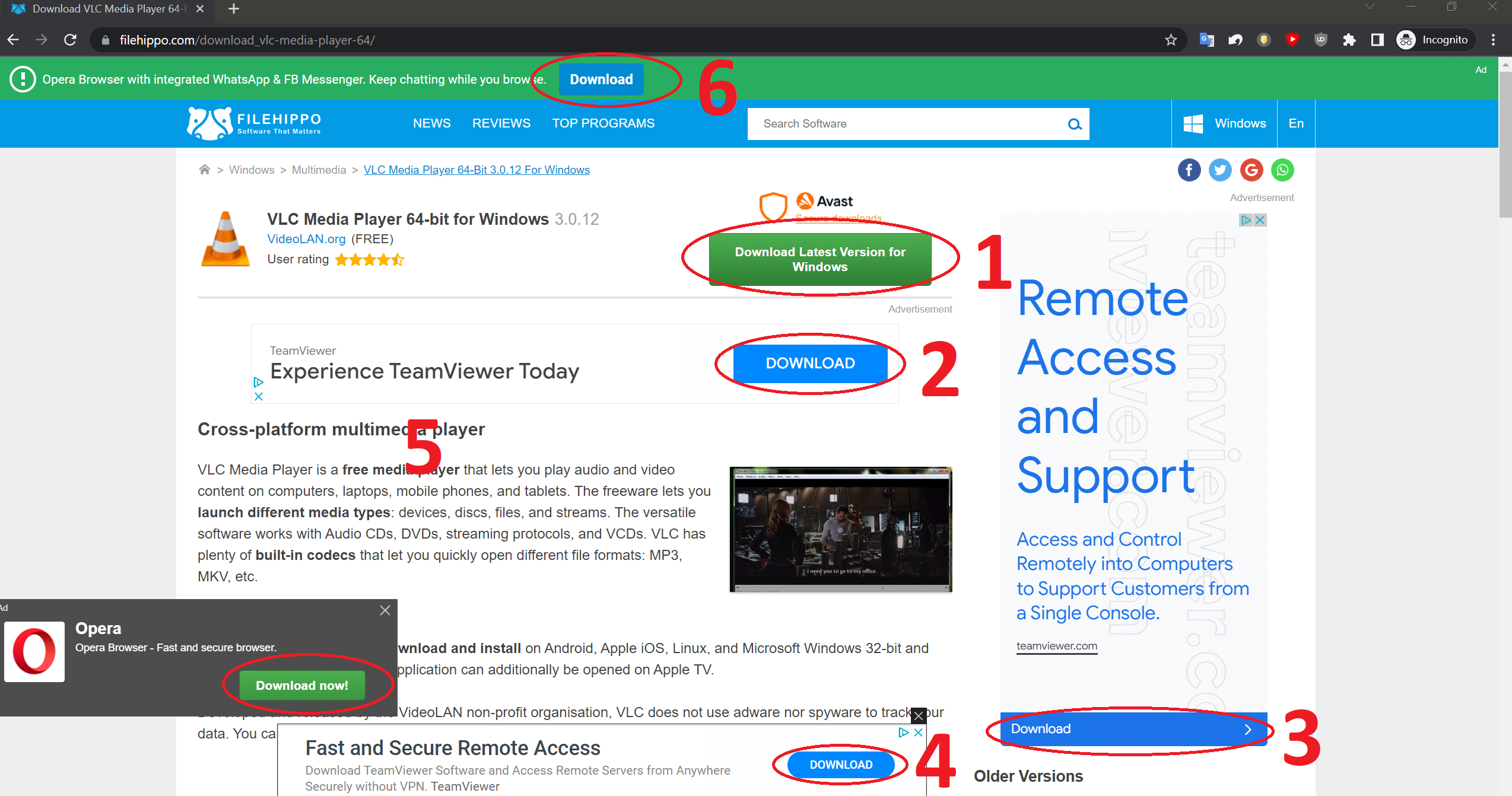
Un Ad-blocker impiedica reclamele si ferestrele pop-up nedorite sa apara pe ecran atunci cand vizitam o pagina web. Pe langa faptul ca aceste reclame ne distrag atentia de la continutul care ne intereseaza, acestea pot fii rau intentionate si in caz ca dam click pe reclama sa fim redirectionati catre un site fals, sau catre un site care contine virusi.

De asemenea, aceste reclame pot fi si sub forma de butoane false ca in imaginea de mai jos:

Dupa cum puteti observa, avem 6 butoane de download, si in caz ca dam click pe unul din acestea putem downloada orice, inclusiv virusi.

[mai mult...]

How to use a PDF

PDF, or “portable document format,” is a common file type that is used for all kinds of important documents. From tax forms to job applications, chances are you’ll need to edit PDF files or fill in an existing one. Learn how to open, edit, and even add your signature to a PDF file that someone else has created in our step-by-step guide.

Can you edit a PDF file?

In most cases, you can make changes to an existing PDF file that you download from the internet or receive as an email attachment. Each PDF will have its own security permissions, which the owner may have locked so that you cannot make any changes. This is most common for copyrighted forms and some educational materials where the document is designed to be read-only.
For the most common forms we use in daily life, however, there are fields specifically placed on the PDF document that we are intended to fill in. A tax withholding form from your employer, for example, may be sent electronically and have places to type in your name, address, and other pertinent tax info. Even PDF documents that don’t have specific text fields can usually be typed on, provided you have the correct software to open, edit, and save the file again.

How to type on a PDF

Before you even begin to modify PDF files, you need to have the right software to view and edit them. If you own Windows, you may already have the Microsoft Edge browser installed. This browser not only lets you view PDFs, but it lets you type and draw on PDF files without strict restrictions.
  1. Use File Explorer to find the PDF document you wish to open. Right-click the document and select Open with, then Microsoft Edge
  2. The file will open in a new Microsoft Edge window or a new tab if the program is already running
  3. From here, it’s easy to use your mouse to point and click on the fields in which you wish to type
You can also add handwritten or illustrated notes using the Add Notes function at the top of the page. Select the color you want to draw with, or even switch to touch writing to have more control from a tablet or touch screen setting. This is one of the best ways to put your digital signature on a document as well.
When you finish editing the document, you can choose to save it as a new file and even print it out. The new data you typed or drew on the document should remain.
Using additional tools to type on PDF files
Sometimes you may want to type on a PDF in areas where there aren’t existing text fields. This is where third-party software comes in handy, such as the basic Adobe Acrobat software. This free PDF reader should support most PDF files you receive, and you can use the Typewriter tools to insert text in the appropriate fields using these steps:
  1. Use the Adobe Reader software to open the PDF file of your choosing
  2. Select the View menu from the top
  3. Choose Toolbars and More Tools
  4. At the bottom of this list, choose Typewriter Toolbar, and click OK (This is only available if the creator of the PDF allows it in the permissions)
  5. Type in the data you want, and hit Enter if you want to add a new line of text to a field
  6. Edit any text you want using the Select tool, and then adjust the text color, text size, line spacing, and more
  7. When you are done, save the doc as a new file.
For those who have a more full-featured version of the Adobe products, you will find additional ways to edit and change Adobe files. This includes the ability to type and sign from your mobile device, access PDFs from Google Drive or Microsoft OneDrive, and turn documents with other file types into PDFs before you modify them.
  • Adding a legally-binding signature to a PDF
With the draw function in many PDF readers and editing tools, it’s simple to draw your name as a signature on any document. Because it’s so easy to edit and erase items on a PDF, these signatures may not always be seen as legally binding. To ensure that your PDF signature is treated as a contract, use one of the more full-featured PDF software products on the market.
These give you the chance to digitally sign your documents, and to digitally verify and securely send them to only those people you trust. Adobe and other third-party companies even have extra tools that can track when documents have been signed. They may also let you put a watermark on the PDF with “approved” or “draft” to help you know which versions are the official, final copies.
  • The legality of modifying PDF
Remember that many tools make it easy to sign, add text, draw on, or even remove part of a PDF file easily so that you can save or send it to someone else. Just because you can do it doesn’t mean you should do this in every situation. Make sure you have the permission of the document creator to make changes to a PDF. Also, always follow copyright law by never removing the copyright or trademark notations listed on the bottom.
If a document has a watermark – typically text or an illustration that shows up on the background when you print, then making any changes may be against the terms of use for that document. If in doubt, ask the person who made, sold, or sent the PDF. If used wisely, PDF is a wonderful file type that can make your home office or school more organized by cutting out the needless printing of materials before typing or signing.
[mai mult...]