Coduri Netflix – scurtaturi utile pentru a accesa categoriile preferate
Netflix este o solutie ieftina si avantajoasa pentru vizionarea de filme/seriale.
[mai mult...]
Soluții pentru problemele tale IT

Netflix este o solutie ieftina si avantajoasa pentru vizionarea de filme/seriale.
[mai mult...]The IT infrastructure and applications in large enterprises require dedicated staff for their management, maintenance, and security. It’s a complex job, which can overwhelm any team with tickets and issues, and that’s why IT teams are always looking out for trustworthy ways to automate, centralize, and simplify their work. One of the typical ways to do that is through using a dedicated patch management software to apply updates automatically and in bulk, ensuring all software gets updated as soon as possible.
The N-able™ (formerly SolarWinds® MSP) N-central® product offers patch management as one of its many capabilities for remote monitoring and management. It uses rules, caching, multiple maintenance windows and automated approval methods to enable you to automate the patching of devices under your management. Updates can be applied either globally or on a per-device level when needed. In addition, applying smart keywords makes it possible to ignore some updates depending on the circumstances. For comprehensive visibility, N-central gives you an overview of all update statuses in your environment to act on any issues as soon as they arise.
Of course, N-central is a lot more than just patch management. The many features this all-in-one remote monitoring platform provides also include centrally managed antivirus, endpoint detection and response, network mapping, backup management, and a lot more. There are plenty of integrations for N-central including support for Microsoft Intune which many readers may find useful.
Patch management is also offered as part of another all-in-one tool from N-able, called RMM. It’ll help organizations meet their needs for applying updates quickly and efficiently to ensure the highest security standards for all users.
RMM provides access to a single web console to manage all updates. You can apply updates manually or create auto-approve rules depending on security policies and the current needs. Scheduling makes it possible to update software without disrupting employees during critical productive times. For visibility, you get access to clear reports to quickly fix any issues as soon as they arise. For troubleshooting any issues around software updates, the remote background management feature can be extremely helpful. It lets you provide remote support and perform system administration tasks without establishing a full remote desktop connection.
Regarding OS support, it’s important to mention that with the automated tools included in N-able RMM, you can approve, schedule, and deploy patches using the same set of workflows for both Windows and macOS devices. This means that all devices get the same level of security.
There are some differences between N-able RMM and N-central which we explained in another article. Be sure to check out our guide on N-able RMM vs N-central.
Patch Manager Plus by ManageEngine is an end-to-end solution, which supports Windows, macOS, and Linux systems along with many third-party applications and updates. It allows you to choose between both on-premises and cloud-based deployment models. You can run a scan to detect vulnerable endpoints and automate patches across a wide range of desktops, servers, virtual machines, and mobile devices. Further, you can also run audits and get scheduled reports for better visibility and control across your network. ManageEngine offers three editions of Patch Manager Plus with one free edition supporting up to 20 computers and 5 servers.
SysAid Patch Management is a capable solution that supports Windows-based systems, Microsoft Applications, and some third-party applications including Java, Chrome, Skype, Mozilla Firefox, Thunderbird, and more. It also supports both cloud and on-premises environments and offers easy setup and automated capabilities. IT administrators can monitor the progress of patch deployments with an overview of all due and completed patches via a unified interface. The solution easily integrates with all SysAid products for network management. While the solution offers all required features for seamless patch management, it lacks support for Linux and macOS systems—which is its major drawback.
ITarian also offers powerful software for Windows Patch Management, which provides an agent-based approach to scanning and updating automated patches across enterprise networks. ITarian also offers third-party patches on request, which can help you extend its capabilities to systems, applications, and servers outside of the Microsoft ecosystem. The solution also supports notifications and provides reports to help you stay on top of your IT environment.
The patch management software by Avast supports Windows-based computers and servers along with various third-party applications. The solution provides automated patching across all supported devices in your network, with minimal impact on network performance and speed. You can also apply updates remotely and get centralized visibility and control with its cloud-based platform. Its unified dashboard provides you a birds-eye view of all software patches helping you easily track progress, identify failures, and rollback patches that create issues. You can also schedule automated patch scans and get comprehensive reports to assess the health and security of devices in your network.
Rapid7 InsightVM is essentially a vulnerability management solution that supports automation-assisted patching and containment. The solution relies on Rapid7’s threat and vulnerability research data to support live vulnerability and endpoint analytics. You can also monitor and update cloud, containerized, and virtual infrastructure with InsightVM and make use of its RESTful API for integrations with Splunk, ServiceNow, and other tools. The company also offers managed vulnerability management services. Check out its training and certifications to get the most of InsightVM.
Organizations need scalable patch management solutions to meet the requirements of their growing IT infrastructure. The tools discussed in this article offer easy implementation and effective patching. However, we find N-central and RMM from N-able scoring high on key features, such as cross-platform support, automation, rollbacks, end-to-end visibility, and reports. You can evaluate their free trials to get started and choose higher plans as you need.
[mai mult...]Email security has become a major concern for organizations due to the increasing number of advanced threats, phishing, and ransomware attacks. Taking email security lightly can be especially devastating to IT services providers due to the large scale of their operations with sometimes thousands of devices managed. According to McKinsey and Company, threats from inside the company accounts for around 43% of data breaches. Here is where powerful, enterprise-grade email filters play a critical role.
Email or spam filter tools are physical servers installed at the organization’s network as the first line of defense to target threats before they land into a recipient’s inbox. These tools filter all incoming messages before they enter the end user’s account. Email filtering is a process that monitors inbound and outbound emails for spam, malware, or any suspicious content before reaching a mail server. Employing filtering tools helps MSPs and organization’s IT teams to improve regulatory compliance, business continuity, and employee security.
Depending on the use case, spam filters vary greatly in terms of the level of security they provide, scalability, ease of deployment, and additional features to meet the customer’s needs. Outlined below are some the best spam filter tools to give you an idea of what’s possible today and help you make an informed choice.
N-able™ (formerly SolarWinds® MSP) Mail Assure is an email security solution that helps keep an organization’s network safe and secure from malware, phishing, and spam. It enables managed services providers (MSPs) and enterprises to block the emails that threaten an organization’s assets and critical information. The tool provides email security through advanced analytical features such as an intelligent protection and filtering engine, robust encryption, archiving, and more. To finetune filtering capabilities, Mail Assure has a proprietary engine that is fed continuous data from 23 million inboxes to recognize new threat patterns. Other aspects worth mentioning include:
SpamExperts is a powerful security solution for ISPs and web hosts to strengthen email protection. The tool provides advanced inbound and outbound email filtering options to eliminate and block emerging threats. It not only protects the organization’s network but also saves resources and costs.
The tool offers a first-level incoming filter defense that runs at the frontline of the email infrastructure. With its clear and multilevel view of email flow, end users can track or block unwanted messages, as well as store useful emails to ensure business continuity even during outages and downtime. Users can choose various deployment methods to discover its advanced analytical features.
Barracuda is a spam filtering solution that protects your business from email-borne cyber threats. It is one of the most comprehensive security platforms for organizations to block threats and protect businesses from volumetric malware, spam, targeted spear-phishing attacks, and ransomware. The tool blocks advanced threats with the help of its inbound filtering features. It quickly filters every message before it gets delivered into end users’ dashboards. It uses spam scoring, URL link protection, virus scanning, reputation checks, and more to provide high-level protection.
Barracuda Advanced Threat Protection uses multiple layered analytic engines that perform functions like static analysis, behavioral analytics, CPU-emulation sandboxing, and more. It also offers outbound filtering, cloud-to-cloud backup, tamper-proof archiving, and automatic incident response. With its advanced layers of protection, encryption, and data loss protection features, the tool eliminates issues like data leaks—thereby helping organizations to stay compliant and productive.
Proofpoint® offers a service to filter an organization’s inbound and outbound email traffic. Methods are used to scan messages and block content that includes malware, spam, viruses, suspicious links, and others. The tool can also be used for appliance-based email filtering that allows organizations to secure their critical data.
Another way to utilize this tool is when organizations move their applications and services to cloud deployment. Cloud deployment of this tool is more effective than appliance-based filtering as it requires less management and offers real time automatic updates. Additionally, it also defends an organization’s network against spam risks and other email-borne cyber threats.
Mimecast’s secure email gateway is a cloud-based solution that protects organizations from inbound malware, spam, spear-phishing, and zero-day attacks. It combines with multiple policies, applications, and detection engines to secure business-critical emails. It can also perform outbound scanning of all emails. This technique detects malicious content to block threats and prevent the loss of sensitive or confidential information.
The tool includes end-to-end encryption, DLP, and content control for scanning full emails with attachments. An advanced feature of the tool is BYO threat intelligence that automatically ingests existing security data to Mimecast® tenants to streamline response processes, increase threat detection efficacy, maximize ROI, and more.
Trend Micro is an email threat detection tool that tracks and blocks advanced threats faster and better. It offers layered protection against ransomware, malware, and others using dynamic sandbox analysis for files and URLs, and machine learning to help filter unknown malware. The advanced services of Trend Micro Email Security give continuous and updated protection against advanced targeted attacks with enterprise-grade security features such as:
Choosing the best solution for real-time protection against email-borne threats can be difficult with so many options available on the market. The tools highlighted above are the best cloud-based spam or email filtering tools that offer advanced capabilities to fight malware, ransomware, and other emerging threats. It is best to discover their features and evaluate the functionality using their free trials.
[mai mult...]În momentul în care interacţiunea directă dintre colegi s-a transformat într-o chestiune de domeniul trecutului, nevoia unei soluţii care să îmbunătăţească nivelul de colaborare şi să digitalizeze viaţa la birou a devenit cât se poate de clară. Discuţiile s-au mutat, pe Zoom, iar odată cu această tranziţie a fost nevoie de o modalitate mai bună de organizare a muncii, la care s-au gândit şi fondatorii Elysian Software.
Cumparaturile online reprezentau la finele anului 2020 aproximativ 25% din totalul vanzarilor cu amanuntul din intreaga lume. Numarul tot mai mare de platforme si instrumente de comert electronic usureaza munca antreprenorilor care au o afacere online, ajutandu-i sa-si construiasca o prezenta pe aceasta piata globala aflata in dezvoltare. WooCommerce si Magento sunt doua dintre cele mai cunoscute platforme pentru construirea de magazine online insa cele doua functioneaza in moduri diferite.
Probabil v-ati intrebat deja: Care este platforma potrivita pentru magazinul dvs. online? Raspunsul nu este simplu, insa in general alegerea platformei pentru magazinul dvs. online depinde in general de abilitatile dvs. tehnice si de planurile pentru viitorul dvs. proiect de comert electronic.
The desktop is a convenient place to store files and program shortcuts, but it can get messy fast. Here’s how to tidy your desktop up so you can quickly find everything you’re looking for—and make sure it stays nice and organized.
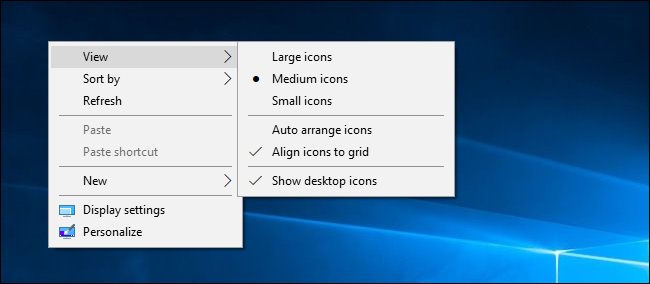
If you don’t use your desktop much, but programs keep dropping shortcuts on it, here’s a quick solution: Hide everything to get a perfectly clean desktop. To toggle desktop icons on or off, right-click your desktop and select View > Show Desktop Icons. Your desktop will appear empty.
To see your desktop icons again, click the “Show Desktop Icons” option again. Or, you can open a File Explorer or Windows Explorer window and click the “Desktop” folder to view the contents of your desktop in a standard file browser window. That’s the nuclear option, of course. If you like storing files and program shortcuts on your desktop, you won’t want to hide them all.
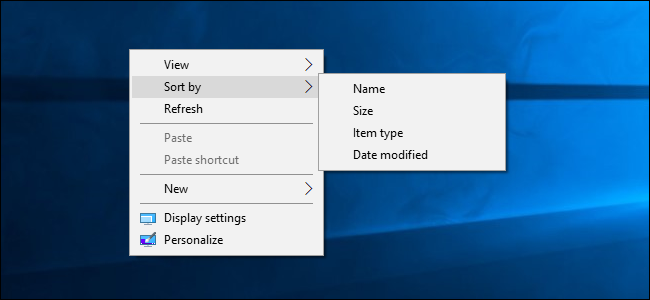
For a quick organization, you can right-click your desktop and select an option in the “Sort By” menu. For example, select “Name” to sort files alphabetically or “Date Modified” to sort them chronologically. This makes it easier to find what you’re looking for if your desktop is very messy.
You can also use the options under the “View” menu to choose the size of your desktop icons and decide whether they’re aligned to a grid. If you uncheck “Auto Arrange Icons,” you can drag and drop icons anywhere you want. If this option is enabled, icons will always be grouped, one after the other.
These options can be helpful, but they’re no substitute for truly taming the clutter.
Consider using folders to keep your desktop organized. To create a folder, right-click the desktop, select New > Folder, and give the folder a name. Drag and drop items from your desktop into the folder. You can double-click a folder on your desktop to open it, so it takes a few more clicks to open your files—but they’re still easy to find.
For example, you could have separate folders for your photos and documents, or keep files related to a single project in their own folder. And yes, you can drag and drop program shortcuts into folders, too. If you’d like to clean up your desktop quickly, you can select everything on your desktop and then drag and drop them into a folder. You can then move items back onto your desktop as you need them.
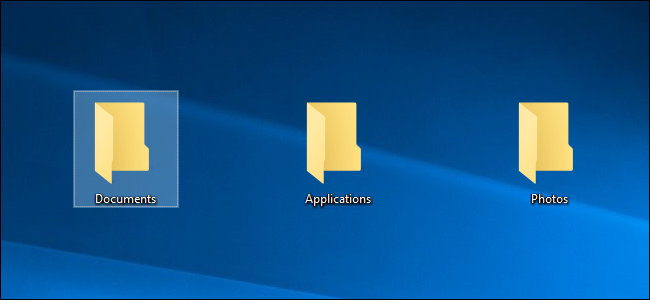
The desktop works well as a workspace, giving you a convenient place to store files with which you’re working currently. For example, you might store spreadsheets you’re working on, documents you’ve scanned, photos you’ve just taken, or things you’ve just downloaded on your desktop.
To keep the desktop useful for this task and prevent it from getting too cluttered, try only storing files on your desktop for as long as you need them. When you’re finished with a project or task, move the associated files to another folder like your main Documents or Photos folder—or even dump them in a folder on your desktop. In other words, treat the desktop like you should treat a physical desktop or counter—place things on it while you’re using it, and clear them away afterward rather than letting them pile up.
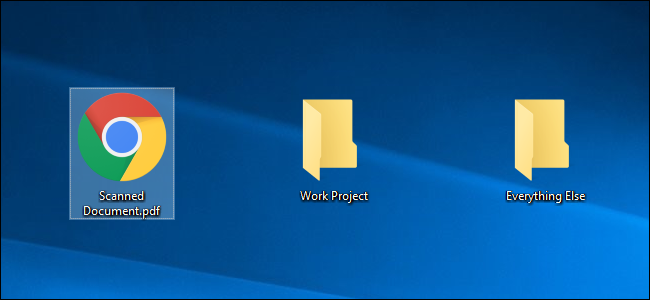
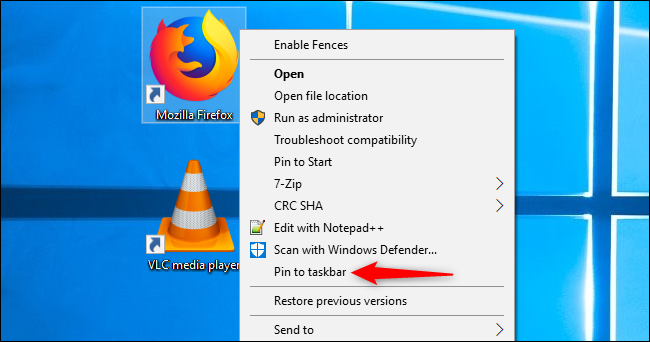
Programs often add shortcuts to your desktop when you install them, which makes your desktop get more and more cluttered over time. Try placing program shortcuts elsewhere, such as on your taskbar or in your Start menu. To pin a program shortcut to your taskbar, right-click it and select “Pin to Taskbar.” It will always appear as an icon on your taskbar, and you can drag the icon to the left or right to position it.
To get more space for icons on your taskbar, you can remove some things to free up space. For example, to hide the Cortana search box on Windows 10, right-click your taskbar and select Cortana > Hidden. You can also click Cortana > Show Cortana Icon, which will make Cortana be a standard taskbar icon instead of a large search box.
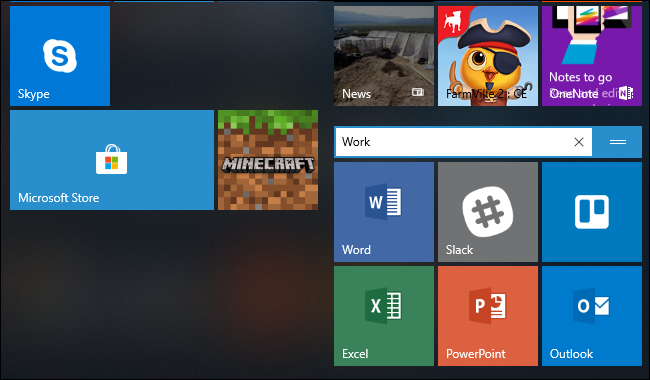
You can also place shortcuts in your Start menu. To do so, right-click a shortcut and select “Pin to Start.” On Windows 10, it will appear as a tile at the right side of your Start menu. On Windows 7, it will appear as a shortcut at the left side of your start menu. You can also pin apps right from the Start menu—either right-click a shortcut in the all apps list in the Start menu and select “Pin to Start,” or drag the icon to the pinned apps area.
On Windows 10, you can drag and drop pinned application shortcuts in your Start menu to organize them into groups, and click the header at the top of the group to give it a name. For example, you could create a “Work” group with shortcuts to applications you use for work or a “Games” group that contains shortcuts for your games.
Also, if you’re using Windows 10, you can unpin all those pinned apps Microsoft put there to make the Start menu your own. Feel free to unpin any shortcuts you don’t use.
After you’ve moved all the shortcuts you want to your taskbar and Start menu, you can delete them from your desktop like you’d delete any file—or move them to a folder. If you accidentally delete a shortcut and want it back on your desktop, open your Start menu and find the shortcut in the list of all your installed applications. Drag and drop the shortcut to your desktop.
[mai mult...]