Social

How to Add Music to a Fitbit Versa

In most cases, if you want to listen to music on your Versa or Versa 2, it’s because you don’t have your phone with you and simply controlling your music through the smart watch isn’t what you want to do. Instead, you’ll probably want to download music from your computer to your watch. Fortunately, there’s enough space on your Fitbit Versa for about 300 songs, so with a few steps you can have your playlist anywhere you go as long as you’re wearing your watch.

[mai mult...]
WhatsApp: cum reafisam mesajele cu timp incorect

Vă recomandăm să setați data și ora la opțiunea „Automat” sau „Dat de rețea”. Atunci când aveți activă această opțiune, operatorul de telefonie mobilă vă va configura telefonul la fusul orar corect.

Ca soluție temporară, modificați-vă data și ora și configurați-vă manual fusul orar.

Notă: Fusul orar nu este același lucru cu ora. Asigurați-vă că ați selectat fusul orar corect al zonei în care vă aflați.

Pentru a vă configura manual fusul orar, vă rugăm să urmați pașii corespunzători pentru telefonul dumneavoastră:

  • Android: Mergeți la Setări > Sistem > Data și ora.
  • iPhone: Mergeți la Configurări > General > Data și ora.
[mai mult...]

Cortana can’t hear me

If Cortana doesn’t respond when you speak into your PC, try these steps to resolve the most common causes:
Check to make sure you have a working microphone

Cortana will not respond if your microphone does not work. To check if it’s working:

  1. Check that your microphone is enabled and set as the default device:
    • Right-click (or press and hold) the volume icon on the taskbar and select Sounds.
    • In the Recording tab, check that your microphone is enabled and set as the “Default device”.
  2. Make a test recording:
    • Right-click (or press and hold) the volume icon  on the taskbar and select Sounds.
    • In the Recording tab, look for green bars rising as you speak into your recording device.  If the bars are moving, your device is connected and working properly.
    • You should also consider using the Voice Recorder app that is included in Windows 10 to create a test recording.  Distortion or excessive noises may indicate a faulty microphone or a need to install updated audio device drivers.
[mai mult...]

How to export and delete attachments from Messages

How to export and delete attachments from Messages

Apple offers several ways to work with attachments, if you can find them.

Syncing Messages via iCloud lets you have access to all your conversations and associated pictures and files on all the devices you’ve connected with your iCloud account. However, Messages storage can really add up if you send and receive lots of images or videos.

Delete attachments along with conversations

mac911 ios top conversations IDG
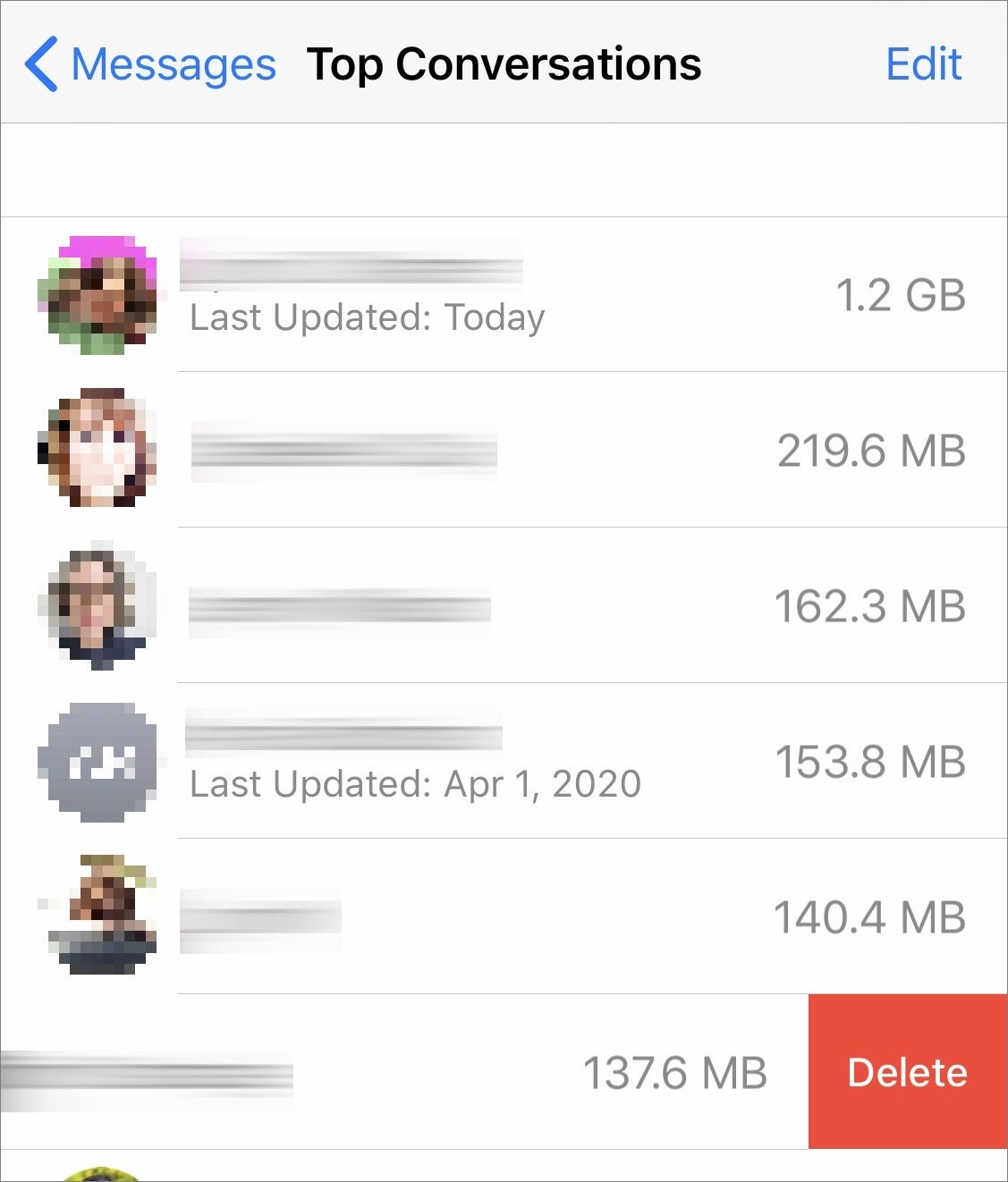
Top Conversations in iOS lets you delete all texts and attachments from an entire conversation. (Images blurred intentionally.)

In iOS or iPadOS, you can find conversations that contain the proportionately largest collection of attachments. Go to Settings > account name > iCloud > Manage Storage > Messages > Top Conversations. There you see a list by descending order of storage consumed of all your Messages conversations. You can swipe left and tap Delete to remove that conversation or swipe all the way from the right to left—but be wary! There’s no confirmation prompt, and all the texts and attachments are removed on all connected devices!

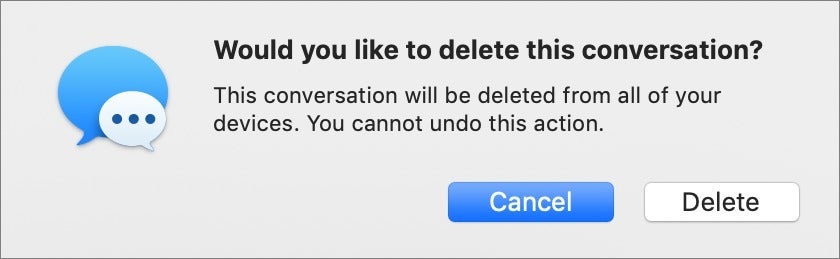
In macOS, select the conversation in Messages, and then select File > Delete Conversation.

mac911 macos delete conversation IDG
You can use Messages in macOS to delete a conversation, including its attachments.

Complete removal is probably not desirable, unless you want no record of those communications. (Hey, some breakups are bad.)

Delete the biggest attachments and optionally export them in iOS/iPadOS

mac911 ios attachment purge IDG
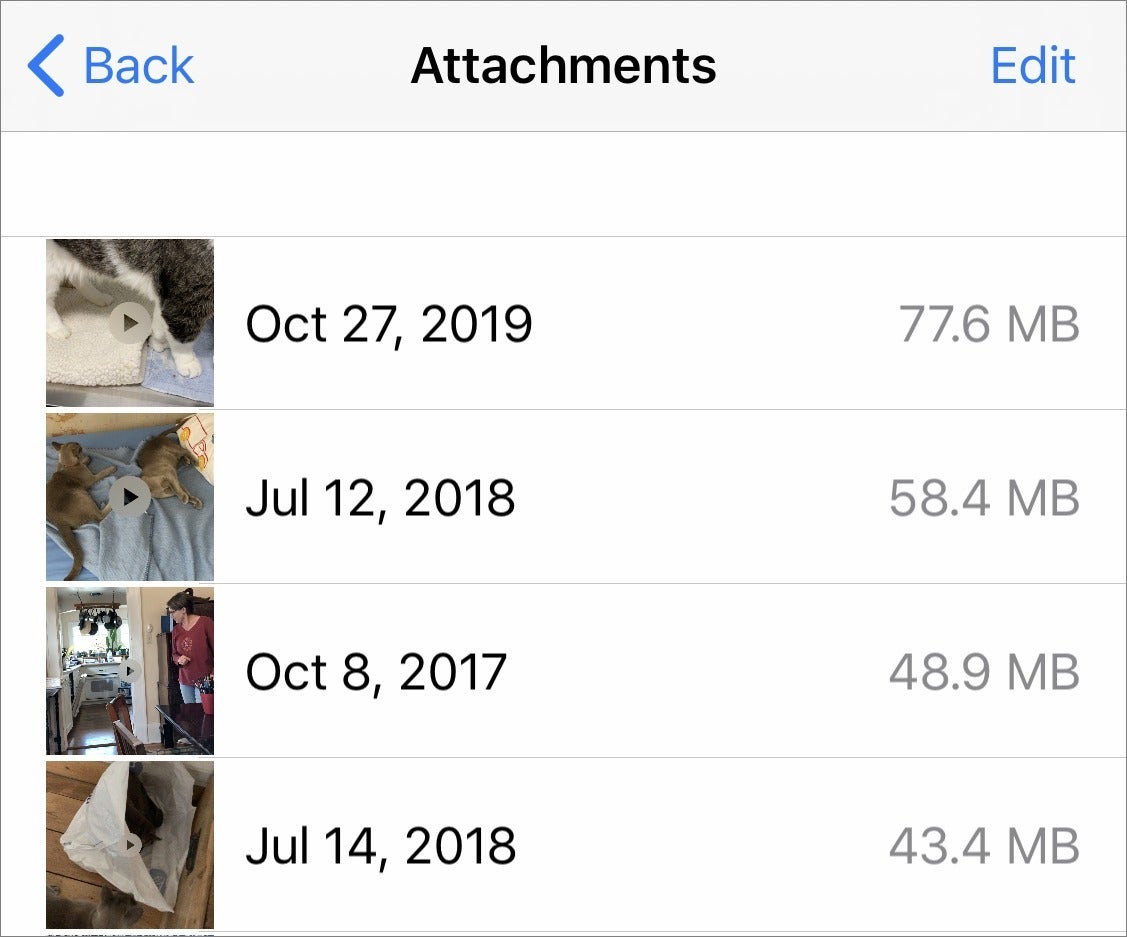
Viewing attachments in order of size lets you pick which to export and delete.

You can pick off the lowest-hanging fruit via iOS and iPadOS in reducing storage by going to Settings > General > iPhone/iPad Storage > Review Large Attachments. The Review Large Attachments link shows beneath the tap target how much storage files occupy.

In the Attachments view, tap the attachment and tap the Share button to save or export the item first. There’s no way to select and export multiple items.

You can swipe left on any attachment and then tap delete or swipe all the way from the right to left to delete it. There’s no prompt, so be careful. You can also tap Edit, select items, and tap the trash can icon to delete multiple files at once.

You would think you would be able to review attachments in the same iPhone/iPad Storage view by tapping Messages and then tapping links below the Documents heading, which shows a total of storage consumed next to each item. However, at least in the version of iOS at this writing, almost nothing appeared in the lists by category when I tapped them. There may be an issue in what’s stored locally on the device and what’s in iCloud, but I’d expect the two to be linked.

Export attachments via Messages on all platforms

There’s an easy way to export attachments in bulk, too.

In iOS and iPadOS:

  1. Open the Messages app.
  2. Tap on a conversation.
  3. Tap the avatar or name at the top of the conversation.
  4. Tap the “i” info button.
  5. Swipe down to Photos and tap See All Photos.
  6. Tap Select at the top of the view.
  7. Now you can select multiple photos and tap Save to store them in the device’s camera roll.

You can repeat that action for Screenshots (by tapping the Screenshots button at the top of the view), but there’s no way to access files.

mac911 save macos messages photos IDG
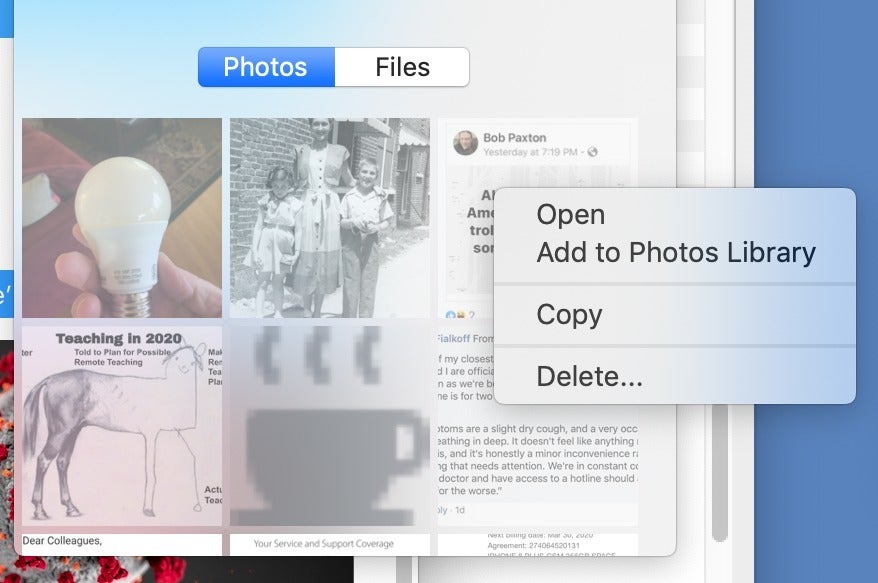
In Messages for macOS, you can save images out to Photos.

In macOS:

  1. Open the Messages app.
  2. Select the conversation.
  3. Click the Details link in the upper-right corner.
  4. Under Photos or Files, you can select one or multiple items.
  5. With Photos, you can Control-click and choose Add to Photos Library. With Photos and Files, you can drag the selection to the Finder.
[mai mult...]