Soluții

How to Install SFTPGo on Ubuntu 22.04

SFTPGo is a free, open source, fully featured and highly configurable SFTP server with optional HTTP/S, FTP/S and WebDAV support. Several storage backends are supported: local filesystem, encrypted local filesystem, S3 (compatible) Object Storage, Google Cloud Storage, Azure Blob Storage, other SFTP servers. SFTPGo is available for many Operating Systems including Linux, Windows, macOS, FreeBSD.

Prerequisites

  • An Ubuntu server 22.04.
  • A non-root user with sudo privileges.

Setup UFW Firewall

For security reasons, it is recommended to install and configure the UFW firewall in your system. First, install the UFW firewall with the following command:

sudo apt install ufw -y

SFTPGo uses the following TCP ports with the default configuration:

  • 2022 for the SFTP service.
  • 8080 for the web admin user interfaces.

We also need to allow the OpenSSH port for server administration. Allow all required ports using the following commands:

sudo ufw allow OpenSSH
sudo ufw allow 2022/tcp
sudo ufw allow 8080/tcp

Next, enable the UFW firewall to start after the system reboot:

sudo ufw enable

Check the status:

sudo ufw status

You will get the following output:

Status: active

To Action From
-- ------ ----
OpenSSH ALLOW Anywhere 
2022/tcp ALLOW Anywhere 
8080/tcp ALLOW Anywhere 
OpenSSH (v6) ALLOW Anywhere (v6) 
2022/tcp (v6) ALLOW Anywhere (v6) 
8080/tcp (v6) ALLOW Anywhere (v6)

Installing SFTPGo on Ubuntu 22.04

You can install SFTPGo from its PPA.

Start by adding the PPA:

sudo add-apt-repository ppa:sftpgo/sftpgo
sudo apt update

Next install SFTPGo:

sudo apt install sftpgo

After installation SFTPGo should already be running with default configuration and configured to start automatically at boot, check its status using the following command:

systemctl status sftpgo
Complete SFTPGo Installation

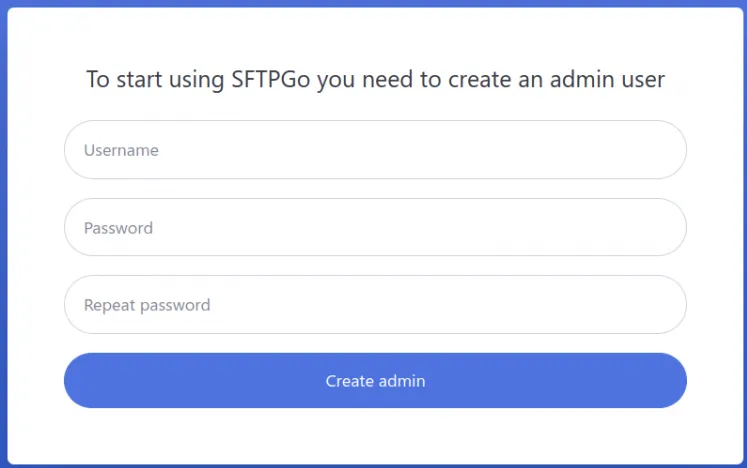
Now, open your web browser and access the SFTPGo installation wizard using the URL: “http://<your server ip/hostname:8080>/”. You will be redirected to the following page:

Provide your admin username and password and click on the “Create Admin” button. The newly created admin will be automatically logged in, so you can create your SFTPGo users.

[mai mult...]

Cum se obțin ratele de schimb valutar în Microsoft Excel

Dacă utilizați Microsoft Excel pentru date financiare în care ratele de schimb fac parte din ceea ce aveți nevoie, consultați tipul de date Valute. Acest lucru vă oferă diverse detalii de schimb pe care le puteți include în foaia de calcul. Puteți obține ultimul timp de tranzacționare, ridicat și scăzut, schimba la sută, și mai mult prin introducerea unei perechi de coduri valutare ISO. Apoi, pur și simplu selectați detaliile pe care doriți să le includeți și reîmprospătați datele după cum este necesar.

[mai mult...]

Laptop vs Desktop PC

Majoritatea persoanelor care doresc sa cumpere un computer au de ales intre un laptop si un calculator tip desktop. Pentru a face alegerea corecta trebuie sa iti pui urmatoarea intrebare: “Pentru ce voi folosi computerul pe care il voi achizitiona?”

[mai mult...]