How to Disable the Pop-Up Blocker in Chrome, Firefox, Edge, and Safari
When a site requires pop-up windows to function, you will have to turn off the pop-up blocker in your web browser to allow the site to function.
[mai mult...]
Soluții pentru problemele tale IT

When a site requires pop-up windows to function, you will have to turn off the pop-up blocker in your web browser to allow the site to function.
[mai mult...]A smart TV is good for more than just YouTube and Netflix. If you’ve got a game controller lying around, there’s a good chance you can connect it to your Google TV or Android TV device.
[mai mult...]With Microsoft Excel’s built-in options, you can quickly and easily convert your comma-separated values (CSV) files to Excel format (XLSX).
[mai mult...]A family recently discovered a rude surprise at their Airbnb: a hidden camera disguised as a smoke detector in the living room. Here are two ways to check for cameras—in an Airbnb or elsewhere—using only an iPhone or Android phone.
[mai mult...]If you are in this unfortunate situation where all your data and files are inaccessible, then we recommend using iToolab UnlockGo to reset the account password. Not only does it ensure you don’t have to reinstall Windows, but it also works for Local Admin and Microsoft Domain account passwords.
Follow these steps to recover your Windows account.
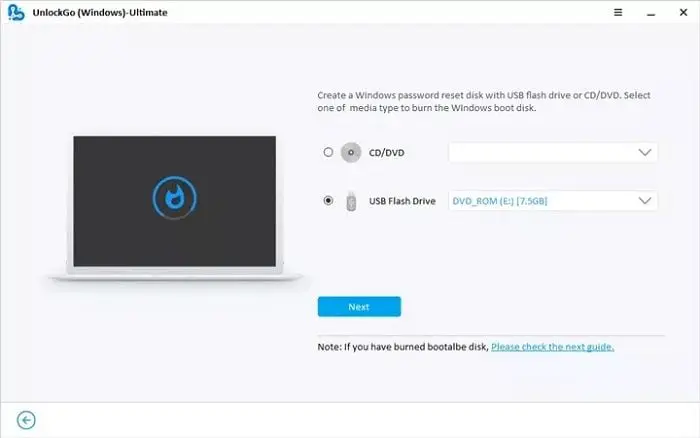
Get access to another Windows PC, download, and install this Windows 10 Password Recovery Tool. Then connect a USB drive, and ensure it’s empty as the drive will be formatted. The next step is to launch the software and click on the Start button. You can choose between a CD/DVD or USB drive on the next screen. Select USB, and then click on the Next button. Click next, confirm the prompts, and let the software create the reset disk.
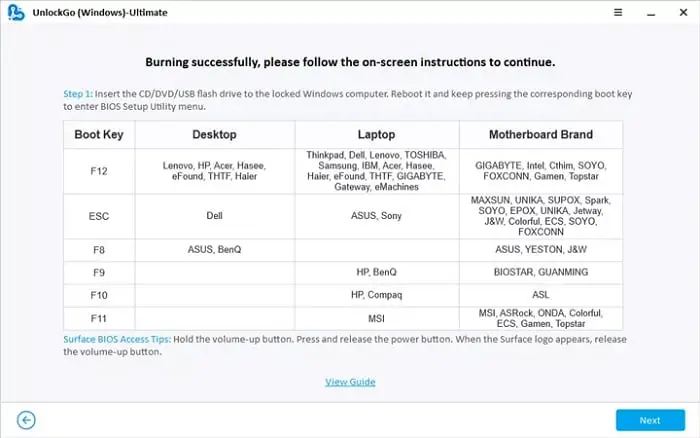
Once done, the application will display a list of keyboard keys to press to boot into the BIOS instead of Windows. Most laptops and PCs are set to boot from the storage, so we will have to change to boot from the USB. It can be done via UEFI or BIOS. Look for the Boot section, and you can change the order of the boot from there. Some modern motherboards can detect the connected USB drive as you change the option. Save the change, and restart.
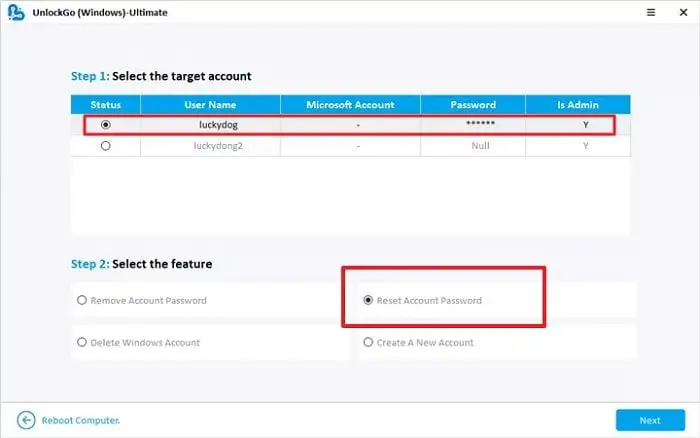
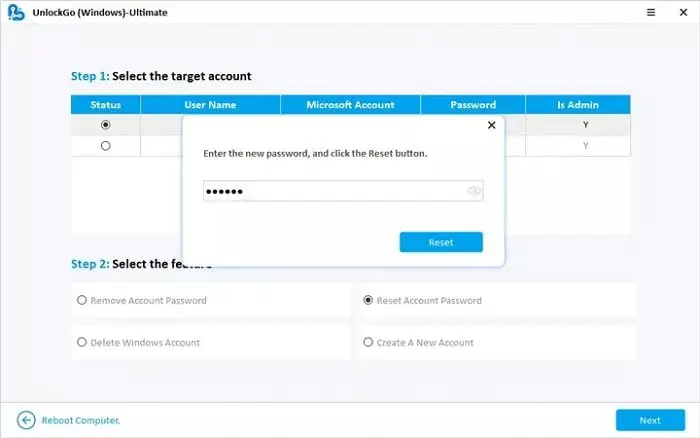
I would suggest creating another admin account even if you don’t need it. If you ever need it, you will have it right away; otherwise, you will have to reuse the software and create it again.
Make sure to note the password before you leave the recovery. If not, reset once again and record it on paper or your phone. Next, remove the USB drive and reboot the PC using the reset button. Removing the USB ensures the PC does not boot into the recovery mode. Once the PC reboots, login with the new password, or if you choose to create a new account, and then login.
[mai mult...]A lot of PUBG gamers are unable to play the game as they are seeing the following error message – [25] BattlEye: Corrupted Data – Please perform a clean game reinstall.

Now, we wouldn’t recommend you straight away uninstall the game as suggested by the error message, reinstallation should be your last resort. But before that, we are going to see some easy solutions to fix PUBG error [25] BattlEye Corrupted Data.
The corrupted data of PUBG BattleEye can be fixed from the Steam Launcher. You need to go to its properties and Verify the Integrity of the game. This will scan your game and fix any corrupted files. If that doesn’t work, then you should try to remove the files that can potentially get corrupted. There are a lot of files that you need to remove, all of them, are mentioned below. In the worst-case scenario, you would have to reinstall PUBG and Steam.
However, we would suggest you just go through the solutions mentioned later in this article to resolve the issue. They are listed in order, such that, a lot of your time will be saved. So, without wasting any time, let us hop into it.
Before starting the troubleshooting process, we should update our computer. If you are not using the build, you can be subjected to some incompatibility issues. Aso, updating Windows, will also update your system drivers. But, if you are still seeing the PUBG error [25] BattlEye Corrupted Data, then check out these solutions to resolve the issue. Make sure to go execute them in the given order as that will save you some time.
Let us talk about them in detail.
Let us start by deleting the folder that’s corrupted. In this case, you don’t have to uninstall the whole game, just remove some files, check if everything is ok, and then enjoy PUBG. If that sounds good to you, open File Explorer and go to the following location.
\Program Files\SteamLibrary\steamapps\common\PUBG\TslGame\Binaries\Win64\BattlEye
Now, remove all the content of BattleEye. Also, run the executable file, Uninstall BattEye, and complete the process. Then check if the issue persists. A lot of time, users have to do combine first and second solutions to get things on their way.

After removing the files, it’s time to check if there are some corrupted files left and then fix them. Follow the given steps to do the same.
Let the process complete, then restart your PC and check if the issue persists.
If the first two solutions didn’t help, then you should delete remnant files of PUBG and see if that helps. Before doing that, close Steam and PUBG, Make sure to check Task Manager and end any related process.
Open File Explorer and go to the following location. Then delete the PUBG folder.
\Program Files\SteamLibrary\steamapps\common\PUBG
Then, we need to delete some App Data. For that, go to the following location and then delete the TslGame folder.
C:\Users\USERNAME\AppData\Local\TslGame
Now, we need to delete the BattleEye folder from the following location.
C:\Users\USERNAME\AppData\Local\BattlEye
Then, we have to delete common files of BattleEye. Go to the following location and do that.
C:\Program Files (x86)\Common Files\BattlEye
After deleting the content of directories, move to Command Prompt. Hit Win + R to open Run, type “cmd” and hit Ctrl + Shift + Enter. Then execute the following command.
sc delete BEService
We are going to remove registries now. To do that, open Registry Editor from the Start Menu. Hit Ctrl + F and search “BattleEye”. Now, you need to right-click on BEService and select Delete.
Finally, we need to uninstall PUBG and then reinstall it at a different location.
If reinstalling the game is to no avail, then this means that the game was not corrupted, it’s the launcher that needs troubleshooting. The troubleshooting here is the reinstallation. So, go ahead and uninstall Steam from Windows Settings. Follow the given steps to do the same.