
Situatie
Using the watch command
As you probably already know, the watch command repeats any command at set intervals. You can use it with the find command, the bat command, and many other Linux commands.
Solutie
To use it to show a digital clock in the terminal, I use the following command:
watch -n 3 date This prints the interval, a header, time, date, and time zone.
I could take things a step further and format the clock to show only hours, minutes, and seconds (HH:MM:SS). The command for that is: watch -n 3 “date +%T”
Here’s a breakdown of what the options in this command do:
| Option | What it does |
| watch | watch repeats the command at set intervals. |
| -n 3 | Instructs the watch command to refresh at a set interval (in this case, it’s three seconds). |
| date | Prints out the current system time, including the time zone. |
| %T | Formats the output to show the clock in HH:MM:SS. |
If I don’t want to display the header, I can tweak the command a little bit and run it as follows:
watch -t -n 1 “date +%T” The -t hides the header, showing only the time. If you’re following along and testing the commands in your terminal, you’ll notice that once you run these commands, you cannot continue typing in the output window.
You have to press Ctrl + C to stop the command and get back to your CLI window.
The watch command isn’t my favorite way to display a live digital clock while working in the terminal because the clock isn’t persistent, and I cannot type commands directly into the resulting terminal window.
Turning the terminal title bar into a live digital clock
This is my favorite way of telling the time while working in the terminal. I love it mainly because once set up, the clock is persistent for that terminal window.
Here’s the command:
while true; do printf “\033]0;%(%H:%M:%S)T\007”; sleep 1; done &
Let’s break down parts of this command:
| Option | What it does |
| while true; do | This bash loop runs the enclosed actions infinitely until you stop it. |
| printf “\033]0;…\007” | \003]0; sets the window title, and \007” ends the OSC sequence. Everything after ‘;’ is the title. |
| %(%H:%M:%S)T | Formats and prints the current time in hours, minutes, and seconds. |
| sleep 1 | The time interval between time updates. |
| & | Runs the loop in the background. |
You can use jobs to confirm that the loop is running in the background. You can also stop the loop using kill %1 , but if you have multiple background processes, replace ‘1’ with the number representing the background job you want to kill.
Using terminal clock applications
Terminal clock apps are an excellent way of displaying a digital clock in the terminal. And guess what? The options are endless. However, I’ll focus on the two apps I use most: Tty-clock and Clock-tui.
Tty-clock
Tty-clock is straightforward and relatively easy to use.
If you’re on Debian or Ubuntu, install it using:
sudo apt install tty-clock If you’re on Arch or Fedora, install it using the respective commands below:
sudo pacman -S tty-clock sudo dnf install tty-clock Tty-clock has various customization options. Below are the ones I use the most:
| Option | What it does |
| tty-clock | This is the basic command to show the clock. |
| tty-clock -c | Centers the clock. |
| tty-clock -s | Enables seconds. |
| tty-clock -x | Adds a box around the clock. |
| tty-clock -b | Turns the digital clock bold. |
| tty-clock -C [0-7] (Capital C) | Changes the clock color. 0: Black, 1: Red, 2: Green, 3: Yellow, 4: Blue, 5:Magenta, 6:Cyan, 7: White |
| tty-clock -u | Sets UTC. |
| tty-clock -t | Enables 12-hour clock format. |
The main thing I love about Tty-clock is the ability to string together several flags. For example, tty-clock -c -s -x -b -C3 centers the clock, enables seconds, adds a box around the clock, sets bold, and changes the color to yellow.
Check Tty-clock’s manpages for additional customization options.
Clock-tui
Clock-tui is a Rust-based CLI tool that displays a digital clock inside the terminal.
Ubuntu, Fedora, and Debian should install Cargo, Rust’s package manager (if it’s not already installed).
Arch users can install it directly using:
yay -S clock-tui Let’s discuss how to install it on Debian and Ubuntu.
Run the following command to download and set up Rust and Cargo:
sudo apt update && sudo apt install curl build-essential && curl https://sh.rustup.rs -sSf | sh
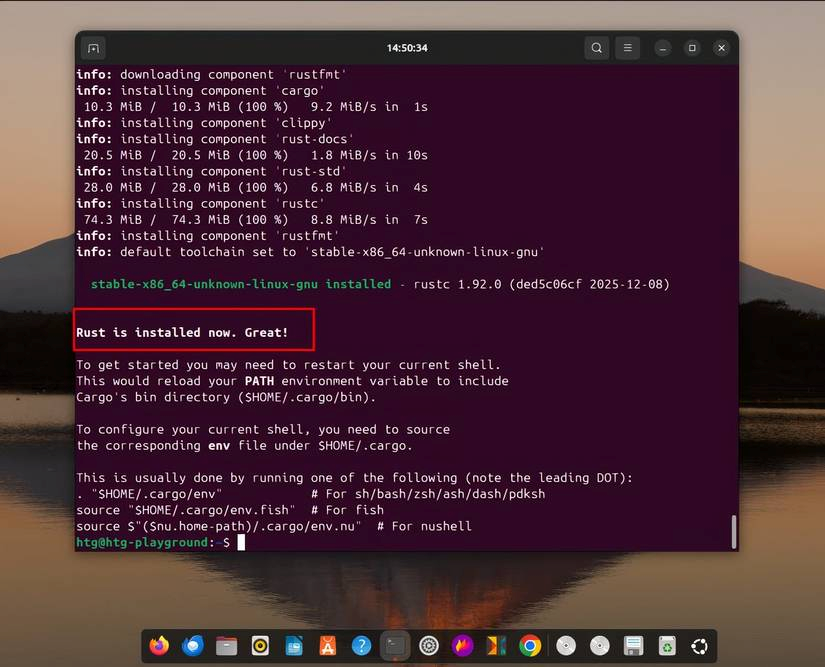
After setting up Rust and Cargo, install Clock-tui using this command:
cargo install clock-tui
Then start the clock using the command:
tclock
Press ‘q’ to exit clock-tui.
Clock-tui is also customizable; here are some of the options you can experiment with.
| Option | What it does |
| tclock -c [color name] | Sets the clock color. For example, tclock -c Blue changes the clock color to blue. |
| tclock timer -d [duration] | Sets a timer for the specified duration. For example, tclock timer -d 5m sets a 5-minute timer. The space bar pauses and restarts the timer. |
| tclock stopwatch | Starts a stopwatch. |
| tclock -s [number 1>5] | Customizes the size of the clock’s digits. For example, tclock -s2. Note that values above 5 can conflict with your terminal size and cause an unhandled error. |
Like Tty-clock, you can also use Clock-tui’s tclock command to string flags. For instance, tclock -s 2 -c Red sets the clock’s color to red and increases the digit size to 2.