How to make Microsoft Word to always create a backup copy of your document.
If you want another safety option for your Word documents, you can set Word to always create a backup copy of your document when you save it.
[mai mult...]
Soluții pentru problemele tale IT

If you want another safety option for your Word documents, you can set Word to always create a backup copy of your document when you save it.
[mai mult...]Ne aflam in situatia in care dorim sa dam disable la optiunea din Privacy, a “Let Windows track app launches to improve Start and search results”, dar nu stim de unde sa facem acest lucru.
[mai mult...]Ne aflam in situatia in care dorim sa dam enable la optiunea din Privacy, a “Let websites provide locally relevant content by accessing my language list”, dar nu stim de unde sa facem acest lucru.
[mai mult...]Ne aflam in situatia in care dorim sa dam disable la optiunea din Privacy, a “Let websites provide locally relevant content by accessing my language list”, dar nu stim de unde sa facem acest lucru.
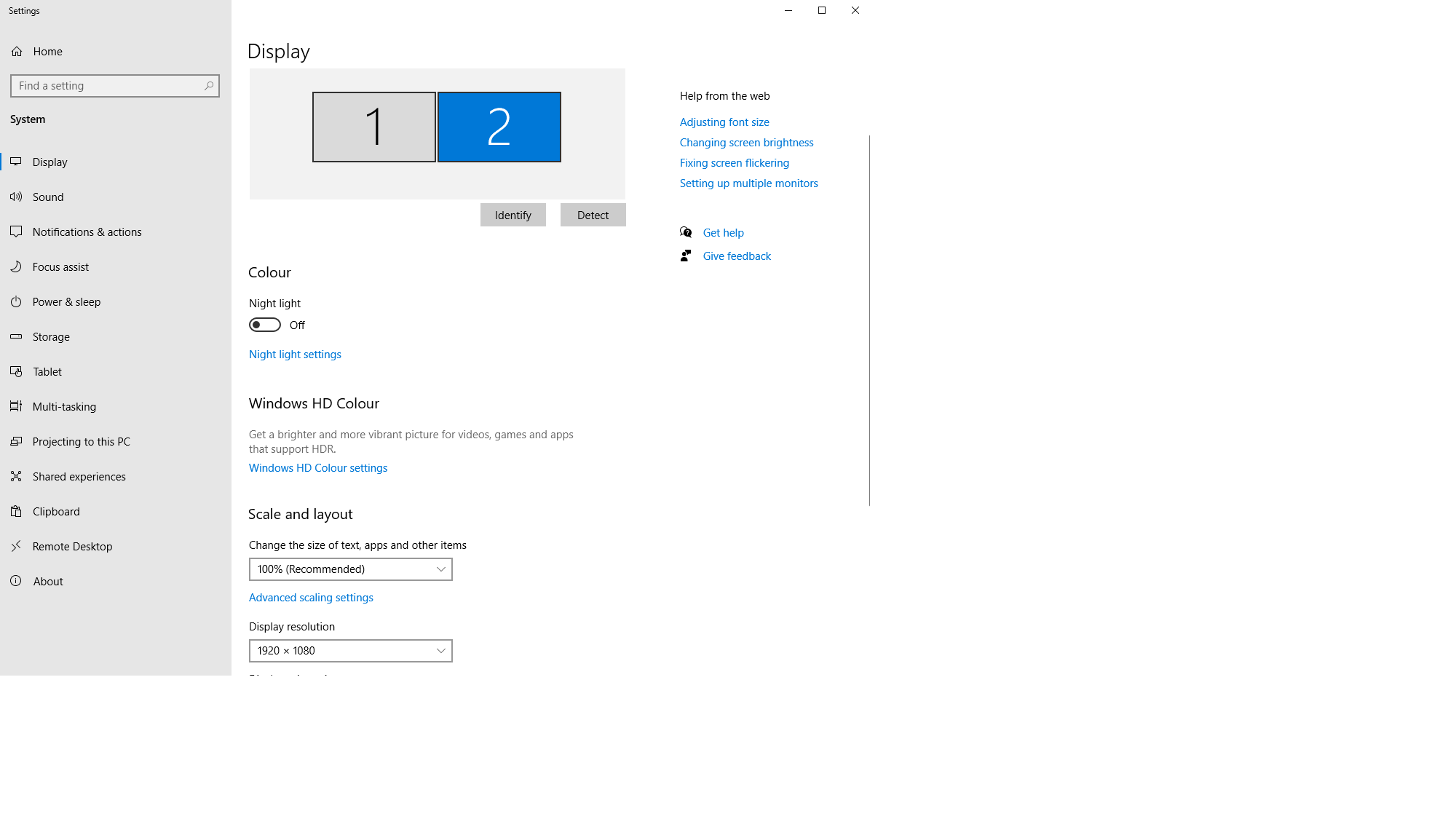
[mai mult...]How to change the resolution of a specific monitor,or how to change whre the information is shown

From here,you can select your desired monitor to either change the resolution,make it your primary.

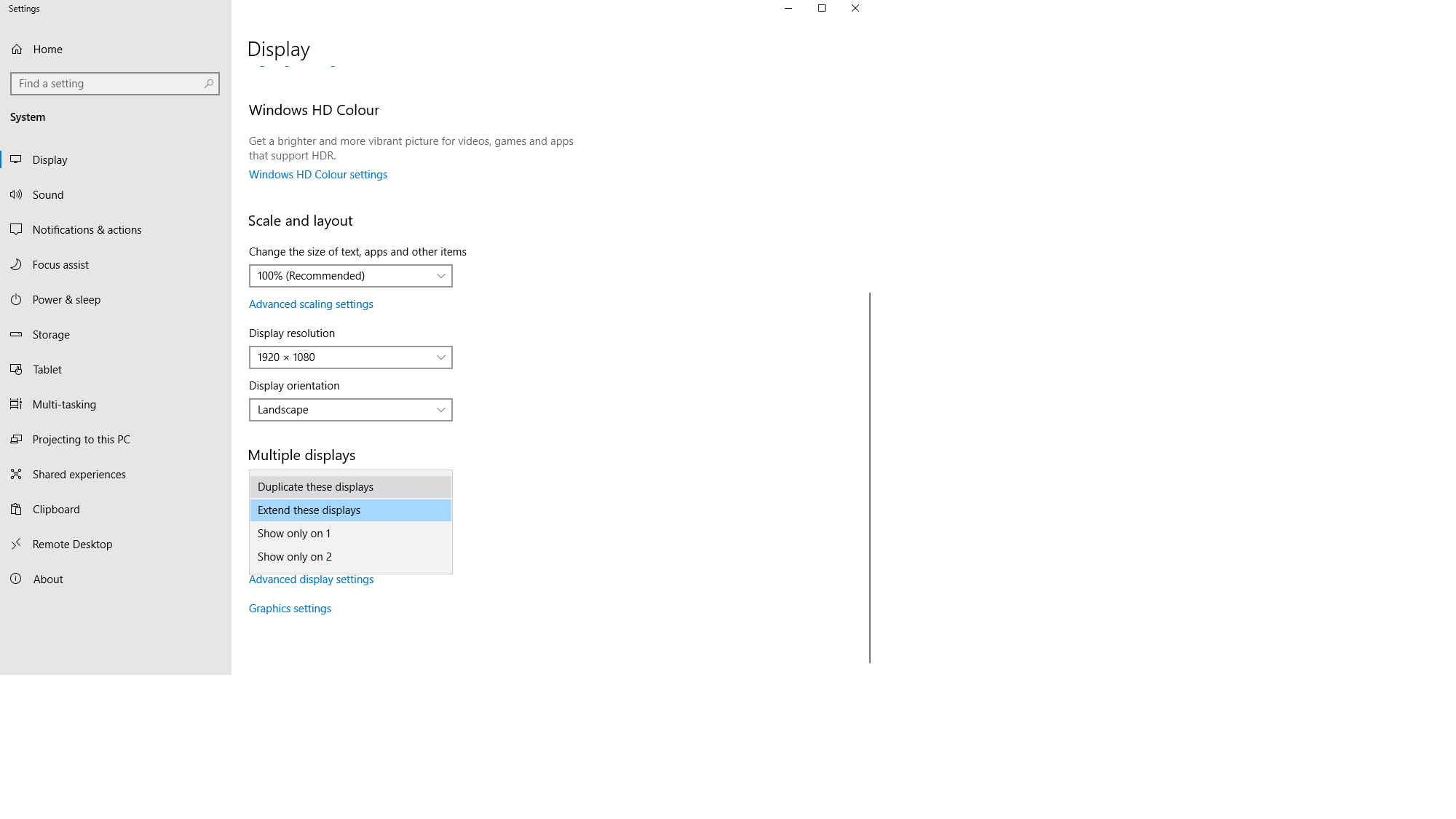
Under the “Multiple displays” option you can change what your monitors to, for example:
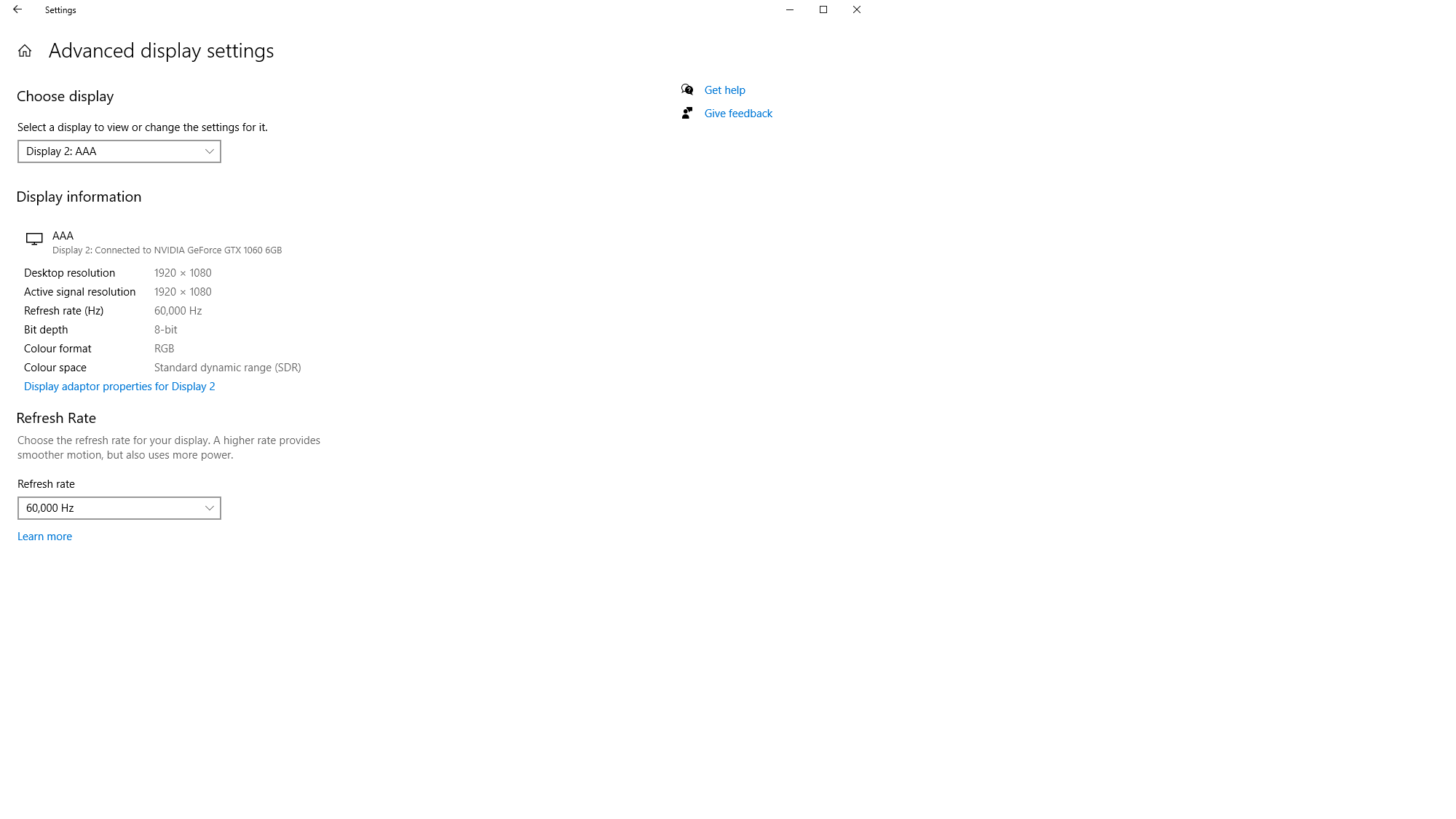
To change the monitor refresh rate(Hz) go to Advanced display settings, select the desired monitor.
Cu toții știm că, atunci când primim un mesaj, destinatarul va vedea dacă am primit mesajul, dacă l-am deschis și dacă l-am citit. Atunci când primești un mesaj pe WhatsApp, o notificare va apărea în panoul de notificări din partea superioară a telefonului mobil. Dacă vei da click pe această notificare, vei intra direct în mesaj și astfel expeditorul va ști că ai văzut mesajul.
In WhatsApp, acest lucru este semnalat prin cele două bife albastre care îi apar interlocutorului și care confirmă nu doar că ai recepționat mesajul, dar și că l-ai citit. În plus, el are posibilitatea să vadă exact când a fost citit mesajul și cine l-a citit (în cazul în care faci parte dintr-un grup). Trebuie doar să selecteze mesajul și să atingă pictograma de informații din colțul dreapta-sus.