

iOS 27: Customize Controls in the Camera App
In the iOS 27, available now, Apple has added the long-rumored ability to customize the Camera app’s controls. Far from the rigid interface of previous iOS versions, you can now pick which controls appear in the Camera app, right down to the flash, exposure, timer, depth of field, photo styles, and resolution.
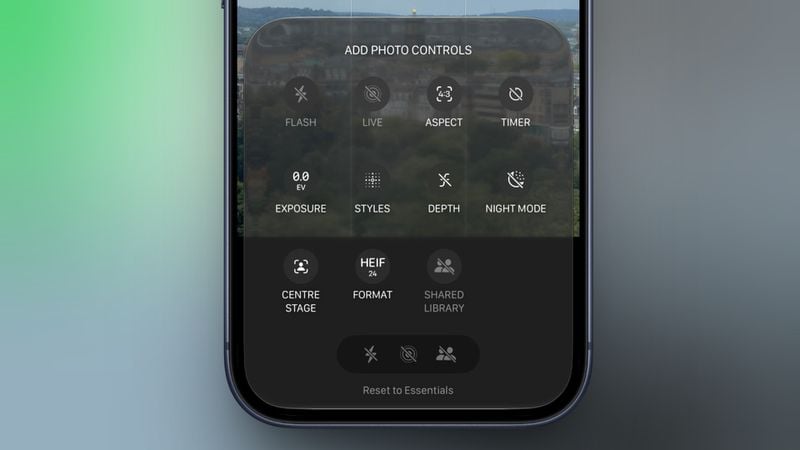
It’s a notable development for a stock app that Apple has historically kept locked down. It also feels like a subtle admission that the iPhone’s camera has outgrown the existing interface. Third-party apps like Halide and Kino have spent years filling the gap for users who want more manual control. Finally, iOS 27 brings some of that flexibility in-house, without forcing it on everyone.
To customize the Camera app’s controls, tap the button with six circles inside in the bottom-right of the Camera’s UI and look for a new Edit button in the top-left corner.
From the new “Add Photo Controls” tray that appears, you can add or remove the widget-like controls to the top of the Camera app’s UI, then press Done in the top right when you’re happy with your selection. Depending on your iPhone model, you should be able to choose from the following controls:
Flash
Live Photo
Aspect Ratio
Timer
Exposure
Styles
Filters
Depth Control
Night Mode
Center Stage
File Format
Shared Library
A “Rest to Essentials” option at the bottom of the widget tray lets you revert to the default set of controls.
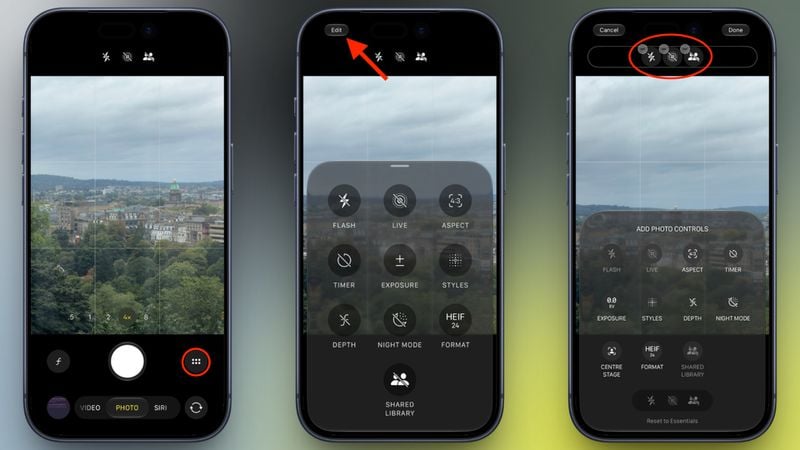
When the customization feature didn’t appear in Apple’s iOS 27 preview at WWDC in June, it was believed that Apple was holding it back specifically for the release of new iPhone 18 Pro models, which bring some of the most significant camera hardware upgrades in several years.
As it turns out, Apple has made the customization feature available to all iPhone models capable of running iOS 27. If you haven’t updated to iOS 27 yet, you can download and install it from the Settings app, via General -> Software Update.
[mai mult...]