Soluții

How to Disable the Windows Key on Windows 10

Windows 10 Logo Hero - Version 3

Hitting the Windows key on your keyboard by accident can be very annoying. Sometimes, it kicks you out of a full-screen game by opening the Start menu or unintentionally launches a shortcut. Luckily, there’s a way to disable the key on your Windows 10 PC. Here’s how.

The easiest way to disable the Windows key is by using Microsoft’s free PowerToys utility. With PowerToys, you can reassign any key to have the function of any other. In this case, we will be changing the Windows key to be “Undefined,” which means nothing will happen when you press it.

[mai mult...]
Afișare Nume, Model și Serial Number al HDD-urilor/SSD-urilor instalate în sistem direct din Windows

De la sine înțeles, există trei metode de a afla modelul și seria unității/unităților de stocare instalate în sistemul dvs.

Prima este cea fizică, dezasamblând sistemul. Însă, sunt alte două metode de aflare direct din sistemul de operare, în cazul de față Windows, pentru a evita deranjul demontării și montării la loc a sistemului. Acest lucru se poate afla din PowerShell sau CMD, ultimul permițând afișarea informațiilor cu privire la stocare direct din instalarea de Windows (SHIFT + F10 deschide CMD inclusiv când Windows-ul se instalează.)

[mai mult...]

How to Change Chrome’s Default Text Size

An Alternative Solution: Zoom Mode

Before we set default font sizes, it’s worth noting that Chrome also includes a feature called Zoom that allows you to quickly change both the size of images and text using the menu or keyboard shortcuts. Unlike Zoom mode, changing the default font size in Chrome will only change text size and will not affect the size of images on the page.

How to Change Chrome’s Default Font Size

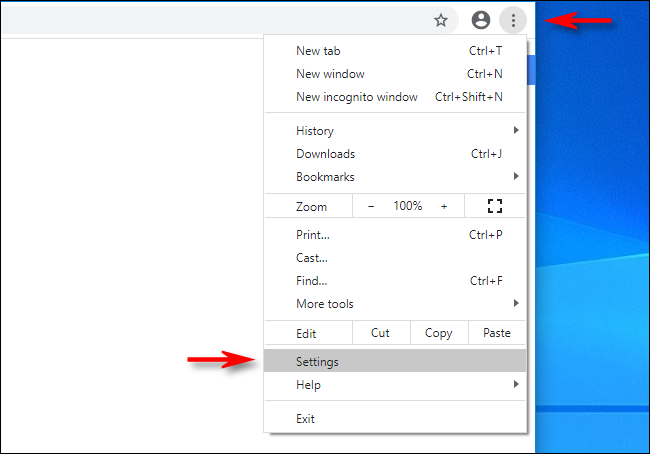
If you’d still like to change the default font size in Chrome, we’ll have dig into Settings. First, open Chrome. In the upper-right corner of any window, click the “ellipses” button (three vertical dots). In the menu that appears, click “Settings.

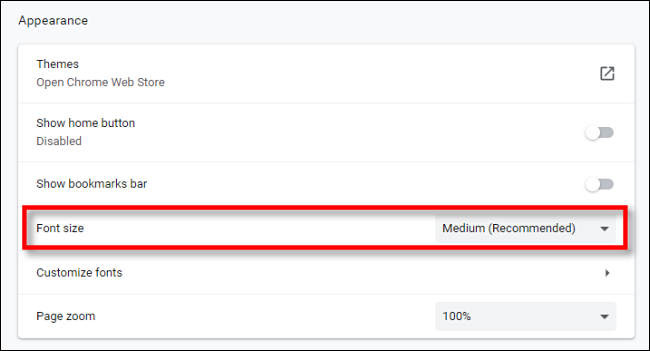
In Settings, click the “Appearance” option in the sidebar or scroll down until you see the “Appearance” section of the Settings page. Next, locate the option called “Font Size.”

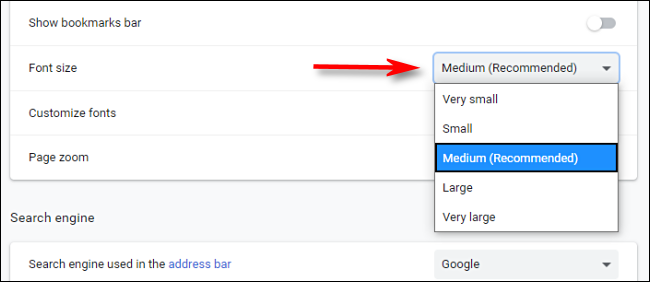
Click the “Font Size” drop-down menu, and you will see five options pop up: “Very Small,” “Small,” “Medium,” “Large,” and “Very Large.”

“Medium” is the default size, so if you’d like all fonts to be larger, select “Large” or “Very Large.” Likewise, if you’d like text on websites to be smaller than the default, select the “Small” or “Very Small” options.

After that, exit Settings. The change will apply to all future websites you visit. You can always revisit Settings if you change your mind about which font size is ideal for you.

How to Finely Tune Font Size in Google Chrome

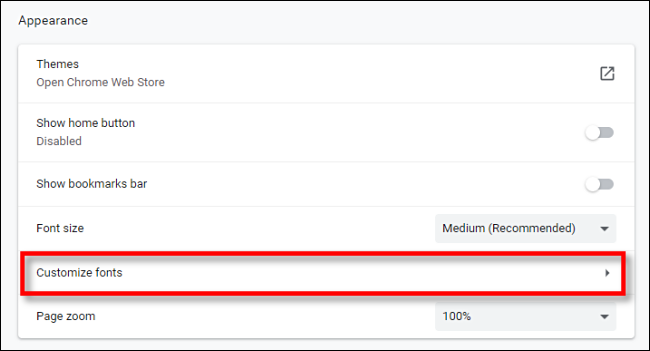
If you’re not satisfied with Chrome’s five basic font size options and would like more granular control, visit Settings > Appearance in Chrome and click “Customize fonts.”

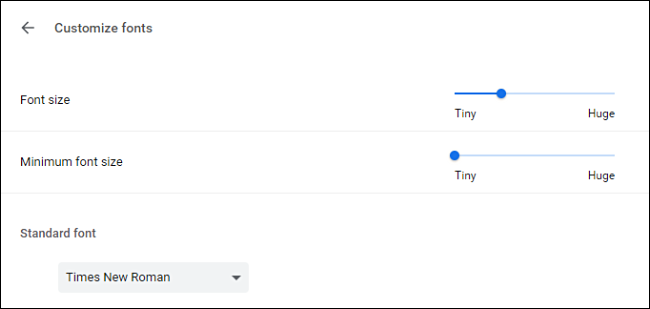
On the Customize fonts screen, you can select a font by point size (from 9 all the way to 72, with 16 pt being the default) using a slider. As you move the slider, the point size will display just above it.

You can also set a minimum font size, which ensures that websites never display fonts that are too small for you to read.

And if you’d like, you can even change the actual font faces you use on this same Settings page.

Experiment with the settings and find what is most comfortable for you. Feel free to switch back and forth between the Settings tab and other website tabs to test. Once you’ve found what you like, close Settings, and you’re set.

[mai mult...]

Adauga memorie RAM virtuala

Memoria RAM virtuala mareste performanta PC-ului. Aceasta solutie este recomandata celor care au PC-uri mai vechi sau cei cu putina memorie RAM fizica,asadar pentru cei cu 4 GB RAM sau mai mult, e inutila marirea memoriei RAM virtuale.

[mai mult...]