Soluții

How to use the Translate app on iPhone

In response to the hugely popular Google Translate app, Apple has bundled its own version within iOS 14. It’s called Translate, and it does what you’d expect: translates text or voice from one language to another.

Right now, there’s support for English, French, Spanish, Arabic, Chinese (mainland), German, Italian, Japanese, Korean, Portuguese and Russian, with offline translation available for all languages – although it may not be as accurate as when you have an active connection. You’ve also got the option of favouriting handy translations, perfect for a quick reference when travelling in another country (whenever that happens again!).

[mai mult...]
Use widgets on your Home screen on iPhone

Widgets aren’t new – they were first introduced to the Today View in iOS 10 – but for the first time, you can place widgets on the Home screen alongside your apps. It’s a much-loved feature of Android, and it’s great to see Apple finally fully embrace widgets after all these years.

There are a bunch of new widgets for iOS 14, including those for fitness rings (ideal for Apple Watch owners), battery life, Maps, Photos and more. There’s also what Apple calls a Smart Stack widget that’ll provide you with Siri app suggestions directly on your Home screen. It’s all based on your habits, and we’ve found it to be pretty helpful – especially now that not all apps live on the Home screen.

[mai mult...]

Remove apps from your Home screen on iPhone

For the first time in iOS history, you’ve now got the option of removing an app from your Home screen without deleting it entirely. It’ll still be accessible via widgets, the App Library and the Search bar, but it won’t be cluttering your Home screen. Besides, with widgets now available, you’ll need all the space you can get!

[mai mult...]

Cum exporti structura ierarhica a unui folder ca fisier text, folosind comanda “ Tree” in CMD

Deschizi Explorer si te duci la folderul pentru care vrei sa exporti structura.

Scrie cmd in bara de adrese din Explorer si apasa pe Enter, pentru a deschide CMD direct din folderul care te intereseaza.

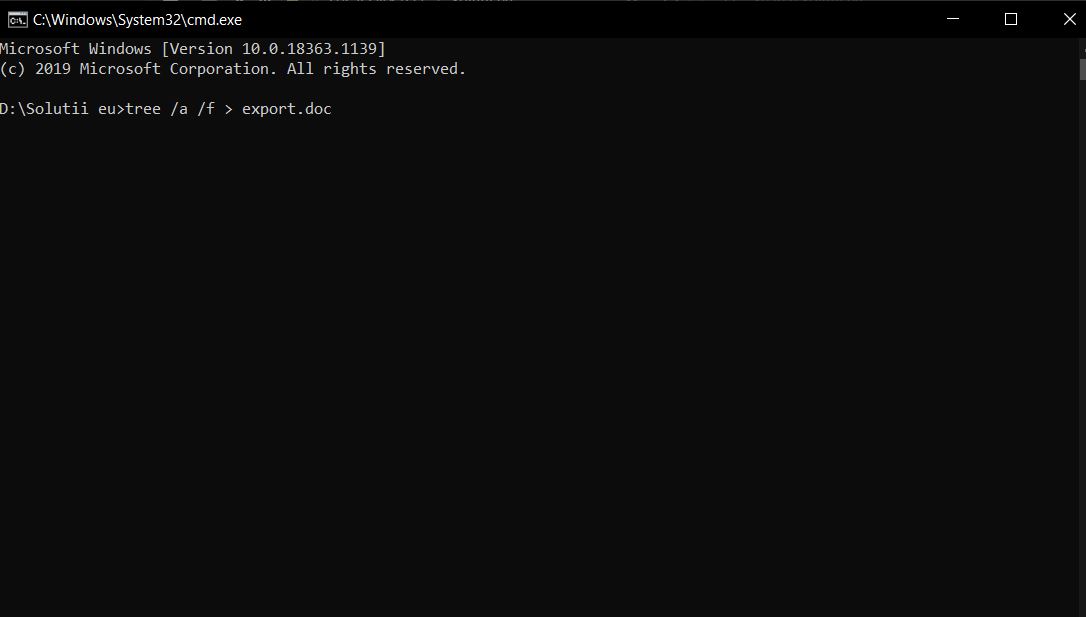
Se deschide o fereastra CMD care este directionata direct la folderul tau. Pentru a exporta lista ierarhica a subfolderelor si fisierelor din folderul tau, ruleaza comanda: tree /a /f > export.doc
Daca nu doresti ca structura sa contina si fisiere si doar foldere atunci nu trece in comadanda si parametrul /f.

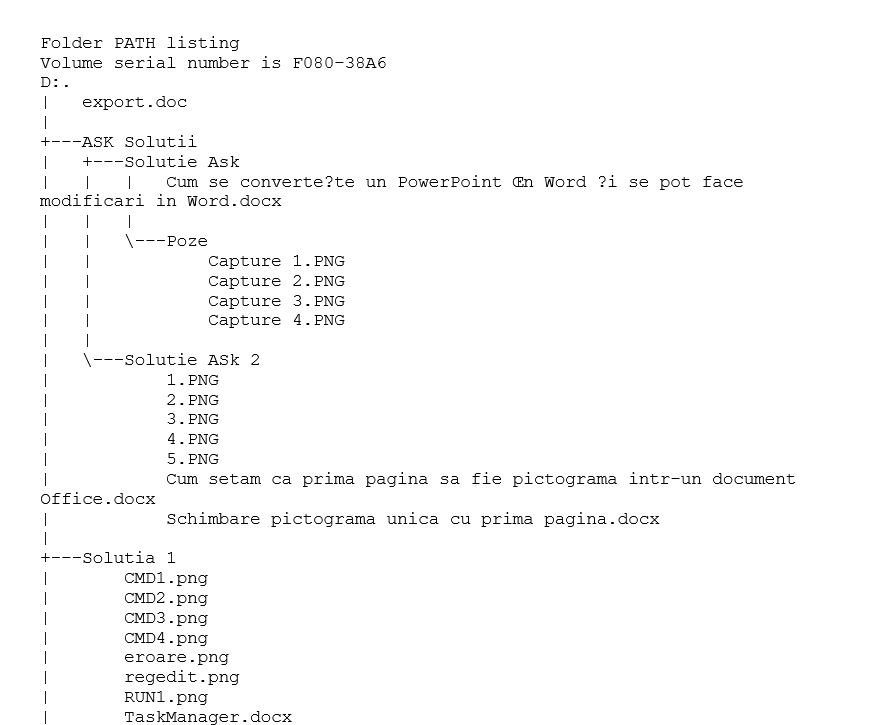
Export.doc este fisierul document in care este salvata structura ierarhica a folderului. Se poate folosi orice nume pentru denumirea fisierului si formatul acestuia ( .txt, .excel etc.)
Dupa ce comanda a rulat ( aceasta poate dura in functie de numarul e fisiere din acel folder ) se poate inchide CMD si te duci in Explorer si navighezi la folderul pentru care ai vrut sa faci exportul. Acolo se gaseste si documentul cu numele pe care tu l-ai dat in comanda din CMD.

Dupa ce il deschizi, in acesta se afla structura ierarhica a folder-ului dorit.

[mai mult...]