

Soluții
Get better AI responses in 3 steps
Getting good answers from AI tools like ChatGPT or Claude is all about how you ask. Most people ask vague questions and get vague answers. Follow these 3 simple steps to get dramatically better results every time.
[mai mult...]How to install ADB on Linux
What is the Android Debug Bridge (ADB)?
ADB is a tool provided by Google for developers to debug and test their software on Android phones. It provides access to certain features that aren’t available to regular users, and since anyone can technically use ADB, you have a way to use these advanced features even if you’re not a developer. The internal structure of ADB is based on the classic client-server architecture. There are three components that make up the entire process.
-The client, i.e. the PC/Mac/Chromebook you have connected to your Android device. We are sending commands to our device from the computer through the USB cable or wirelessly.
-A daemon (known as “adbd”) that runs commands on an Android phone. The daemon runs as a background process on each device.
-A server that manages communication between the client and the daemon. The server runs as a background process on the computer.
Because there are three pieces that make up ADB (the client, the daemon, and the server), certain pieces need to be up and running in the first place. If you have freshly booted the computer (and you don’t have it set up to start the daemon on boot), then you will need it to be running before any communication can be sent to the target Android device.
Most of the best phones on the market run Android, and it’s preferred by many for being a more open operating system than Apple’s iOS. However, there are many things on Android that are also hidden from the average user. Thankfully, many of these capabilities can be accessed by using the Android Debug Bridge (ADB).
[mai mult...]The Linux lsusb command has 5 secret uses you should know
Your Linux command line is filled to the brim with commands you can use to learn about and use your device more effectively. Recently, I figured out a few handy uses for the lsusb command.
In case you aren’t familar, the lsusb command gets its name from the ls command you might already be familiar with. ls is short for “list” and of course usb refers to the Universal Serial Bus, the category of computer port we’re all using all the time.
Identify a device’s vendor
Sometimes, when you get a flash drive or a computer peripheral, it’s unclear who the manufacturer is. So-called white label products may have one company’s logo on them, but that company simply bought it from another and stamped it themselves. If you want to find out who the real manufacturer is, otherwise known as the vendor, you can check that with the lsusb command. You’ll see a bunch of devices listed the first time you run it, but if you unplug the device and run lsusb again, you can identify the one you’re investigating because it will disappear in the second readout. For example, here’s an entry I identified for a flash drive I have:
Bus 004 Device 011: ID 13fe:6700 Phison Electronics Corp. USB DISK 3.0
I identified it by noticing it was missing from lsusb’s output after I removed it.
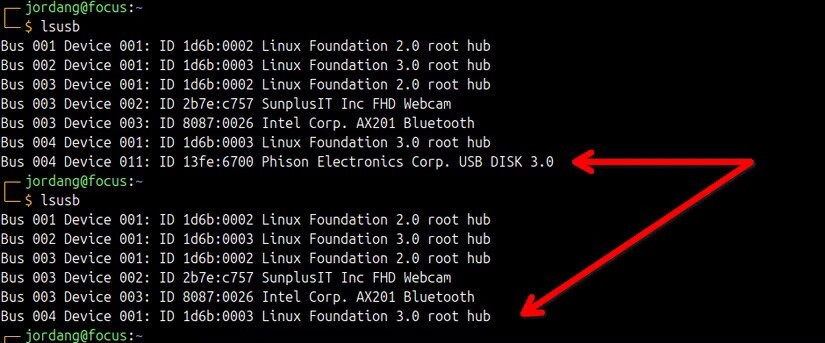
In this case, the vendor’s ID code is 13fe, and lsusb has identified that vendor as Phison Electronics Corp. If I wanted to learn more, or if lsusb for some reason couldn’t produce a vendor name, I could do a web search like “device vendor ID 13fe” and an online database will likely be able to identify it for me and show me other products it produces.
[mai mult...]How to protect your Linux System using Timeshift Snapshots
I had never been big on maintaining backups until an update recently broke my CachyOS setup. The computer was bricked, and I had no way to recover the OS or my data. Since then, I’ve made it a strict rule for myself to maintain regular backups of my Linux systems.
[mai mult...]Cum oprim monitorul doar cu un simplu click
In loc sa asteptam ca temporizatorul monitorului sa stinga ecranul, putem alege o alta optiune care ne ofera si mai mult control pe acesta. Putem face asta cu un simplu fisier batch care o sa opreasca monitorul nostru doar cu un simplu dublu-click.
Aceasta optiune este foarte placuta deoarece putem pleca rapid de la computer, in loc sa asteptam ca temporizatorul monitorului sa se opreasca. Utilizatorii de laptopuri si tablete pot beneficia si de o durata mai lunga de viata a bateriei. Acest fisier batch opereaza apeland o comanda PowerShell.
[mai mult...]