Cum se selecteaza unul dintre cele 4 profile de ventilatoare din interiorul SIV
1. Deschideti aplicatia si apasati pe tab-ul “Smart Fan 5 Auto”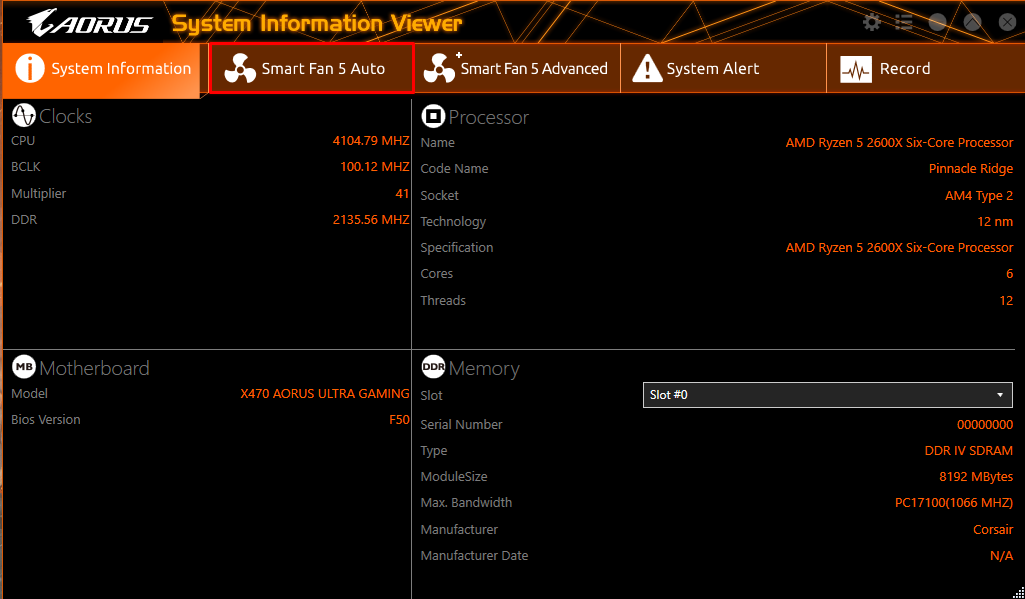 2. Selectati unul dintre profilurile afisate.


Soluții pentru problemele tale IT

1. Deschideti aplicatia si apasati pe tab-ul “Smart Fan 5 Auto”2. Selectati unul dintre profilurile afisate.
fdisk also known as format disk is a dialog-driven command in Linux used for creating and manipulating disk partition table. It is used for the view, create, delete, change, resize, copy and move partitions on a hard drive using the dialog-driven interface.
fdisk allows you to create a maximum of four primary partitions and the number of logical partition depends on the size of the hard disk you are using. It allows the user:
-To Create space for new partitions.
-Organizing space for new drives.
-Re-organizing old drives.
-Copying or Moving data to new disks(partitions).
Synopsis:
[mai mult...]fdsik [options] device
or
fdisk -l [device…]
Whenever your computer crashes, and you encounter something like the blue screen of death (BSOD), the Windows operating system performs a memory dump to a location on your hard drive. Every now and then, it’s good to know how to delete system error memory dump files to keep these files from consuming too much disk space.
What Is a System Error Memory Dump File?
If a BSOD error occurs, the Windows dumps all of the RAM memory into a file on the hard drive. This means if your system is using 8 GB of RAM at the time of the crash, the memory dump file will be 8 GB.
In other cases, Windows may take a “kernel” dump file, which only includes memory allocated to the Windows kernel for things like drivers and active applications. This memory dump file will be significantly smaller than a full system memory dump. This is the default size of a memory dump when you’ve set up your system to conduct an automatic memory dump.
The Windows team or software developers have tools to open and analyze this file for troubleshooting purposes. To check your memory dump setting:
Type “sysdm.cpl” into Windows search, then press Enter to open System Properties.
Select the Advanced tab. On this tab, select Settings under Startup and Recovery.

Observe the drop-down setting under Write degugging information. You can see which dump file setting is enabled, as well as the location of the memory dump file on your system.

Select the drop-down and select Automatic memory dump. This will ensure that the each time a memory dump is performed, it only backs up the kernel and will conserve hard drive memory.
Select Overwrite any existing file as well. This will ensure the dump file doesn’t continue to grow over time.
Select OK to save your changes.
If you need to know how to check RAM on Windows 10, you’ll be happy to know there are several ways to do so, including using Windows utilities and the command prompt. The option you choose depends on which method feels more convenient to you, but it’s always good to know the total installed RAM on your system, and the amount of available or unused RAM.
Knowing the total RAM and the available RAM in Windows 10 can help with many things, including:
Since RAM provides quick read and write access to data when you run software, verifying that you have enough RAM installed for your needs is very important.
It’s very easy to check both total RAM and available RAM using the command prompt. Open the command prompt, then enter one of the following commands:

You can also check RAM in Windows 10 using the System Information utility. If you check System Information in the Control Panel, you’ll see total installed memory (RAM) and how much of this is usable.
Open the Control Panel, then select System. Here you will see your RAM details.
Usable memory differs from installed memory because the computer reserves installed RAM specifically for hardware installed in the system. Because of this, usable RAM will always be slightly less than installed RAM.
The basic System Information screen doesn’t show available RAM. To see this, you’ll need to use the advanced System Information utility. Select the Start icon, type System, then select the System Information app.
Here you’ll see Total Physical Memory (RAM), Total Physical Memory, and Available Physical Memory.

You can also launch the advanced System Information utility by launching msinfo32.exe. To do this, select the Start icon, type Run and press Enter, then in the Open field type msinfo32.exe and press Enter.
If you want to get a more realtime view of total and available RAM, use the Task Manager. To access this, right-click in the Windows taskbar and select Task Manager. Select the Performance tab, then select Memory from the left navigation menu.
Here you’ll see view of RAM being used and available RAM. This line graph and the values below it will update in realtime as you open and close applications.

In addition to all of the Windows utilities you have available to check RAM on Windows 10, there are also a lot of third-party system information tools you can download and use as well, including apps like Driver Easy.