Anydesk, o solutie pentru munca de la distanta
Utilizarea soluțiilor de acces la distanță continuă să devină din ce în ce mai comună între companiile de toate tipurile.
[mai mult...]

Soluții pentru problemele tale IT

Utilizarea soluțiilor de acces la distanță continuă să devină din ce în ce mai comună între companiile de toate tipurile.
[mai mult...]
How to shutdown your computer in Linux and/or Windows?
The idea is to use system() in C. This function is used to invoke operating system commands from C program.
[mai mult...]DBF is one of the oldest database formats. Being used since late 80s, it is still extremely common. However, not all DBF files are the same. In fact, the DBF format itself suffered a lot of changes since its first appear. And while DBF offers backward compatibility since dBase III+, you still need to make sure a database administration tool you use correctly opens each and every DBF file you may have.
DBF Viewer 2000 supports all versions of the DBF format and opens them for editing with minimum efforts. It automatically detects the version of the format, correctly deals with any number of fields and records, opens extremely large files (more than 4GB).
[mai mult...]

Microsoft Teams directly competes with Slack and will replace Skype for Business, as a premier collaborative communications platform for large and small businesses. Set up an organization in Teams and invite your colleagues to start chatting, sharing, and integrating.
Direct any browser to “teams.microsoft.com” and sign in to your Microsoft account. You can create an account for free if you don’t already have one.
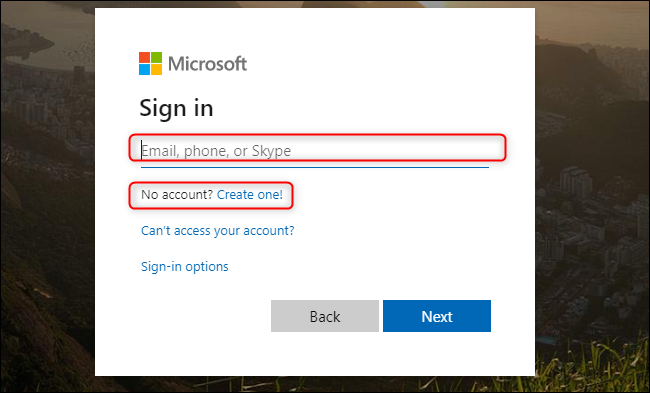
Once you’re signed in to your Microsoft account, select “Get The Windows App” to download and install the app on your Windows, macOS, iOS, Android, or Linux device.
The browser-based web app version doesn’t support real-time calls or meetings, but it is sometimes faster to access Teams through a browser. If you want to access Teams through your browser without downloading the app, click “Use The Web App Instead.”

When the Teams app is first installed on your device, you may need to sign in again. After, click “Sign Up For Teams” to begin setting up your organization.

A new web page will open where you can read through a full list of features and compare pricing plans. Teams is free if you’re using it with no other Microsoft Office 365 apps.
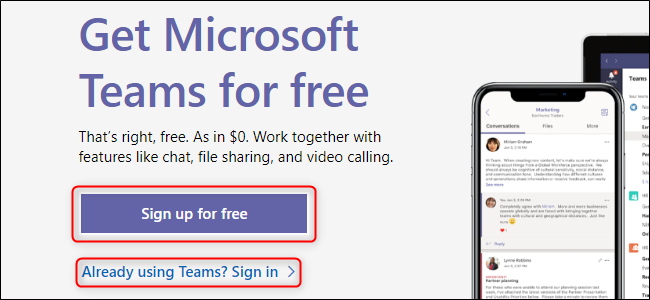
If you’re joining an existing organization, choose “Already Using Teams? Sign In.” Once you sign in, you’ll be ready to explore your organization’s existing Teams infrastructure and start chatting with your colleagues.
If you’re starting a new organization, click “Sign Up For Free.”
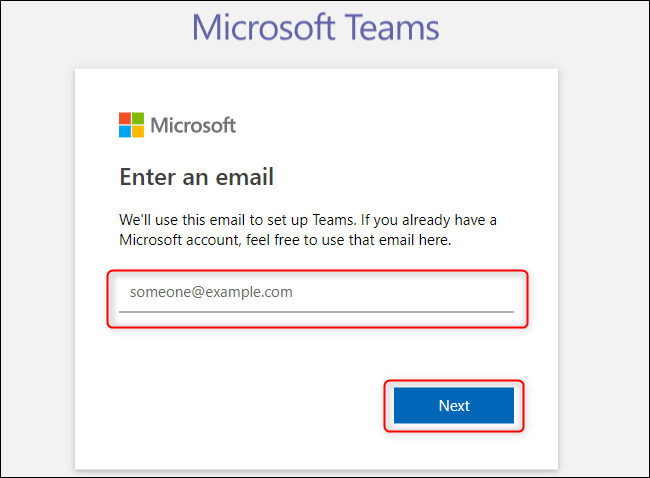
Enter your email and then select “Next“.
Enter your first and last name as well as the name of your company or organization. When you’re done, click “Set Up Teams.”
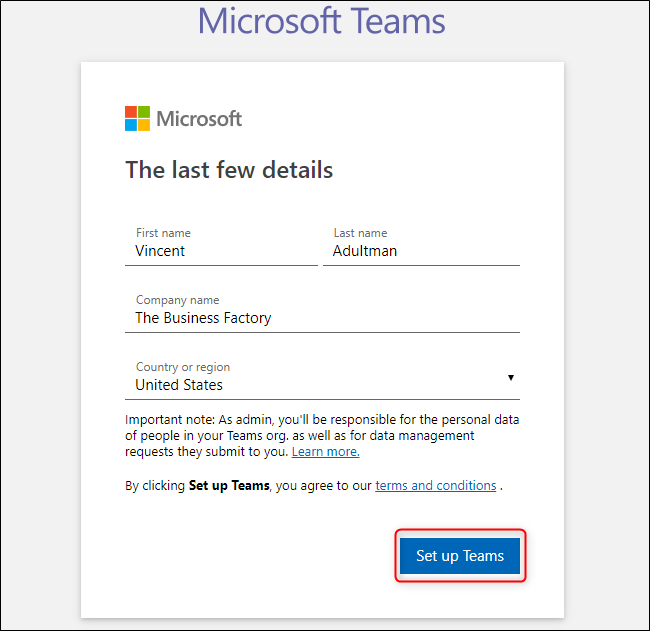
Assuming the name of your organization isn’t already taken, Teams will start creating your organization and then bring up the web app. Once you’re logged in to Teams for the first time, it will ask for your name and picture (both optional), then guide you through its interface and features.
How to Invite People to Your Organization in Microsoft Teams
You’ll receive an email with a link you can send to colleagues to invite them to join your new Teams organization. Teams will also greet you with this link when you first sign in.

You can always invite new people to your organization within the Teams application. Select the “Teams” tab on the left and then click “Invite People.”
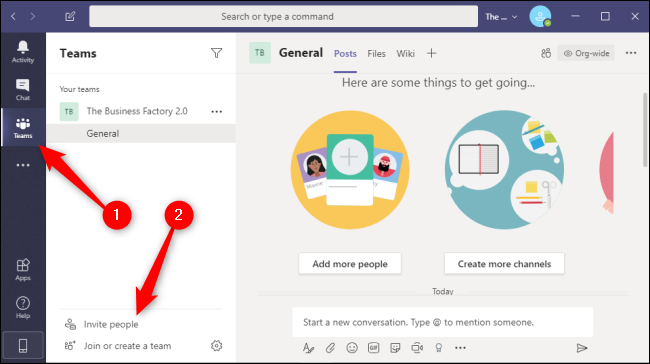
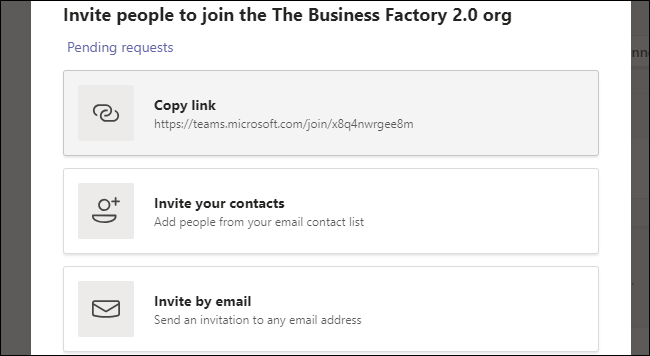
In this menu, you can copy an invite link to your clipboard, invite contacts directly from your email contact list, or invite people with different email addresses. These email addresses do not have to be Microsoft email addresses, but your invitees will be prompted to use their email addresses to create a Microsoft account.
Your invitees will receive an email like the one below. To join the organization, your colleagues need to click “Join Teams” in this email. They can also click the “iOS” and “Android” buttons to install the mobile app for their respective device.

You and your colleagues can now collaborate remotely through this organization in Microsoft Teams. You can build a better communications platform by creating new teams within your organization, integrating Teams with Office 365, and sharing your screen, your files, or your favorite cat pictures.
[mai mult...]

Apple now says it’s okay to use disinfecting wipes on iPhones. Previously, Apple recommended against using disinfecting wipes on its products while the CDC said it was a good idea to protect against COVID-19.
Traditionally, device manufacturers like Apple recommended against harsh disinfectants because they can wear away the oleophobic coating on your smartphone’s screen. This is an oil-repelling coating that helps prevent fingerprints and smudges from sticking to your smartphone’s screen.
This coating naturally and slowly wears away as you use your phone, but harsh cleaners can cause it to wear away faster.
On Mar. 9, 2020, Apple updated its official cleaning guide to say that disinfecting wipes are an acceptable way to clean your iPhone, iPad, MacBook, and other Apple products.
Specifically, Apple says you should use “a 70 percent isopropyl alcohol wipe or Clorox Disinfecting Wipes.” Don’t use anything with bleach in it.
Apple recommends disinfecting wipes and not disinfecting sprays. If you have a spray, you should spray it on a soft, lint-free cloth (like a microfiber cloth) and use that to wipe your iPhone or other Apple product rather than spraying it directly. Apple says you should “avoid abrasive cloths, towels, paper towels, or similar items.” Never submerge your hardware in any cleaning solution.
With your wipe, “you may gently wipe the hard, nonporous surfaces of your Apple product, such as the display, keyboard, or other exterior surfaces.” In other words, take your iPhone out of its case and wipe its exterior: The screen, back, and sides.
Be sure to wipe gently and “avoid excessive wiping” to protect the coating as much as possible. A single wipe with a disinfecting wipe should do it.
While wiping, be sure to “avoid getting moisture in any opening.” Don’t let any of the cleaning solution drip into any speaker grill or the iPhone’s Lightning port, for example. This can damage your phone’s hardware.
Apple cautions against using cleaning solutions on fabric or leather surfaces. For example, if you have an Apple leather case for your iPhone, you should avoid using the disinfecting wipe on that. This can damage the material. However, if you have a case that can handle the disinfecting wipe—a plastic or silicone case, for example—you should wipe it as well.
While you’re at it, be sure to clean your AirPods regularly, too.
[mai mult...]
If you’re looking for your Windows 10 product key, you can find it by entering a quick command in the Command Prompt. Here’s how—plus a neat little trick for finding the product key using a Windows Registry method.
Find Your Windows 10 Product Key Using the Command Prompt
To find your Windows 10 product key using the Command Prompt, you’ll need to open the command line application with administrative privileges. To do this, type “cmd” in the Windows search bar.

Command Prompt will appear in the search results. Right-click it and select “Run As Administrator” from the window that appears. If prompted, enter your Windows account password.

Once open, copy and paste the following command and then hit the Enter key:
wmic path softwarelicensingservice get OA3xOriginalProductKey
The 25-digit product key will then appear.
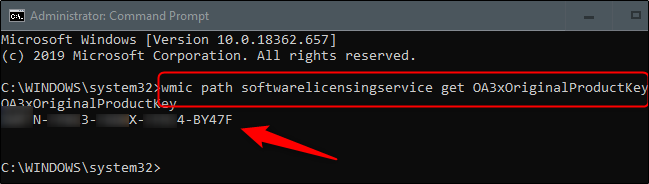
That’s all there is to it. This way is quick, but this isn’t likely a code you’ll remember very easily. If you’d like a faster way of accessing your product key in the future, you can use the Windows Registry method instead.
The Windows Registry tip was initially posted by a user (whose account is no longer active) in the Microsoft forum.
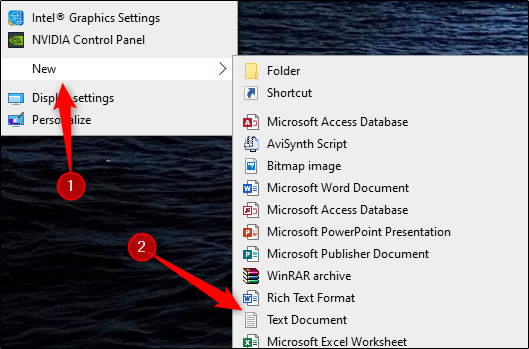
First, open Notepad by right-clicking anywhere on the desktop, hovering over “New,” and then selecting “Text Document” from the menu.
Set WshShell = CreateObject(“WScript.Shell”)
MsgBox ConvertToKey(WshShell.RegRead(“HKLM\SOFTWARE\Microsoft\Windows NT\CurrentVersion\DigitalProductId”))
Function ConvertToKey(Key)
Const KeyOffset = 52
i = 28
Chars = “BCDFGHJKMPQRTVWXY2346789”
Do
Cur = 0
x = 14
Do
Cur = Cur * 256
Cur = Key(x + KeyOffset) + Cur
Key(x + KeyOffset) = (Cur \ 24) And 255
Cur = Cur Mod 24
x = x -1
Loop While x >= 0
i = i -1
KeyOutput = Mid(Chars, Cur + 1, 1) & KeyOutput
If (((29 – i) Mod 6) = 0) And (i <> -1) Then
i = i -1
KeyOutput = “-” & KeyOutput
End If
Loop While i >= 0
ConvertToKey = KeyOutput
End Function
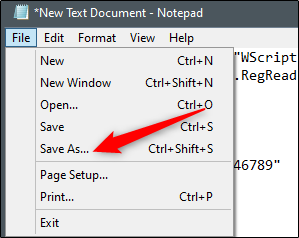
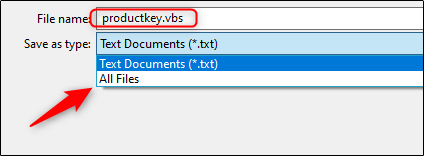
In File Explorer, set the “Save As Type” dropdown to “All Files” and give your file a name. You can use any name, but it has to be a .vbs file. You can name it something like: productkey.vbs
Once you’ve entered a file name, save the file.

You can now view your Windows 10 product key at any time by opening the new file.