Cum se activează Focus pe Windows 11
Focus, așa cum sugerează și numele, este o funcție încorporată în Windows 11 care vă permite să vă concentrați asupra sarcinilor dvs. eliminând distragerile.
[mai mult...]
Soluții pentru problemele tale IT

Focus, așa cum sugerează și numele, este o funcție încorporată în Windows 11 care vă permite să vă concentrați asupra sarcinilor dvs. eliminând distragerile.
[mai mult...]De obicei, puteți păstra doar un element copiat în clipboard pentru a-l lipi undeva. Cu istoricul clipboard-ului, totuși, puteți avea mai multe elemente salvate în clipboard, gata pentru a fi lipite oriunde doriți.
[mai mult...]Caracteristica Snap layouts din Windows 11 vă permite să faceți mai multe sarcini pe sistemul dvs. Puteți plasa aplicațiile una lângă alta sau într-un alt aspect și puteți lucra pe toate simultan.
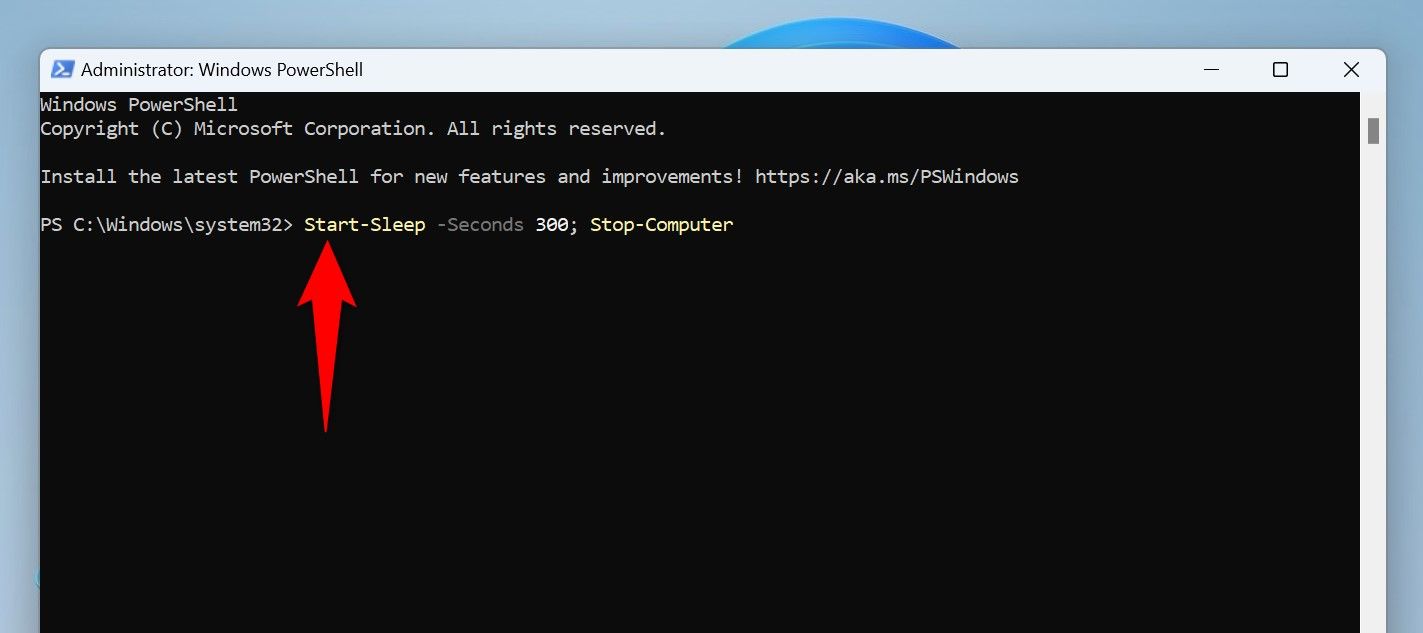
[mai mult...]If you prefer PowerShell over Command Prompt, you can use a cmdlet in this utility to shut down your PC. To do that, access Windows Search, type PowerShell, and select “Run as Administrator.” Select “Yes” in the User Account Control prompt.
On the PowerShell window, type the following cmdlet. Here, replace “seconds” until the shutdown time. Then, press Enter.
Start-Sleep -Seconds seconds; Stop-Computer
For example, to shut down your PC in five minutes, run the following cmdlet:
Start-Sleep -Seconds 300; Stop-Computer
To cancel a scheduled shutdown, run the following cmdlet:
shutdown /a[mai mult...]
Configuration Issues: These are issues where new commands have been set or old ones modified and it had an adverse affect on the computer. This can usually be resolved by finding the wrong or modified command or setting and either changing it to one that works or revert it back to its original state.
Boot options using the Boot tab
This tab gives you many options for starting up the computer. The top portion of the window contains the start-up file that the computer is using. If there are multiple boot partitions on the computer, you see each listed here. You can change the timeout value for the boot menu. You can clearly see what commands the boot manager is using, to see if there are any issues.

Two of the three buttons provided in this window are for editing purposes and are unavailable by default. There are two options down the side of the page:
The only button that is not unavailable under the Boot tab, is the Advanced Options. Clicking the Advanced Options button brings up the Boot Advanced Options dialog box. Usually you do not use these options, but they can come in handy. Such as if you suspect that a boot issue is being caused by having multiple processors. You can limit the number of processors used to boot the computer by selecting the Number of Processors check box and specifying a number.

In Windows 10 and 11 you can press the Windows + R keys together and a run box appears.
MSCONFIG and the application is shown in a list.


The General tab

The MSCONFIG General tab gives you some basic options for starting your device. The default choice for the utility is Normal Startup. The other two options for starting the computer are Diagnostic Startup and Selective Startup.
If you detect that one of the launch programs is causing a problem at startup, then you can clear the Load Startup Items. It prevents any startup program from launching. This is too general to help you determine which program is causing the problem, but it helps you narrow down the issue to a certain area.
[mai mult...]