
Soluții

How to browse the Web in your Linux Terminal with Lynx

Lynx is a text-only browser that is designed to allow terminal-based systems to access web pages on the Internet. As it relates to Linux, Lynx is a web browser that runs in the Terminal. Lynx can access any web page available on the Internet just like your normal browser can, though it does have some limitations (more on that below).

Why Should You Use Lynx?

Since Lynx only loads text, it has some key advantages over other web browsers. Lynx won’t load image files, videos, GIFs, or other media, which have dramatic effects on the time it takes for a web page to load. Additionally, Lynx cannot load media-based ads, offering a built-in “ad blocker” of sorts (though text-only in-line ads will still load on web pages).
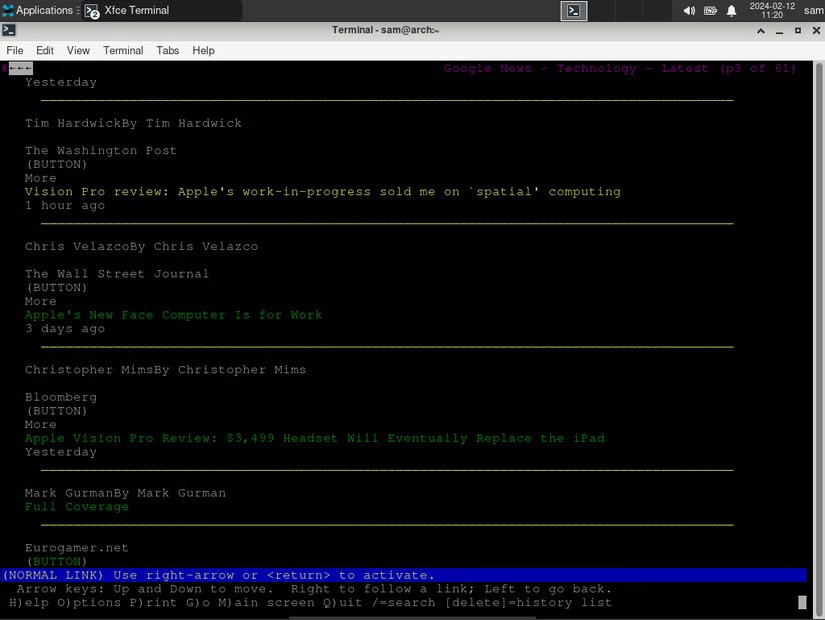
Lynx offers a simply unique experience compared to other web browsers which rely on a graphical user interface (GUI). Since it is text-only and key-command driven, you’re experiencing the internet in a whole new way. As a plus, Lynx doesn’t look like a traditional web browser at first glance, so it can be used as an inconspicuous way of reading news or browsing other websites without others knowing what you’re doing (which might make that fourth meeting of the day more tolerable).Keep in mind that Lynx has some limitations. It cannot load anything that cannot be rendered as text.

This means images and videos won’t show up in Lynx, so sites like YouTube, Instagram, and GIPHY either won’t load or will display only links that cannot be opened. Lynx cannot load Javascript, which is essential code for some websites to load. As such, some sites might be inaccessible or have certain parts broken. Lastly, it may be difficult to log into accounts (e.g., Gmail) with Lynx as some of these logins require scripts this browser can’t run. This may prevent you from using email or logging onto certain websites.
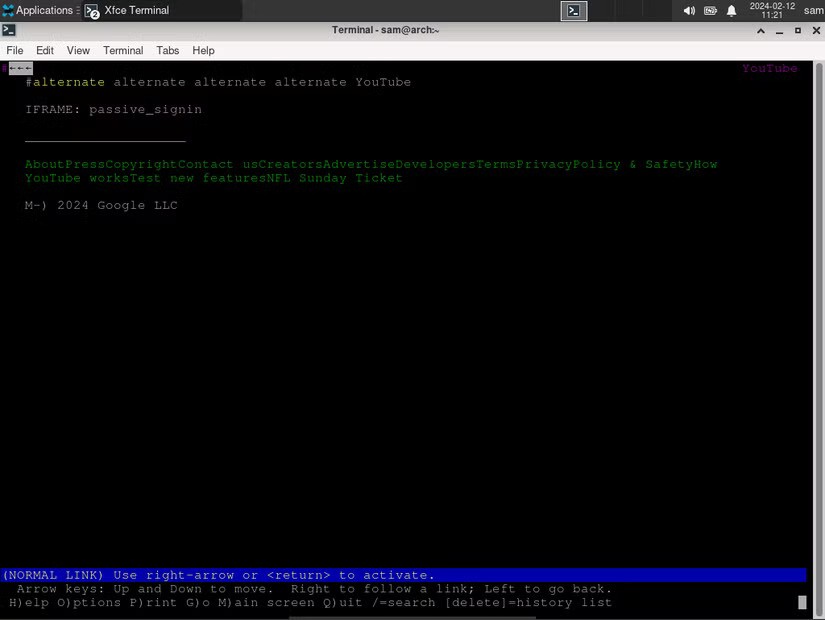
Personally, I like using Lynx to read news and other text-heavy websites (like forums, guides, recipes, and more) due to its speed and simplicity. I appreciate the distraction-free environment Lynx provides as it helps me focus on what I’m reading and keeps me on task. While other web browsers offer the temptation of scrolling YouTube, Facebook, or other distracting websites, Lynx can’t access this media, making it a great “reader only” mode for browsing the Internet. I don’t use Lynx as my daily driver, but it is a useful tool for focused research, perusing the news, and staying focused on reading through information.

[mai mult...]
This Linux tool lets you search DuckDuckGo in the Terminal

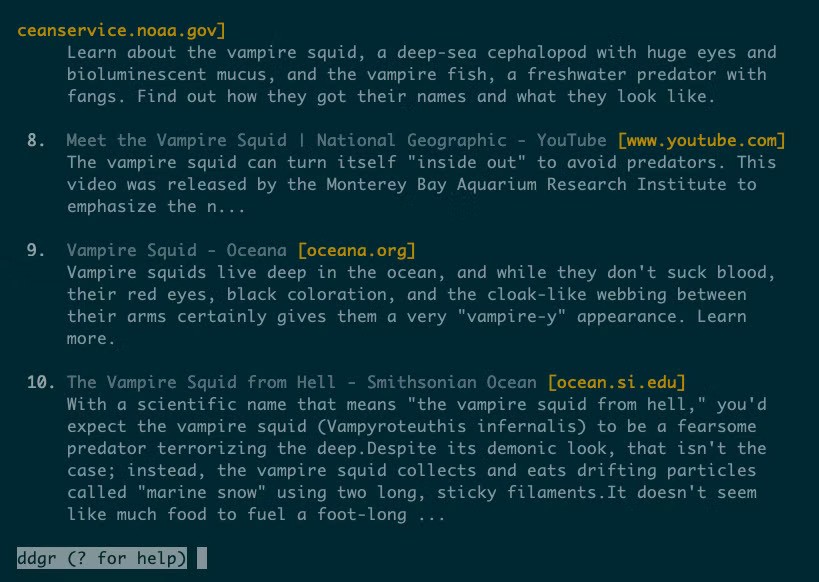
Ever wanted to search the web without leaving your Linux terminal? The ddgr program lets you do just that using the DuckDuckGo search engine.

What Is ddgr?

ddgr is a command-line tool that lets you search DuckDuckGo, the privacy-respecting alternative to Google. DuckDuckGo sources its data from Bing and other sources, to provide excellent results.Once you run a search in ddgr, you’ll see a list of results with the most important information in each: URL, title, and description. You can then use the interactive interface to open any of these results in your browser.If you’re a big fan of the terminal, you’ll be spending a lot of time in it, and ddgr provides a lot of convenience.

ddgr prominently displays the domain of each result, so you can focus on the source. But you can configure the tool to show full URLs, and change its behavior in many other ways.

[mai mult...]

Windows 10/11 se blochează frecvent sau funcționează foarte lent

Cauze posibile:

  • Procese de fundal consumatoare de resurse
  • Temperatură ridicată a procesorului sau GPU-ului
  • Hard disk/SSD deteriorat
  • Memorie RAM insuficientă sau defectă
  • Drivere incompatibile
  • Malware sau viruși
  • Windows suprasolicitat de aplicații inutile

1. Verifică utilizarea resurselor (Task Manager)

  • Apasă Ctrl + Shift + Esc pentru a deschide Task Manager
  • Mergi la tab-ul Processes și verifică utilizarea CPU, RAM și Disk.
  • Dacă un proces consumă multe resurse (ex: Windows Defender, svchost.exe, chrome.exe), identifică-l și vezi dacă poate fi dezactivat sau optimizat.

2. Repornește PC-ul în Safe Mode

Dacă Windows este extrem de lent sau se blochează des, încearcă să rulezi în Safe Mode:

  1. Apasă Win + R, scrie msconfig și apasă Enter.
  2. Mergi la tab-ul Boot și bifează Safe Boot.
  3. Repornește PC-ul și vezi dacă problema persistă.
  4. Dacă Safe Mode funcționează normal, cauza este un driver sau o aplicație instalată recent.

3. Dezinstalează programele inutile

  • Mergi la Control Panel > Programs and Features
  • Găsește aplicațiile pe care nu le folosești și dezinstalează-le
  • Asigură-te că nu ai prea multe aplicații care pornesc automat:
    • Task Manager > Startup – Dezactivează aplicațiile inutile.

4. Verifică temperaturile procesorului și GPU-ului

Dacă PC-ul se blochează des, cauza ar putea fi supraîncălzirea. Poți verifica temperaturile folosind HWMonitor sau Core Temp.

Temperaturi ideale:

  • CPU: sub 80°C în sarcină
  • GPU: sub 85°C în sarcină

Dacă temperaturile sunt prea ridicate:

  • Curăță ventilatoarele și radiatoarele de praf.
  • Aplică pastă termoconductoare nouă pe CPU/GPU (dacă e cazul).
  • Folosește un cooler extern (dacă e laptop).

5. Rulează o scanare pentru malware și viruși

  • Deschide Windows Security (Win + I > Update & Security > Windows Security).
  • Selectează Virus & threat protection > Quick Scan.
  • Dacă ai un antivirus terț, rulează și o scanare completă.

Dacă PC-ul este infectat, poți folosi Malwarebytes pentru a elimina programele periculoase.

6. Optimizează hard disk-ul / SSD-ul

Dacă HDD-ul rulează la 100% în Task Manager, trebuie optimizat:

  1. Apasă Win + R, scrie services.msc și apasă Enter
  2. Găsește SysMain (Superfetch) și Windows Search
  3. Click dreapta > Properties > Setează Startup Type: Disabled

Dacă ai un SSD, verifică starea lui cu CrystalDiskInfo:

  • Good = SSD în stare bună
  • Caution sau Bad = SSD deteriorat, trebuie înlocuit

Pentru HDD:

  • Rulează comanda:
    bash
    chkdsk C: /f /r
  • Aceasta va verifica și repara erorile de pe hard disk.

7. Crește memoria virtuală (Pagefile)

Dacă PC-ul are puțin RAM, poți mări memoria virtuală:

  1. Apasă Win + R, scrie sysdm.cpl și apasă Enter
  2. Mergi la tab-ul Advanced > Performance > Settings
  3. Selectează Advanced > Virtual memory > Change
  4. Debifează Automatically manage paging file size for all drives
  5. Selectează discul C: și alege Custom Size:
    • Minim: 1,5x RAM-ul tău (ex: 8GB RAM → 12.000 MB)
    • Maxim: 3x RAM-ul (ex: 8GB RAM → 24.000 MB)
  6. Apasă OK și repornește PC-ul.
[mai mult...]