Soluții
You don’t need a USB flash drive—your old phone is a better portable file server
Buying a new phone leaves you with an older one that is pretty much useless unless you trade it in. No one really needs a second phone unless it is for work. Once you’ve moved your contacts and photos over, it’s easy to forget the old phone is still useful when repurposed. It won’t lose any of the features that make it such a good mini computer, and you should take advantage of that.
[mai mult...]A better way to use Alt+Tab in Windows 11
I’m one of those people who presses Alt+Tab hundreds of times a day to bounce between the many windows I have open. The problem is that Windows’ built-in switcher starts to get awkward when I have lots of windows open, and aside from choosing how many thumbnails to display, there’s not much room for customization.
Open windows are much easier to see
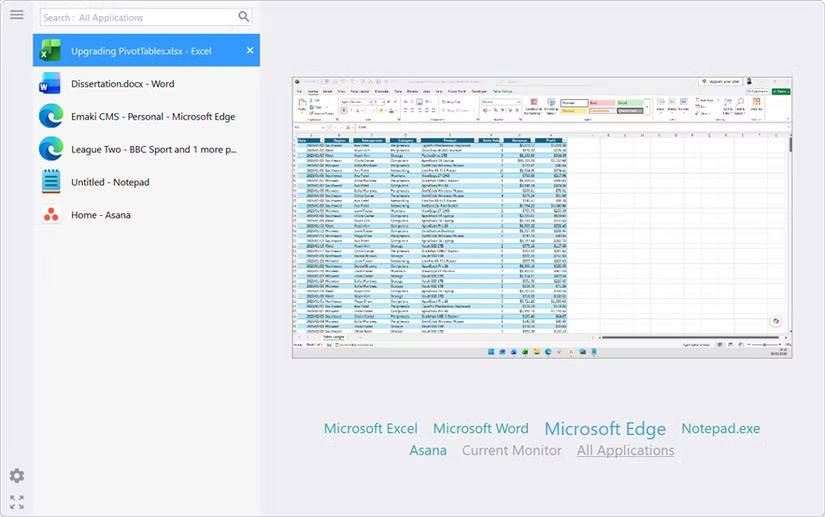
Windows 11’s Alt+Tab switcher is fine when I only have a few windows open. But once I’ve got a bunch of them running, those little thumbnails aren’t always much help. If I’ve got several Edge windows open, for example, I can end up staring at a row of tiny previews trying to work out which one I need. Alt-Tab Terminator takes a different approach. It puts my open windows into a vertical list on the left, with a much larger live preview on the right.
I can move through the list and actually see the contents of the selected window before I switch to it. One of the things I like most about Alt-Tab Terminator is the full-screen button in the bottom-left corner. After clicking it once, the switcher opens full-screen the next time I press Alt+Tab, giving me an even bigger view of everything. The preview also adjusts to fit the window, which is useful when I’m moving between my laptop screen and a larger monitor. And when the list gets long, I can scroll through it and wrap back around to the top when I reach the bottom.
[mai mult...]Căutare enterprise self-hosted peste toate documentele companiei cu Onyx – RAG hibrid, 40+ conectori, complet on-premise
Documentele companiei sunt împrăștiate în multiple sisteme: file share-uri, SharePoint, email, Confluence, ticketing. Un RAG construit manual (ChromaDB/Qdrant + script de indexare) acoperă doar fișierele copiate local și necesită întreținere constantă a conectorilor.
Onyx (fost Danswer) este o platformă open-source (licență MIT) de căutare enterprise cu chat AI, care se instalează self-hosted, se conectează direct la sursele existente prin 40+ conectori și oferă căutare hibridă (vectorială + keyword) cu permisiuni respectate per utilizator. Poate rula complet air-gapped, cu LLM local prin Ollama sau vLLM.
[mai mult...]Cum verifici dacă un serviciu Windows depinde de alte servicii înainte de a fi oprit
Deschideți PowerShell cu drepturi de administrator. Pentru a vedea serviciile de care depinde un anumit serviciu utilizați:
Get-Service -Name "Spooler" -RequiredServices
În exemplul de mai sus este verificat serviciul Print Spooler.Pentru a vedea serviciile care depind de serviciul respectiv:
Get-Service -Name "Spooler" -DependentServices
Pentru o verificare mai completă putem utiliza:
Get-Service -Name "Spooler" |
Select-Object Name, Status, ServicesDependedOn, DependentServices
Înlocuiți Spooler cu numele serviciului dorit.
Pentru identificarea numelui unui serviciu putem folosi:
Get-Service |
Select-Object Name, DisplayName, Status |
Sort-Object DisplayName
După identificarea serviciului, verificarea dependențelor poate fi făcută înainte de orice operațiune de restart sau oprire. Această metodă este utilă în special pe servere, unde oprirea unui serviciu poate afecta alte aplicații sau componente care depind de acesta.
[mai mult...]Cum verifici caracteristicile Windows instalate folosind PowerShell
Deschideți PowerShell cu drepturi de administrator.
Pentru a afișa caracteristicile Windows disponibile și starea acestora:
Get-WindowsOptionalFeature -Online |
Select-Object FeatureName, State
Pentru afișarea doar a caracteristicilor activate:
Get-WindowsOptionalFeature -Online |
Where-Object {$_.State -eq "Enabled"} |
Select-Object FeatureName, State
Dacă dorim să verificăm o anumită caracteristică, de exemplu TelnetClient:
Get-WindowsOptionalFeature -Online -FeatureName TelnetClient
Rezultatul va indica starea caracteristicii.
Pentru a salva lista caracteristicilor activate într-un fișier:
Get-WindowsOptionalFeature -Online |
Where-Object {$_.State -eq "Enabled"} |
Select-Object FeatureName, State |
Export-Csv C:\WindowsFeatures.csv -NoTypeInformation -Encoding UTF8
Această metodă este utilă pentru verificarea configurației unui calculator înainte de implementarea unei aplicații sau a unui serviciu care necesită anumite componente Windows.
[mai mult...]