How to take screenshots of YouTube videos in Chrome
To take a screenshot from YouTube videos, follow these steps:
[mai mult...]
Soluții pentru problemele tale IT

To take a screenshot from YouTube videos, follow these steps:
[mai mult...]To enable an early preview of the redesigned Windows Search experience on Windows 11, use the ViveTool with these steps:
[mai mult...]To verify a Windows 11 ISO file download, use these steps:
[mai mult...]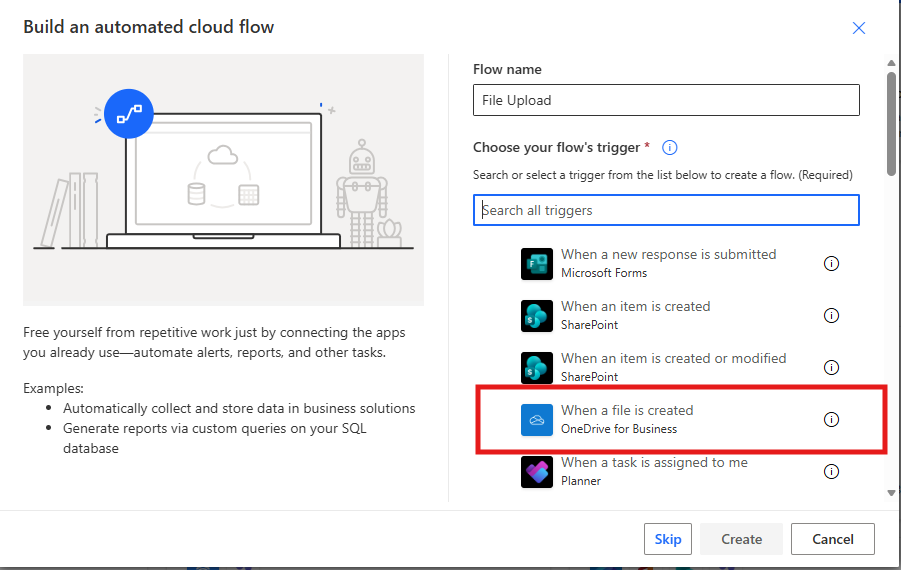
2. Give your flow a name and choose your flow trigger
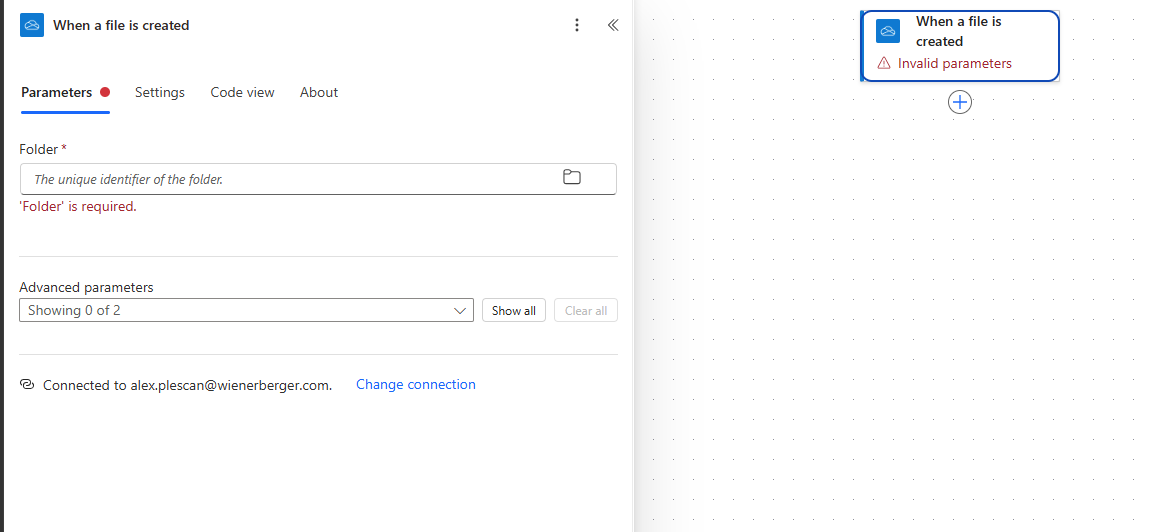
3. In this case, we will choose When a file is created and select the folder we want to work with.
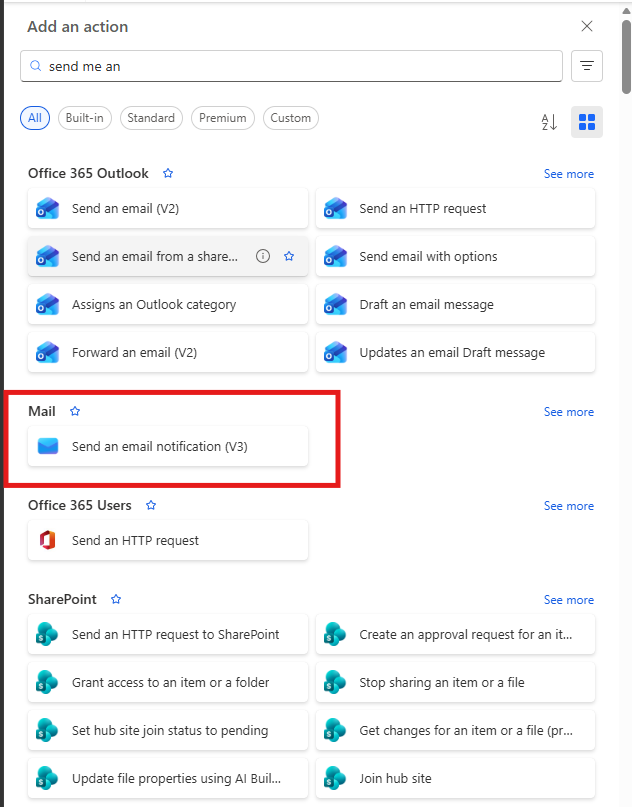
4. Next, click on New step and search for the action called Send me an email notification.
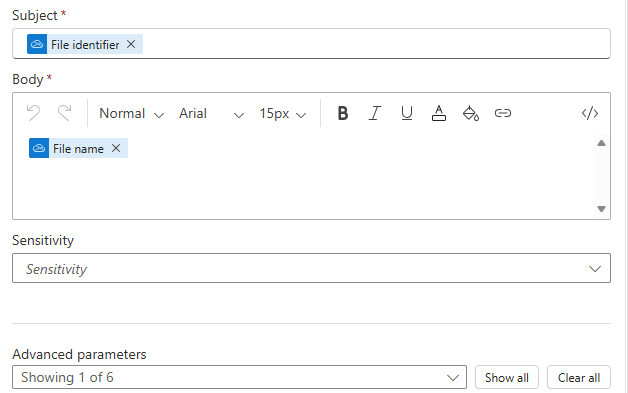
5. In these fields, enter your email address or another recipient’s email address, choose a subject (e.g., New File Uploaded), and add a message in the body, such as:
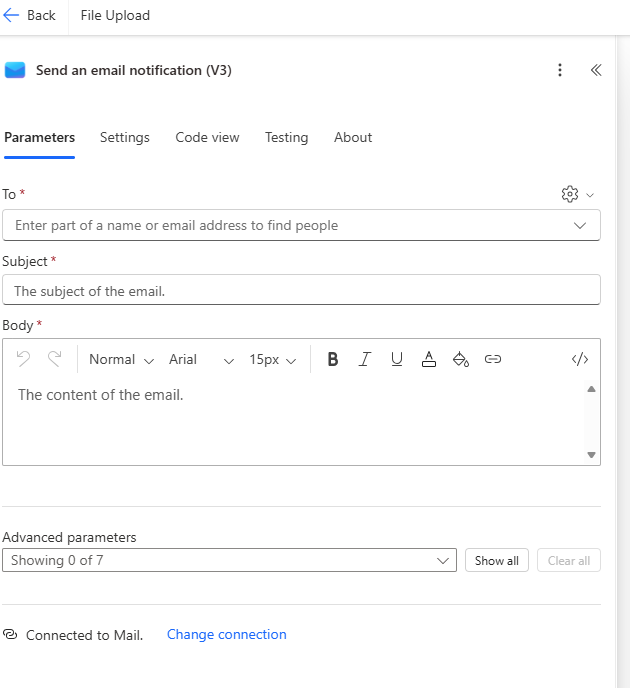
In Power Automate, use the Dynamic content options to automatically insert the file name and creation date instead of typing [File Name] and [Created Time] manually. Also, the exact names of the trigger and action may vary depending on the connector used.
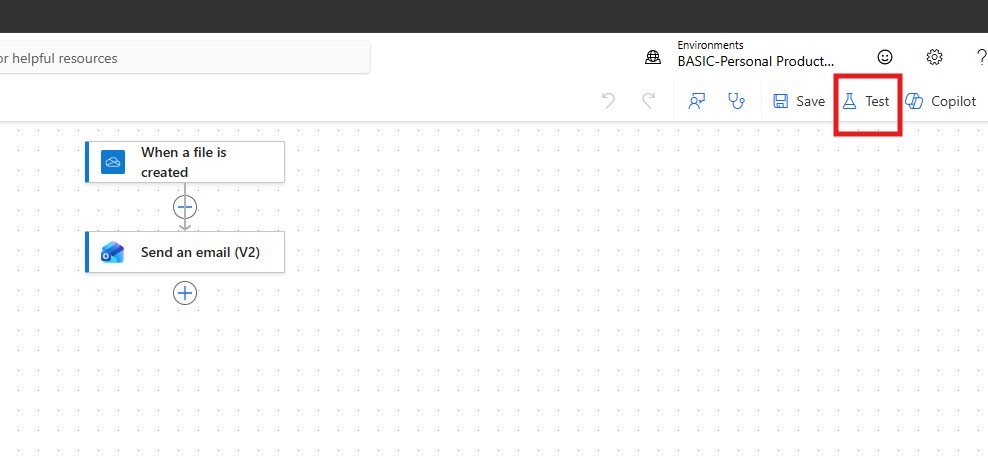
6. In the next step, we will test our flow. Click on Test and choose Manually. Then, create a new file in the selected folder and wait for an email notification to check if the flow works correctly.
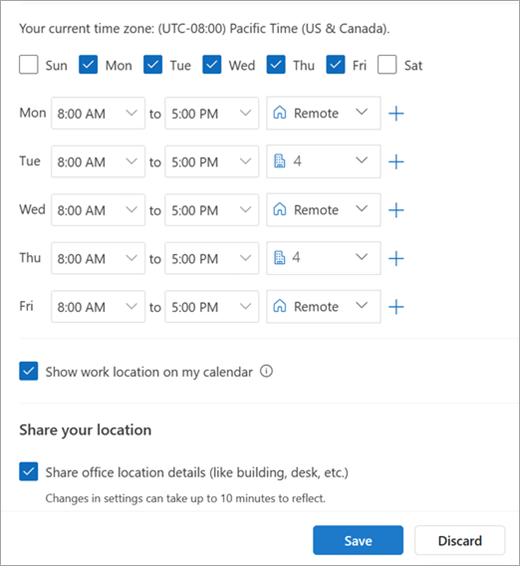
Configurarea programului de lucru și a locației în Microsoft Outlook este utilă pentru o mai bună organizare a activității profesionale. Această funcție permite colegilor să vizualizeze programul de lucru și locația de unde îți desfășori activitatea.