
Situatie
To verify a Windows 11 ISO file download, use these steps:
Solutie
1. Open Start
2. Search for PowerShell, right-click the top result, and select the Run as administrator option
3. Type the following command to verify the ISO file and press Enter:
Get-FileHash C:\PATH\TO\Windows11_Client_x64_en-us_26300_9457.isoGet-FileHash C:\PATH\TO\Windows11_Client_x64_en-us_26300_9457.iso
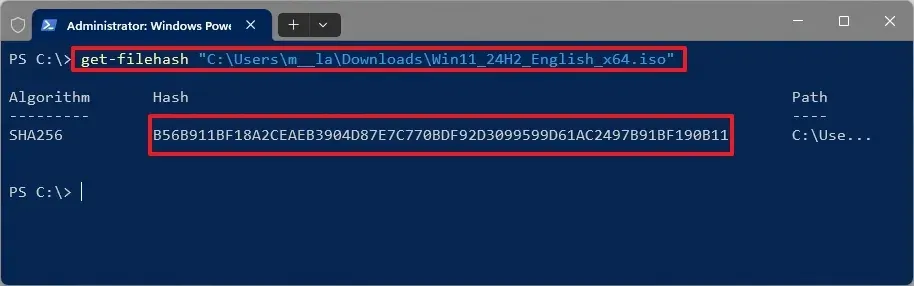
4. In the command, update the path with the location and the name of the Windows 11 ISO file
5. Confirm the SHA256 (hash) output with the information below.
Quick tip: You can copy the output and use the “Ctrl + F” shortcut to find the hash in the list below.
After you complete the steps, you can confirm whether the file is corrupted, tampered with, or altered from the original.
Leave A Comment?