How to automatically logoff disconnected users after a certain period of time
Remote desktop service allows users to disconnect from the RDP session without logging them off which will continue to consume systems resources until it will be signed out.The proper way to end a session is by going to Start and choosing Sign Out/ Logoff depending on your operating system, not closing the window via the X button.
In order to prevent issue, you can use Group Policy to specify a certain time limit after which the disconnected sessions will be terminated.
Open either Local Group Policy Editor(Windows Key+R and type gpedit.msc) if you want to set this locally, or Group Policy Management Console(Windows Key+R and type gpmc.msc) if you want to deploy it via AD policy on multiple machines at once.
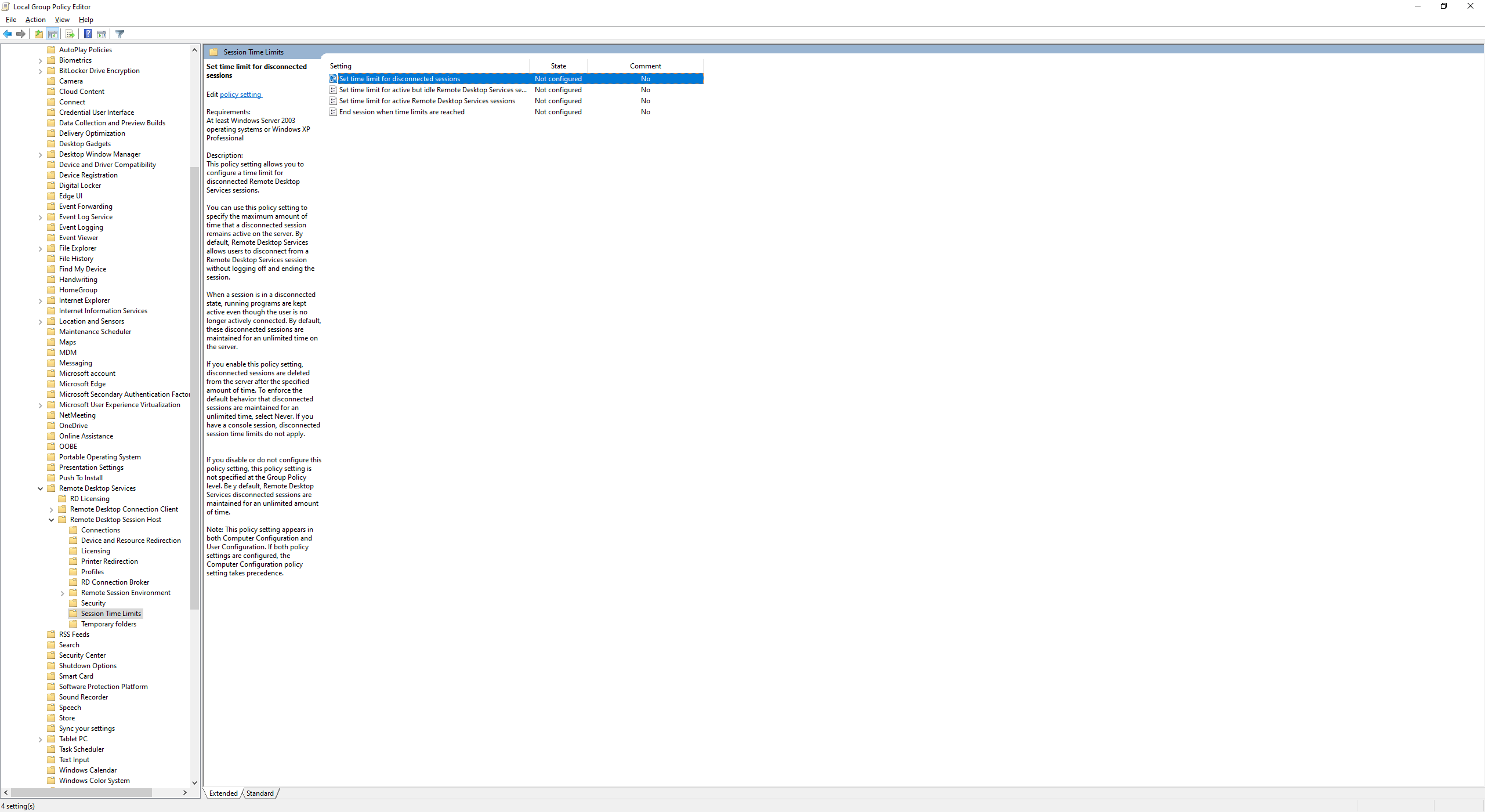
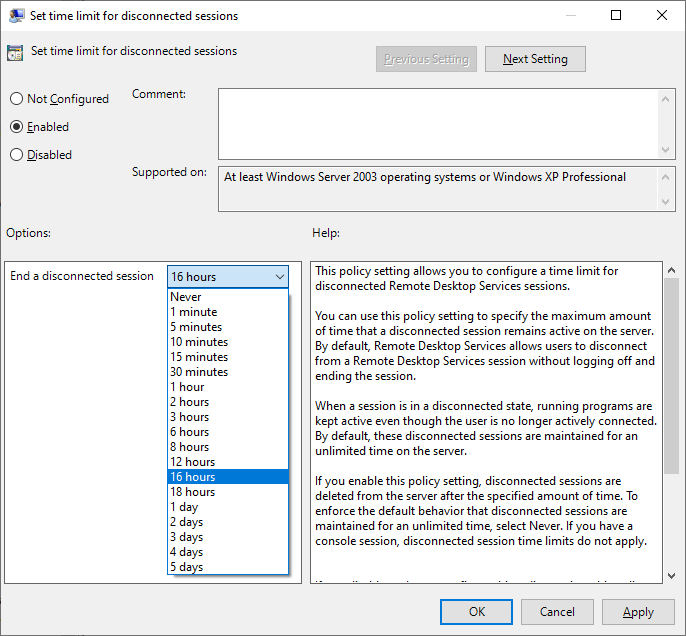
Now, go to Computer Configuration->Administrative Template->Windows Components->Remote Desktop Services->Session Time Limits and double click on Set time limit for disconnected sessions. In the new window, just click on Enabled and choose the duration that you want followed by clicking Apply.
You can force this policy afterwards by opening a CMD and typing gpupdate /force .