Containers pe Windows 2016
Instalarea modului Container.
[mai mult...]
Soluții pentru problemele tale IT
Instalarea modului Container.
[mai mult...]Cum se poate configura Network Access Account in SCCM
[mai mult...]Dorim sa share-uim un fisier sau un folder gazduit pe NAS-ul Synology cu un utilizator din alta tara fara a oferi acces la alte documente stocate pe acesta si cu o perioada limitata de timp.
[mai mult...]
There’s no way to leave email conversations if someone accidentally hits the “Reply All” button. What you can do is mute the conversation on your end to disable notifications. Here’s how to mute threads on your iPhone, iPad, or Mac using the Mail app.
To mute a thread on an iPhone or iPad, you need to be running iOS 13 or iPadOS 13 and higher.
There are two ways to do this. The first works without even opening the email. You can also mute a message from the reply menu.
If you’re in the Inbox, swipe left on an email and select the “More” option.

From the popup, tap on the “Mute” button.

The email will now have a small “Bell” icon to tell you that the thread has been muted.

If the email is already open, tap on the “Reply” button from the bottom-right corner.

Then, scroll down a bit until you see the “Mute” option. Tap on the button to mute the thread.

If you want to unmute the thread later on, follow the same process, and tap on the “Unmute” option.

Open the Mail app on your Mac that’s running macOS Catalina. Next, select an email or multiple emails. From the top toolbar, locate the “Bell” icon and click on it.

The icon will change to a bell icon with a dash across it. This means that the conversation has been muted.
You can also mute a conversation by right-clicking on an email from the list view and selecting the “Mute” option.

To unmute a thread, click on the “mute” button from the toolbar again.

This is just one of the new features in iOS 13. Take a look at our best new features list for iOS 13, and once you update, make sure to try the new Dark mode.
[mai mult...]Windows Spotlight este o opțiune pentru ecranul de blocare, disponibilă în Windows 10 (Home, Pro, Enterprise etc.), care afișează diferite imagini de fundal și oferă ocazional sugestii.
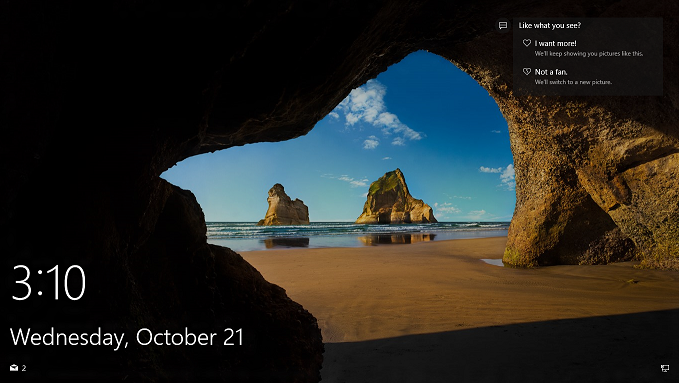
Putem dezactiva Windows Spotlight dacă urmăm pașii de mai jos.
[mai mult...]Deși Windows 10 este un sistem de operare excelent, acesta nu va fi pentru toată lumea și s-ar putea să constatați că nu vă place noul sistem de operare și doriți să reveniți la Windows 7 sau Windows 8.1 prin dezinstalarea Windows 10 și revenirea la versiunea dvs. anterioară a Windowsului.
Vestea bună este că acest proces de retrogradare este destul de simplu, mai ales dacă ai actualizat recent Windows 10 în ultimele 30 de zile.
Dacă a trecut mai mult de la actualizare sau ați efectuat o instalare curată a Windows 10 (sau ați cumpărat un computer cu Windows 10 preinstalat), atunci procesul este ceva mai complicat. În acest ghid, vom analiza toate modalitățile prin care puteți să faceți decalări de la Windows 10 și să reveniți la Windows 7 sau Windows 8.1.
[mai mult...]