
Situatie
Solutie
I’ve had multiple negative experiences with Microsoft OneDrive, so I suggest that you disable and uninstall it on a fresh Windows 11 installation and use an alternative file-syncing solution if you need that functionality. You can use Proton Drive, which is a pretty solid option with free and paid plans, or a free and open-source alternative such as Syncthing.
Once you’ve downloaded your files, click the OneDrive icon on the taskbar and open the OneDrive dashboard. From there, click the gear icon and then Settings. Next, open the Account tab and click Unlink this PC. Once the confirmation dialog window opens, click Unlink account.
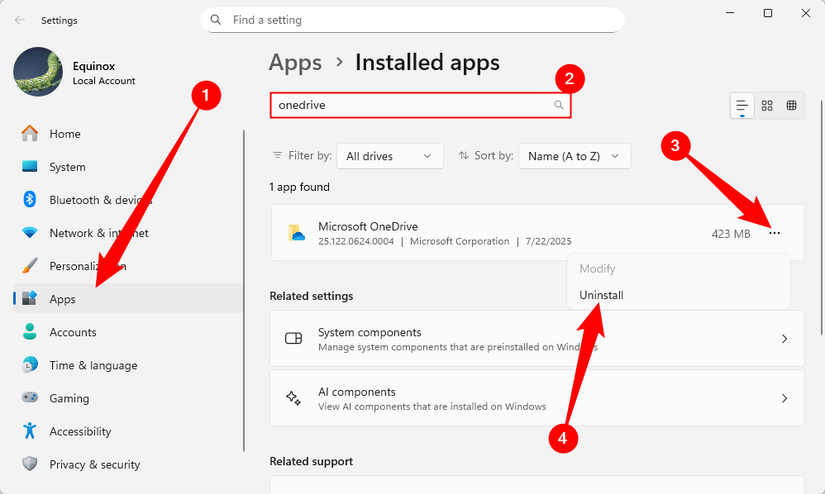
Now you can uninstall OneDrive, which is fairly simple. All you need to do is open Settings, go to Apps > Installed apps, locate OneDrive (or search for it), click the three-dot menu, and select Uninstall.
Leave A Comment?