
Situatie
Solutie
1. Define the Output (CSV Export)
First, we define where the report will be saved.

2. Collect Core System Information (WMI / CIM)
We use CIM classes because they’re modern, fast, and reliable.

Collected data includes:
- Manufacturer & model
- Logged-in user
- OS version
- Disk size & free space
- BIOS serial number (critical for asset tracking)
3. Detect Device Type (Laptop vs Desktop)
This is done via chassis type.

4. Measure Performance Metrics
CPU Load
Uses Windows performance counters:
RAM Usage
Calculated manually for accuracy:
Disk Free Space

5. Calculate Uptime (Stability Indicator)
Why uptime matters:
- Excessive uptime often = memory leaks, instability
- No reboot in months = user avoidance or broken updates

6. Security & Windows 11 Compatibility Checks

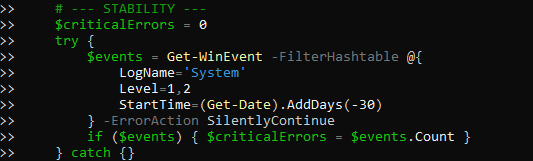
7. Stability Analysis (Event Logs)
We count critical + error events from the last 30 days:
8. Scoring Logic
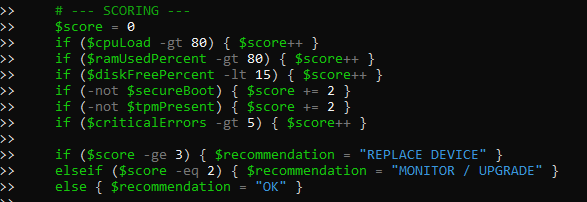
Each risk factor adds points:
| Condition | Score Impact |
| High CPU | +1 |
| High RAM | +1 |
| Low Disk | +1 |
| No Secure Boot | +2 |
| No TPM | +2 |
| Many errors | +1 |
9. Build the Report Object
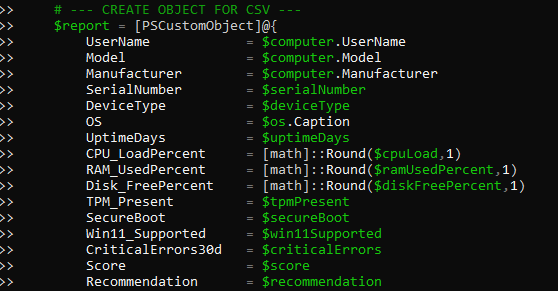
Everything is stored in a structured object
This ensures clean CSV columns.
10. Export (Append-Safe)
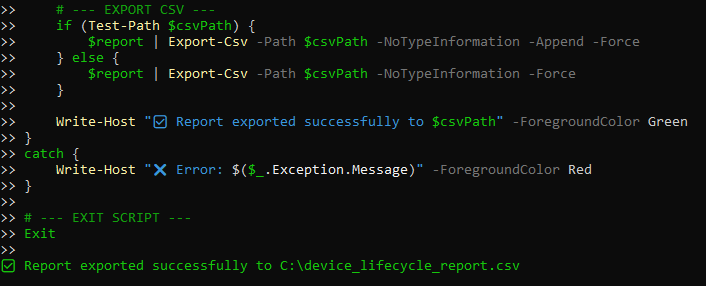
So you can:
- Run it on 1 device
- Or 500 devices via Intune
How to Run the PowerShell Lifecycle Assessment Script
Open PowerShell (Correct Way)
-
Press Start
-
Type PowerShell
-
Right-click → Run as Administrator
Admin rights are required for:
-
Secure Boot check
-
TPM detection
-
Event log access
Run script:
# ========================================
# IT Laptop Lifecycle Assessment – CSV Export
# ========================================
$csvPath = “C:\device_lifecycle_report.csv”
try {
# — SYSTEM INFO —
$computer = Get-CimInstance Win32_ComputerSystem
$os = Get-CimInstance Win32_OperatingSystem
$disk = Get-CimInstance Win32_LogicalDisk -Filter “DeviceID=’C:'”
$bios = Get-CimInstance Win32_BIOS
$serialNumber = $bios.SerialNumber
# DeviceType detection
$chassis = Get-CimInstance Win32_SystemEnclosure
$chassisTypeCode = if ($chassis.ChassisTypes) { $chassis.ChassisTypes[0] } else { 0 }
switch ($chassisTypeCode) {
8 { $deviceType = “Laptop” }
9 { $deviceType = “Laptop” }
10 { $deviceType = “Laptop” }
default { $deviceType = “Desktop” }
}
# — PERFORMANCE —
$cpuLoad = 0
$ramUsedPercent = 0
$diskFreePercent = 0
try {
$cpuLoad = (Get-Counter ‘\Processor(_Total)\% Processor Time’).CounterSamples.CookedValue
$ramUsedPercent = (($os.TotalVisibleMemorySize – $os.FreePhysicalMemory) / $os.TotalVisibleMemorySize) * 100
$diskFreePercent = ($disk.FreeSpace / $disk.Size) * 100
} catch {}
$lastBoot = $os.LastBootUpTime
$uptimeDays = [math]::Round(((Get-Date) – $lastBoot).TotalDays,2)
# — SECURITY & COMPATIBILITY —
$secureBoot = $false
try { $secureBoot = Confirm-SecureBootUEFI -ErrorAction Stop } catch {}
$tpmPresent = $false
try { $tpmPresent = (Get-Tpm).TpmPresent } catch {}
$win11Supported = ($tpmPresent -eq $true -and $secureBoot -eq $true)
# — STABILITY —
$criticalErrors = 0
try {
$events = Get-WinEvent -FilterHashtable @{
LogName=’System’
Level=1,2
StartTime=(Get-Date).AddDays(-30)
} -ErrorAction SilentlyContinue
if ($events) { $criticalErrors = $events.Count }
} catch {}
# — SCORING —
$score = 0
if ($cpuLoad -gt 80) { $score++ }
if ($ramUsedPercent -gt 80) { $score++ }
if ($diskFreePercent -lt 15) { $score++ }
if (-not $secureBoot) { $score += 2 }
if (-not $tpmPresent) { $score += 2 }
if ($criticalErrors -gt 5) { $score++ }
if ($score -ge 3) { $recommendation = “REPLACE DEVICE” }
elseif ($score -eq 2) { $recommendation = “MONITOR / UPGRADE” }
else { $recommendation = “OK” }
# — CREATE OBJECT FOR CSV —
$report = [PSCustomObject]@{
UserName = $computer.UserName
Model = $computer.Model
Manufacturer = $computer.Manufacturer
SerialNumber = $serialNumber
DeviceType = $deviceType
OS = $os.Caption
UptimeDays = $uptimeDays
CPU_LoadPercent = [math]::Round($cpuLoad,1)
RAM_UsedPercent = [math]::Round($ramUsedPercent,1)
Disk_FreePercent = [math]::Round($diskFreePercent,1)
TPM_Present = $tpmPresent
SecureBoot = $secureBoot
Win11_Supported = $win11Supported
CriticalErrors30d = $criticalErrors
Score = $score
Recommendation = $recommendation
}
# — EXPORT CSV —
if (Test-Path $csvPath) {
$report | Export-Csv -Path $csvPath -NoTypeInformation -Append -Force
} else {
$report | Export-Csv -Path $csvPath -NoTypeInformation -Force
}
Write-Host “✅ Report exported successfully to $csvPath” -ForegroundColor Green
}
catch {
Write-Host “❌ Error: $($_.Exception.Message)” -ForegroundColor Red
}
# — EXIT SCRIPT —
Exit
Verify the Output:
C:\device_lifecycle_report.csv
You should see columns like:
-
UserName
-
Model
-
SerialNumber
-
DeviceType
-
CPU_LoadPercent
-
TPM_Present
-
Recommendation
Each execution:
-
Adds one new row
-
Does NOT overwrite previous results.

Leave A Comment?